






Easiest Method to Create SCCM WQL Queries for Automation Tasks Collection Creation
Let’s find out the easiest method to create SCCM WQL queries. The SCCM WQL queries are used in dynamic collections and automation tasks for SCCM/ConfigMgr, Using dynamic collections, you can add devices/users to a particular collection based on the criteria. I have seen many SCCM admins asking for WQL queries for different scenarios.
There are seventeen (17) default or out-of-box WQL queries are available in the Configuration Manager console itself. I have many posts that explain the WQL queries and dynamic collections. I have explained how to Create SCCM dynamic device Collection for Visual Studio Upgrade using a WQL query.
The WQL queries are extremely powerful, and you must be very careful about the performance side of WQL queries. I have explained the best practices that you will need to keep in mind while building the queries. There is an option to validate the dynamic query, and it’s beneficial.
WQL Query from SMS Provider Log
The WMI queries can be easily copied from the SMS Provider log (SMSProv.log). You can catch very complex WQL queries from the SMSProv.log file. This is super useful in many scenarios. You just need to check or use the filter option in the CMTrace log file reader.

- Use the filter “WQL” to filter out the WQL queries.
- One example -? Execute WQL
Sample Queries
select SecretKeyExpiry from SMS_AAD_Application_Ex aae inner join SMS_AAD_Tenant_Ex ate on aae.TenantDB_ID = ate.ID where aae.IsClientApp = 0 and aae.Source=2

SELECT Id, GroupID, RuleDescription, IsVisible, NotificationActionType, NotificationActionDetail FROM SMS_ManagementInsights WHERE IsNotification = 1

SELECT SMSAvailableConsoleVersion from SMS_Identification

SELECT FileVersion from SMS_ConsoleSetupInfo WHERE FileName = 'ConfigMgr.AC_Extension.i386.cab'

select Count(*) from SMS_PERMISSION where CategoryID="SMS00ALL" AND RoleID="SMS0001R" AND LogonName="MEMCM\\anoop"

select PackageGuid, DateReleased from SMS_CM_UpdatePackages where state = 262146 order by DateReleased DESC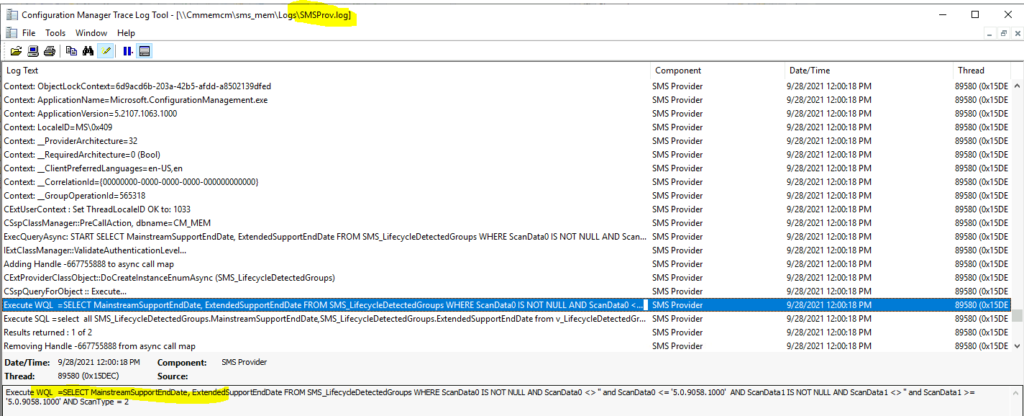
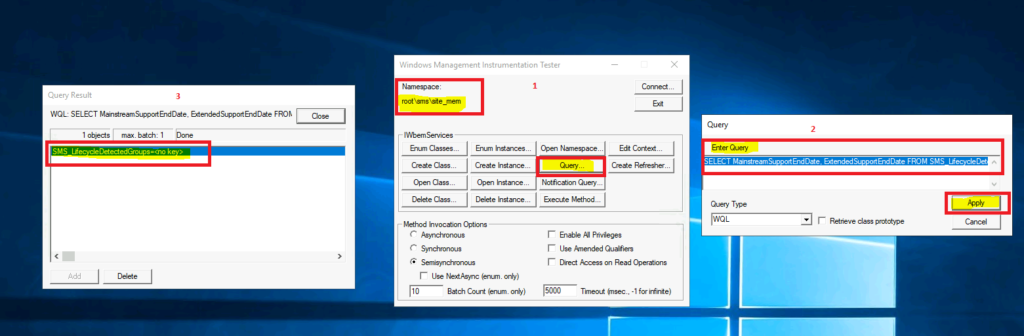
You can use the same query in the WBEMTest.exe -> query option to confirm whether this WQL query works or not. You can read more about the WBEMTEST tool from 3 Free SCCM Admin Tools for Advanced Troubleshooting post.
Default List of SCCM WQL Queries
The following table provides the default list of SCCM WQL queries. These are the queries available as default to help SCCM admins to get used to the WQL building process and more. As you can see below, there are 17 default queries available.
- All the Default WQL Queries start with SMSXXX as query ID.
- The custom WQL queries created by SCCM admin start with the primary server side code.
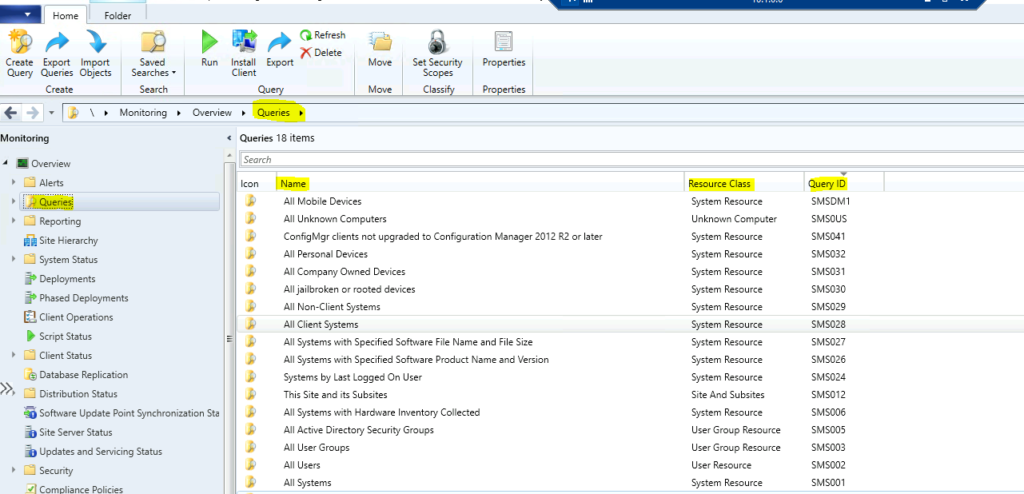
Most of the default WQL queries are useful. However, some of them are not really useful for most scenarios, especially those for mobile devices. I hope most of you are reading this post are not using the on-prem MDM feature of SCCM. In the below section, you will find out the easiest method to Create SCCM WQL Queries.
| List of SCCM WQL Queries (Default) | Category | Useful for SCCM Collection |
|---|---|---|
| All Systems | Device-Based | Yes |
| All Users | User-Based | Yes |
| All User Groups | User Group Based | Yes |
| All Active Directory Security Groups | User Group Based | Yes |
| All systems with Hardware Inventory Collected | Device-Based | Yes |
| This Site and its Subsites | AD Sites and Subsites | Maybe? |
| Systems by Last Logged On User | Device-Based | Yes |
| All Systems with Specified Software Product Name and Version | Device-Based | Yes |
| All System with Specified Software File Name and File Size | Device-Based | Yes |
| All Client Systems | Device-Based | Yes |
| All Non-Client Systems | Device-Based | Yes |
| All Jailbroken or rooted devices | Mobile | No |
| All Company-Owned Devices | Mobile | No |
| All Personal Devices | Mobile | No |
| ConfigMgr clients not upgraded to Configuration Manager 2012 R2 or later | Device-Based | Yes |
| All Unknown Computers | Device-Based | Yes |
| All Mobile Devices | Mobile | No |
Easiest Method to Create SCCM WQL Queries
Let’s check now what is the easiest method to create SCCM WQL queries. The following are some of the tips to build custom WQL queries for dynamic collection easily. Take an example scenario where you need to build a query to find the latest hardware inventory information.
This Acrobat reader WQL query to create dynamic collection devices for the upgrade or some other scenarios. You will need to consider the best practices of collection creation before creating this type of collection in a production environment to avoid any performance issues.
You can look at the available queries in the console and build your own custom query for Acrobat Reader. Let’s have a quick look at the All Systems with Hardware Inventory Collected query.
- Navigate to \Monitoring\Overview\Queries.
- Select the query called All Systems with Hardware Inventory Collected and right-click -> properties.
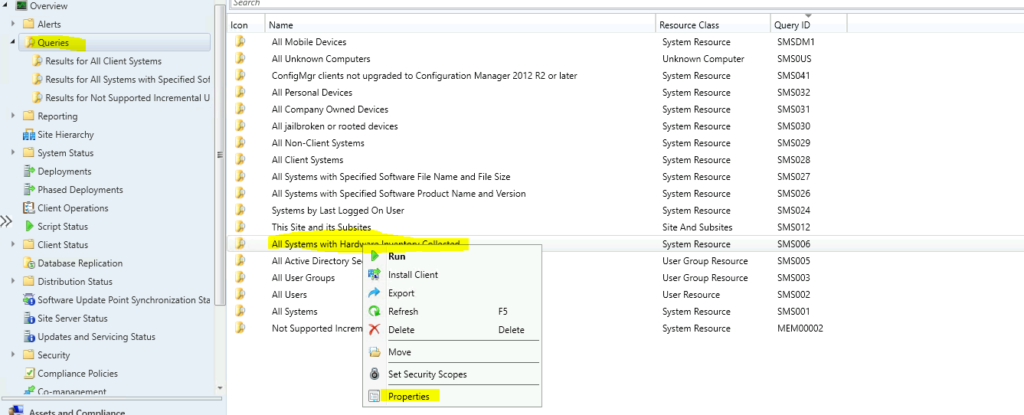
Let’s have a look at the WQL query available for the default query. The query type is System Resource. You can click on the Edit Query Statement button to see more details. You can use any of the sample queries from the default List of SCCM WQL Queries.
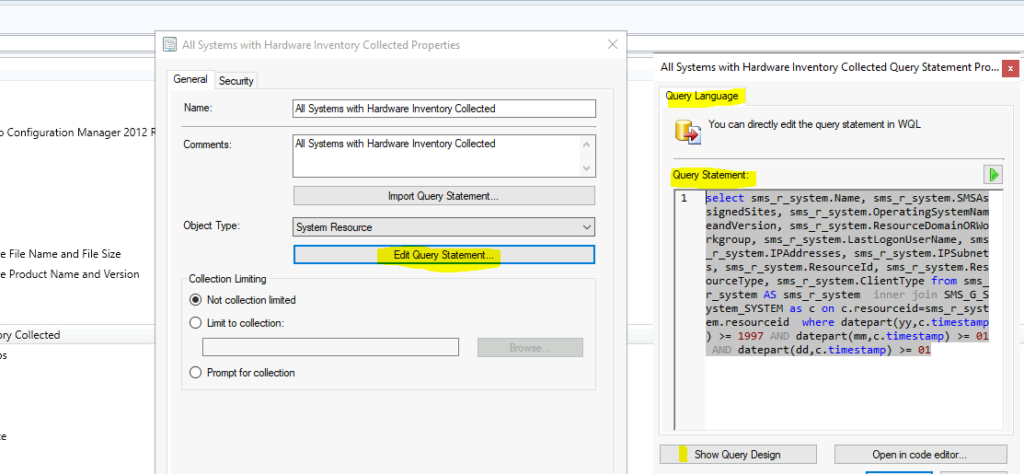
You can now check the WQL query by clicking on the Show Query Language button and copy it. We will use the copy of this query in the next steps to develop our own custom query with the custom timeline.
NOTE! – If in case, ##PRM:SMS_G_System_SoftwareProduct.ProductName## is there in WQL query ? This is in place to get the input from the user. However, this is not going to be a useful dynamic collection. I will try to replace those values with Acrobat Reader or something in the below section.
select sms_r_system.Name, sms_r_system.SMSAssignedSites, sms_r_system.OperatingSystemNameandVersion, sms_r_system.ResourceDomainORWorkgroup, sms_r_system.LastLogonUserName, sms_r_system.IPAddresses, sms_r_system.IPSubnets, sms_r_system.ResourceId, sms_r_system.ResourceType, sms_r_system.ClientType from sms_r_system AS sms_r_system inner join SMS_G_System_SYSTEM as c on c.resourceid=sms_r_system.resourceid where datepart(yy,c.timestamp) >= 1997 AND datepart(mm,c.timestamp) >= 01 AND datepart(dd,c.timestamp) >= 01
Create a WQL Query to Group Devices with latest Hardware Inventory Information
Let’s create the query to group the devices with the latest hardware inventory from the default list of SCCM WQL Queries. I’m going to use the same query that is copied from the above section of the post. There are a couple of things you need to remember and understand before creating the custom WQL query.
The scenario here is the dynamic collection for hardware inventory scenario, and you need only the device name of the creating a dynamic device collection in SCCM. So, the rest of the details/properties are not relevant or required for this scenario.
- Let’s create a new query by clicking on Create Query button from the Ribbon menu.
- Enter the name of the Query -> Latest Hardware Inventory Query.
- Click on Edit Query Statement button and copy the query from above section as shown below.
- Click on Open in Code Editor to continue.
NOTE! – Open code editor option will be available only with SCCM 2107 or later. You can follow the same steps with the dynamic collection creation wizard.
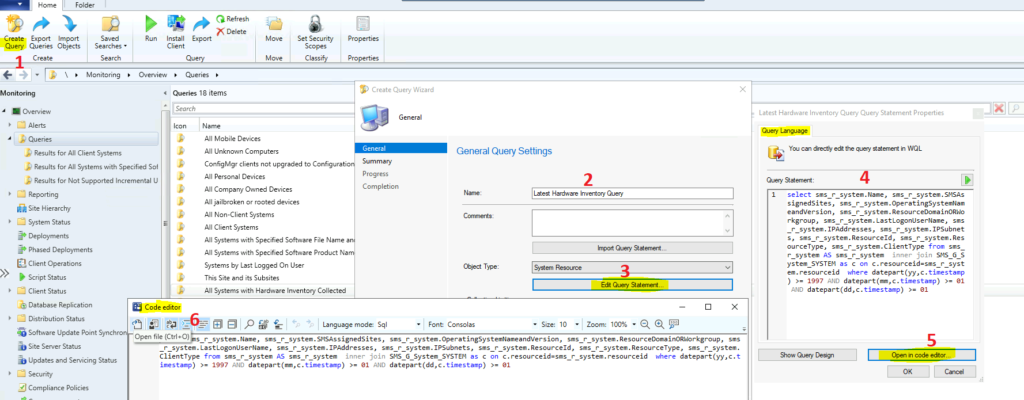
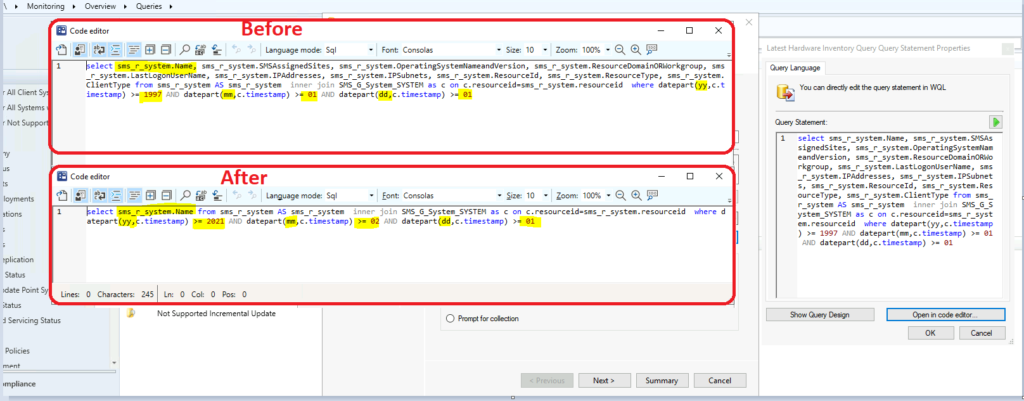
Now it’s time to edit the query and add the Year, Month, and Date of the latest hardware inventory collection. Also, I have removed all the unwanted items from the select part of the query.
NOTE! – Try to avoid Select *, like, %, etc… to improve the performance of the WQL query. But, we can’t avoid all of these in some scenarios.
select sms_r_system.Name from sms_r_system AS sms_r_system inner join SMS_G_System_SYSTEM as c on c.resourceid=sms_r_system.resourceid where datepart(yy,c.timestamp) >= 2021 AND datepart(mm,c.timestamp) >= 02 AND datepart(dd,c.timestamp) >= 01
NOTE! – You need to be careful about separating date, month, and year properties with the datepart option. This doesn’t imply it will check for a particular date. All these properties are treated and checked as independent properties.
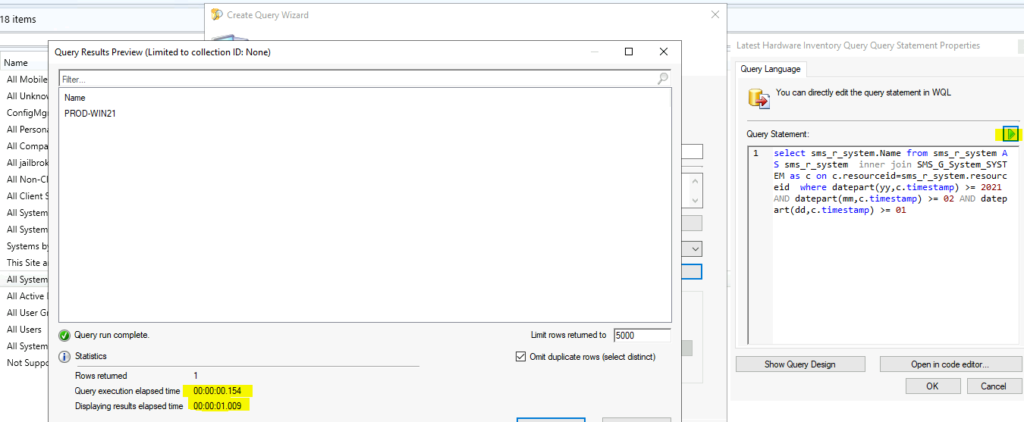
Results – Easiest Method to Create SCCM WQL Queries
Now you can check the results of the query using the following method. Once validated, you can create a dynamic collection with the same query. You can use any of the sample queries from the default List of SCCM WQL Queries.
You can verify whether the collection query is correct or not by clicking on the Green play button. Verify SCCM Collection Query Preview Tool is always useful in this kind of scenario.
Anoop is Microsoft MVP! He is a Solution Architect in enterprise client management with over 17 years of experience (calculation done in 2018). He is Blogger, Speaker, and Local User Group HTMD Community leader. His main focus is on Device Management technologies like SCCM 2012, Current Branch, and Intune. He writes about ConfigMgr, Windows 11, Windows 10, Azure AD, Microsoft Intune, Windows 365, AVD, etc…..…




When I use Asset Intelligence / Inventoried Software and then filter it for the exact name of the software I get a total of 108. Then I go to Monitoring/Queries/All Systems with Specified Software Product Name and Version and type in the same name and version # and get only 72 as the count. I’m confused.
StaffI have seen this kind of inconsistency before. It’s worth digging deeper into one of the systems missing from Monitoring/Queries/All Systems and try to understand why it’s not showing up in the Monitoring/Queries/All Systems.
Lets say I want to build a Collection membership rule that finds systems that are missing one particular Hardware Class?