






Simplify Microsoft Edge Updates Management with Windows Autopatch
Hi all, Today, we are discussing Simplify Microsoft Edge Updates Management with Windows Autopatch. As we all know, Windows Autopatch is a cloud service from Microsoft that automates the updating process for Windows and Microsoft software on organizational devices.
It also integrates with Microsoft Endpoint Manager and helps IT admins manage routine updates, allowing them to focus on more critical tasks. As you know, updates are very important. A crucial feature for IT professionals is managing Microsoft Edge updates through Windows Autopatch.
This functionality in Windows Autopatch allows organizations to deploy browser updates in a controlled and stable manner. IT professionals can safely and efficiently introduce new updates by utilizing different channels, which is very helpful.
Windows Autopatch is a Microsoft cloud service that automates updating Windows and Microsoft software on an organization’s devices. In this post, we’ll look at how Microsoft Edge updates through Windows Autopatch.

Table of Contents
Simplify Microsoft Edge Updates Management with Windows Autopatch
Above, we discuss many things about Microsoft Edge updates through Windows Autopatch and look at an overview of Windows Autopatch. This demo shows how Windows Autopatch makes managing Edge updates easier for IT professionals. You’ll see how they can enable updates for Edge and choose which servicing channels receive them, all with just a few simple steps.
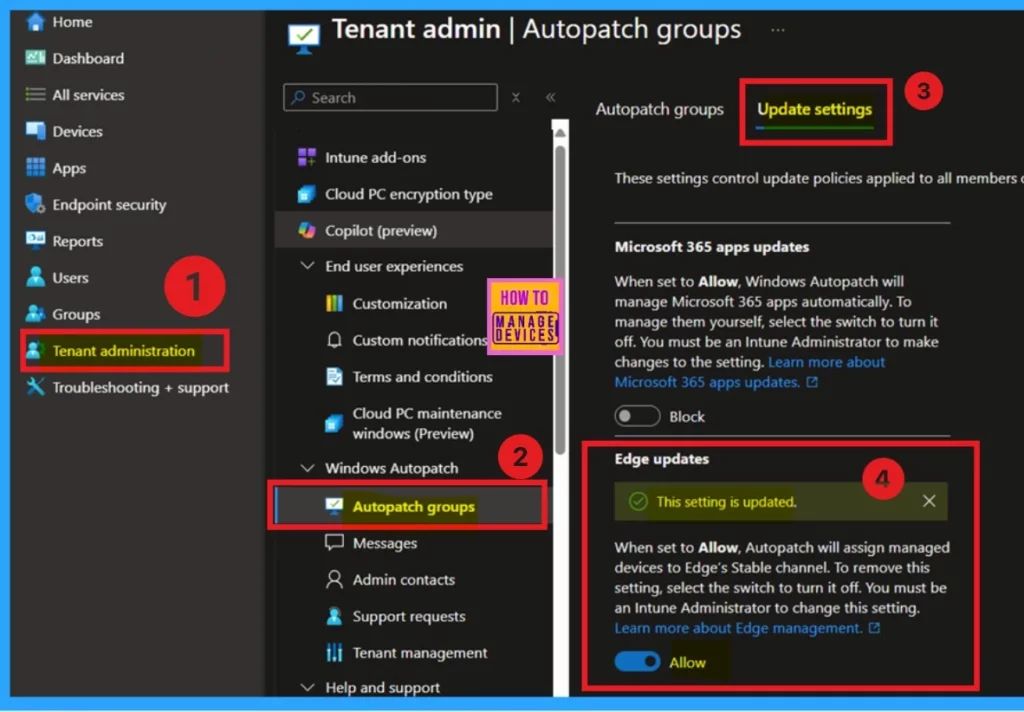
- First, log in to the Microsoft Intune admin center
- Go to the tenant administrator, then select the Autopatch groups.
- The right pane shows the Update settings for the Autopatch. Click on that.
- Toggle Edge updates to “Allow.”
- Once enabled, Autopatch will create policies and assign device groups to manage Edge update channels.
- Introducing the New Explore with Copilot Feature in Autopatch for Intune
- Upgrade Windows 10 using Windows Autopatch in Intune | Ring-Based Deployment
- Windows Autopatch Implementation Setup Guide
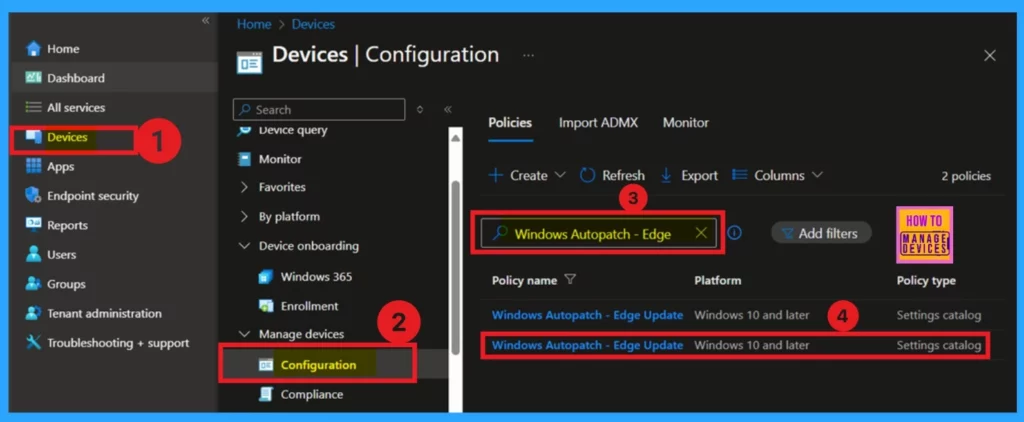
Once enabled, Autopatch will create policies and assign device groups to manage Edge update channels, which include Beta and Stable. To control Edge updates, go to Devices, select Manage Devices Configuration, and check the Policies section. In the demo, select the Windows autopatch Stable Edge update policy.
To control Edge updates, go to the Policies section. Here, you can manage the Windows Autopatch Edge update channels, which include the Beta and Stable channels. The Broad, Fast, and First groups default to the Stable channel.
- You can choose the Stable policy to ensure that devices receive updates from this channel.
| Beta | Stable |
|---|---|
| The Beta Channel is intended for production testing with a smaller representative group of users. | The Stable Channel is designed for broad deployment |
| New features are released every 4 weeks. | Delivers new features approximately every 4 weeks. |
| Security and quality updates are provided as needed | Based on the previous Beta Channel’s stabilized features. |
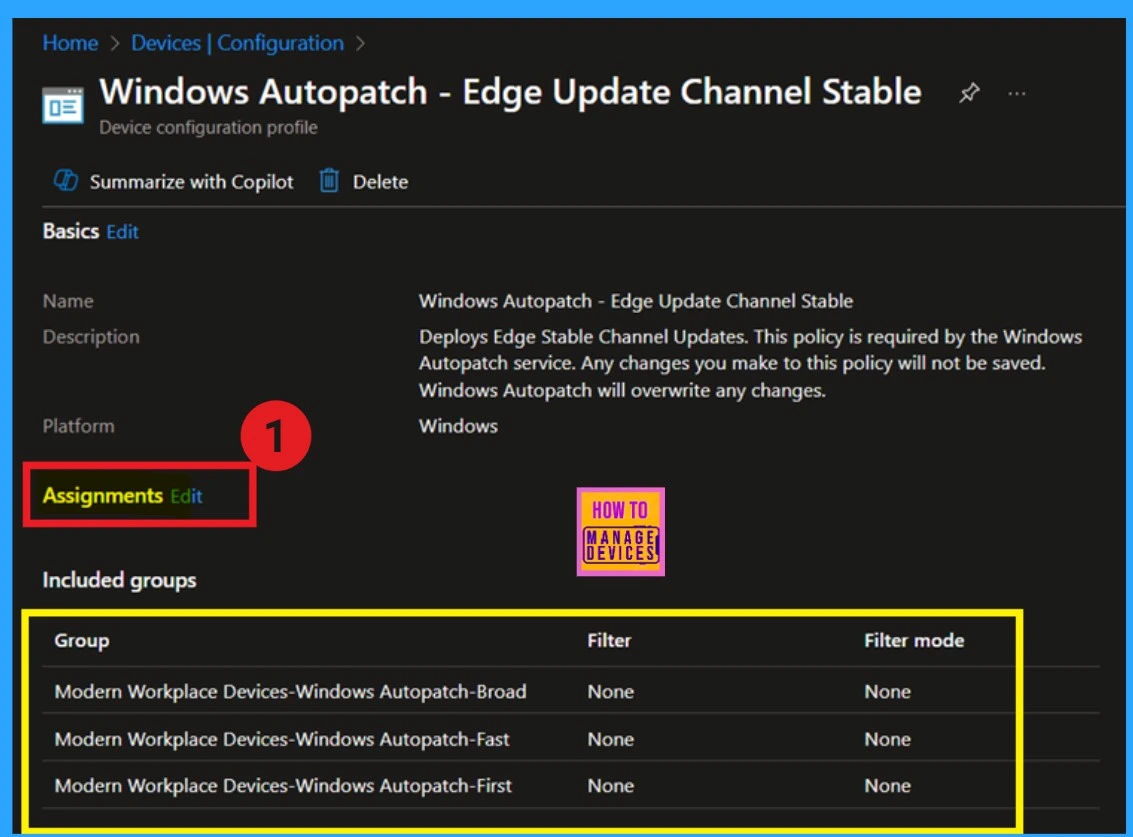
Customize Device Groups
You can easily modify the assignments to adjust which groups receive updates from specific channels. Click the Edit button next to Assignments. This will allow you to customize which device groups are linked to the Beta or Stable Channel.
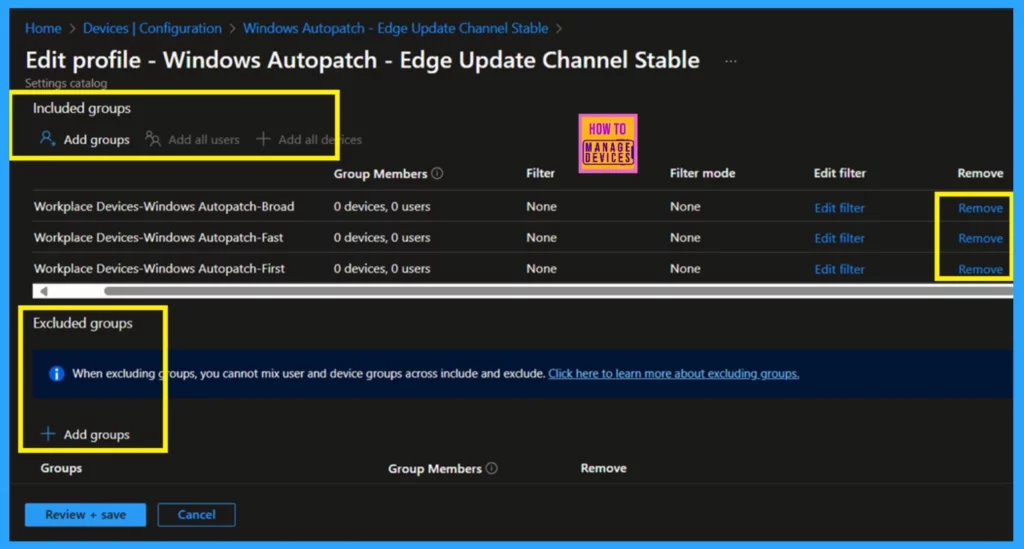
In the Edit profile, you can manage which devices receive updates from specific channels by adding, removing, or exploring device groups. If you want more devices to receive early updates for testing from the Beta Channel, you can assign additional device groups to either the Beta or Stable Channel as needed.
- If you wish to stop a group from receiving updates from a particular channel, you can easily remove them from the assignment.
- You can review existing device groups and decide which channels to assign them to, giving you better control over the type of updates each device receives.
- Adding the group under the Include will help to add the group to receive updates.
- The “ Add group under Exclude can be used to exclude the group from getting the update.
Once you’ve made your adjustments, save the changes. Autopatch will automatically apply the new assignments, ensuring that devices within each group receive updates from the correct channel.
Resource
Windows Autopatch: Your playbook for advanced update management
Need Further Assistance or Have Technical Questions?
Join the LinkedIn Page and Telegram group to get the latest step-by-step guides and news updates. Join our Meetup Page to participate in User group meetings. Also, join the WhatsApp Community to get the latest news on Microsoft Technologies. We are there on Reddit
Author
Author
Anoop C Nair has been Microsoft MVP for 10 consecutive years from 2015 onwards. He is a Workplace Solution Architect with more than 22+ years of experience in Workplace technologies. He is a Blogger, Speaker, and Local User Group Community leader. His primary focus is on Device Management technologies like SCCM and Intune. He writes about technologies like Intune, SCCM, Windows, Cloud PC, Windows, Entra, Microsoft Security, Career, etc.


Discussion