






Add Microsoft Intune Devices to Group Membership using Microsoft Graph API and PowerShell Script
In this article, we will learn how to add Microsoft Intune Devices to Group Membership using Microsoft Graph API and PowerShell Script. You can use the same method to automate the addition of any resources to Microsoft Entra ID, Microsoft 365, or Security groups.
Microsoft Intune offers various methods for managing access to devices, applications, users, and tasks. By leveraging Microsoft Entra groups, administrators can assign access and permissions to groups of users or devices rather than managing each resource individually.
Groups enable resource owners or Microsoft Entra directory administrators to assign a predefined set of access permissions to all group members efficiently. Additionally, resource or directory owners can delegate group management rights to designated individuals, such as department managers or help desk administrators, allowing them to add or remove members as needed
It is important to note that when using the Microsoft Graph API and PowerShell scripts to add multiple members in a single request, you can include up to 20 entities. These entities can be users, devices, service principals, or other resources.

Table of Contents
Difference Security Groups and Microsoft 365 Groups
You may have noticed Security Groups and Microsoft 365 Groups when creating a new group in Microsoft Entra or Intune. But what are the differences between these two group types in Microsoft Entra ID? Let’s explore and understand them better.

Security Groups are used to manage access to shared resources. Members of a security group can include users, devices, and service principals. Additionally, both users and service principals can be designated as owners of an Entra ID security group. Security groups can also be nested within other groups, allowing for streamlined access management.
- Track All Intune Policy and App Assignments for Users Devices and Entra ID Groups with Assignment Checker
- How to Assign Custom Intune Role Based Access to Azure AD Groups using Microsoft Entra PIM
- Best Practices for Creating Entra ID Dynamic Groups for Intune
- Create AAD Dynamic Groups based on Domain Join Type Hybrid Azure AD and Azure AD
Microsoft 365 Groups are designed to work within Microsoft 365 applications such as Teams, SharePoint, and Outlook. Like security groups, both users and service principals can be assigned as owners of a Microsoft 365 group.
However, unlike security groups, Microsoft 365 groups can only include users. The following table shows the types of members that can be added to either security groups or Microsoft 365 groups. Thanks to Microsoft for the table.
| Object Type | Member of Security Group | Member of Microsoft 365 Group |
|---|---|---|
| User | YES | YES |
| Security group | YES | NO |
| Microsoft 365 group | NO | NO |
| Device | YES | NO |
| Service principal | YES | NO |
| Organizational contact | YES | NO |
What is Microsoft Graph?
Microsoft Graph is an API (Application programming interface) that provides a single endpoint for accessing data, intelligence, and insights from Microsoft 365 and other Microsoft Cloud services. It provides a single endpoint, https://graph.microsoft.com, that enables access to various data and insights in the Microsoft cloud, including Microsoft 365, Windows, and Enterprise Mobility + Security
- Best Guide to Restart Intune Devices Remotely using Microsoft Graph API and PowerShell
- Best Guide to Run Intune Device Query with Microsoft Graph API
- Automate Microsoft Intune Device Compliance Report using Graph API
This Microsoft Graph API is designed to perform the same range of Intune operations as those available through the Azure Portal. By using Microsoft Graph, developers can build intelligent applications that leverage the power of Microsoft 365 and other Microsoft services to enhance productivity and collaboration.
Driven by my passion for automation, I have always been intrigued by exploring Microsoft Graph API and PowerShell. Over time, I have authored numerous articles showcasing real-world applications of Microsoft Graph API.
Get Object ID of the Target Group
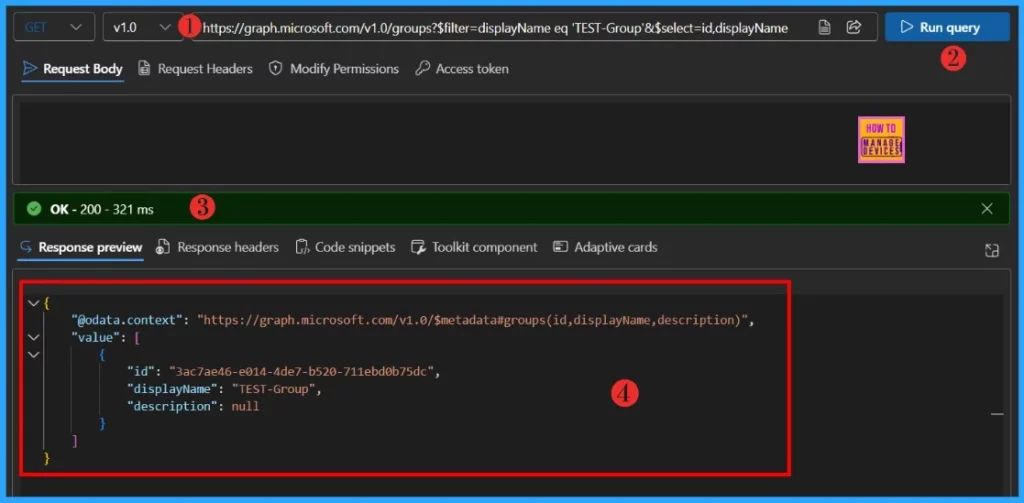
The below endpoint will retrieves the Group ID details for you. Here, you should note down the Object ID of the target group to proceed further.
- Sign in to the Graph Explorer with your credentials.
- Click on Run query after typing the URL below. You should use the GET API request method
https://graph.microsoft.com/v1.0/groups?$filter=displayName eq 'TEST-Group'&$select=id,displayName,descriptionMake sure to replace the group name, i.e., TEST-Group, with your group name. Within seconds of clicking Run query, you will receive a success message with the text ‘OK -200.’ The Response preview box will show the desired output. You should have at least GroupMember.Read.All permission to run the query. Make a note of the Object ID of the target group.
Get Object ID of the Target Device
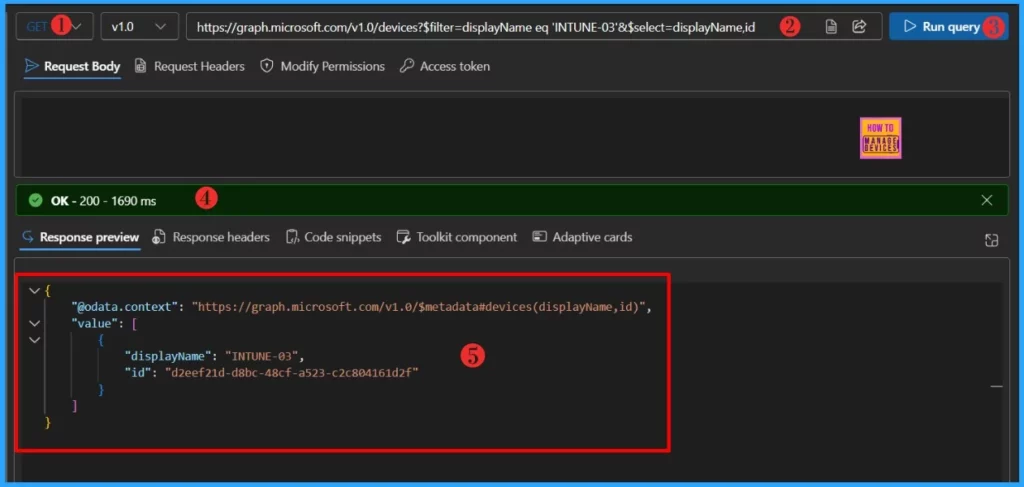
Next, we need to retrieve the device’s Object ID using the endpoint below. You should use the GET API request method.
https://graph.microsoft.com/v1.0/devices?$filter=displayName eq 'INTUNE-03'&$select=displayName,idYou should replace the device name, i.e., INTUNE-03, with your device name. When you click on Run query, you will receive a success message with the text ‘OK -200.’ The Response preview box will show the desired output.
- Time to use Microsoft Graph Device Management PS Module Instead of MS Graph Intune Module.
- Automate Intune App Deployment using Microsoft Graph API and PowerShell
- Manage Intune Tasks with PowerShell Part 1
You should have at least Device.ReadWrite.All permission to run the query. Note down the Object ID of the target Device
Add a Device to an Intune Group
Let’s learn how to add a single Intune enrolled device to an Entra ID group using Microsoft Graph API. Please add the selected device to the target group using below POST request.
https://graph.microsoft.com/v1.0/groups/{group-id}/members/$refChange the request method from GET to POST and paste the below JSON code in the Request Body.
{
    "@odata.id": "https://graph.microsoft.com/v1.0/directoryObjects/{device-id}"
}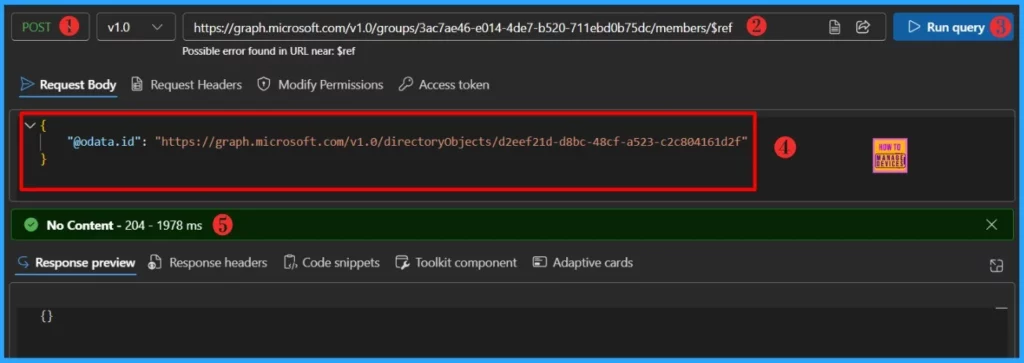
Within seconds of clicking Run query, you will receive a success message with the text No Content – 204 . There will be no output response available for review in the Response Preview panel.
- Intune Proactive Remediation Scripts Vs PowerShell Scripts
- How to Trigger SCCM Client Agent Actions Using PowerShell Script
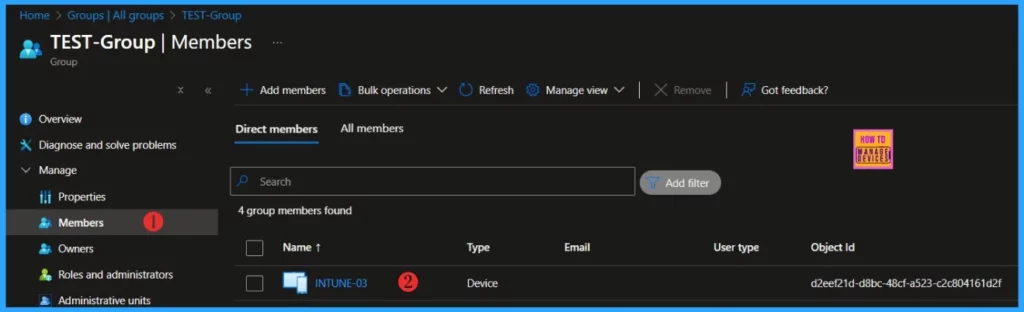
As per the response message, the device has been successfully added to Intune Group. Sign in to the Microsoft Intune Admin portal and verify it.
PowerShell Script to Add a Device to an Intune Group
Let’s automate the complete process of adding a Device to an Intune Group. The below code will prompts for a group name and device name to fetch its IDs. You must install the Microsoft Graph PowerShell Modules before you use this script.
NOTE! Use the Connect-MgGraph command to sign in with the required scopes. You'll need to sign in with an admin account to consent to the required scopes.- Best Guide to Install Microsoft Graph PowerShell Modules
- Complete Guide to Install the New Microsoft Entra PowerShell Module
- How to Pause Intune Config Refresh Feature on Windows Device using Microsoft Graph API
##########################################################################

#Add-IntuneDevicetoEntraGroup.ps1
#Author : Sujin Nelladath
#LinkedIn : https://www.linkedin.com/in/sujin-nelladath-8911968a/

############################################################################

#Connect to Microsoft Graph
Connect-Graph -Scopes "GroupMember.ReadWrite.All", "Device.ReadWrite.All"


# Define Microsoft Graph API endpoint
$GraphBaseURL = "https://graph.microsoft.com/v1.0"

# Function to get Group ID by name
function Get-GroupID {
    param ($GroupName)
    $GroupURL = "$GraphBaseURL/groups?`$filter=displayName eq '$GroupName'"
    $Group = Invoke-MgGraphRequest -Uri $GroupURL -Method GET
    return $Group.value[0].id

}

# Function to get Device ID by name
function Get-DeviceID {
    param ($DeviceName)
    $DeviceURL = "$GraphBaseURL/devices?`$filter=displayName eq '$DeviceName'"
    $Device = Invoke-MgGraphRequest -Uri $DeviceURL -Method GET
    return $Device.value[0].id
}

# Prompt user for Group Name
$GroupName = Read-Host "Enter Intune group name"
$GroupName = $GroupName.Trim()
$GroupID = Get-GroupID -GroupName $GroupName

if (!$GroupID)
    {
        Write-Host "Group not found. Exiting.";
        exit
    }

# Prompt user for Device Name
$DeviceName = Read-Host "Enter device name"
$DeviceID = Get-DeviceID -DeviceName $DeviceName
if (!$DeviceID)
    {
        Write-Host "Device not found. Exiting.";
        exit
    }

# Add Device to Group
$AddMemberURL = "$GraphBaseURL/groups/$GroupID/members/`$ref"
$Body = @{ "@odata.id" = "$GraphBaseURL/directoryObjects/$DeviceID" } | ConvertTo-Json
Invoke-MgGraphRequest -Uri $AddMemberURL  -Method POST -Body $Body

Write-Host "Device $DeviceName successfully added to group $GroupName"
I have uploaded the PowerShell script to the my GitHub repository. You may access it from there for your further use.
Download : Add-IntuneDevicetoEntraGroup.ps1I trust that this article will significantly benefit you and your organization. I appreciate your patience in reading this post. I look forward to seeing you in the next post. Keep supporting the HTMD Community.
Need Further Assistance or Have Technical Questions?
Join the LinkedIn Page and Telegram group to get the latest step-by-step guides and news updates. Join our Meetup Page to participate in User group meetings. Also, Join the WhatsApp Community to get the latest news on Microsoft Technologies. We are there on Reddit as well.
Author
About the Author: Sujin Nelladath, a Microsoft Graph MVP with over 11 years of experience in SCCM device management and Automation solutions, writes and shares his experiences with Microsoft device management technologies, Azure, DevOps and PowerShell automation.


Nice article , but can i know is this the same method we use to add devices to a collection in SCCM using a query. Got little confused while reading the Graph API part. were we have to change keep the device list and how to call them into the query to get add them to a group. Sorry if my question is confusing.
Thanks
Narayanan