






Monitor macOS Update Installation Status from Intune
Let’s learn how you can monitor macOS update installation status from Intune. You can use the installation status reports in the Intune portal to monitor software updates and troubleshoot issues.
Before enrolling MacBooks in Intune, it is essential to complete a preliminary check, and types of enrolment methods are available for macOS devices in Intune, it may differ for different OS types, more details about enrolling MacOS In Intune With Step By Step Guide.
If you looking for the valuable insights on effectively incorporating Mac devices into Apple Business Manager (ABM) or Apple School Manager (ASM) as well as Intune. The evolution of Apple’s device management solutions and their significance in Mobile Device Management (MDM).
Intune policy for macOS software updates, you can remotely manage how downloads, installations, and notifications should occur when the updates are available for macOS, You can manage macOS Updates Using Intune Policy.

By default, Intune devices perform a check-in approximately every 8 hours to communicate with the Intune service. If there is an update available through an update policy, the device will proceed to download the update. Subsequently, the device will install the update during its next scheduled check-in, as per your configured settings.
- Easy Method To Force Safari Patch Updates On MacOS Using Intune
- Setup Microsoft Enterprise SSO Plug-in For Apple MacOS Devices Using Intune
Monitor macOS Update Installation Status from Intune
Let’s follow the steps below to get the Installation status for macOS devices from Intune Portal, You can be able to locate the Software Updates quickly.
- Sign in to Microsoft Intune Admin Center https://intune.microsoft.com
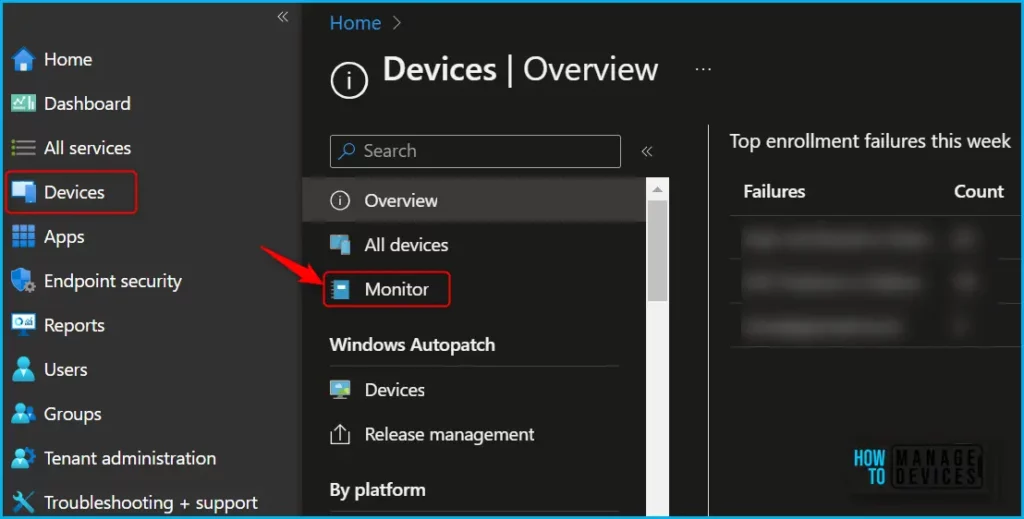
- Select Devices and click on the Monitor.
In the Monitor, Scroll down to the Software updates section and click on Installation status for macOS devices. Intune displays a list of supervised macOS devices that are targeted by an updated policy.
Here you will get details of Device update status, Device name, User name, OS version, and last updated details. The list includes devices that are up-to-date, as well as return information about errors that occurred on the device.
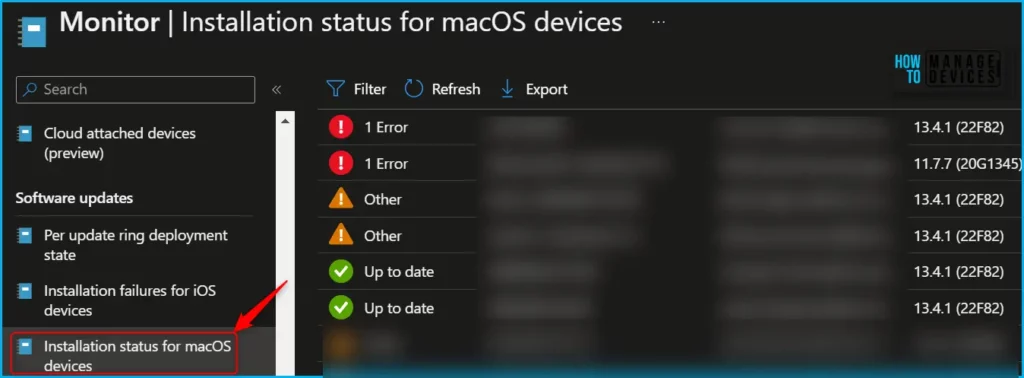
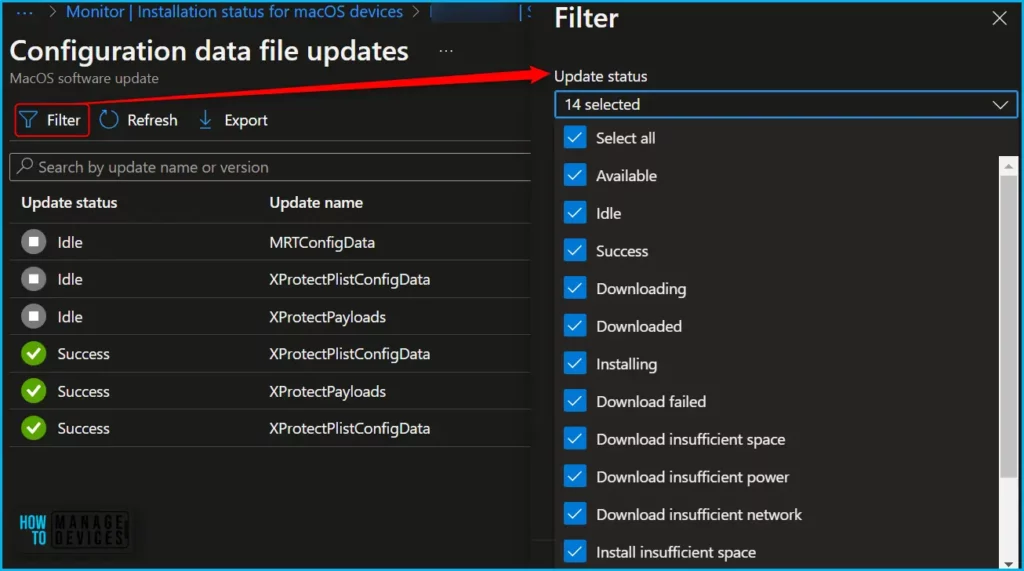
The “Installation Status” column in the list provides the specific error returned by each device. To access the comprehensive list of potential installation status values, navigate to the “Installation status for macOS devices”. Once there, click on the “Filters” option and expand the drop-down list for “Installation Status” to view the available options.
By clicking any of the device update status, you will be directly navigated to the macOS device properties to get more breakdown details, as shown below. Here you will also explore the option to locate the update policies directly report specific to the device.
How to Check Software Update Status for macOS Devices
The following steps help you to monitor and troubleshoot issues with software updates installation on macOS. Here’s how to get the details status specific to the device in Intune.
- Sign in to the Microsoft Intune admin center https://intune.microsoft.com/
- Choose Devices > macOS and select the device from the list.
To view the Software updates for the macOS device, select Software Updates in the Monitor section. You can also use this report to help pinpoint the source of the failure, such as an unexpected failure, download error, or disk space issues.
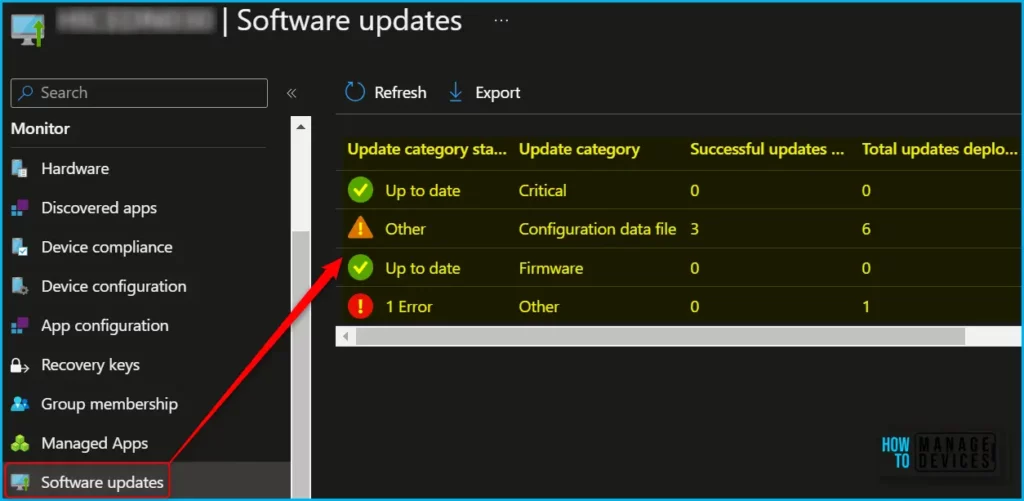
The Update reports will be categorized into Critical, Firmware, Configuration data file, and All other updates (OS, built-in apps), Here, you can also get the details of all data.
| Update category status | Update Category | Successful updates deployed | Total updates deployed | Last Updated |
|---|---|---|---|---|
| Up to date | Critical | 0 | 0 | 6/28/2023, 5:34:31 PM |
| Other | Configuration data file | 3 | 6 | 6/28/2023, 5:34:31 PM |
| 1 Error | Other | 0 | 1 | 6/28/2023, 5:34:31 PM |
Once you click on the update, you will get a detailed report of the updates. For example, The above device was showing a Warning for Configuration data file updates. The Update status, update name, Version, and Last updated getting displayed here.
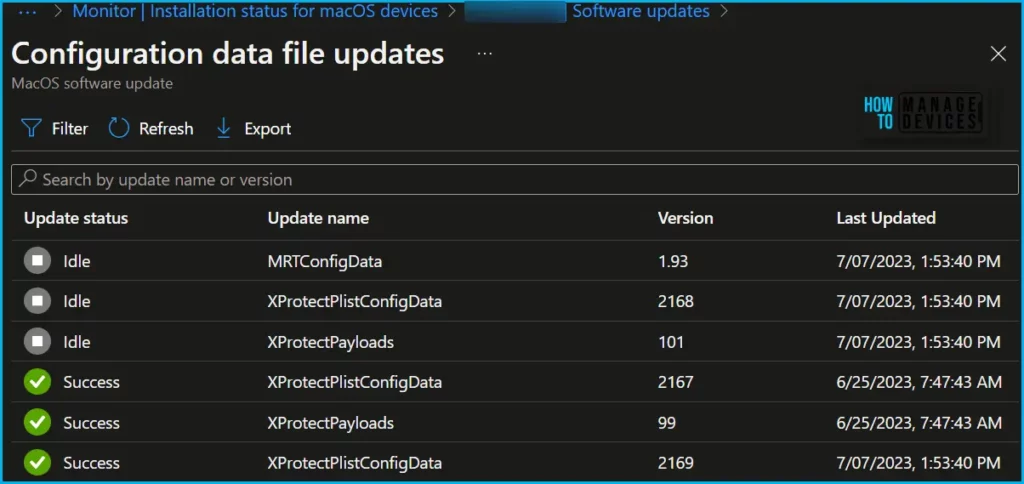
Inside the report, you can click on Filter to sort the data based on the Update status, and Last Updated column. You will get the desired results for quick reference and plan for review.
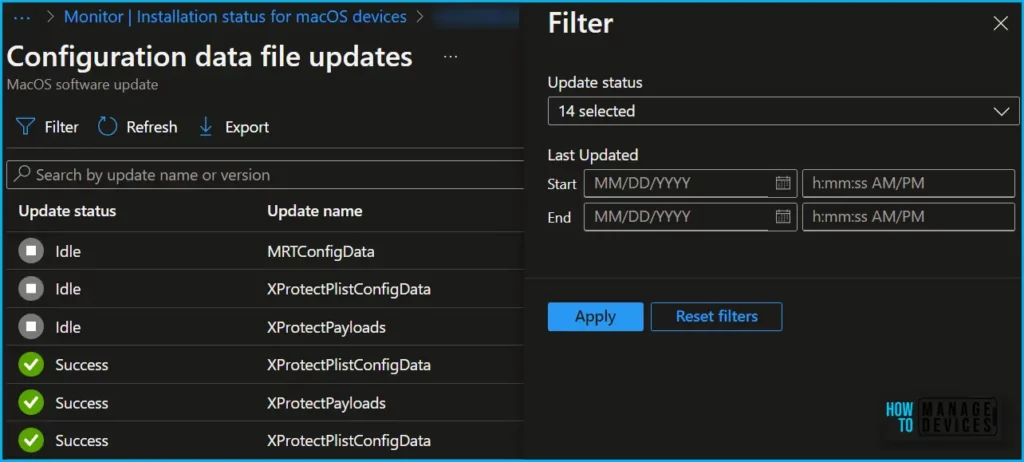
The Update status allows you to filter based on the 14 categories (Update status). By clicking on the update status drop-down list, A list of options appears for selection.
Author
About Author – Jitesh, Microsoft MVP, has over six years of working experience in the IT Industry. He writes and shares his experiences related to Microsoft device management technologies and IT Infrastructure management. His primary focus is Windows 10/11 Deployment solution with Configuration Manager, Microsoft Deployment Toolkit (MDT), and Microsoft Intune.


Discussion