






How to Move SCCM Content Library Folders from One Drive to Another
How to Move SCCM Content Library Folders from One Drive to Another ConfigMgr. With the introduction of NEW content management in CM 2012, moving packages from one drive to another was somewhat complicated for administrators.
In SCCM 2007, transferring packages from one drive to another was not very complicated. We just needed to make some changes (in IIS and Shared Folder/s), and we’re done. However, the content library transfer is not very easy for CM 12. TechNet forum discussion about the same.
In this post, you will find all the details on moving SCCM Content Library folders from one drive to another in ConfigMgr. The guide will walk you through the steps needed to relocate your content library, ensuring a smooth transition without disrupting your system’s functionality.
This is useful for freeing up space on your current drive or reorganizing your storage. The instructions are clear and easy to follow, making managing your SCCM environment easy.

Table of Contents
How to Move SCCM Content Library Folders from One Drive to Another
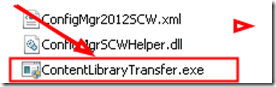
Microsoft has put together a tool to make the content library transfer easy. The tool is called “ContentLibraryTransfer.exe” and is helpful for scenarios where the disk drive hosting the content library becomes full.
The Content Library Transfer tool is part of Configmgr 2012 Toolkit SP1 and is available for download Here. Three Points should be noted before running the Tool.
- SCCM ConfigMgr Simplest Way to Move PCK Files from One Drive to Another
- SCCM Content Library Explorer Tool | Validate | Redistribute | Invalid
Content Library Folders from One Drive to Another
1. Content LibraryTransfer.exe must run locally on the distribution point with administrator privileges and can’t be run from a remote machine. However, could we use psexec to run this tool remotely?
2. To successfully transfer the content library, make sure that any of the clients do NOT actively use the DP. Otherwise, the destination drive may have incomplete data.
| Content Library Folders from One Drive to Another | Details |
|---|---|
| No packages are distributed to that DP during the transfer process | Otherwise, the destination drive may have incomplete data, and the data transfer might fail altogether, leading to an unusable content library. |
| Syntax of Content Library Transfer exe | ContentLibraryTransfer.exe –SourceDrive <drive letter of source drive> –TargetDrive <drive letter of destination drive> |
Example of Content Library Transfer exe
ContentLibraryTransfer.exe –SourceDrive <drive letter of source drive> –TargetDrive <drive letter of destination drive>
ContentLibraryTransfer –SourceDrive E –TargetDrive G: More details are available @ System Center 2012 SP1 Configuration Manager Toolkit Help document (ToolkitHelp.docx). How to Move SCCM Content Library Folders from One Drive to Another ConfigMgr.
Resource
Free SCCM Training Part 1 | 17 Hours Of Latest Technical Content | ConfigMgr Lab HTMD Blog
We are on WhatsApp now. To get the latest step-by-step guides, news, and updates, Join our Channel. Click here – HTMD WhatsApp.
Author
Anoop C Nair is Microsoft MVP from 2015 onwards for consecutive 10 years! He is a Workplace Solution Architect with more than 22+ years of experience in Workplace technologies. He is a Blogger, Speaker, and Local User Group Community leader. His main focus is on Device Management technologies like SCCM and Intune. He writes about technologies like Intune, SCCM, Windows, Cloud PC, Windows, Entra, Microsoft Security, Career etc…




Hello, I tried to use this tool on my Primary site .actually sccmcontlib,smspkg and smspkgsig folders are located on D: drive , I want to move them on H: drive.
Using “ContentLibraryTransfer.exe -SourceDrive D -TargetDrive H” give me errors:
Invalid number of arguments specified
and
One or more arguments are not correct.
Any ideas of what I am missisg here ?
Hi Anoop, Could you please tell the difference between SMSPKGSIG and SMSSIG folders, If I move SMSPKGSIG folder’s location from D to E drive then will there be any impact on existing packages?
Hello Eric,
remove the .exe on your command. It’s work for me.
“ContentLibraryTransfer -SourceDrive D -TargetDrive H”
StaffThanks for that tip Arnaud!!
I was told by Microsoft not to use this tool. I tried it and it broke package distribution on my SCCM 2012 server.
Louise I took your post onboard but tried it anyway on my SCCM 2012 SP1 build, errored at the end with updating WMI to remove Source Drive. As a result the Rpimary had outdated data on Distribution Point. I had to delete Dist Point and reset it up. Worth a try anyway but I wouldn’t try it again unless I was on SCCM 2012 R2
Hi,
in the registry of my MECM-/DP-Server I can find these entries:
(HKLM\SOFTWARE\Microsoft\SMS\DP)
ContentLibraryPath: C:\SCCMContentLib
ContentLibUsableDrives: E:\,E:\,C:\
How do I change the ContentLibraryPath? Within the registry?
(I want the system to only use the E:\ partition.)
Why is the E:\ partition listed twice? Can I remove one “E:\”?
Best regards,
Ferdinand