






Simple Method to Deploy Natural Voice Pack to Windows 11 using Intune
In this blog post, I’ll be explaining how to deploy Natural Voice Pack to Windows 11 using Microsoft Intune. With the Microsoft Intune Store app (new) deployment capability, IT admins can easily deliver Natural Voice packages to Windows 11 devices directly from the Microsoft Store.
This modern method streamlines app deployment by allowing you to search and assign Store apps, including voice packages, without needing to package or script them manually. Natural Voice features, like Microsoft Aria, Jenny or Guy voices, are available in the Microsoft Store as standalone apps.
This approach ensures a more reliable and manageable deployment experience, especially at scale. Combined with compliance policies or accessibility profiles, Intune can ensure users have the required voice assets for accessibility tools, reading aloud, or immersive reader features, improving overall productivity and inclusivity.
Natural Voice Packs are essential in Windows 11 to provide a more human-like, expressive, and intelligible text-to-speech (TTS) experience. These enhanced voices offer significant improvements over traditional robotic-sounding voices, making spoken content more engaging and easier to understand, especially for users who rely on screen readers or narration tools.

Table of Contents
Why Natural Voice Pack Required for Windows 11
Here’s a table outlining why Natural Voice Packs are required for Windows 11, categorized by purpose, benefit, and use case.
| Purpose | Benefit | Use Case |
|---|---|---|
| Enhanced Accessibility | Clearer, more natural-sounding speech for users with disabilities | Screen readers, Narrator, or other assistive technologies |
| Improved User Experience | Human-like voice improves comprehension and engagement | Read aloud in Microsoft Edge, Office apps, or Immersive Reader |
| Consistent Voice Output | Standardized TTS experience across all devices | Enterprise or school environments requiring a uniform voice experience |
| Language Learning & Education | Better pronunciation and fluency support | Language learning apps, reading comprehension, classroom tools |
| Productivity & Multitasking | Hands-free content consumption | Listening to emails, documents, or web content while performing other tasks |
| Content Creation & Narration | Professional, natural voiceovers | Audio narration for training videos, e-learning, or presentations |
- Easy Method to Install Speech Pack using Microsoft Intune
- How to use the Update option in Intune Enterprise App Catalog apps
- Allow Disallow to Save Messages from a Shared Mailbox to Sent Items with Intune
Create a Natural Voice Pack using the Microsoft Store app (New)
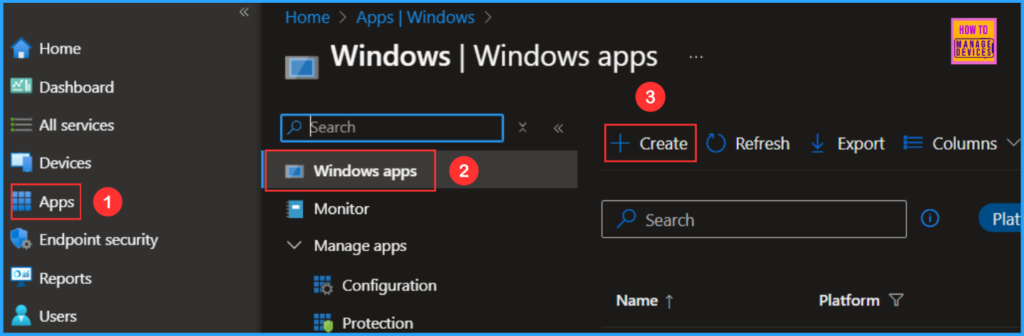
Follow the steps to create a Natural Voice Pack using the Microsoft Store app (new) with Microsoft Intune. Log in to the Microsoft Intune Admin Center using your Intune administrator credentials
- Navigate to Apps > Platforms > Windows
- Click on +Create
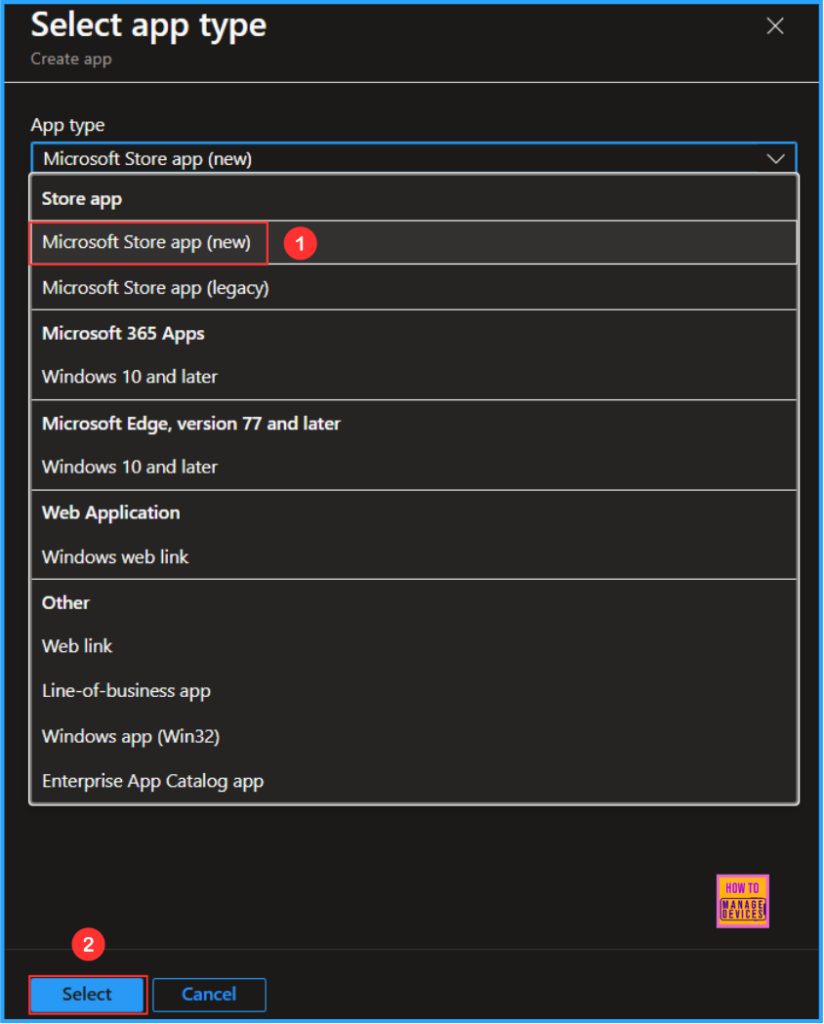
On the Select app type window drop-down, choose Microsoft Store app (new). This app type allows you to search the Microsoft Store app (new) to find apps for Windows devices.
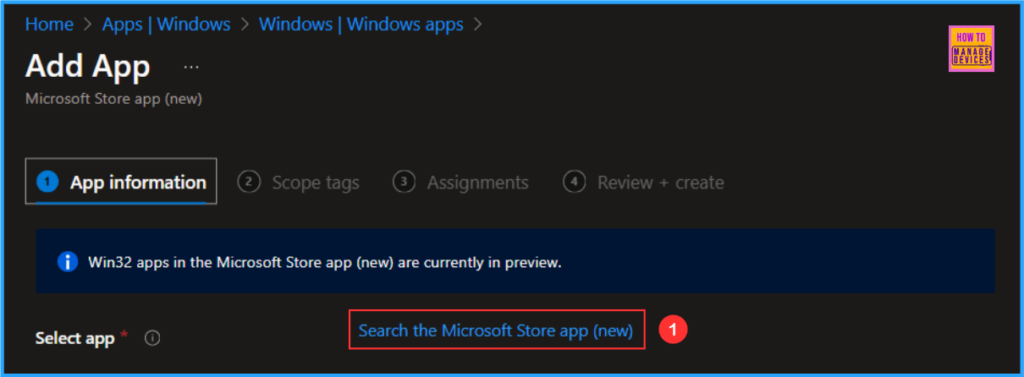
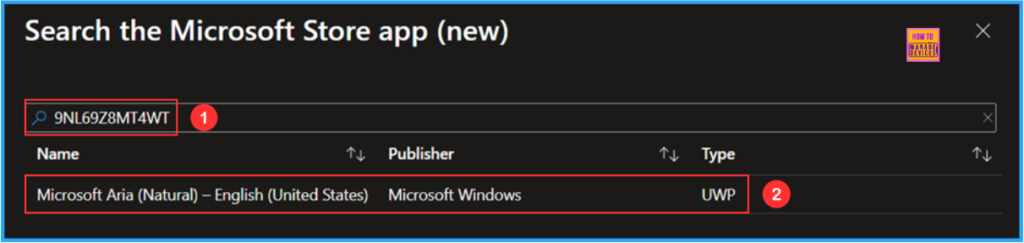
Now we can get the App information page. There is a hyperlink available to Select an app. Click on Search the Microsoft Store app (new). The below screenshot provides more informations.
Here in this example am going to install “Microsoft Aria (Natural) – English (United States)” and the Package identifier is “9NL69Z8MT4WT” Paste the same under Enter the search terms. This will show you the result below. Click on the app and select it.
Note! https://apps.microsoft.com/detail/9NL69Z8MT4WT?hl=en-us&gl=IN&ocid=pdpshare
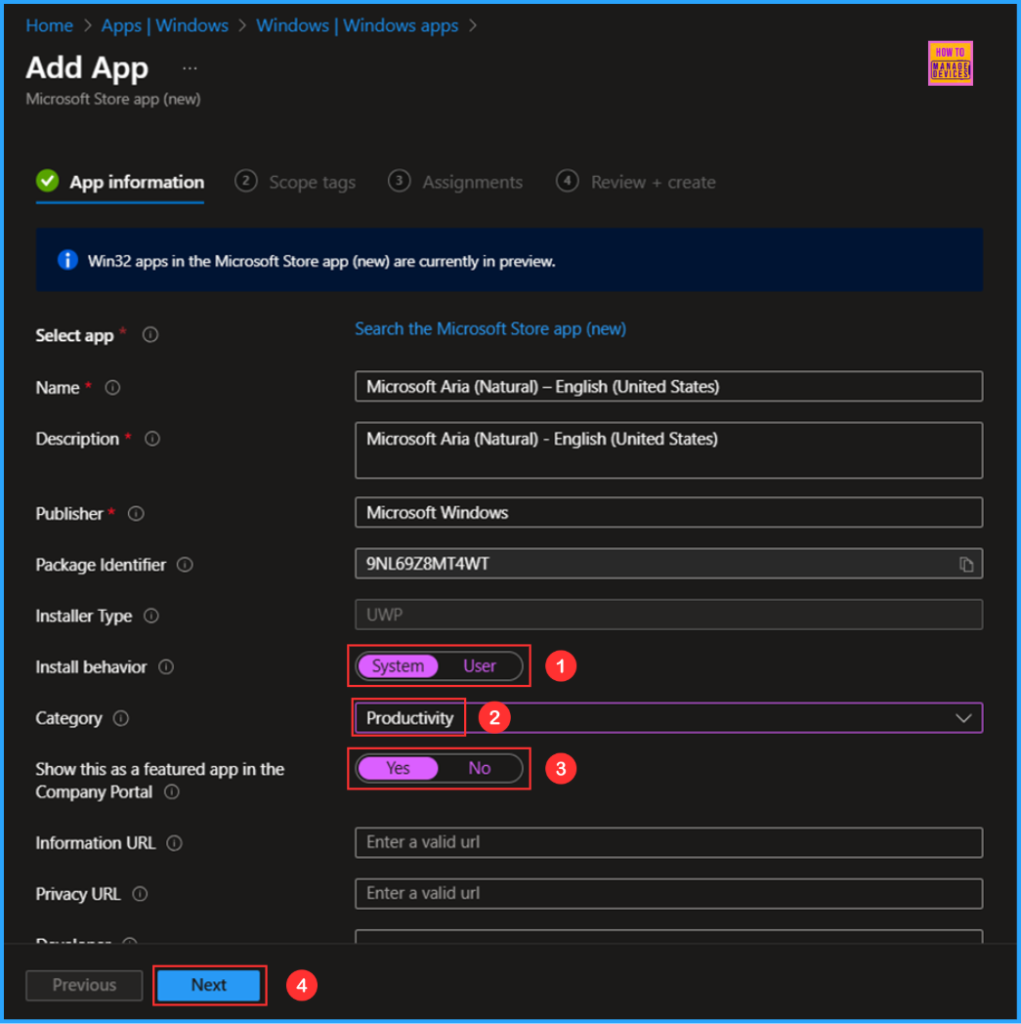
On the App information page, fill in the details below based on your requirements. Most of the mandatory information will be auto-populated. Change only the mentioned options.
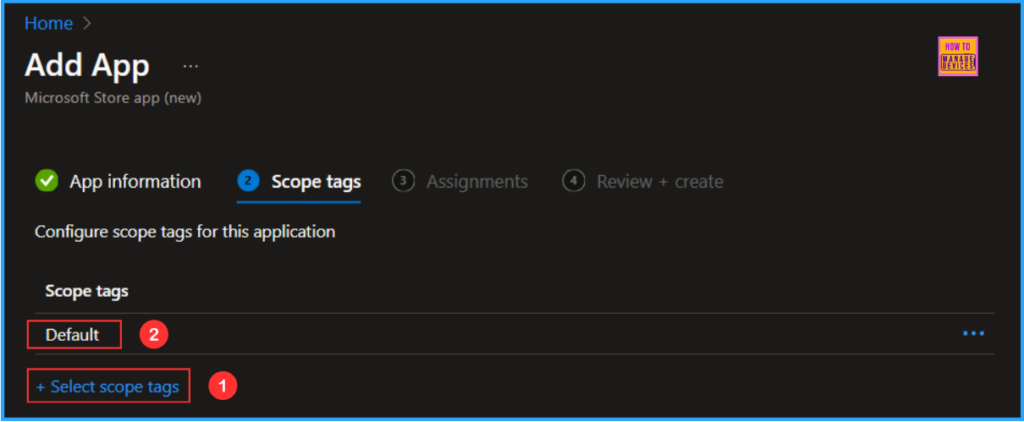
On the next page, Configure scope tags for this Speech Pack. For that, click on +Select scope tags and choose the Default one. If you have any custom scope tags available, you can also select them based on your requirements.
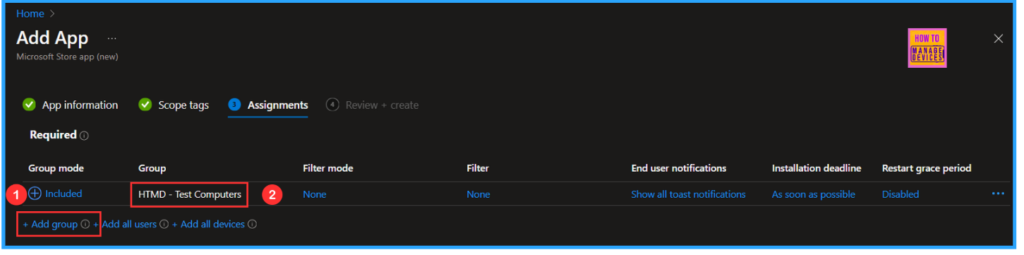
Click on Next and assign the Microsoft Aria (Natural) – English (United States) to HTMD – Test Computers. To do that, click Add Groups and select the required device group in the Included Groups option.
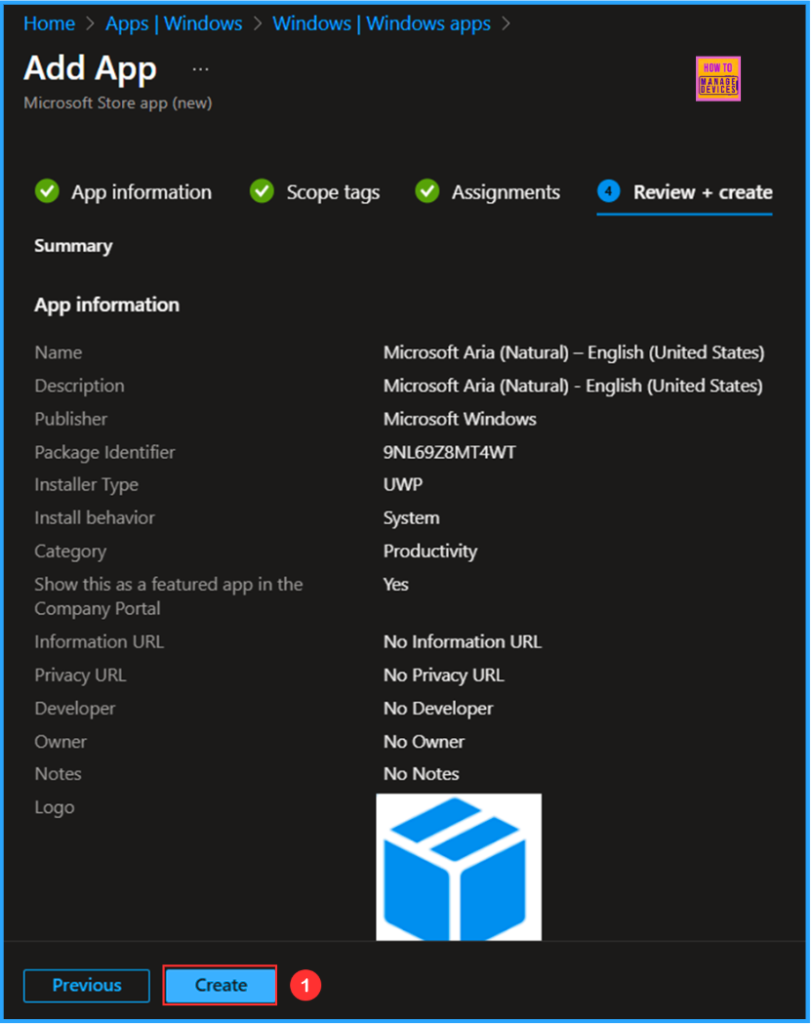
On the Review + create page, carefully review all the settings you’ve defined for the “Microsoft Aria (Natural) – English (United States)” Microsoft Store app (new). Once you’ve confirmed everything is correct, select Create to implement the changes.
- Easy Guide to Deploy Azure VPN Client Microsoft Store App using Intune
- Easy Guide to Configure Multiple Display Mode for Windows 11 24H2 using Intune
- New Grid and Category Views Coming to the Start Menu in Windows 11
Monitor the Natural Voice Pack – Microsoft Aria (Natural) Deployment
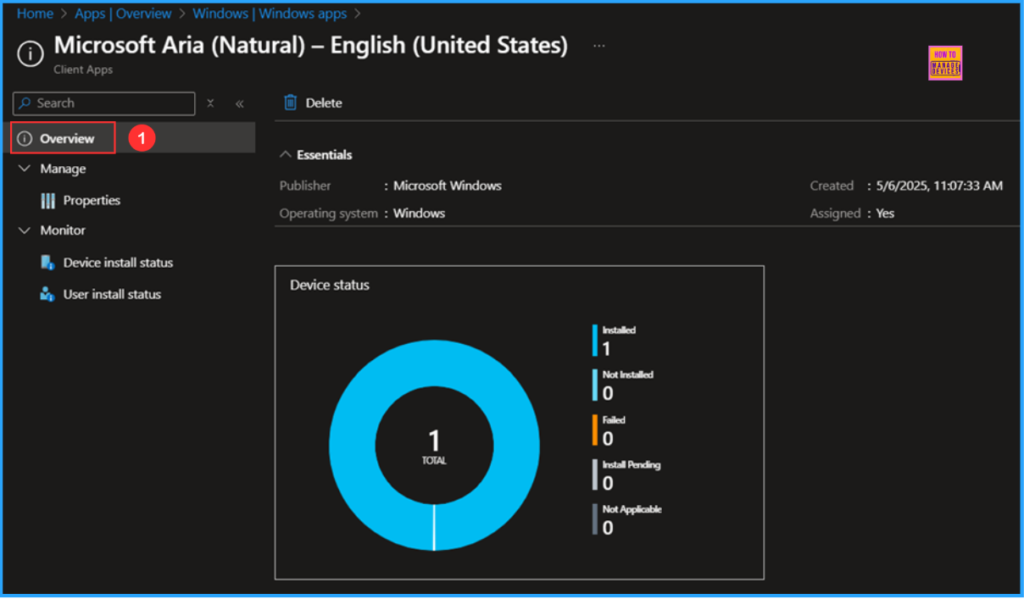
Microsoft Aria (Natural) – English (United States) is deployed to the Microsoft Entra ID group (HTMD – Test Computers), which is a Device Group. Our installation deadline is “As soon as possible“. So, the device will be synced, and the App deployment will take effect immediately. To monitor the deployment status from the Intune Portal, follow the steps below.
- Navigate to Apps > Platforms > Windows > Search by name for the App. I am searching with “Microsoft Aria (Natural) – English (United States)”
Click the App under Overview, you can find the Device and User installation status of our Natural Voice Pack.
End User Experience – Natural Voice Pack – Microsoft Aria (Natural) Deployment
Now our task is to check that the Microsoft Aria (Natural) – English (United States) is successfully installed on the targeted device. For that, log in to one of the deployed machines. You can execute below mentioned Input PowerShell Command to verify the Installed Natural Voice Packs
| Input Command | Result |
|---|---|
| Get-AppxPackage “MicrosoftWindows.Voice*” | Select Name, PackageFullName | Name ——– MicrosoftWindows.Voice.en-US.Aria.1 PackageFullName ——————– MicrosoftWindows.Voice.en-US.Aria.1_1.0.8.0_x64__cw5n1h2txyewy |
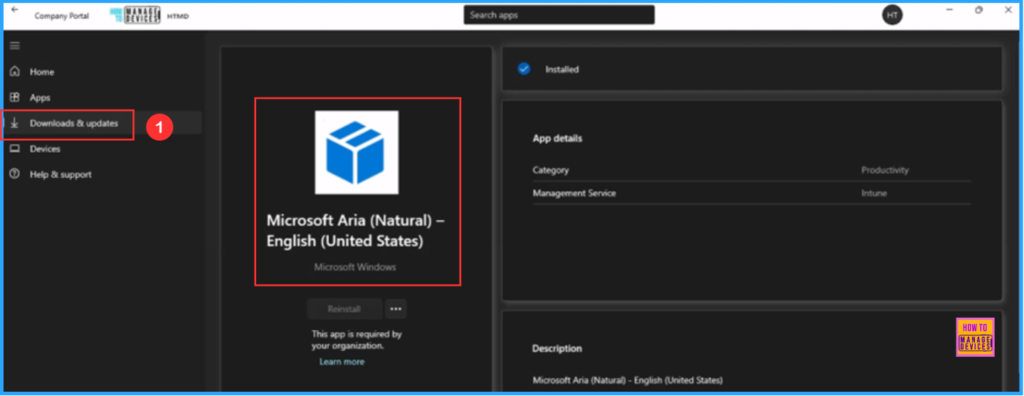
Open the Company Portal app the device and navigate to Downloads & updates search for Microsoft Aria (Natural) – English (United States). now you can see the App has been installed successfully!
Need Further Assistance or Have Technical Questions?
Join the LinkedIn Page and Telegram group to get the latest step-by-step guides and news updates. Join our Meetup Page to participate in User group meetings. Also, Join the WhatsApp Community to get the latest news on Microsoft Technologies. We are there on Reddit as well.
Author
Vaishnav K has over 11 years of experience in SCCM, Device Management, and Automation Solutions. He writes and imparts knowledge about Microsoft Intune, Azure, PowerShell scripting, and automation. Check out his profile on LinkedIn.


Discussion