





Managing Network Visibility by Disabling User Access to Connection Status using Intune Policy
Key Takeaways
- Blocks users from viewing and controlling network connection status.
- Stops users from disconnecting or altering active connections.
- Enforces strict IT control over network behavior.
- Reduces security risks caused by user actions.
In this post, we are discussing Managing Network Visibility by Disabling User Access to Connection Status using Intune Policy. This policy controls whether users are allowed to view the status of an active network connection through the taskbar connection icon or the Status dialog box.
Normally, the connection status provides visibility into basic network information such as connectivity state, duration, activity, and signal details. It also offers quick access points for actions like disconnecting or opening the connection’s configuration properties. By managing this visibility, organizations can decide how much control and insight end users should have over their network connections.
In standard Windows environments, the connection status is easily accessible through multiple entry points, including the taskbar icon, the Network Connections folder, and the File or context menus. These options are designed to improve usability for users, allowing them to quickly understand and manage their network connectivity.
However, in managed or enterprise environments, such unrestricted access may not always align with organizational security or operational requirements. This policy is an important tool for organizations that prioritize security, stability, and centralized network management. By limiting user visibility and control over network connection.

Table of Contents
Managing Network Visibility by Disabling User Access to Connection Status using Intune Policy
The policy also supports efficiency within organizations. When users cannot access connection status or related controls, there are fewer chances of accidental disconnections or misconfigurations that could disrupt productivity.
- How To Control Internet Traffic Routing For Remote Clients Using Intune Policy
- How To Enable LLTD Responder For Network Diagnostics Using Intune
- How to Show or Hide Switch Account Option in Windows Start Menu using Intune Policy
- Enable or Disable Microsoft Account Connection Policy using Intune
- Intune Allow Microsoft Accounts to be Optional Policy
Create Profile
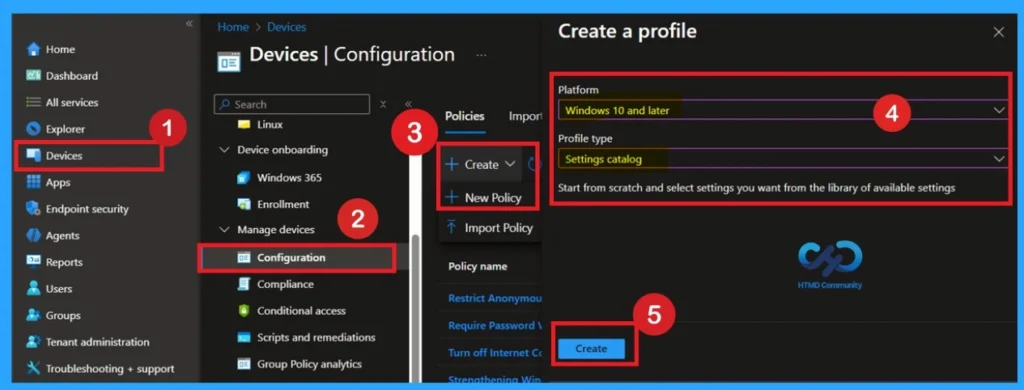
Now, let’s see how this policy can be deployed through the Microsoft Intune Admin Center. First, go to the Devices section. In Devices, select Configurations. In Configurations, click on the + Create policy option. Next, fill in the Platform and Profile type details in the Create profile window.
- Set Platform to Windows 10 and later and set Profile type to Settings catalog.
- Then click Create.
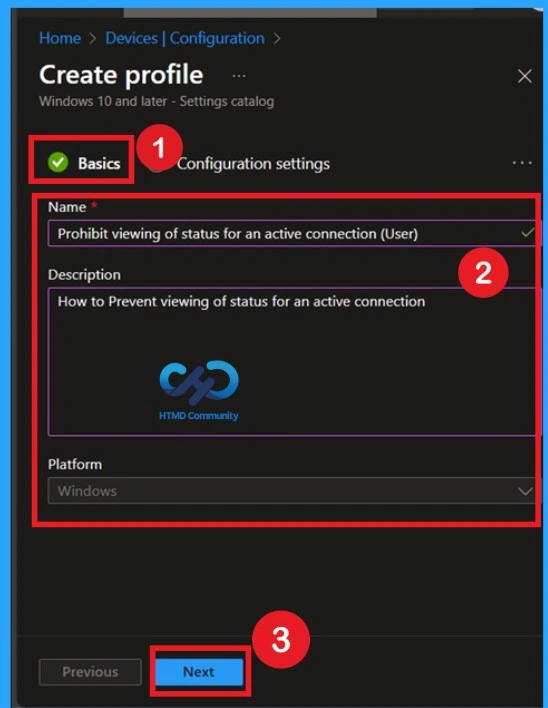
Basics the Identification Process of a Policy
The Basic details are very important here you have to enter the basic details such as name and description. The Description is mandatory, but you can enter the description to understand the policy later. The platform is already selected as Windows so you don’t need to do anything.
- Click on Next.
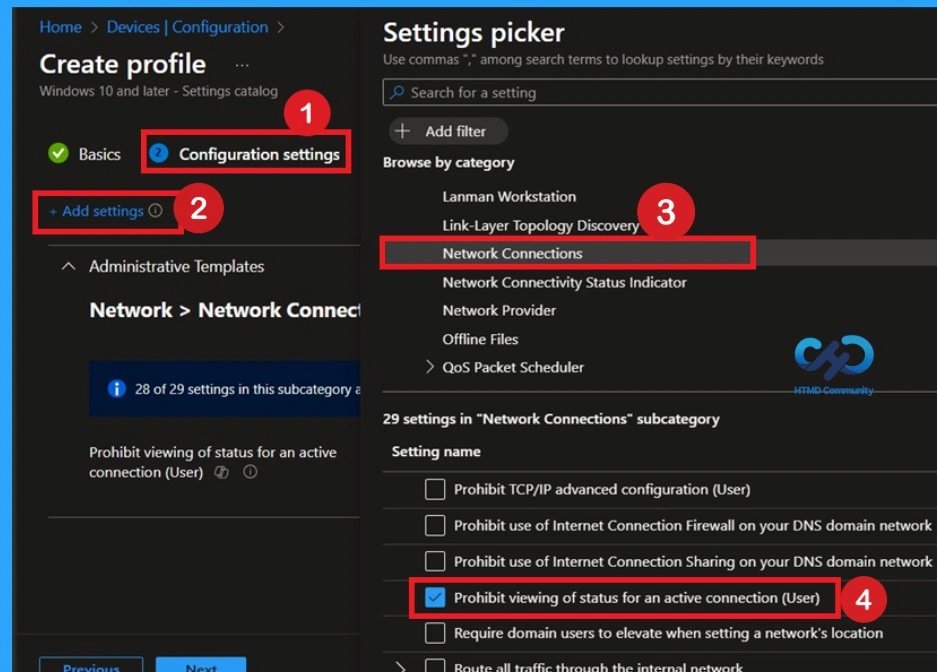
Know How to Configurations
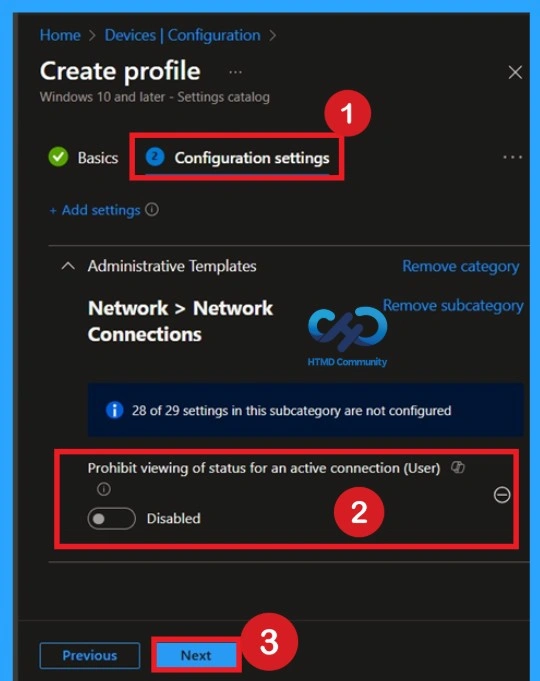
In the Configuration tab, you will see an option called Add settings. Click on this option. After clicking it, the Settings picker will open. From there, select Administrative Templates. Next, go to Network, then select Network Connections. Under Network Connections, choose the setting Prohibit viewing of status for an active connection for users.
Understanding the Default State Before Changing (Default Settings)
By default, you should understand that a policy can be either enabled or disabled. In this case, the policy is disabled by default. If you want to keep it in the disabled mode, you have to click Next to continue.
How to Enable This Policy
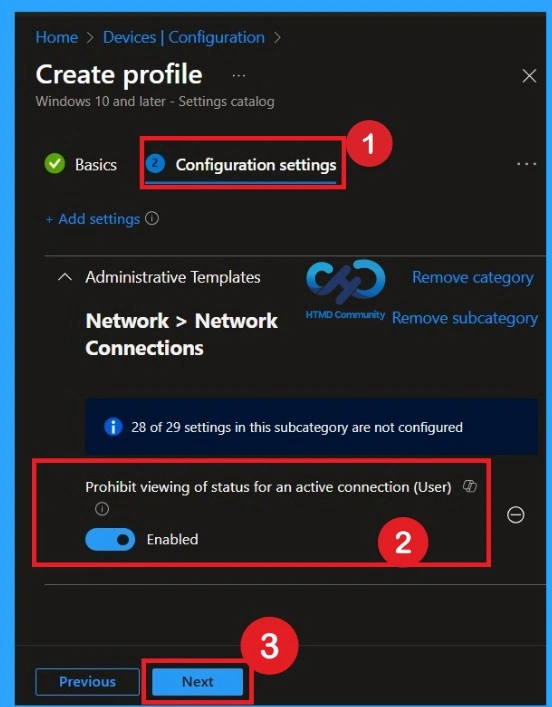
The next and most important step is enabling the policy. This is very simple to do. By default, the policy is set to Disabled. To enable it, move the toggle switch from left to right. Once you do this, the policy status changes to Enabled, as recommended in the CIS documentation.
- After enabling the setting, click Next to continue.
What is Scope Tag
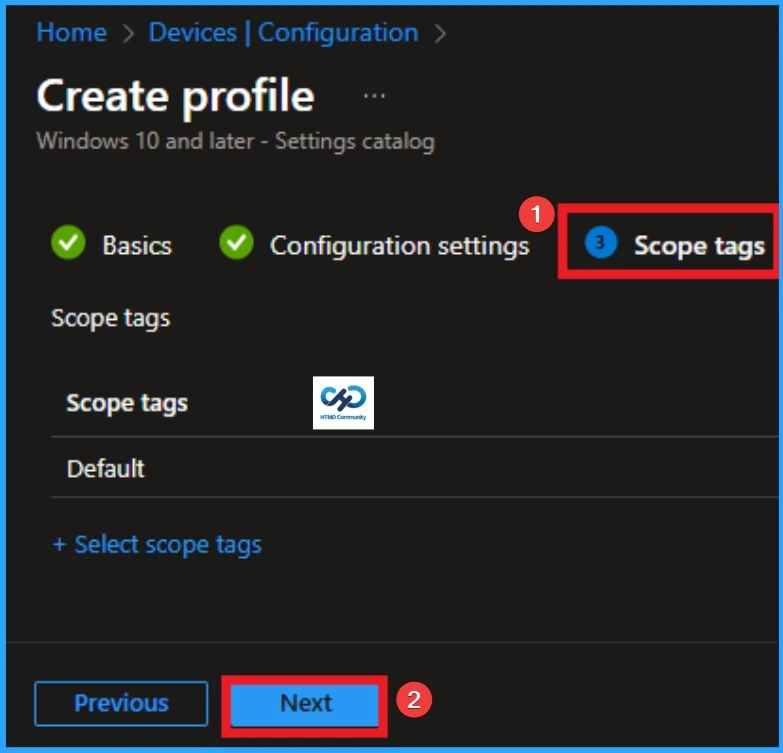
Now you are on the Scope tags section. Scope tags are used to assign policies to specific admin groups for better management and filtering. If needed, you can add a scope tag here. However, for this policy, I chose to skip this section.
Choosing Devices to Apply the Policy by Assignments
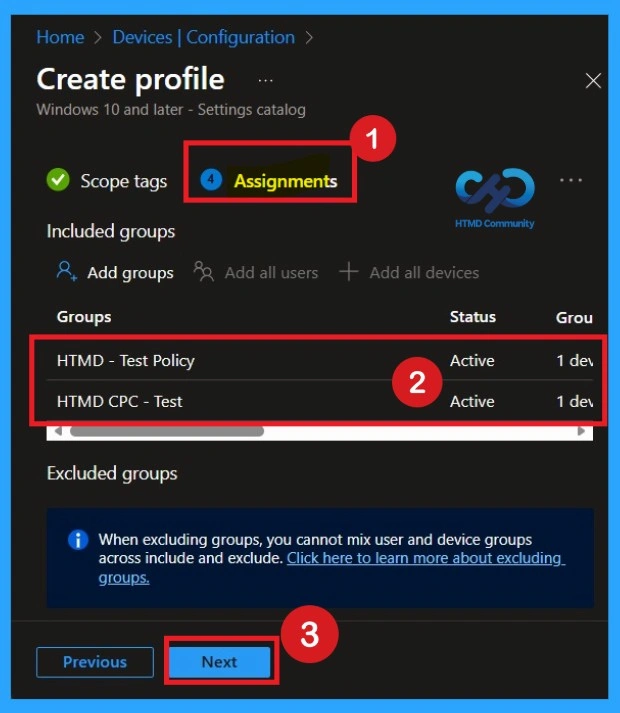
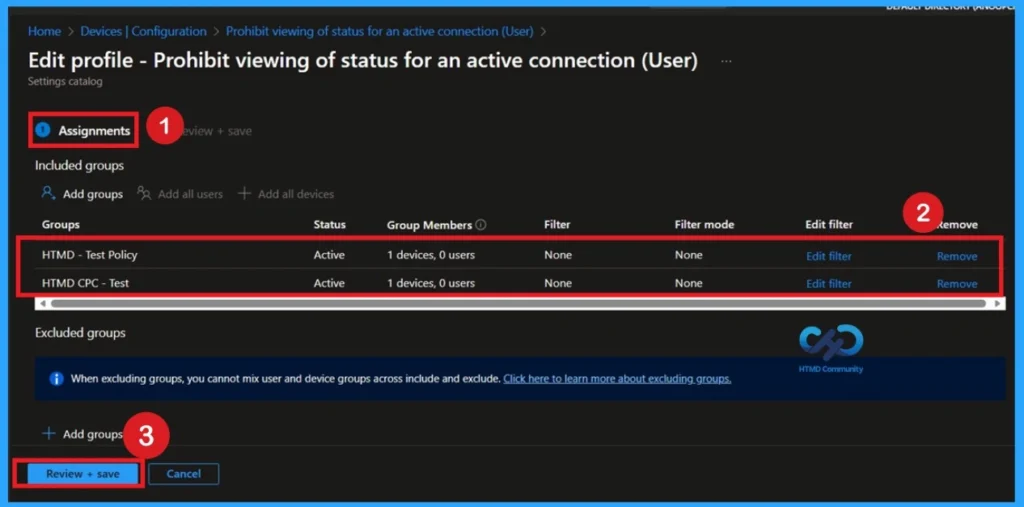
Next, you’ll reach the Assignments section, which is a very important step. This is where you decide which user or device groups should receive the policy. In this case, I selected the specific group I wanted to apply the policy to. After selecting the group, click Next to continue.
Review + Create
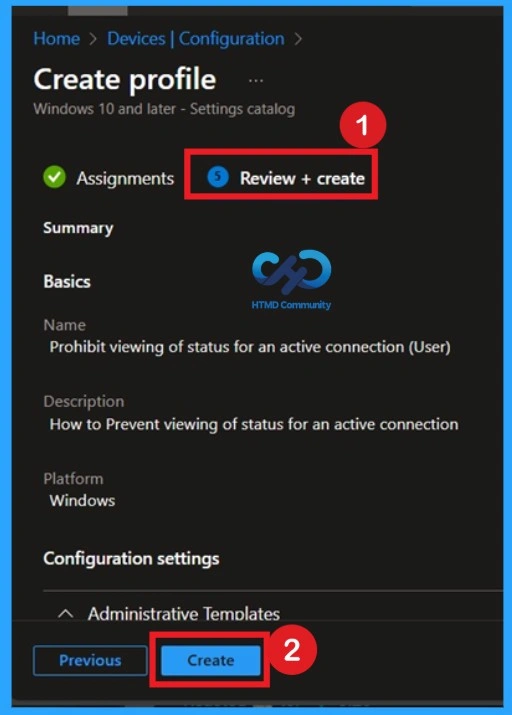
Review + Create is the final stage of policy creation. In this step, you will see a summary of all the details, including Basics, Configuration Settings, Assignments, and more. You can review all the information, and if anything needs to be changed, you can go back to the previous steps and edit them easily. In the Review + Create section, you will see a Create button.
Monitoring Status
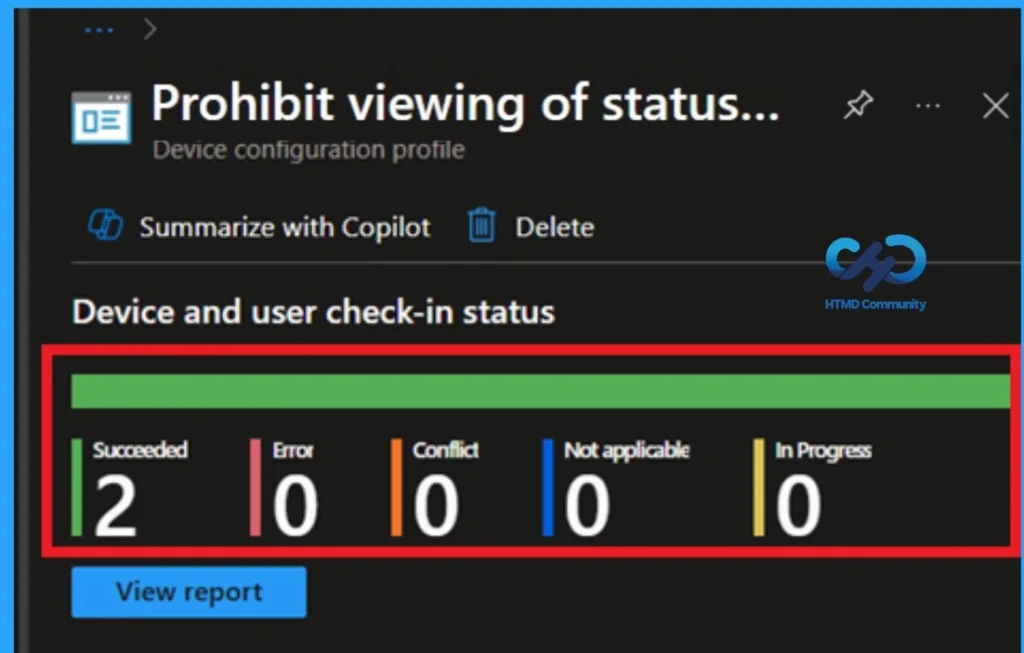
After the policy is created, the main concern is whether it has been successfully deployed. Typically, it can take up to 8 hours for the policy to apply. This is the minimum waiting period. However, you can manually sync the policy through the Company Portal. To check if the policy has been successfully deployed.
- Navigate to Devices > Configuration Policies.
- In the Configuration Policies list, look for the policy you created.
- Click on the policy to view its deployment status and detail
- Sign into the Microsoft Intune Admin Center.
Event Viewer Details
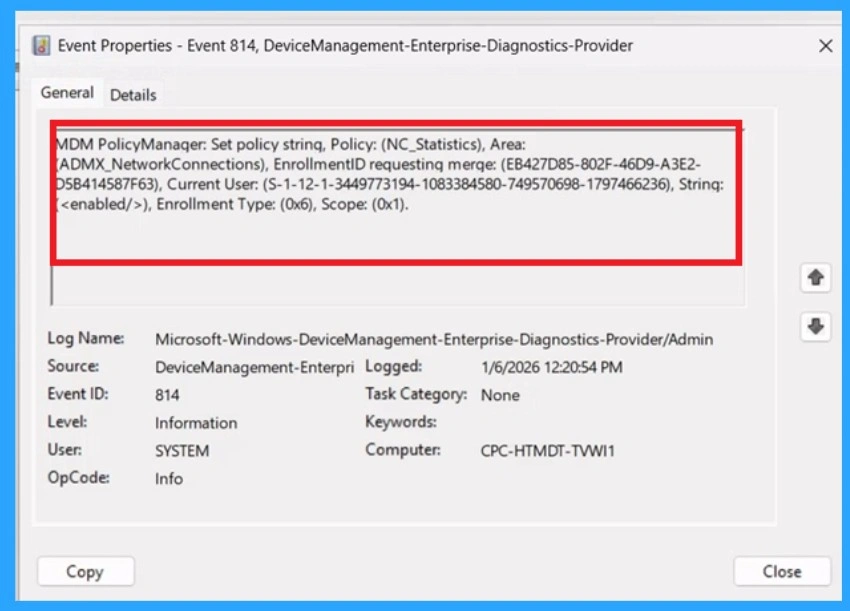
Event Viewer helps you check the client side and verify the policy status. Open the Client device and open the Event Viewer. Go to Start > Event Viewer. Navigate to Logs: In the left pane, go to Application and Services Logs > Microsoft >Windows > DeviceManagement-Enterprise-Diagnostics-Provider > Admin.
- The NC Statistics policy applies specifically to user-level configurations, meaning it targets individual user profiles other than entire devices.
| Policy Details |
|---|
| MDM PolicyManager: Set policy strinq, Policy: (NC_Statistics), Area: ADMX_NetworkConnections), EnrollmentID requesting merqe: (EB427D85-802F-46D9-A3E2- D5B414587F63), Current User: (S-1-12-1-3449773194-1083384580-749570698-1797466236), Strinq: ), Enrollment Type: (0x6), Scope: (0x1). |
Delete the Policy
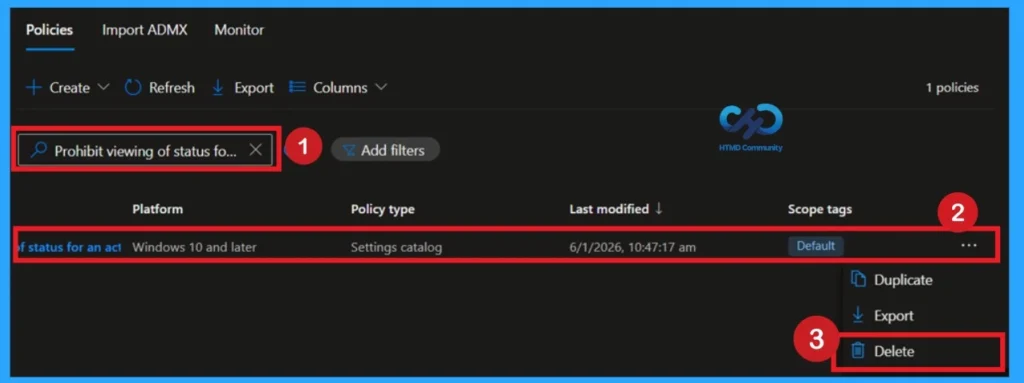
To delete a policy in Intune first sign in to the MS Intune Admin Center. Navigate to Devices and then select Configuration. Locate and select the specific policy you want to remove. Once you’re on the policy details page, click the 3 -dot menu in the top right corner and choose Delete from the available options.
For more information, you can refer to our previous post – How to Delete Allow Clipboard History Policy in Intune Step by Step Guide.
How to Remove Policy Group
Start by navigating to the Monitoring status page via Devices > Configuration. Search for the policy by name and click on it to open its monitoring details. Scroll down to the Assignments section and click Edit. This will take you back to the policy’s assignment settings. here, you can remove the group you no longer want the policy to apply to.
For detailed information, you can refer to our previous post – Learn How to Delete or Remove App Assignment from Intune using by Step-by-Step Guide.
Windows CSP Details
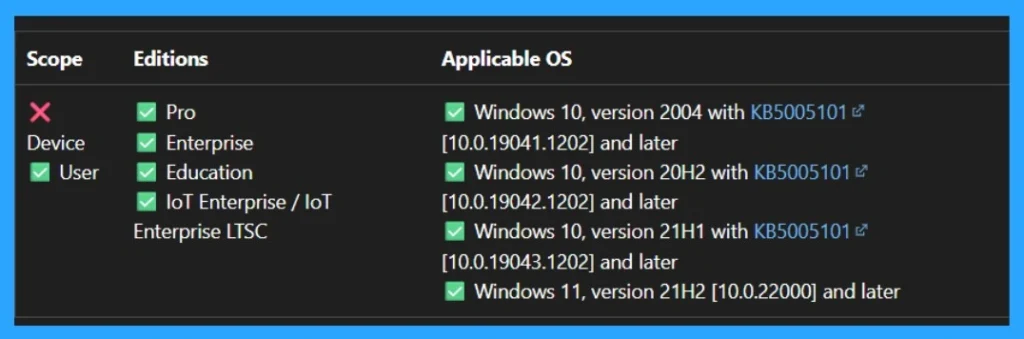
This Policy Determines whether users can view the status for an active connection. Connection status is available from the connection status taskbar icon or from the Status dialog box. The Status dialog box displays information about the connection and its activity. It also provides buttons to disconnect and to configure the properties of the connection.
It is supported across multiple Windows editions, including Pro, Enterprise, Education, and IoT Enterprise / IoT Enterprise LTSC, making it suitable for both business and educational environments.
- The below path is used in Intune Settings Catalog or custom configuration profiles to deploy the policy via Mobile Device Management (MDM).
./User/Vendor/MSFT/Policy/Config/ADMX_NetworkConnections/NC_Statistics
Need Further Assistance or Have Technical Questions?
Join the LinkedIn Page and Telegram group to get the latest step-by-step guides and news updates. Join our Meetup Page to participate in User group meetings. Also, join the WhatsApp Community to get the latest news on Microsoft Technologies. We are there on Reddit as well.
Author
Anoop C Nair has been Microsoft MVP for 10 consecutive years from 2015 onwards. He is a Workplace Solution Architect with more than 22+ years of experience in Workplace technologies. He is a Blogger, Speaker, and Local User Group Community leader. His primary focus is on Device Management technologies like SCCM and Intune. He writes about technologies like Intune, SCCM, Windows, Cloud PC, Windows, Entra, Microsoft Security, Career, etc.


Discussion