






How to Create a New iOS or iPadOS ADE Enrollment Policies Experience in Microsoft Intune
Let’s discuss How to Create a New iOS or iPadOS ADE Enrollment Policies Experience in Microsoft Intune. As per Microsoft update, Q2CY25, iOS/iPadOS automated device enrollment (ADE) policies will move to a new infrastructure that enables Intune to speed up the delivery of new features.
You will get a better-organized authentication method with this update. And with this update, no automatic deployment of the Company Portal application. And one of the important update related to this are there will be more granular admin controls for the policies page and Apple-deprecated settings have been removed.
As you know, iOS/iPadOS ADE (Automated Device Enrollment) is a feature designed to simplify and streamline the process of enrolling Apple devices, like iPhones and iPads, into a mobile device management (MDM) system such as Microsoft Intune.
As per the update all newly created enrollment policies for iOS/iPadOS will automatically be part of the new experience. In this blog post, i would like to share more informations about iOS or iPadOS ADE Enrollment Policies Experience in Microsoft Intune.

Table of Contents
How to Create a New iOS or iPadOS ADE Enrollment Policies Experience in Microsoft Intune
As mentioned above iOS/iPadOS automated device enrollment (ADE) policies will move to a new infrastructure. With this update Existing enrollment profiles won’t be affected. You’ll be able to delete, edit, and assign existing enrollment profiles but you’ll no longer be able to create them with the old experience.
Microsoft recommend to create new enrollment policy and setting it as the default so new enrollments will use the new policy as soon as possible.
| Benefits of New Experience |
|---|
| The columns control can be used to select which columns should be default, which one should be the primary column, and which ones to show or hide. |
| The search bar can be used to search by any column field contents and isn’t case sensitive. |
| The filter control can be used to filter the policies by platform. We’ll add more filtering for the other columns soon. |
| Sort each column in ascending or descending order by clicking on the column header. |
| No more automatic Company Portal app deployment. We recommend using Setup Assistant with modern authentication, however, if you still want to send down the Company Portal app to your users or devices, you can deploy the application as needed along with the required app configuration policy. |
| Shared iPad has its authentication method for devices with no user device affinity. |
- iOS iPadOS ADE enrollment Profile Authentication method Company Portal Removal from Intune
- New Enrollment Policies Experience for iOS iPadOS ADE in Microsoft Intune
- ACME Protocol Support for macOS and Automated Device Enrollment in Intune
Create a New ADE Policy for iOS/iPadOS Devices
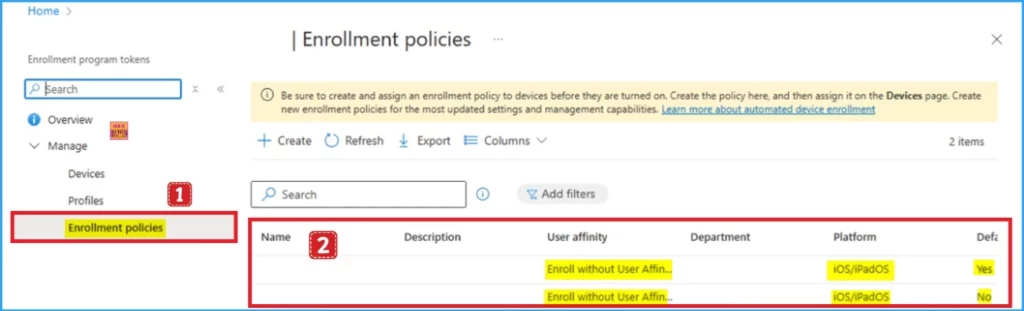
From the Microsoft Intune admin center you can easily Create a new enrollment policy. To do this go to Devices > Enrollment > Apple > Enrollment program tokens > select a token > Enrollment policies > Create.
Here, new enrollment policies can be created and assigned to devices that have synced over from Apple Business Manager or Apple School Manager. Additionally, enrollment policies can be deleted or set as the default by navigating to the ellipsis in a policy.
Assigning New Enrollment Policies to Devices
The device assignment flow for ADE policies is the same. Within the policy, navigate to the Devices tab to select a device(s) and select Assign policy. Ensure that you’re assigning a new enrollment policy to the devices.
| Existing (old) Enrollment Profiles |
|---|
| Existing enrollment profiles will remain in Devices > Enrollment > Apple > Enrollment program tokens > select a token > Profiles. New enrollment profiles within Profiles cannot be created. |
| Existing enrollment profiles can be deleted, edited, and viewed. Their device assignments will not be affected or changed. |
| We recommend you migrate your ADE devices from being assigned to old enrollment profiles over to new enrollment policies and always have the Await final configuration setting set to Yes. |
| If you delete an old enrollment profile, the device rename is no longer enforced (that is if someone changes the device name). |
Sending the Company Portal App to ADE Devices with User Device Affinity (Optional)
With new enrollment policies, the Company Portal application will never be sent down automatically from the creation or assignment of the enrollment policy. For enrollment policy with user device affinity, we strongly recommend you set the authentication method to Setup Assistant with modern authentication.
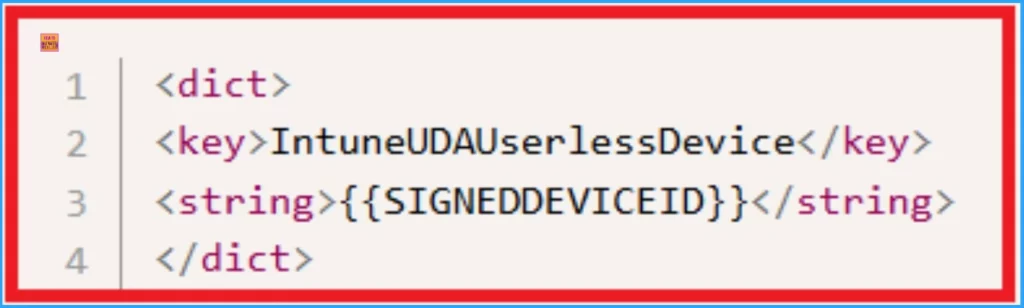
But if you still want to send down the Company Portal app to your users or devices, you can deploy the application as needed, along with the required app configuration policy. For this you can use XML for the app configuration policy for the Company Portal authentication method.
<dict>
<key>IntuneUDAUserlessDevice</key>
<string>{{SIGNEDDEVICEID}}</string>
</dict>
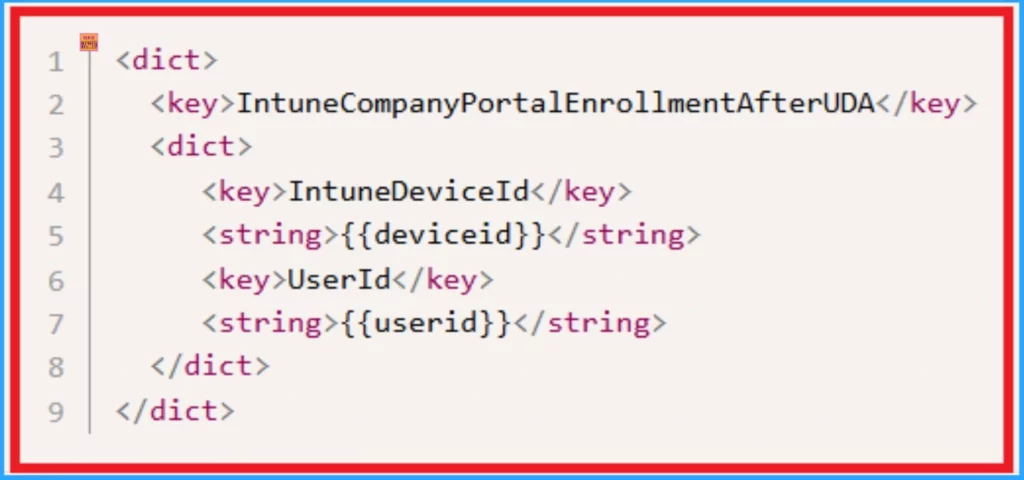
For the Setup Assistant with a modern authentication method, send the following XML for the app configuration policy.
<dict>
<key>IntuneCompanyPortalEnrollmentAfterUDA</key>
<dict>
<key>IntuneDeviceID</key>
<string>{{deviceid}}</string>
<key>UserId</key>
<string>{{userid}}</string>
</dict>
</dict>
Need Further Assistance or Have Technical Questions?
Join the LinkedIn Page and Telegram group to get the latest step-by-step guides and news updates. Join our Meetup Page to participate in User group meetings. Also, Join the WhatsApp Community to get the latest news on Microsoft Technologies. We are there on Reddit as well.
Resource
New iOS/iPadOS ADE enrollment policies experience
Author
Anoop C Nair has been Microsoft MVP for 10 consecutive years from 2015 onwards. He is a Workplace Solution Architect with more than 22+ years of experience in Workplace technologies. He is a Blogger, Speaker, and Local User Group Community leader. His primary focus is on Device Management technologies like SCCM and Intune. He writes about technologies like Intune, SCCM, Windows, Cloud PC, Windows, Entra, Microsoft Security, Career, etc.


Hi Sir,
This is design for Deployment Cooperate own Device? COD?
I don’t see what has changed
the XML for app config didnt work. “unrecognized app configuration” with or with out company portal deployed via VPP is not recognizing the device as enrolled via ADE already and tries to user enroll it and you cant access anything in the company portal app “device needs to be managed before you can install apps”
IntuneCompanyPortalEnrollmentAfterUDA
IntuneDeviceID
{{deviceid}}
UserId
{{userid}}