






The New Magnify Feature on Microsoft Edge Browser
Hi, all. Today, we are discussing a new topic related to The New Magnify Feature on Microsoft Edge. You all know that Microsoft Edge is one of the best browsers. It is known for its speed and security and was introduced by Microsoft in 2015.
Edge browser not only provides security features but also the best user-friendly features. Microsoft Edge brings out the best features and powerful tools in every update that enhance productivity, security, and user experience.
So today, in our topic, I am adding one of the latest features, Magnify. This new feature is now rolling out for Windows and macOS. Sometimes, we find it so difficult to see the details of an image that even if we zoom in, we can’t see it very well.
The Magnify feature in Microsoft Edge helps you see images more clearly without opening them in new tabs or downloading them. I think this is one of the best features of Microsoft Edge, which was recently released. So, in this post, we can look into the Magnify feature and discuss how it works.

Table of Contents
Can All Images be Magnified?
Can we Resize the Magnified Images?
The New Magnify Feature on Microsoft Edge
We discussed the new features of Microsoft Edge above. Do you think this feature is very much needed for the user to reduce the time it takes to enlarge the image and lose real quality when viewing it? I think it best to choose to view an image without losing quality.
- You can easily access this feature using a simple shortcut.
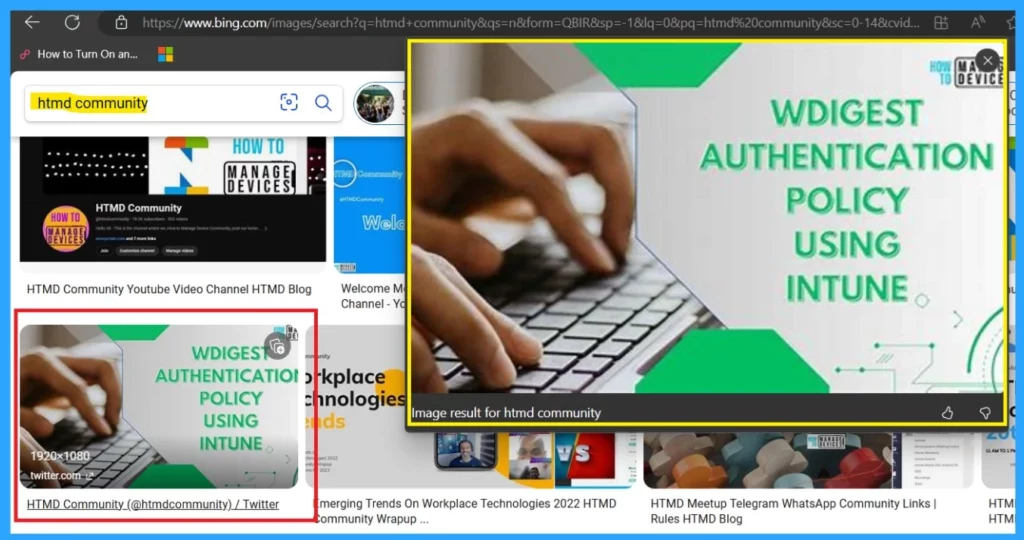
- The screenshot below will show the shortcut I used to see the image.
- First, Hover over an image and press the Ctrl key twice to open a pop-up window that lets you magnify the image.
- To close the window, click away from the image or click on the closing button(X)
| No | Ways to Access Magnify |
|---|---|
| 1 | Magnify images with a right-click |
| 2 | Magnify images with a keyboard shortcut |
- 5 Methods Open Microsoft Edge InPrivate Browsing Window
- New Text Prediction and other Features in MS Edge Browser
- Method to Start Close Read Aloud in Microsoft Edge
- Guide to Enable Efficiency Mode in Microsoft Edge using Intune
Magnify Images with a Right-Click
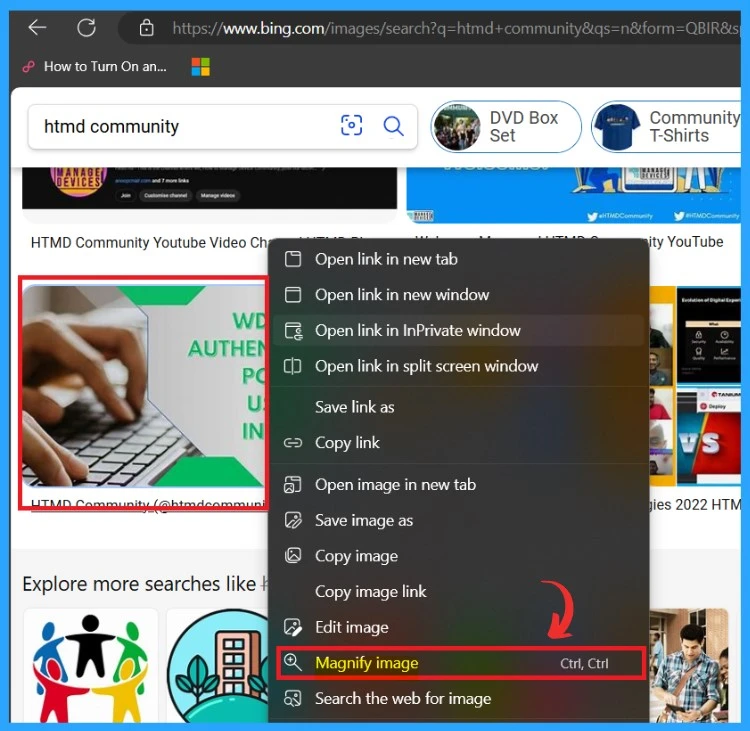
You can also access this option by right-clicking on the image you want to open and selecting the Magnify option. You can now get the same view of the above image. Also, this action opens the image in a pop-up window, letting you zoom in and out to see it better.
Disable the Magnify Feature on Microsoft Edge
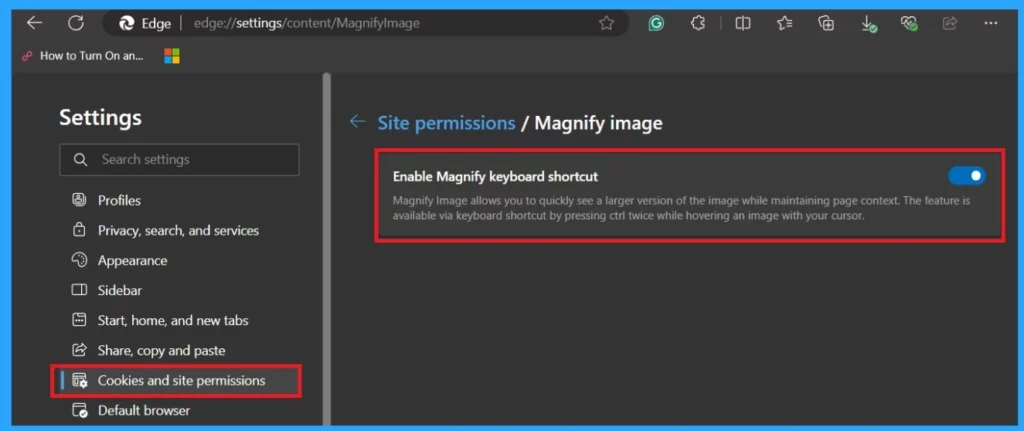
Some websites or apps might use the Ctrl key for different functions. You can easily disable this if you want to turn off the Magnify keyboard shortcut. To do this, you go to the Edge settings and select the option called cookies and site permission.
- Under Site permission, you can see the Magnify option.
- Also, you can get a small description of Magnify( See below).
- ”Magnify Image lets you quickly see a larger version of the image while maintaining page context. The feature is available via a keyboard shortcut: press Ctrl twice while hovering over an image with your cursor”.
- So, you can enable or disable this option according to your choice by toggling the pane.
- For Enabling – Toggling the pane to the Right
- For Disabling – Toggling the Pane to the Left
We are on WhatsApp now. To get the latest step-by-step guides, news, and updates, Join our Channel. Click here. HTMD WhatsApp.
Author
Anoop C Nair has been Microsoft MVP from 2015 onwards for 10 consecutive years! He is a Workplace Solution Architect with more than 22+ years of experience in Workplace technologies. He is also a Blogger, Speaker, and Local User Group Community leader. His primary focus is on Device Management technologies like SCCM and Intune. He writes about technologies like Intune, SCCM, Windows, Cloud PC, Windows, Entra, Microsoft Security, Career, etc.




Discussion