






New Sticky Notes App for OneNote in Windows
Exciting News for Windows Users! The New sticky Notes App for OneNote in Windows arrives. Microsoft Introduces Sticky Note app for Windows that can be used in Microsoft OneNote. This feature is currently in preview and available for users running OneNote on Windows Version 2402 (Build 17328.20000) or later.
Sticky Note on OneNote is the First step of Microsoft on Windows. The Sticking Note has excellent capabilities that help to focus on creating and recalling notes more seamlessly than ever. Sticky Note will ease your life with its abilities.
Sticky Note is a user-friendly application that helps you be active in online meetings. It is a simple way to save something for later quickly. It allows you to stay in the flow. Sticky note will be the best companion for you in different scenarios.
It is the best tool for users to pick up where they left off with notetaking when switching between tasks. Microsoft also planned to launch a new Sticky Notes app from the Windows Start menu and toggle over from the existing Microsoft Sticky Notes app on Windows soon. This blog post will help you learn more about Sticky Notes in the Windows app.

- Copilot in OneNote | Your Digital Notebook Reimagined with Copilot
- Cloud Attachment Option for Email Links in Outlook No Longer Support
Sticky Notes App for OneNote in Windows
Sticky Note can help you to quickly collect notes and capture a thought or idea in a meeting or conversation. Sticky Notes App can be quickly launched on your PC. Sticky Note’s different abilities can be explored on Microsoft OneNote.
| Different Features of Sticky Notes |
|---|
| Capturing Screenshot |
| Auto-Capture |
| Create Notes |
| Pop-Out |
| Side-by-side mode |
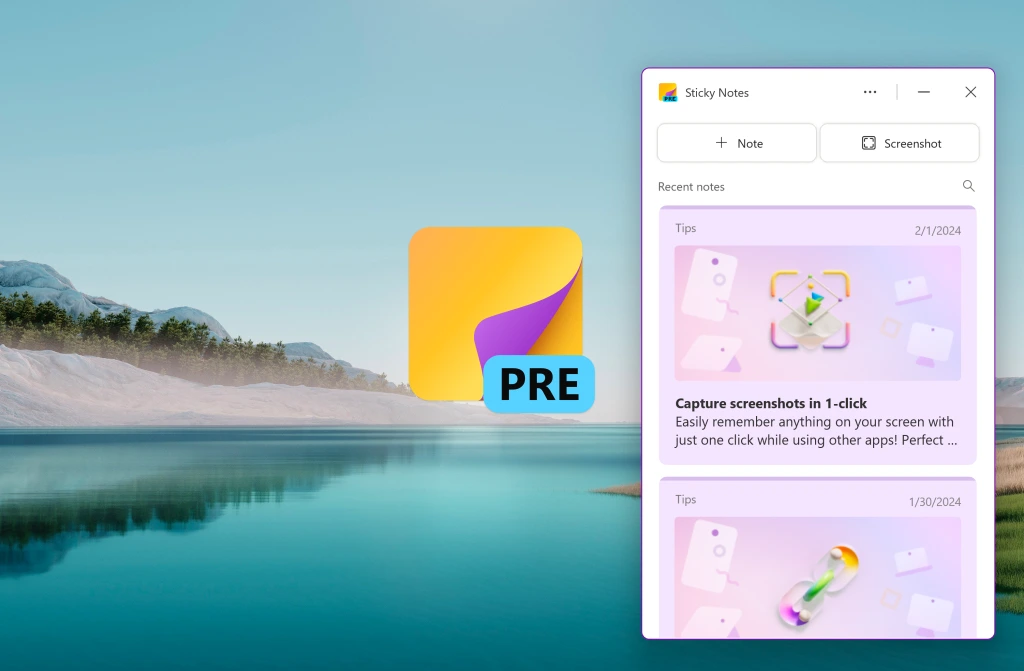
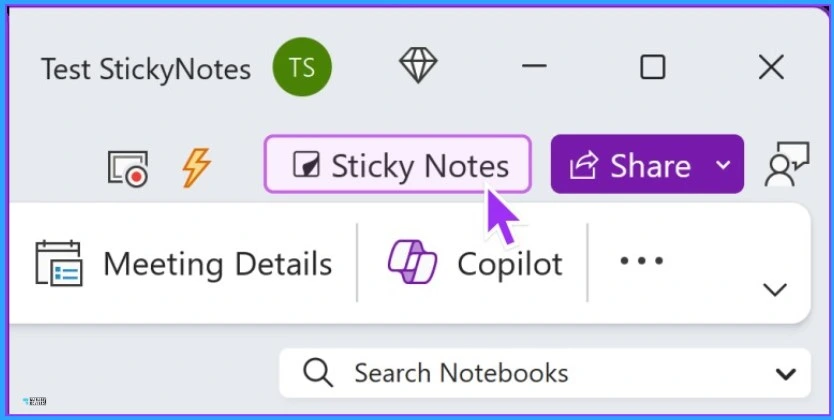
You can quickly launch Sticky Note by opening the OneNote app on Windows and selecting the Sticky Notes button. To easily access Sticky Note, you can pin it to the taskbar. You can also press the Win + Alt + S keys to launch the app anytime.
- You can only use Sticky Note after the sign-in
- Sticky Notes can be used across your synced device
1. Capturing Screenshot
You can easily capture screenshots using Stcking Notes on your PC. If you are in a meeting, when a presentation is shared, take screenshots of essential slides with a single click while staying focused on the meeting. You can also double-click on a captured image to view it at full size.
- Select the Screenshot option on the Sticky Notes window
- Select the part of the screen in which you want to capture the screenshot

2. Auto-Capture
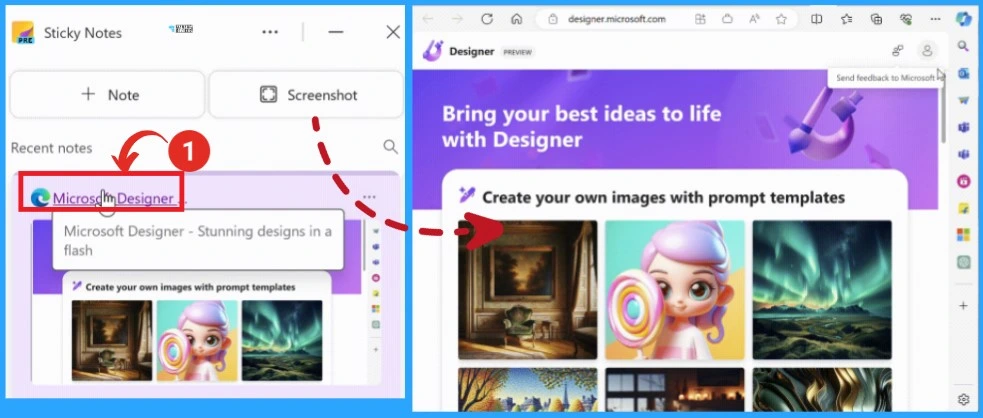
The auto-captured source feature is available on Sticky Notes. It helps you to capture a note or a screenshot from a website and click the auto-captured source to go back to that website.
3. Create Notes
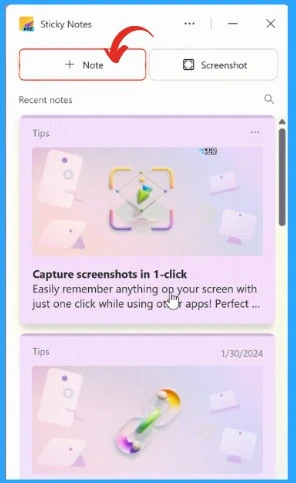
Create Notes is the Primary and essential feature of Sticky Notes. You can easily Prepare or collect Notes during the Meeting, which can be used later. Select the Notes option from the Sticky Note window.
4. Pop-Out
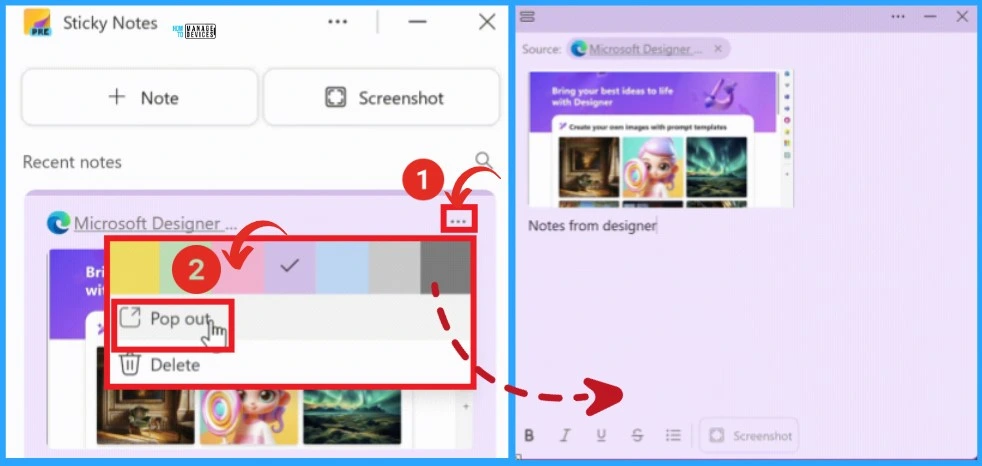
The Pop-Out option will help you when you want to see notes in the larger window. For this double, click it or select the Pop-out on the top right corner of the note.
- Reset Local Security Policy Settings to Default in Windows 11
- Windows WMI Command Line WMIC Reaching End of Life
5. Side-by-Side Mode
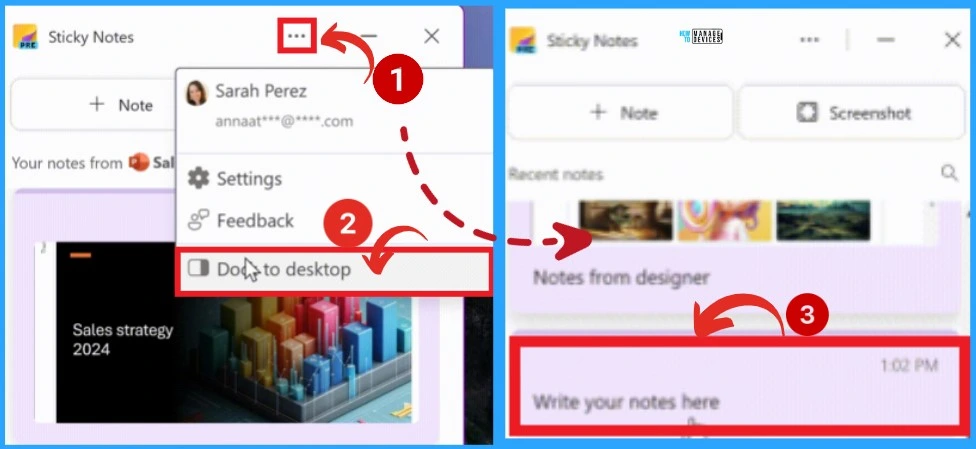
Side-by-Side mode feature is the best one in the Sticky Note application. It allows you to use new sticky notes when you use other apps. This feature is helpful for you when you want to do multiple tasks. Click on the 3 dot option on the Sticky Note window and select the Docs to Desktop option. You can write notes in the next window.
Reference
Introducing the new Sticky Notes app for Windows (microsoft365.com)
We are on WhatsApp. To get the latest step-by-step guides and news updates, Join our Channel. Click here –HTMD WhatsApp.
Author
Gopika S Nair is a computer enthusiast. She loves writing on Windows 11 and related technologies. She is here to share quick tips and tricks with Windows 11 or Windows 10 users. She is Post Graduate Diploma Holder in Computer Science.




Discussion