






New ZoomIt Features DemoType
Exciting News! Microsoft has introduced a New ZoomIt Features DemoType. This is a Sysinternals ZoomIt feature that will be released soon. It is a user-friendly feature and part of Sysinternals tools.
Sysinternals tool is the best choice for an IT Pro or a developer to manage, troubleshoot and diagnose your Windows and Linux systems and applications. Usually, ZoomIT is a screen zooming and recording tool; now, it is combined with the Sysinternals tool.
ZoomIT Features DemoType will launch soon and become a powerful tool for every user. It is best for live demos and allows you to avoid pre-recording meetings. This feature enhances the users’ ability in the Live Section.
It will be helpful in VS Code demos. It is the perfect tool for users in various scenarios. This blog post helps you understand the New ZoomIT Features DemoType and provides demoType actions.

| New Feature in ZoomIT |
|---|
| DemoType |
- Special and Fresh Looking Feature Update Screen for Windows 11
- Customize Recycle Bin Settings Easily on Windows 11
How can DemoType Benefit for Presentations?
DemoType makes presentations feel more real by showing live typing during demos. It enhances the audience’s understanding and engagement and makes your demos more impactful.
New ZoomIt Features DemoType
It is a great feature that helps maintain the live section‘s demo flavour. Usually, an open file with text is used in live meetings. That file is used for the demo and will flip the notepad. Flip back to the notepad or browser and then paste the text.
This doesn’t feel good, but it makes it clear users are not typing, removing some of the live demo flavor. New ZoomIT Features DemoType is the best choice for Live Meetings.
| Different uses of ZoomIT |
|---|
| Helps to zoom in on an area of the screen |
| Allows you to move around the screen |
| It allows on-screen digital drawing |
| Used to annotations |
| It works as a recording tool |
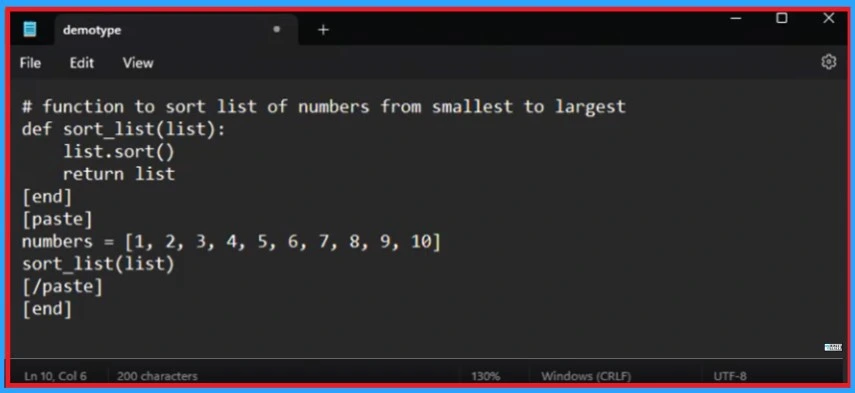
The new ZoomIT Features help you zoom in on a particular section in the window. Here are two parts of text separated by an end tag.
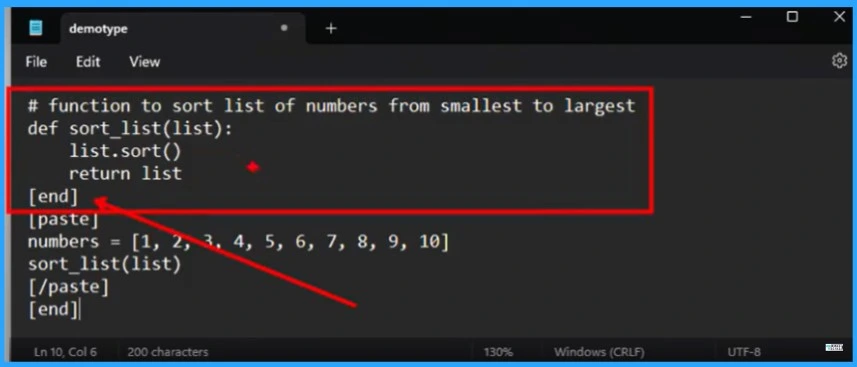
The first part of the text is some code, and you can notice that even though it has got indents here, that would get screwed up typically because ideas like vs code will try to auto-indent. Users don’t have to worry about that because ZoomIT will resolve that.
- Best Free Microsoft Courses Available in 2024
- Intune Pivot Query Real-time Reporting Troubleshooting Capabilities
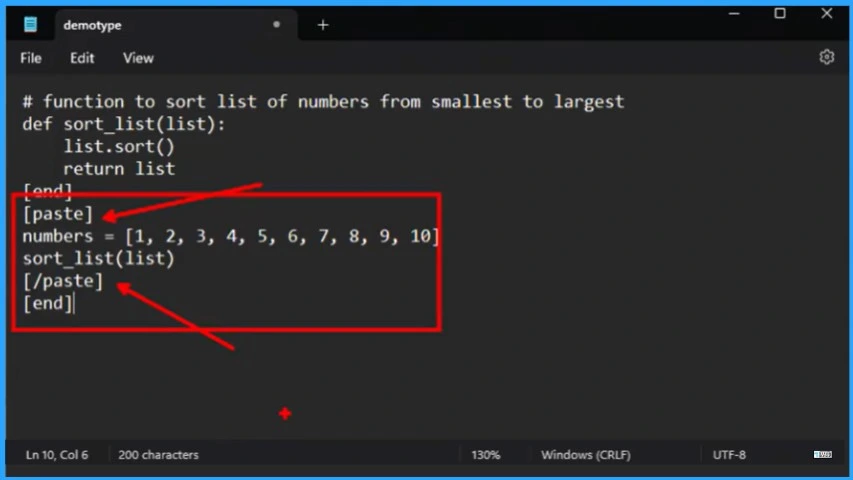
The second part of the text is similar but has paste tags around it, so it will be simple to paste instead of typing it in ZoomIT. ZoomIT can either type it at a speed that looks like typing speed, or you can drive text in yourself by typing on the keyboard.
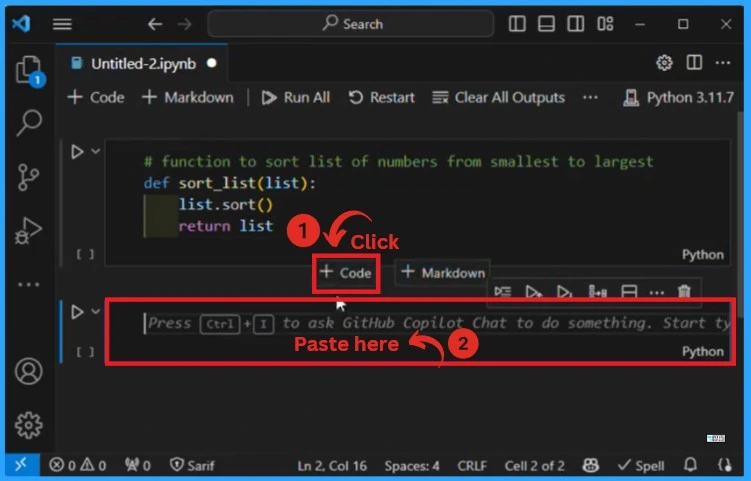
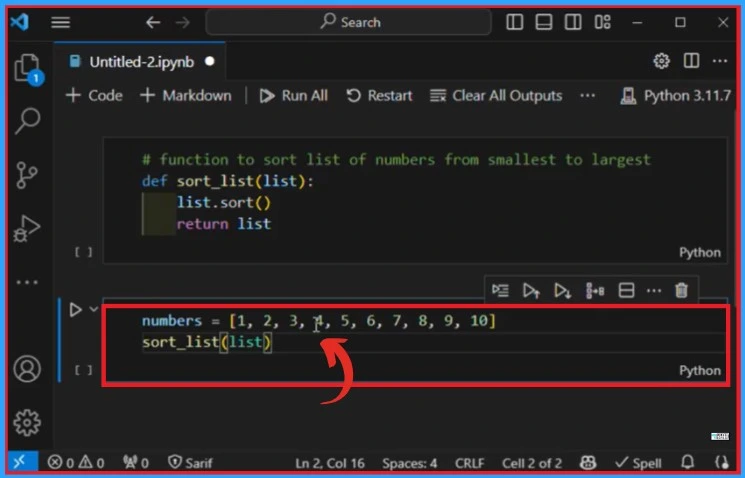
This screenshot shows how the new ZoomIt feature demoType works. To use it, enter the hotkeys in the VS Code window and click the +code option. Then, enter the demo type hotkey again and press (ctrl+V) to paste.
After pasting the demoType, you can see the result in the window below. The numbers are displayed in the window, which is written in the VS code. Python is used here to show the ZoomIT demoType in action.
- Windows Update Troubleshooting using MoUxCoreWorker-Udiag and MoNotificationUx-Udiag
- Windows Update Logs Deep Dive with Microsoft
We are on WhatsApp. To get the latest step-by-step guides and news updates, Join our Channel. Click here –HTMD WhatsApp
Author
Gopika S Nair is a computer enthusiast. She loves writing on Windows 11 and related technologies. She is here to share quick tips and tricks with Windows 11 or Windows 10 users. She is Post Graduate Diploma Holder in Computer Science.




Discussion