






No Wipe No Reenrollment Needed for MacOS iOS iPad OS Devices Migration to Intune from other MDM Solutions
Let’s discuss No Wipe No Reenrollment Needed for MacOS iOS iPad OS Devices Migration to Intune from other MDM Solutions. Apple brings a new update that changes the MDM migration capability. One of the biggest headaches faced by the admins is migrating macOS and iOS/iPadOS devices from (MDM solution to another without factory resets.
Also, manual re-enrollment or missing configurations are other issues faced by admins. All these issues can be easily avoided with the new MDM Migration capability in macOS 26 and iOS/iPadOS 26. Without user disruption, IT admins can bring the transitions devices from third-party MDMs to Microsoft Intune seamlessly, and without user disruption.
Before the introduction of the new MDM Migration, admins wanted to wipe each device before switching to MDMs. If the Wi-Fi profiles, certificates, security settings, or apps weren’t manually reapplied, it should be lost. Moreover, admins cannot track which devices were enrolled successfully.
With the new MDM Migration, all these issues can be simply avoid. These new migration not only avoid No Wipe No Reenrollment Needed for MacOS iOS iPad OS Devices, but also, improves the user experience and easy to tracking and reporting.

Table of Contents
No Wipe No Reenrollment Needed for MacOS iOS iPad OS Devices Migration to Intune from other MDM Solutions
As mentioned, No Wipe No Reenrollment Needed for MacOS iOS iPad OS Devices Migration. With the migration of devices to Intune helps IT admins consolidate device management across platforms, ensure consistency of security policies. Here I show the steps included on Apple’s MDM migration feature to easily move your macOS and iOS/iPadOS fleet to Intune.
There are 3 major steps included on this New Migration. They are Pre-migration – preparation and set up, Migration – Admin step-by-step flow, Migration – Endpoint step-by-step flow.
Prerequisite: macOS/iOS/iPadOS 26 and enrollment into a device management service is required to use the Apple MDM migration feature.
- Download 37 Page Best Intune Migration Document from Microsoft
- Migration Guide Intune Hybrid to Intune Standalone
- macOS Devices Migration Framework to Intune from Jamf Kandji JumpCloud Platforms
Pre-Migration Steps to Set Up Preparation
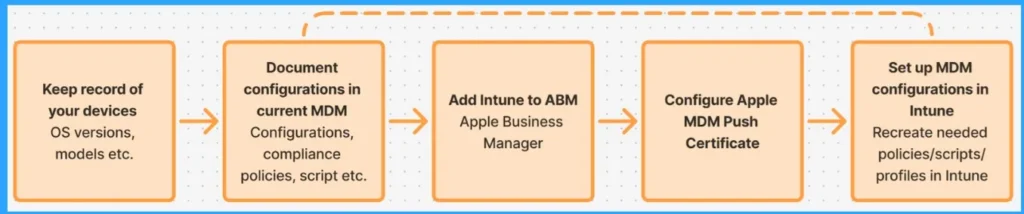
Before starting the Migration, some preparations and setup are needed. It is called pre-migration steps. The Pre-migration includes 5 major steps. The table below shows the 5 steps and details.
| 5 steps | Details |
|---|---|
| Keep Device Record | on the pre-migration create the detailed inventory of all devices includes each device model, the version of OS it’s running, and whether it’s corporate-owned or user-owned. |
| Configure documents in current MDM | Document configuration in current MDM is the second step. Before making any changes, document all existing configurations in your current MDM platform. It includes Configuration profiles, Compliance policies, Security baselines, Custom scripts, Deployed applications. |
| Configuration of Apple MDM push certificate | On the Intune Portal, create and upload an Apple MDM push certificate. Secure communication with Apple device will be easier with this certificates. |
| Add Microsoft Intune to Apple Business Manager (ABM) or Apple School Manager (ASM) | To integrate Microsoft Intune with ABM or ASM, first Download the public key from Intune. Then, Upload that key to ABM or ASM when creating a new MDM server. Then, download the server token from ABM or ASM and upload it back into Intune. |
| Set up MDM Configurations in Intune | Replicate current configurations into Intune and test them on a pilot device. |
Admins’ Step-by-Step Flow of Migration
In this step, log in to ABM Your account must be role or Administrator or Device Enrollment Manager. Then select the device or group of devices targeted for migration to Intune. Selecting the ellipsis on the top right of device overview interface unveils the “Assign Device Management” button. Select the server you want to migrate the device to. In this case, it’s Intune, then confirm device assignment.

Endpoint Step-by-Step Flow of Migration
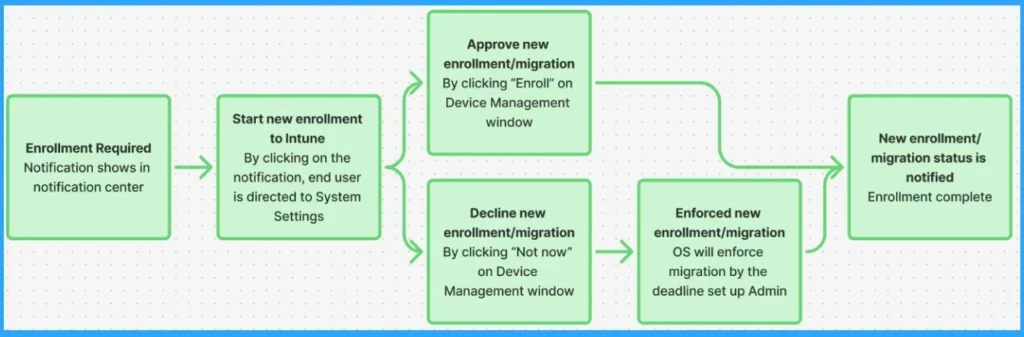
In this stage, User gets a notification to approve the migration. If missed by the deadline, enrollment is enforced with a full-screen prompt. No reboot needed; migration completes once the new profile is installed.
Verification of Migration
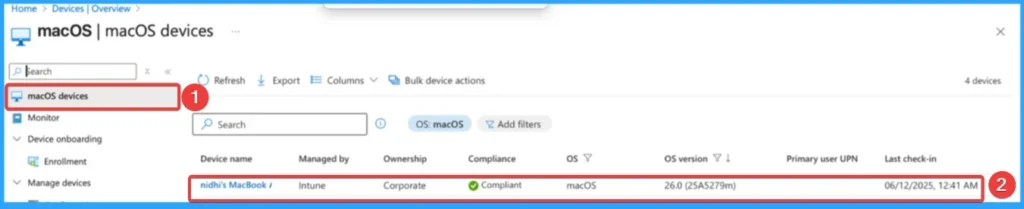
On the Intune portal, you can verify whether the migration and enrollment were completed successfully or not. You can confirm, the new devices are listed. If you are migrating a large number of devices, test the device, verifying required configurations run smoothly before migration and test your devices after migration to ensure everything is working smoothly. If you run into any issues, further adjustments may be needed.
Need Further Assistance or Have Technical Questions?
Join the LinkedIn Page and Telegram group to get the step-by-step guides and news updates. Join our Meetup Page to participate in User group meetings. Also, Join the WhatsApp Community to get the latest news on Microsoft Technologies. We are there on Reddit as well.
Author
Anoop C Nair has been Microsoft MVP for 10 consecutive years from 2015 onwards. He is a Workplace Solution Architect with more than 22+ years of experience in Workplace technologies. He is a Blogger, Speaker, and Local User Group Community leader. His primary focus is on Device Management technologies like SCCM and Intune. He writes about technologies like Intune, SCCM, Windows, Cloud PC, Windows, Entra, Microsoft Security, Career, etc.


Discussion