






Managing Office 365 Click to Run Updates Via SCCM using Adaptiva OneSite Configuration Manager ConfigMgr
Let’s discuss Managing Office 365 Click to Run Updates Via SCCM using Adaptiva OneSite Configuration Manager ConfigMgr. Microsoft introduced a new deployment process for Office 365 that uses its Click-to-Run technology.
Click-to-Run allows us to download the latest content from the internet and update Office 365. So, the challenge for SCCM admins is how to keep Office 365 updated in a controlled way using SCCM.
We can’t allow users to download content from the Internet and install the updates. If they do, we will encounter bandwidth issues, and the updates cannot be managed centrally.
We’re facing challenges in deploying Office 365 via SCCM. One of them is the Source location of the SCCM package/application. How can we keep the package source updated, and how can we stage these DPs?
| Index |
|---|
| Managing Office 365 Click to Run Updates |
- Expedite Microsoft Office Apps Updates using Intune Policy | Faster Updates for M365 Apps
- SCCM to Deploy and Install Office 365 ProPlus Updates
- Learn How to Create & Install the Office 365 ProPlus Client Package
- Deploy Office 365 ProPlus Microsoft 365 Apps using SCCM
Managing Office 365 Click to Run Updates
Adaptiva Onesite newest version, 5.5, has a solution via its intelligent workflow to resolve these challenges. Using ConfigMgr/SCCM and Adaptiva OneSite’s Content Push feature, the Office 365 source can be distributed once over the WAN.
Adaptiva Onesite 5.5 helps replicate content seamlessly to clients on the LAN using peer-to-peer technology. Administrators can download Microsoft Office 365 source files locally and synchronize them when updates are available using Microsoft’s Office Deployment Tool, or ODT.
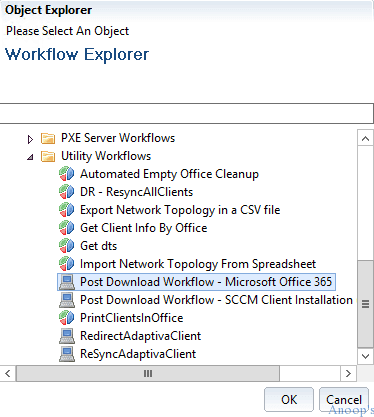
| Select an Object Explorer Workflow |
|---|
| Post Download Workflow – Microsoft Office 365 |
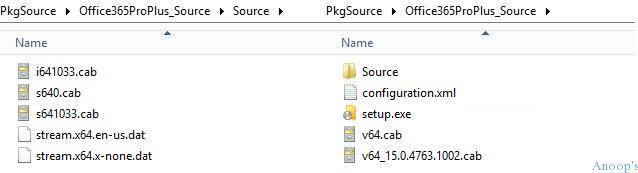
Using a scheduled task, Office will check for updates from a defined source location, and if there is a difference in version, Office will be updated accordingly. Preparing the source folders for Office 365 is the first step; there are 3 folders: Office 365 ODT Source, Office 365 SCCM Package Source, and Office 365 User Folder.
When the content source is updated, OneSite will automatically generate a small diff file using a proprietary state-of-the-art differential compression algorithm, replicating only the differences to the targeted clients. This significantly reduces the amount of traffic that needs to traverse the WAN.
Enable Update distribution points on a schedule, then click the Schedule button to create a recurring schedule in which the Office 365 package source will be updated.
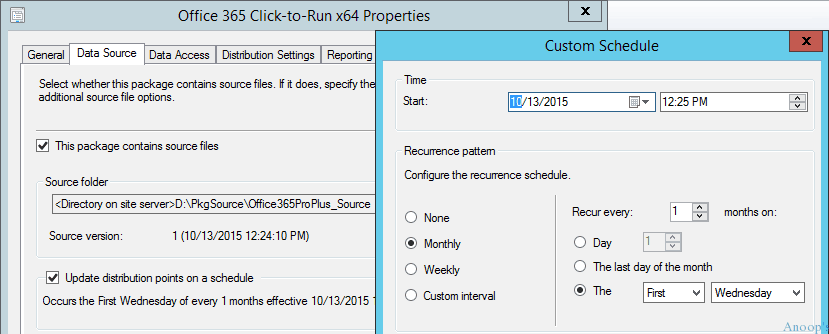
Following are the high-level steps that we need to complete for Office 365 deployment via SCCM. Create Package/Application for Office 365, Distributing the Office 365 Content with “update distribution points on a schedule,” Creating the Office 365 Content Push Policy – In the Adaptiva Server Workbench, click the Home button, and in the “Workbench Perspectives” pane, expand the One Site folder and open the One Site – Content Push Perspective.
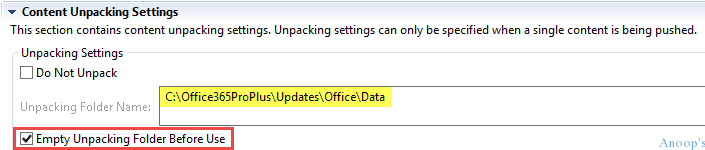
Another exciting/helpful option with the Adaptiva workbench is a check-the-box Empty Unpacking Folder Before Use.
Click-to-run applications always get regular updates. Office 365 probably comes with monthly updates, so we keep DP content updates monthly. Update management is also a worry for SCCM admins. The Adaptiva OneSite solution allows this issue to be fixed as well.
Once the schedule is reached, the package content is updated on its Distribution Point(s). After that, Adaptiva will automatically replicate the differences to target clients, saving significant bandwidth.
Resources
SCCM Related Posts Real World Experiences Of SCCM Admins (anoopcnair.com)
We are on WhatsApp now. To get the latest step-by-step guides, news, and updates, Join our Channel. Click here. HTMD WhatsApp.
Author
Anoop C Nair is Microsoft MVP! He is a Device Management Admin with more than 20 years of experience (calculation done in 2021) in IT. He is a Blogger, Speaker, and Local User Group HTMD Community leader. His main focus is on Device Management technologies like SCCM 2012, Current Branch, and Intune. He writes about ConfigMgr, Windows 11, Windows 10, Azure AD, Microsoft Intune, Windows 365, AVD, etc.


Discussion