






Get Office Apps Inventory Report from Microsoft 365 Admin Center
Let’s check how you can get Office Apps Inventory Report from Microsoft 365 Apps Admin Center. The Office Apps Inventory Report from the Microsoft 365 Apps Admin Center provides detailed insights into the usage and distribution of Office Apps within your environment.
The Microsoft 365 Apps admin center provides administrators with an inventory of the Microsoft 365 apps that are installed and being used within an organization. This includes information such as the number of licenses, which apps are installed, and who is using them.
The inventory allows administrators to view usage trends, manage licenses, and monitor the adoption of Microsoft 365 apps within their organization. Using the dashboards, you, as an admin, can quickly identify potential issues.
With the Office Apps Inventory Report, you can also gain a deeper understanding of the distribution of Component Object Model (COM) based add-ins within your environment. This information can help you to make informed decisions about managing and supporting Office Apps within your organization.

One of the key benefits of using the Office Apps Inventory Report is that it provides a clear and concise overview of the usage of Office Apps within your environment. This information can be used to identify any trends or patterns in usage, and to make informed decisions about future support and development.
Get Office Apps Inventory Report from Microsoft 365 Admin Center
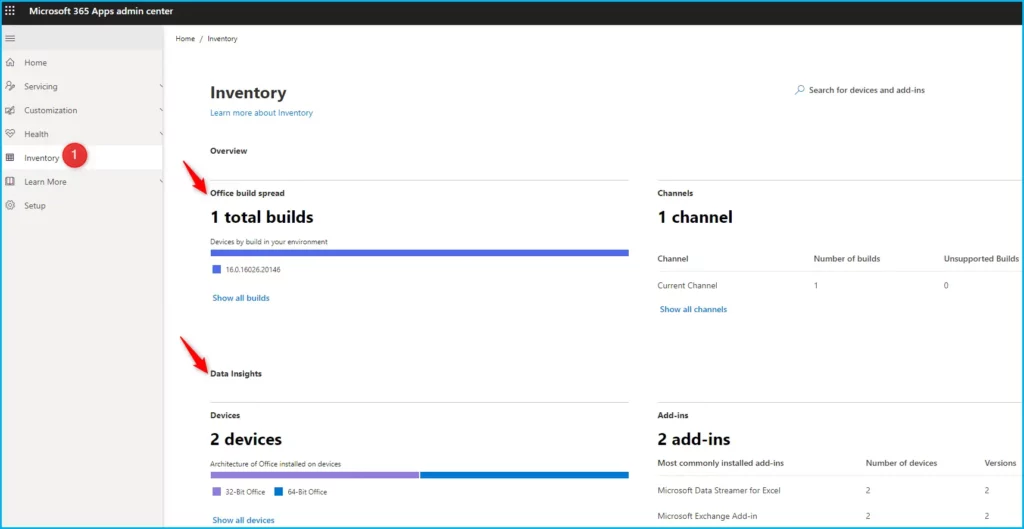
The Inventory in the Microsoft 365 Apps admin center is loaded with detailed reports and insights which are specifically built for the Microsoft 365 Apps. To check the Office inventory in the Microsoft 365 Admin Center, follow these steps:
- Log in to the Microsoft 365 Apps Admin Center https://config.office.com/.
- Select Inventory from the left navigation menu. If you haven’t viewed the inventory before, complete the setup wizard.
After you complete the wizard, insights about active devices will start to appear on the page within two hours. An active device is a device where a user has launched an Office app, such as Word or Excel.
Device registration is made possible with this service, allowing administrators to gain a complete understanding of their devices with Microsoft 365 Apps installed in just a matter of hours. The landing page showcases critical insights, including the number of deployed releases, utilized update channels, architecture breakdown, and the most frequently installed add-ins.
Dive deeper into the insights with rich data by exploring the various sections. Obtain a comprehensive overview of all releases, even at the device level. Moreover, gain further insights into a specific device and its Microsoft 365 App installation.
| Heading | Description |
|---|---|
| Device name | The name of the device |
| Last seen | The last time the device checked in |
| Manufacturer | The device manufacturer |
| Model family | The device model family |
| Model | The device model |
| Total RAM | The amount of RAM installed on the device |
| OS Family | The operating system that is running on the device |
| OS version | The version of the operating system that is running on the device |
| OS build | The build number of the operating system that is running on the device |
| Free storage | The remaining storage on the drive on which Office is installed |
| Total storage | The total storage on the drive on which Office is installed |
| Last signed in user and email | Information about who the last signed in user on the device was |
| Version | The version of Office that is installed on the device |
| Build | The build of Office that is installed on the device |
| Release date | The release date of that build of Office |
| Update channel | The update channel that Office is configured to receive Office updates from |
| Office apps | A list of the Office apps installed on the device |
| Office Add-ins | A list of the COM add-ins that are installed on the device. This list excludes Add-ins that are part of the Office installation. |
| Macro files | Whether the device has recently opened a macro enabled file |
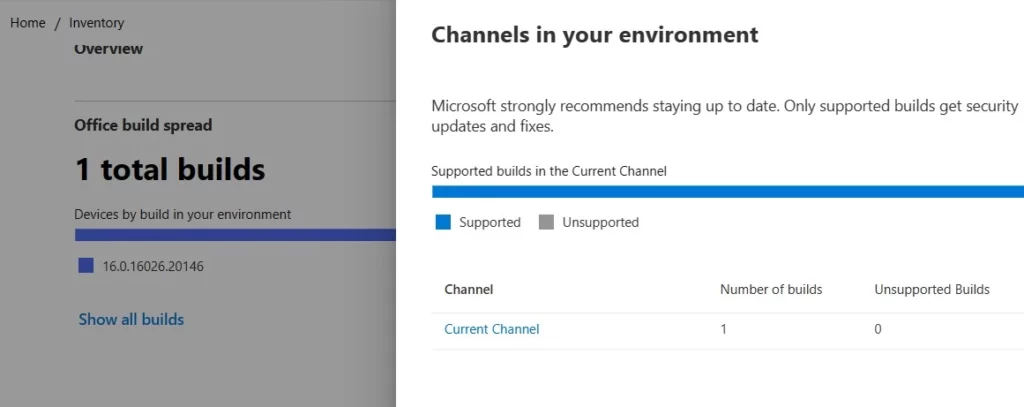
You can also get visibility into the number of builds within your environment by updating channels and their support status through the Channels insight. Opt to display all channels to reveal a flyout with extra information.
From this flyout, select a specific update channel to view a list of devices that are set up to use that particular update channel.
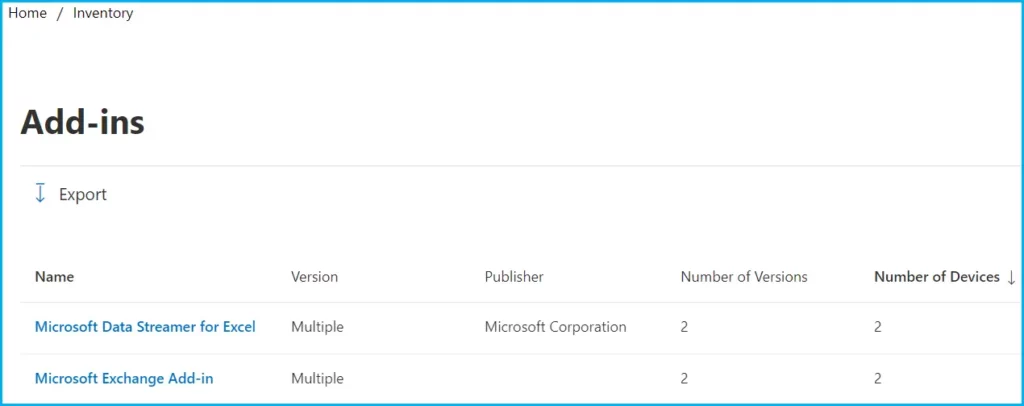
Here you can also check the installed Component Object Model (COM) based add-ins and their respective version distribution in your environment with ease.
Author
About Author – Jitesh, Microsoft MVP, has over six years of working experience in the IT Industry. He writes and shares his experiences related to Microsoft device management technologies and IT Infrastructure management. His primary focus is Windows 10/11 Deployment solution with Configuration Manager, Microsoft Deployment Toolkit (MDT), and Microsoft Intune.




Discussion