






Best Way to Organise your Workspaces in Microsoft Edge
Let’s discuss the Best Way to Organise your Workspaces in Microsoft Edge. In today’s digital world, an efficient organization of online workspaces is essential for maximizing productivity. Microsoft Edge offers a range of features to help users simplify their browsing experience and manage multiple tasks effectively.
Organizing your workspaces in Microsoft Edge helps you to create separate places for different tasks. It utilises features like Collections and pinned tabs and customises the start page for visual clarity and efficiency.
We have an article that simplifies setting up Microsoft Edge Workspaces into just three straightforward steps. This guide offers an effortless method for maintaining organization and focus while browsing. Whether it’s for work or study, these simple steps provide an easy way to keep your online activities structured.
Microsoft Edge Workspaces is a feature in the Edge browser that allows users to organize their browsing activities into separate virtual spaces, each dedicated to a specific task, project, or area of interest. This post helps you give a comprehensive guide on the best way to organize your workspaces in Microsoft Edge.

- Turn On or Off Tab Performance Detector in Microsoft Edge
- Add or Remove the Copilot Toolbar Icon in Microsoft Edge
- Turn On or Off Show Action Hint for Mouse Gesture in Microsoft Edge
- Turn On or Off Microsoft Defender SmartScreen for Microsoft Edge in Windows 11
- Secure Microsoft Edge Browser using Intune Security Policies
Organise your Workspaces in Microsoft Edge
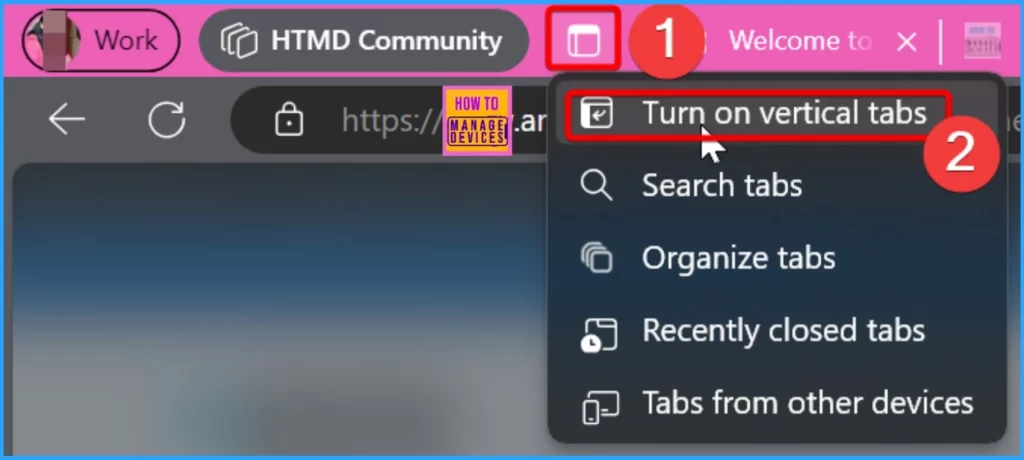
Finding the right one can be tricky when you have many tabs open. That’s why we recommend using vertical tabs. Vertical tabs help you by putting your tabs on the side of your screen instead of along the top.
This makes it easier to see all your tabs simultaneously and quickly find the one you need. It’s like having a list of your tabs beside your main window, making it simple to switch between them without getting lost.
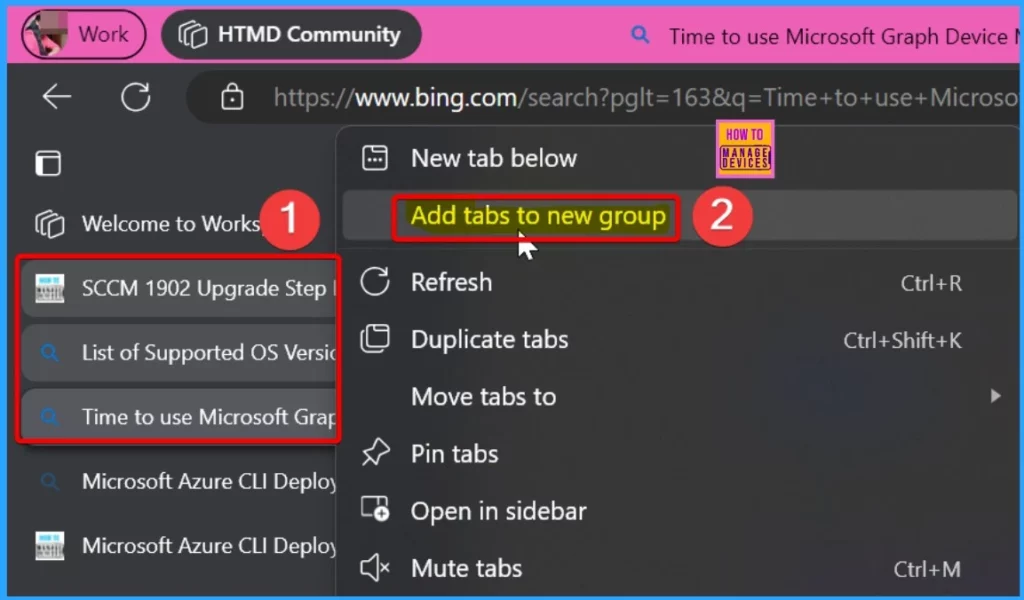
Once you’ve activated vertical tabs, adding tabs to new groups is straightforward. Select the tabs you want to group. Then, right-click on one of the selected tabs. A pop-up window will appear; choose the “Add tabs to new group” option from there.
- This action will create a new group containing the selected tabs, helping you keep your browsing organized and focused.
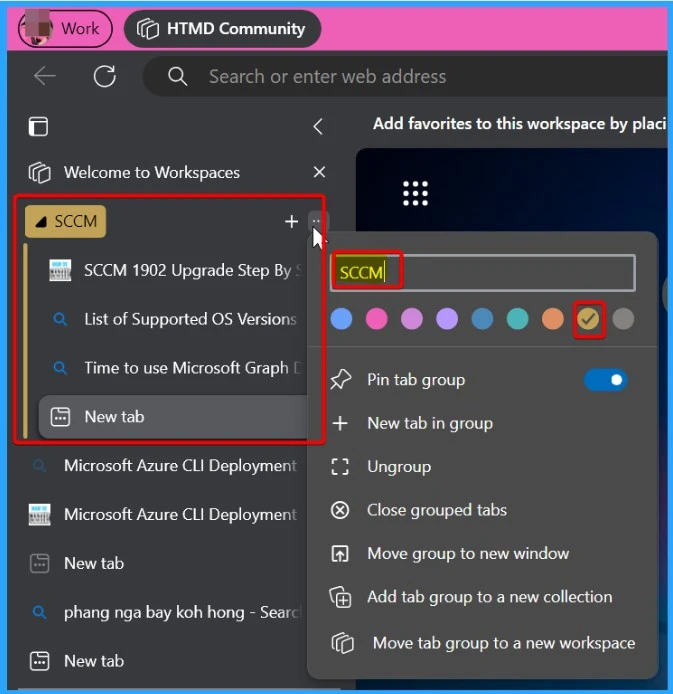
In the screenshot below, you will see an option to give a name to your new group and choose a colour. Once you have selected “Add tabs to new group“, a dialog box will appear where you can enter a name for the group. Type in a name that helps you identify what the group is for.
Then, pick a colour from the options provided. Choosing a colour helps distinguish one group from another. After naming and colouring your group, click “OK“, and your tabs will be neatly organized into the new group.
- Latest AI Features of Microsoft Edge Browser | Game Changer
- Microsoft Edge for Business Review New Business Browsing Experience
- How to Enable and Use the New Screenshot Tool in MS Edge
- Enable Disable Let Copilot Use Content from Microsoft Edge in Windows 11
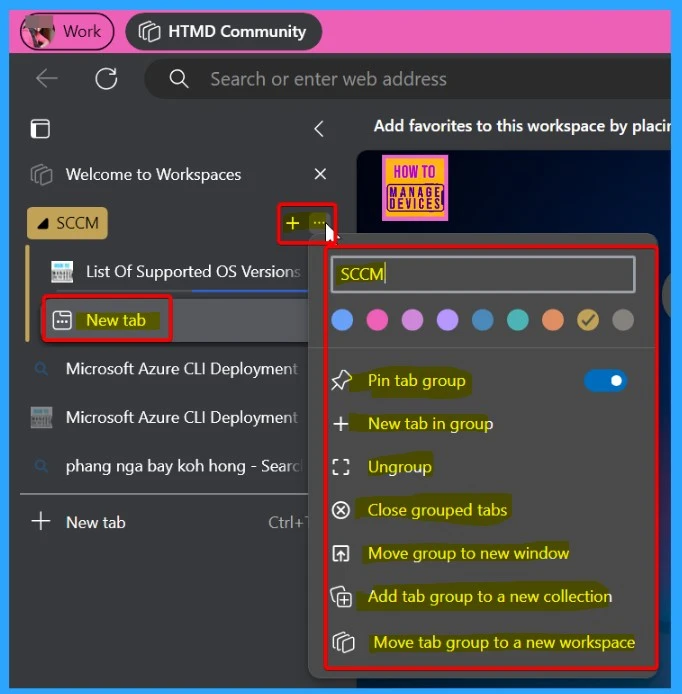
Next to the group name, you should see a + symbol. This symbol helps you add a New tab to the group. The 3 dots help you Edit the Group settings. The table below shows more details about the Edit options.
| Tab Settings Options | Details |
|---|---|
| Pin Tab Group | Pins the entire tab group to the tab bar. |
| New Tab in Group | Opens a new tab within the selected group. |
| Ungroup | It helps you to ungroup tabs |
| Close Grouped Tabs | Closes all tabs within the selected group. |
| Move Group to New Window | Moves the entire tab group to a new browser window. |
| Add Tab Group to a New Collection | It helps you to add all tabs in the group to a new collection. |
| Move Tab Group to a New Workspace | It helps you to move the entire tab group to a new workspace. |
Split Screen in Edge Browser
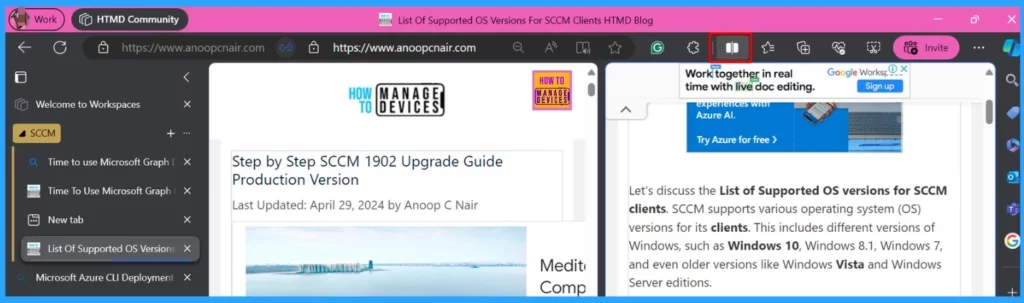
In Microsoft Edge, there’s a cool feature called “split screen.” It helps you divide your browser window into two parts, each showing a different webpage. This is really handy when you want to look at and compare two web pages at the same time.
It saves you from having to keep switching between tabs or windows, so you can easily monitor two things without any difficulties.
Read more – Split Screen Button on Microsoft Edge Browser
We are on WhatsApp now. To get the latest step-by-step guides, news, and updates, Join our Channel. Click here. HTMD WhatsApp.
Author
About the Author: Vidya is a computer enthusiast. She is here to share quick tips and tricks with Windows 11 or Windows 10 users. She loves writing about Windows 11 and related technologies. She is also keen to find solutions and write about day-to-day tech problems.




Discussion