






Introducing New Outlook Email Priority by Copilot Settings by Copilot
Hi, all. Today, we share exciting news on Outlook Email Priority by Copilot settings. As we all know, Copilot is the best way to reduce our daily workloads nowadays. This time, Microsoft Ignite 2024 announced the best part of Copilot for Outlook.
As you all know, we get so many emails on Outlook daily with the help of Copilot; now, we can Prioritize them. It’s a good thought, right? It’s going to be the best enhancement, and it will reduce the time spent searching for preferred mail.
In the Ingnite event 2024, Outlook Email Priority by Copilot settings was announced. According to the latest reports, Copilot can now automatically Sort and prioritize emails. So, we can say that Copilot helps you manage your Outlook emails more effectively.
Also, some other improvements were added to Outlook with the help of Copilot. You know Copilot also summarize long emails. I think it is easy for users to understand the Email content in seconds. So, let’s look at an overview of the Outlook Email Priority by Copilot settings by Copilot.

How does Copilot help with meeting room bookings in Outlook?
Introducing New Outlook Email Priority by Copilot settings by Copilot
Also, we look at the Overview based on Outlook Email Priority by Copilot settings. This is one of the significant improvements to Outlook. Copilot is currently expanding its features to ensure user productivity. We all have a lot of workloads this time. Copilot reduce them through Outlook.
- This feature helps you pay attention to essential emails and avoid getting distracted by less important ones.

- Transform On Screen Tables Into Ready To Use Excel Data With A Single Click
- Hide the Try the New Outlook Toggle in Outlook using Intune Settings Catalog Policy
- New Copilot Actions to Customize Your Template Settings to Automate Everyday Tasks
- Top 4 Security Copilot Use Cases and Prompts for Entra Shared by Microsoft
Priority by Copilot
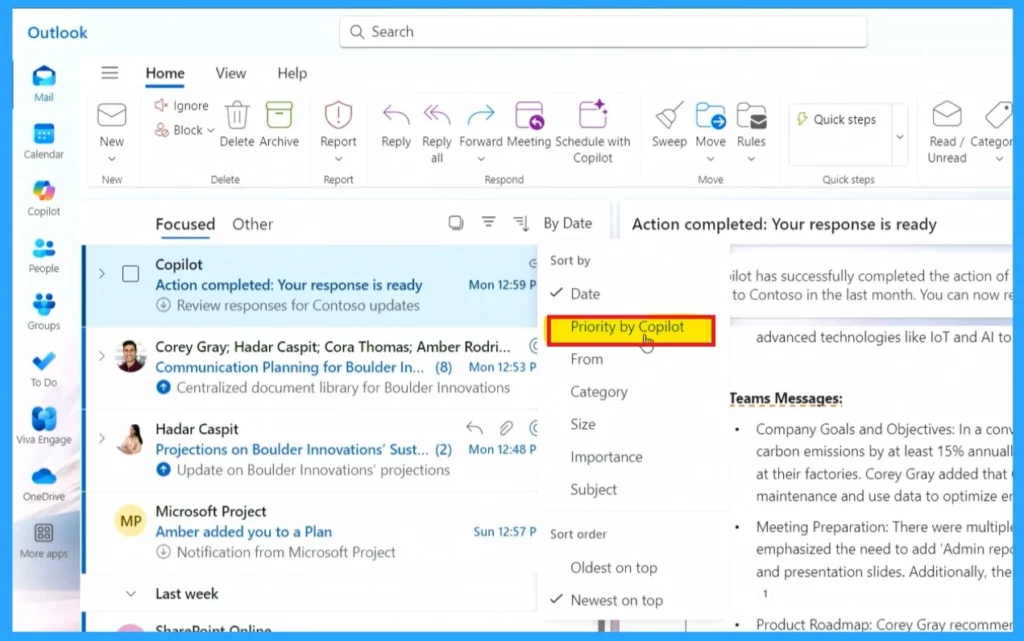
Copilot can automatically sort emails based on urgency, sender, or relevance to ongoing projects. This feature helps users focus on the most important messages first, reducing the time spent sifting through their inbox. When you use the “Priority by Copilot” feature, Copilot tells you why certain emails are marked as important.
- You will see Priority by Copilot when you click the By date option.
- Click on the Priority by Copilot.
- Now you can see a list of Prioritized Emails.
| No | How Copilot Know the Priority of Emails |
|---|---|
| 1 | It might prioritize an email because it’s from Important people you interact with frequently, contains mentions of you, or includes necessary tasks. |
| 2 | The email is about Innovations, which involves people you usually work with who assign a task to you. This makes it obvious why it’s important. |
| 3 | This feature helps you focus on critical emails without getting less important ones. |
Teach Copilot
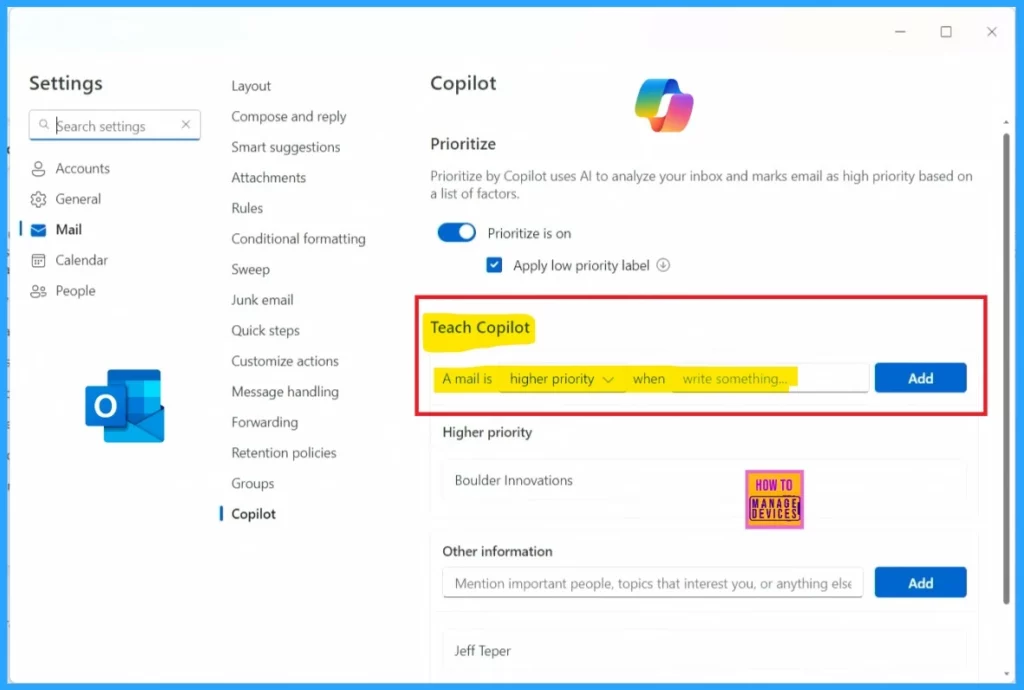
Now, we can teach Copilot using Outlook settings. You can teach Copilot how to prioritize your emails based on what’s important to you. This will improve its ability to sort your inbox according to your preferences. When you open Settings, you can see the option called Teach Copilot.
- You can sort Higher Priority emails by giving the organisation’s or person’s name.
- Then you can save it.
Schedule With Copilot
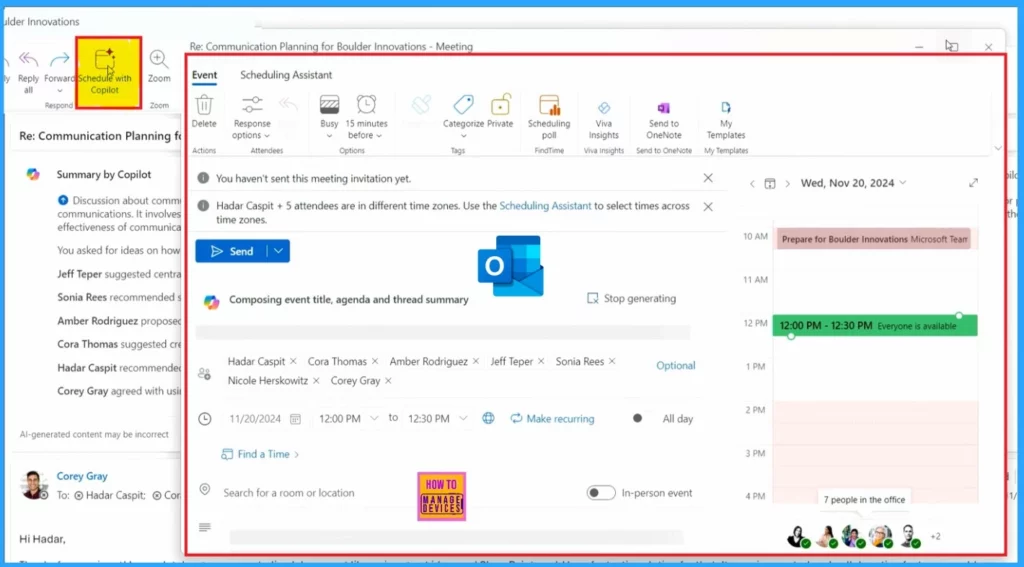
Copilot helps by making the scheduling process much more manageable. Copilot handles the best part of setting up meetings. It summarises the email, which can be inserted directly into the meeting invite. Copilot automatically adds all relevant people to the meeting invite in the email.
- Here, on the Schedule page, you can get the option for Recurring Meetings.
- With the Recurring option– The user decides to make the meeting a monthly event before their regular customer meeting with Innovations.
Need Further Assistance or Have Technical Questions?
Join the LinkedIn Page and Telegram group to get the latest step-by-step guides and news updates. Join our Meetup Page to participate in User group meetings. Also, Join the WhatsApp Community to get the latest news on Microsoft Technologies. We are there on Reddit as well.
Author
Anoop C Nair has been Microsoft MVP from 2015 onwards for 10 consecutive years! He is a Workplace Solution Architect with more than 22+ years of experience in Workplace technologies. He is also a Blogger, Speaker, and Local User Group Community leader. His primary focus is on Device Management technologies like SCCM and Intune. He writes about technologies like Intune, SCCM, Windows, Cloud PC, Windows, Entra, Microsoft Security, Career, etc.




Discussion