






Fix Outlook Error when Updating Meeting in Personal or Shared Calendar
Let’s discuss the Outlook Error When Updating a Meeting in a Personal or Shared Calendar. When users attempt to update a meeting on their own or in a shared calendar in Microsoft Outlook, they may experience error messages that prevent the update from being completed.
These errors are generally related to conflicts in how the meeting information is processed, stored, or synchronized between the client and the server. All the errors are explained in detail below.
One of our posts explains how to fix the “The browser or app may not be secure” error in Classic Outlook when adding a Gmail account. To resolve this, either update Outlook to the latest version or enable secure app access in Gmail settings. This error happens when Outlook tries to sync or add a Gmail account but encounters a problem.
This post provides detailed information about the Outlook error when updating a personal or shared calendar meeting. It explains users’ common issues, outlines potential causes, and offers solutions.

Table of Contents
Why Are You Getting an Error when Updating a Meeting in Outlook Calendar?
Errors when updating a meeting can occur due to several reasons, including sync issues, permission conflicts, or simultaneous edits. Ensure you have the correct permissions and that no other instance of the meeting is being edited simultaneously.
Outlook Error when Updating Meeting in Personal or Shared Calendar
Microsoft Outlook is a widely used email and calendar app that helps you manage your emails, schedule meetings, keep track of tasks, and organize your contacts in one place. Users might see one or more errors when updating a meeting or a shared calendar.
| Outlook Error when Updating Meeting in Personal or Shared Calendar |
|---|
| The function cannot be performed because the message has been changed |
| The item cannot be saved because it was changed by another user or in another window |
| The operation cannot be performed because the message has been changed |
| The operation cannot be performed because the object has been deleted |
- Classic Outlook Startup Crashes Caused by ucrtbase.dll and Learn How to Run Clean Rules Command
- Outlook Word or OneNote Closing Unexpectedly While Typing
- Best Guide to Deploy New Intune Company Portal App on Windows using Intune
- Best Way to Automatically Configure Outlook Profile for Windows with Intune
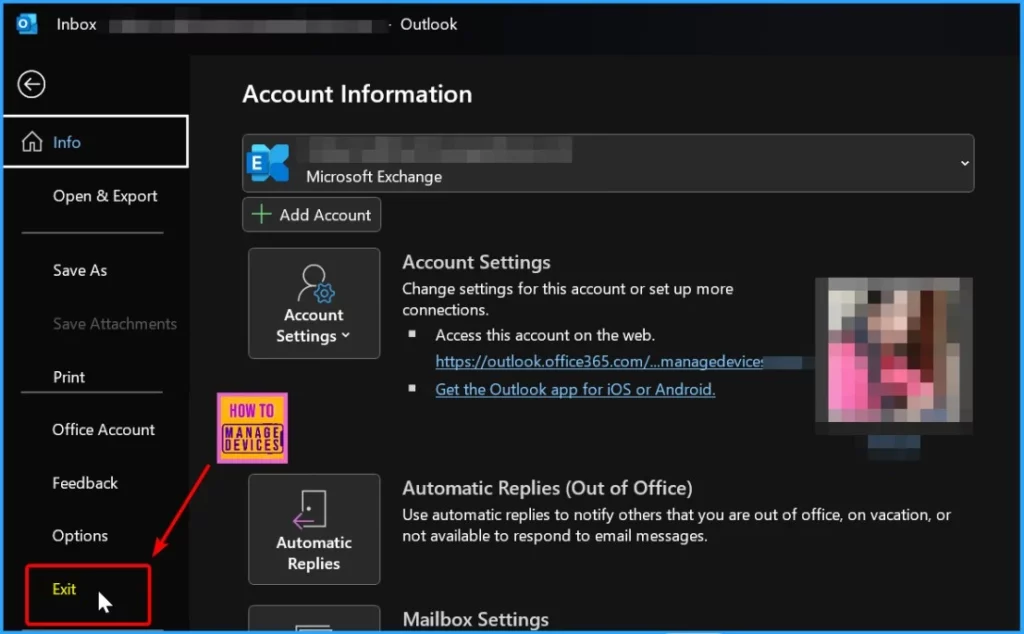
Function Cannot be Performed
The error message “The function cannot be performed because the message has been changed” appears when Outlook notices that the meeting has been altered by another user, an app, or the server while you are editing it. As a result, Outlook finds that the meeting you are working with is out of sync with the latest version, which prevents your changes from being saved.
| Resolution |
|---|
| Restart Outlook and try the update again |
| Ensure the meeting is not being edited on another device at the same time |
| If syncing issues persist, try clearing the local cache or resyncing the mailbox with the server |
Item cannot be Saved
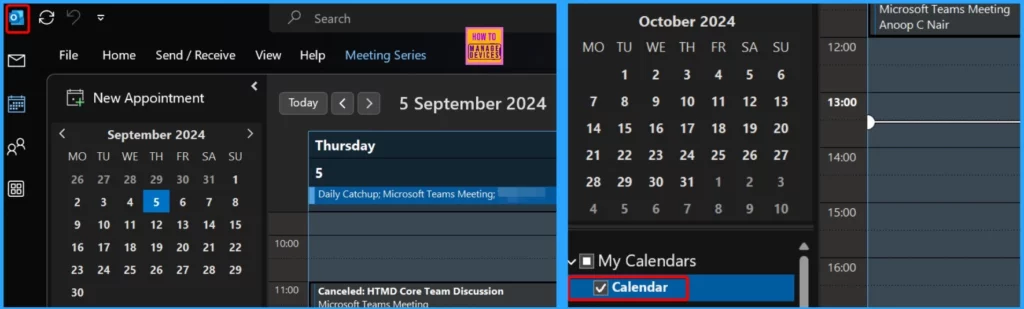
If a user has the meeting open in multiple Outlook windows or another person modifies the meeting in a shared calendar, this conflict prevents the changes from being saved. The table below shows the Resolution.
| Resolution |
|---|
| Ensure that only one instance of the meeting is being edited |
| Ask other users with access to the shared calendar to stop modifying the meeting while you are making updates. |
| Close all additional Outlook windows and try updating the meeting |
An Operation cannot be Performed
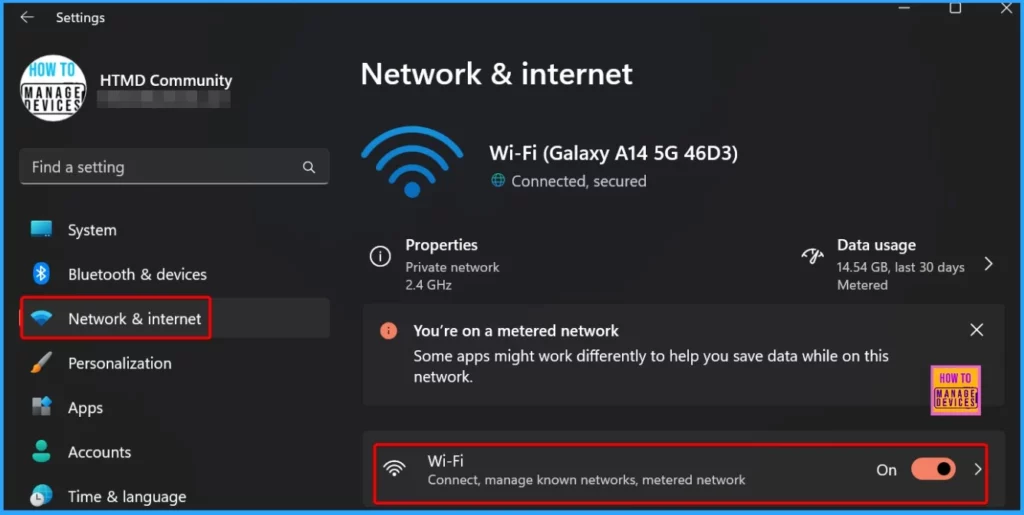
This error is similar to the first one. Specifically, it refers to a scenario where Outlook has detected that the meeting item has been altered after it was opened for editing. This can occur if changes were made to the meeting on the server or by another user while the client was working on it.
- Resolution
- Restart Outlook
- Ensure the meeting is fully synced with the Exchange server before making any updates.
- Check for any network or connectivity issues
- Turn off any third-party add-ins.
An Object has been Deleted
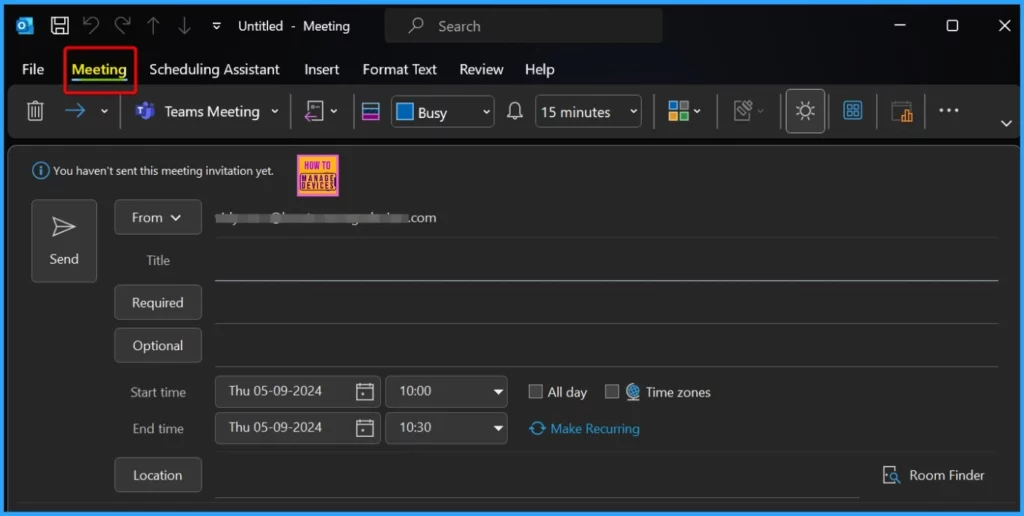
This error occurs when the meeting is deleted by the organizer or another user with access to the shared calendar. The meeting was moved to another folder or calendar, making it inaccessible in its original location. A sync error caused the meeting object to be temporarily unavailable.
- Resolution
- Check if the meeting still exists
- If the meeting was deleted, it may need to be re-created
- Ensure that there are no syncing issues between Outlook and the Exchange server.
- Easy Way to Disable Device Password Sync with Intune
- FIX MS Outlook Zero-Click RCE Flaw Executes as Email is Opened
- Unable to Join Teams Meetings Using Links from Outlook Because of ASR Rules
- Change to Classic or Modern Theme in Outlook for Windows 11
- How to Set Out of Office in Outlook
Investigating the Issue
The Outlook team is investigating this issue and will update you as more information becomes available. The section below provides detailed instructions for investigating the Outlook error.
Add the Registry Key Before Reproducing the Error (Workaround to fix this issue)
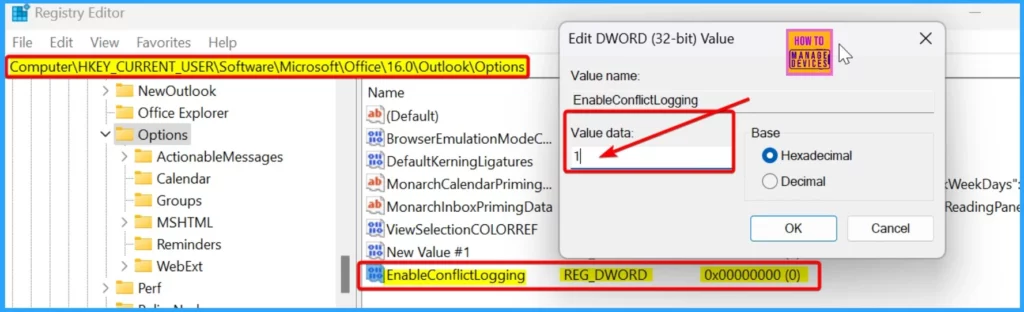
The registry key is used to log conflict details while reproducing the error. After reproducing the issue and closing Outlook, you must delete this registry key. Leaving it enabled could impact Outlook’s performance or behavior. To help diagnose the problem, you must allow conflict logging in Outlook. Follow these steps.
- Open the Windows Registry Editor
- Press Win + R, type regedit, and press Enter.
- Go to HKEY_CURRENT_USER\Software\Microsoft\Office\16.0\Outlook\Options.
- Create or Modify the Registry Key
- Right-click in the right pane and select New > DWORD (32-bit) Value.
- Name the new value EnableConflictLogging.
- Double-click on EnableConflictLogging and set its value to 1.
Collecting Logs After Reproducing the Error
After reproducing the error in Outlook, immediately close the Outlook application. Then, collect all log files with the .etl extension generated during the error. These logs are stored in the Outlook Logging subfolder within the Temp folder. By default, you can find this Temp folder at c:\Users[username]\AppData\Local\Temp.
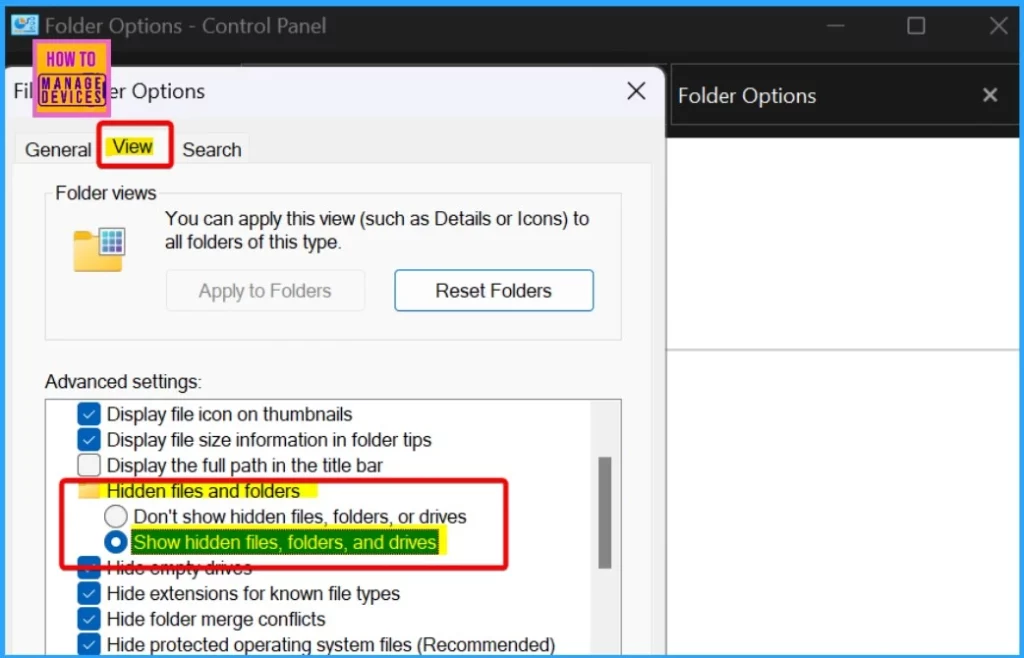
The Local Settings and AppData folders are hidden by default; you must adjust your settings to view them.
- In Windows, go to Control Panel.
- Search for “Folder Options” in the search box at the top right of the Control Panel window.
- On the View tab, under Advanced Settings, find the section for Files and Folders.
- Select Show hidden files, folders, and drives.
Delete the EnableConflictLogging Registry Key
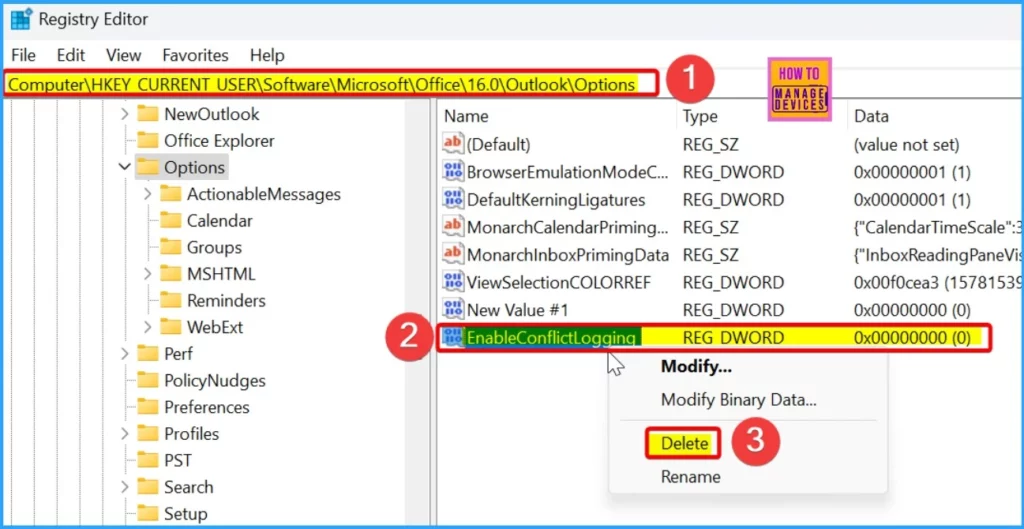
After reproducing the error in Outlook and collecting the necessary log files, you should delete the EnableConflictLogging registry key you created earlier. Keeping this key enabled after the error reproduction can affect Outlook’s performance and potentially impact its behavior.
- Press Win + R, type regedit, and press Enter.
- Go to HKEY_CURRENT_USER\Software\Microsoft\Office\16.0\Outlook\Options.
- Right-click on EnableConflictLogging and select Delete. Confirm the deletion.
Collect Calendar Diagnostic Logs
To thoroughly diagnose the Outlook error, you must collect Calendar Diagnostic Logs for each meeting where the error occurs. Calendar Diagnostic Logs are detailed records that capture the events and errors related to calendar items in Outlook.
We are on WhatsApp now. To get the latest step-by-step guides, news, and updates, Join our Channel. Click here. HTMD WhatsApp.
Author
Anoop C Nair has been Microsoft MVP from 2015 onwards for 10 consecutive years! He is a Workplace Solution Architect with more than 22+ years of experience in Workplace technologies. He is also a Blogger, Speaker, and Local User Group Community leader. His primary focus is on Device Management technologies like SCCM and Intune. He writes about technologies like Intune, SCCM, Windows, Cloud PC, Windows, Entra, Microsoft Security, Career, etc.




Discussion