


Skip to content
ConfigMgr How to find out Package Source Path Advertisement Flags SCCM
ConfigMgr How to find out Package Source Path Advertisement Flags SCCM

Written By Anoop C Nair
Last Updated July 25, 2024
Posted In SCCM
SHARE

ConfigMgr How to find out Package Source Path Advertisement Flags SCCM. Search folders are handy (especially) when you are new to an already established environment with thousands of packages and advertisements in different subfolders.

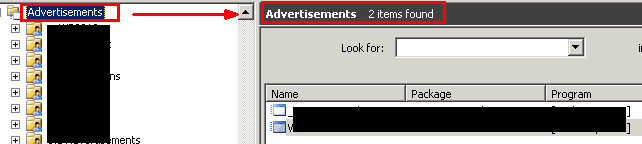
In most environments, clicking the advertisements tab will only show 2 or 3 advertisements. So, to see other advertisements, you’ll have to go through each subfolder. Is that feasible? No.

Index
ConfigMgr How to find out Package Source Path Advertisement Flags SCCM
ConfigMgr How to find out Package Source Path Advertisement Flags SCCM – Table 1

ConfigMgr How to find out Package Source Path Advertisement Flags SCCM

ConfigMgr How to find out Package Source Path Advertisement Flags SCCM - Fig.1
ConfigMgr How to find out Package Source Path Advertisement Flags SCCM – Fig.1

Through this blog post, I’m trying to answer the below questions.

  • How can you get all the advertisements under one folder?
  • How can you get all the packages under one folder?
  • How do you find out the Advertisement Flag details? How do you filter a “search folder” to list the advertisements that meet different criteria?
  • How do you discover the packages’ “Package Source Path”?
  • How do you find out the Types of Packages available in the environment?

How can you get all the advertisements under one folder?

Patch My PC
  • Step 1: Create a search folder by right-clicking on the “advertisements” node.
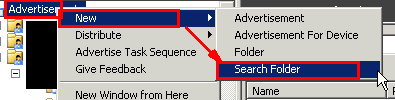
ConfigMgr How to find out Package Source Path Advertisement Flags SCCM - Fig.2
ConfigMgr How to find out Package Source Path Advertisement Flags SCCM – Fig.2
  • Step 2: To see all the advertisements in the environment, skip STEP 1 and 2.
  • Step 3: Select the check box “Search all folders under this feature”
  • Step 4: Enter the name of the search folder. In my case, I’ve named it “All Advertisements.”
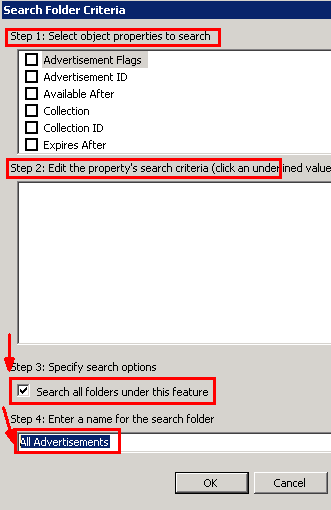
ConfigMgr How to find out Package Source Path Advertisement Flags SCCM - Fig.3
ConfigMgr How to find out Package Source Path Advertisement Flags SCCM – Fig.3

Click OK.

  • Step 5: Return to the advertisement node and click on the “All Advertisements” search folder. All the environmental advertisements are displayed on the right-hand side panel.
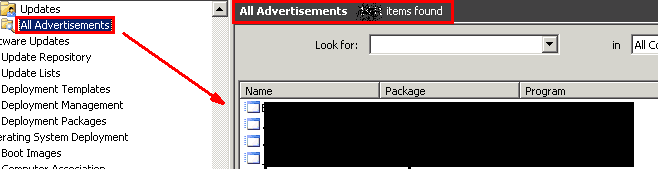
ConfigMgr How to find out Package Source Path Advertisement Flags SCCM - Fig.4
ConfigMgr How to find out Package Source Path Advertisement Flags SCCM – Fig.4

How can you get all the packages under one folder?

1. Perform the steps mentioned above by right-clicking on the “Packages” node in the console.
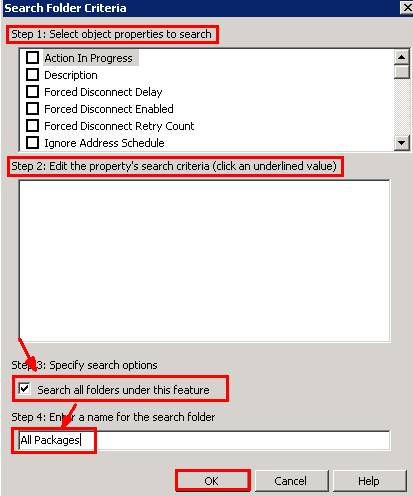
ConfigMgr How to find out Package Source Path Advertisement Flags SCCM - Fig.5
ConfigMgr How to find out Package Source Path Advertisement Flags SCCM – Fig.5
image

How can I find out the details of the Advertisement Flags? How can I filter a “search folder” to list the advertisements that meet different criteria?

More details on Advertisement Flag codes – MSDN Link

1. Right-click on “All Advertisements” search folder –> View –> Add/Remove Columns
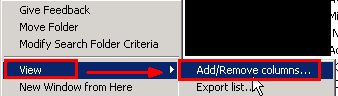
ConfigMgr How to find out Package Source Path Advertisement Flags SCCM - Fig.6
ConfigMgr How to find out Package Source Path Advertisement Flags SCCM – Fig.6

2. Add “Advertisement Flags” by right-clicking on the “All Advertisements” search folder created earlier.
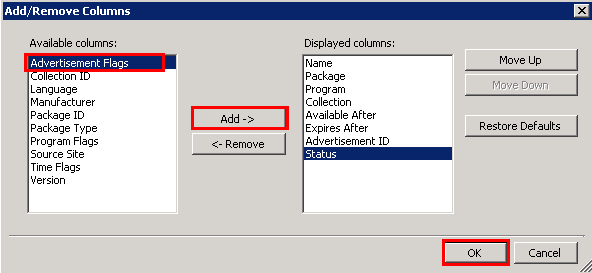
ConfigMgr How to find out Package Source Path Advertisement Flags SCCM - Fig.7
ConfigMgr How to find out Package Source Path Advertisement Flags SCCM – Fig.7

3. If you want to list the advertisements with the advertisement flag value “524,288,”

Right-click on the search folder and click “modify search folder criteria.”
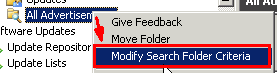
ConfigMgr How to find out Package Source Path Advertisement Flags SCCM - Fig.8
ConfigMgr How to find out Package Source Path Advertisement Flags SCCM – Fig.8
  • Step 1: Select “Advertisement Flags”
  • Step 2: Click on “<text to find>” value
  • Step 3: Enter the advertisement flag value “524288” (without “ symbol) and click the “Add” button. Click OK.
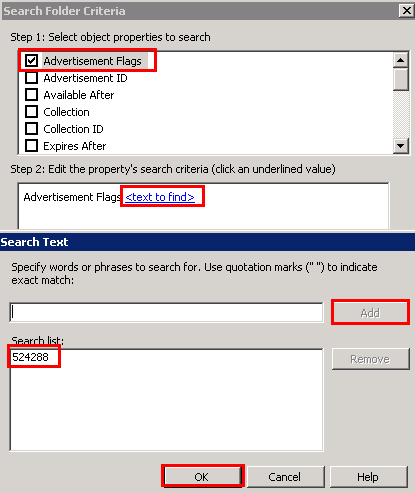
ConfigMgr How to find out Package Source Path Advertisement Flags SCCM - Fig.9
ConfigMgr How to find out Package Source Path Advertisement Flags SCCM – Fig.9

Step 2: Click on the search folder “Advertisement Flag—524288.” This will list the advertisements with a flag value equal to 524288.

ConfigMgr How to find out Package Source Path Advertisement Flags SCCM - Fig.10
ConfigMgr How to find out Package Source Path Advertisement Flags SCCM – Fig.10

How do you find out the “Package Source Path” for the packages?

1. Right-click on the “All Packages” search folder –> View –>Add/Remove Columns
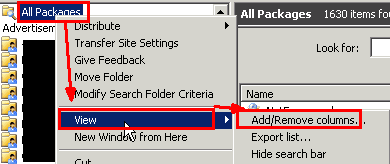
ConfigMgr How to find out Package Source Path Advertisement Flags SCCM - Fig.11
ConfigMgr How to find out Package Source Path Advertisement Flags SCCM – Fig.11

2. Select “Package Source Path” on Add/Remove Column windows and click on the “Add->” button, then click OK
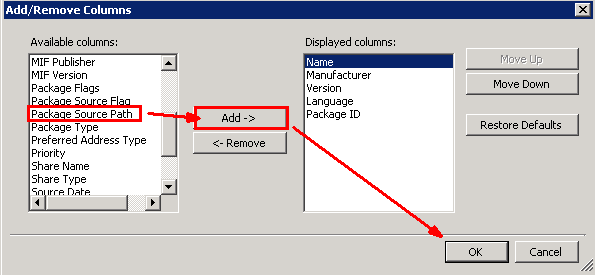
ConfigMgr How to find out Package Source Path Advertisement Flags SCCM - Fig.12
ConfigMgr How to find out Package Source Path Advertisement Flags SCCM – Fig.12

3. That is it. We are done. Now you can see the package source path details on the console’s right-side panel.

ConfigMgr How to find out Package Source Path Advertisement Flags SCCM - Fig.13
ConfigMgr How to find out Package Source Path Advertisement Flags SCCM – Fig.13

4. If you want to export these details, click on Export List and save the file.
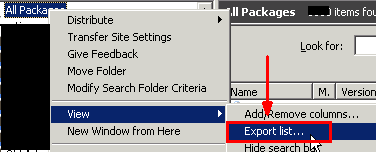
ConfigMgr How to find out Package Source Path Advertisement Flags SCCM - Fig.14
ConfigMgr How to find out Package Source Path Advertisement Flags SCCM – Fig.14

How do you find out the Types of Packages available in the environment?

More details about Package Types – MSDN Link
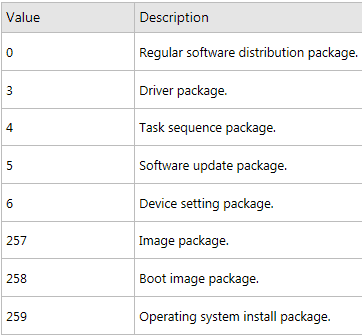
ConfigMgr How to find out Package Source Path Advertisement Flags SCCM - Fig.15
ConfigMgr How to find out Package Source Path Advertisement Flags SCCM – Fig.15

1. List all the environment’s Virtual Application Packages (APP-V).

  • Step 1: Right-click on the search folder and click “modify search folder criteria.”
  • Step 2: Package Type for “virtual application package” = “7”
  • Step 3: Select the Package Type –>Text to Find –> “7” –> Add –> OK
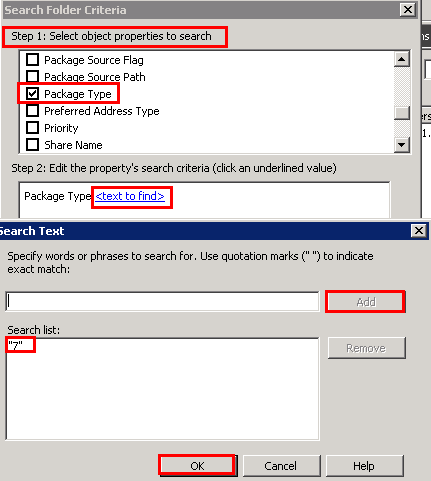
ConfigMgr How to find out Package Source Path Advertisement Flags SCCM - Fig.16
ConfigMgr How to find out Package Source Path Advertisement Flags SCCM – Fig.16

2. See the list of virtual application packages on the right-side panel of the console.
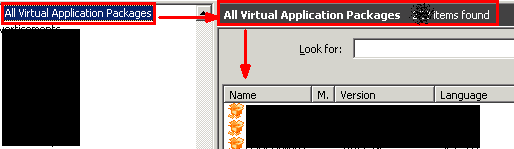
ConfigMgr How to find out Package Source Path Advertisement Flags SCCM - Fig.17
ConfigMgr How to find out Package Source Path Advertisement Flags SCCM – Fig.17

We are on WhatsApp. To get the latest step-by-step guides and news updates, Join our Channel. Click here –HTMD WhatsApp.

Author

Anoop C Nair has been Microsoft MVP from 2015 onwards for 10 consecutive years! He is a Workplace Solution Architect with more than 22+ years of experience in Workplace technologies. He is also a Blogger, Speaker, and leader of the Local User Group Community. His main focus is on Device Management technologies like SCCM and Intune. He writes about technologies like Intune, SCCM, Windows, Cloud PC, Windows, Entra, Microsoft Security, Career, etc..

Written by

Anoop C Nair is Workplace Technology solution architect with 25+ years of experience in global enterprise organizations such as JP Morgan, Capgemini, etc. Microsoft Certified Trainer. Microsoft MVP from 2015 onwards for consecutive 11+ years! He also conducts Intune and modern workplace tech training for enterprise organizations. He is Blogger, Speaker, and Founder of HTMD Community and HTMD Conference. His main focus is on Device Management technologies like Intune, Windows, Cloud PC. He writes about technologies like Intune, SCCM, Windows, Cloud PC, Windows, Entra, Microsoft Security.

Discussion · 3 comments

  1. Great information Anoop……well explained in detailed manner…can be very useful when it comes to saving time while going through tons of objects created especially in large and complex environment.

  2. Hi, nice article. But what does the advertisement flag value mean? I have stumbled across it a few times, but have never got an explanation what it is….

    1. I think, “Advertisement flag” value details are given in the MSDN article attached in the post.

      It says “Flags indicating how the advertisement should be announced to the user”

      For Example if you wanted to find out the adverts with a mandatory assignment “As Soon AS Possible”

      Hex (Bit) Description

      0x00000020 (5) IMMEDIATE. Announce the advertisement to the user immediately.

      You need to convert HEX value to Decimal so that you can put the decimal value into search folder.
      0x00000020 = 32 in Decimal.
      Then modify the search criteria as mentioned in the post to get the advert with ASAP.

Join the discussion

Your email address will not be published. Required fields are marked *

Related guides

Intune

Windows 11 KB5101650 KB5099414 July 2026 Patch and 3 Zero Day Vulnerabilities and 570 Flaws

Key Takeaways Windows 11 KB5101650 KB5099414 July 2026 Patch and 3 Zero Day Vulnerabilities and 570 Flaws! In the July 2026 Patch, Microsoft introduced new features designed to improve the overall Windows experience. The update adds enhancements to Windows Update for more flexible update management and introduces Point-in-Time Restore, providing an additional recovery option for […]

AC Anoop C Nair 9 min read
Intune

2026 June KB5094126 KB5093998 Windows 11 Patch | 3 Zero Day Vulnerabilities and 200 Flaws

Key Takeaways 2026 June KB5094126 KB5093998 Windows 11 Patch | 3 Zero Day Vulnerabilities and 200 Flaws! The June 2026 Windows 11 Patch Tuesday update brings several improvements to File Explorer. It adds support for additional archive formats, including UU, CPIO, XAR, and NuGet Packages (NUPKG). The update also preserves View and Sort preferences in […]

AC Anoop C Nair 10 min read
Intune

2026 May KB5089549 KB5087420 Windows 11 Patch | 0 Zero Day Vulnerabilities and 120 Flaws

Key Takeaways The Windows 11 May 2026 Patch KB5089549 KB5087420 Update brings important security fixes, performance improvements, and reliability enhancements across the operating system. The update introduces new features such as Xbox Mode for gaming, File Explorer improvements, enhanced input and sharing experiences, better taskbar and Windows Hello reliability, and additional enterprise management capabilities for […]

AC Anoop C Nair 8 min read
SCCM

ConfigMgr 2603 Introduces New Early Update Enrollment Process

Key Takeaways In this post we are discussing the ConfigMgr 2603 Introduces New Early Update Enrollment Process. Microsoft has officially released Configuration Manager version 2603 to the Early Update Ring, giving organizations an opportunity to test upcoming improvements before the global production rollout. The release is targeted at enterprises running ConfigMgr version 2409 or later […]

AC Anoop C Nair 3 min read



