





How to Fix Password Complexity Error 2016281112 on Windows Devices Managed by Intune
Key Takeaways
- Password Complexity Error 2016281112 is not related to Microsoft or Azure AD account passwords.
- Intune evaluates local device password and Windows Hello PIN settings, not cloud passwords.
- In Windows Hello for Business environments, PIN configuration is may be the cause of this error.
- Intune cannot automatically remediate PIN or password mismatches, which leads to the “Remediation failed” status.
Let’s discuss, Why Intune Shows Password Complexity Error 2016281112. Recently, some administrators have noticed that a few Windows devices in their Intune environment are showing Password Complexity Error 2016281112 (Remediation failed). At first, this error looks like it is related to the user account password, which can be confusing, especially in organizations where users sign in using Microsoft or Azure AD accounts instead of a local device password.
Table of Contents
Table of Contents
Why Intune Shows Password Complexity Error 2016281112
This confusion increases in modern environments that use Windows Hello for Business, where users sign in with a PIN, fingerprint, face recognition, or other cloud-based methods. In these cases, a traditional device password may not be used at all.
This article explains in simple terms what this error really means, why some users are experiencing it, and how administrators can resolve it without impacting users or weakening device security. Devices enrolled with Microsoft accounts face compliance problems.
- How to Fix Secure Boot Certificate Expiry and Renewal Error 65000 in Microsoft Intune
- Managing Windows Bitlocker Compliance Policy Using Intune | MS Graph | Grace Period
- How to Fix Intune Agent Crash Access Violation Error 0xc0000005
Why this Happens
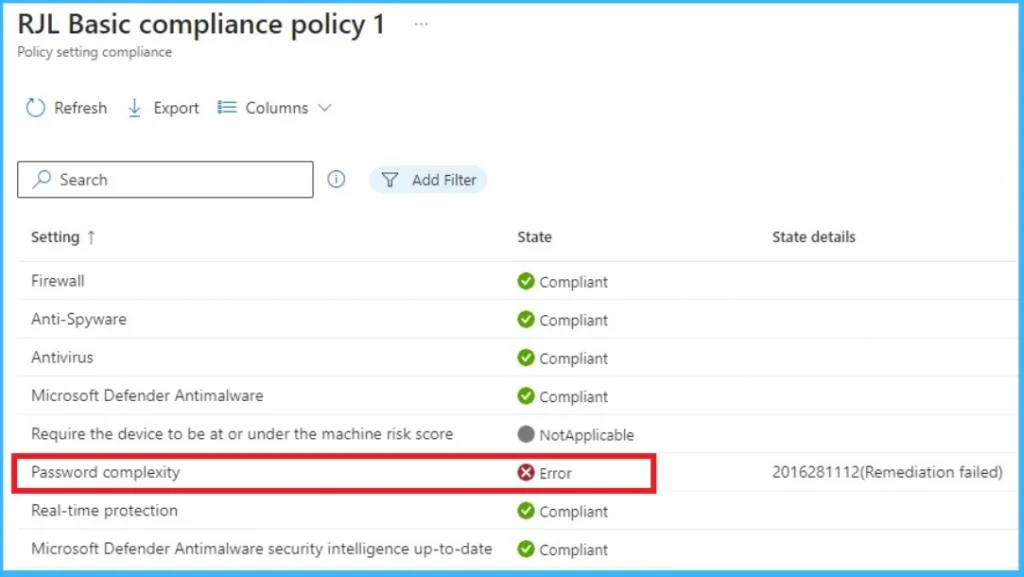
The error 2016281112 (Remediation failed) happens when a Windows device does not meet the password rules set in an Intune compliance policy. Many administrators assume this error is related to the Microsoft or Azure AD account password. Intune does not check cloud account passwords for Windows compliance. Instead, it checks the local device password settings and the Windows Hello for Business PIN configuration.

- So even if users sign in using their Microsoft account password, Intune still evaluates the device’s local password or PIN.
Reason for the Error
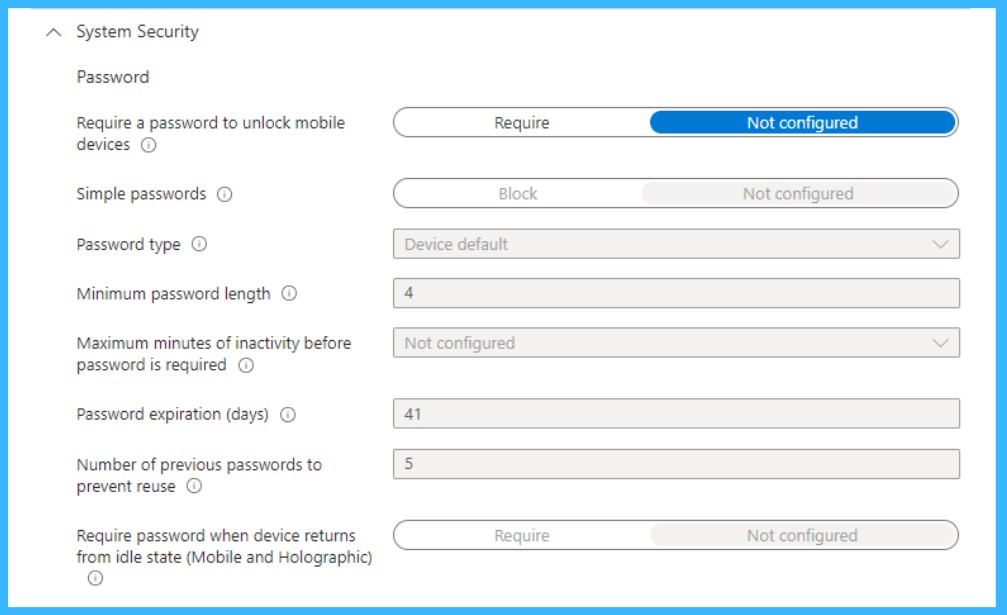
This screenshot shows the password settings that Intune uses to check whether a Windows device is compliant. Even though most of the settings are set to Not configured or Device default, Intune still tries to confirm that the device has a password or Windows Hello PIN that follows these rules. where users sign in with Azure AD and use Windows Hello for Business, there is usually no traditional local device password.
| Info |
|---|
| When Intune cannot verify or apply these settings automatically, it reports Error 2016281112 means Remediation failed, even though the user can sign in normally and the device itself is secure. |
Workaround for the Issue
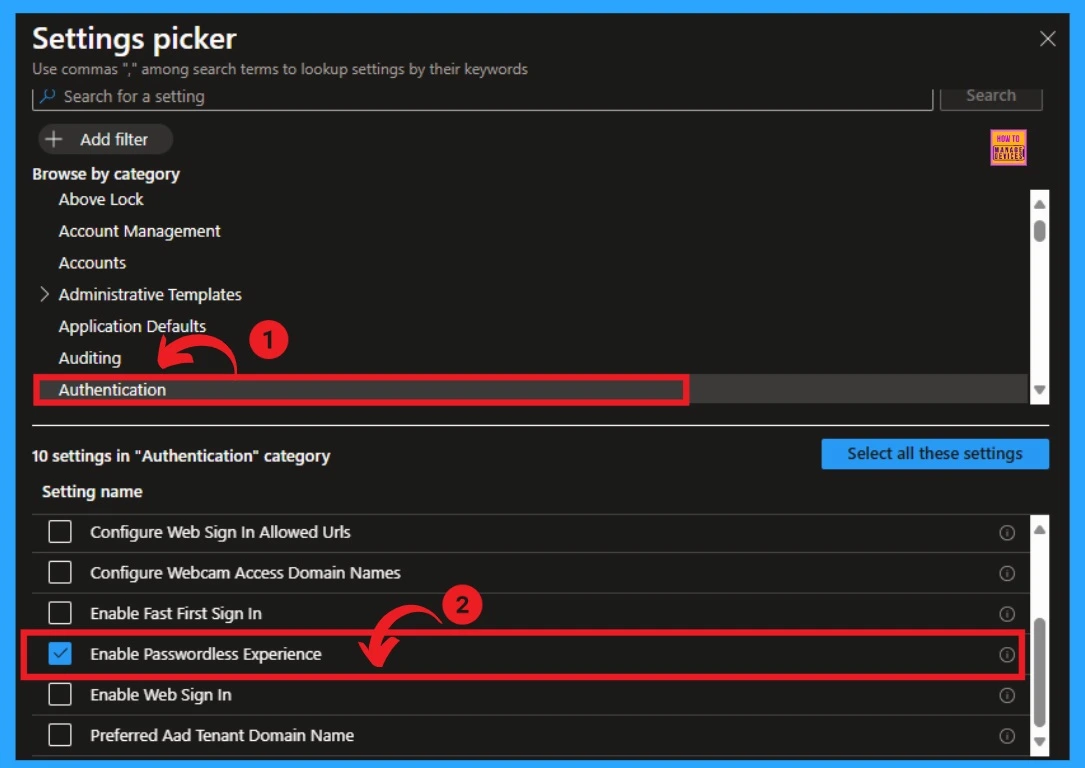
The easiest workaround is to stop enforcing password rules that are not actually being used. In most cases, users sign in with Azure AD accounts and Windows Hello PINs, not with a local device password. Because of this, Intune gets confused when it tries to check password complexity and shows the remediation failed error.
- To fix this, create one Windows compliance policy and assign it only to device groups, not user groups. Many users confirmed that assigning the policy to user groups caused the error.
- You have tried Temporary fixes like changing local security settings or forcing users to change passwords may work on one device.
- But they are not practical for many devices. Keeping the policy simple and using Windows Hello for Business and Conditional Access for security is the smoothest way to avoid this error.
See More: Enable Windows Hello for Business and Remove Password Login on Windows 11 v22H2
Need Further Assistance or Have Technical Questions?
Join the LinkedIn Page and Telegram group to get the step-by-step guides and news updates. Join our Meetup Page to participate in User group meetings. Also, Join the WhatsApp Community and WhatsApp Channel to get the latest news on Microsoft Technologies. We are there on Reddit as well.
Author
Anoop C Nair has been Microsoft MVP for 10 consecutive years from 2015 onwards. He is a Workplace Solution Architect with more than 22+ years of experience in Workplace technologies. He is a Blogger, Speaker, and Local User Group Community leader. His primary focus is on Device Management technologies like SCCM and Intune. He writes about technologies like Intune, SCCM, Windows, Cloud PC, Windows, Entra, Microsoft Security, Career, etc.


Discussion