






How to Set Pause Start Date for Quality Updates using Intune Policy
Let’s discuss how to Set Pause Start Date for Quality Updates using Intune Policy. This setting lets an IT administrator choose the date and time to start pausing Quality Updates for devices. It helps them control when the updates should be stopped for a while, so they can manage update timings based on the organisation’s requirements.
The date should be written in this format “yyyy-mm-dd” (for example, “2018-10-28”). This setting helps IT admins manage updates more easily. They can decide when to pause updates, which is helpful during maintenance or when updates need to be scheduled carefully.
If the pause is no longer needed or things change, they can quickly start the updates again without waiting. This makes sure devices get important fixes and security updates on time, keeping them safe and working properly.
In this post, you will find all the details about the Pause Start Date for Quality Updates setting using Intune Policy. It explains how IT administrators can configure the date to pause updates, how to manually resume them if needed, and how the updates automatically resume after the set period.

Table of Contents
Setting Pause Start Date for Quality Updates using Intune Policy
When this policy is configured, Quality Updates will be paused for 35 days starting from the date specified by the administrator. During this period, updates will not be installed, allowing IT admins to manage update schedules and maintenance windows effectively. After the 35 days, updates will automatically resume to ensure devices remain secure and up to date.
| Sign in |
|---|
| Intune Admin Center |
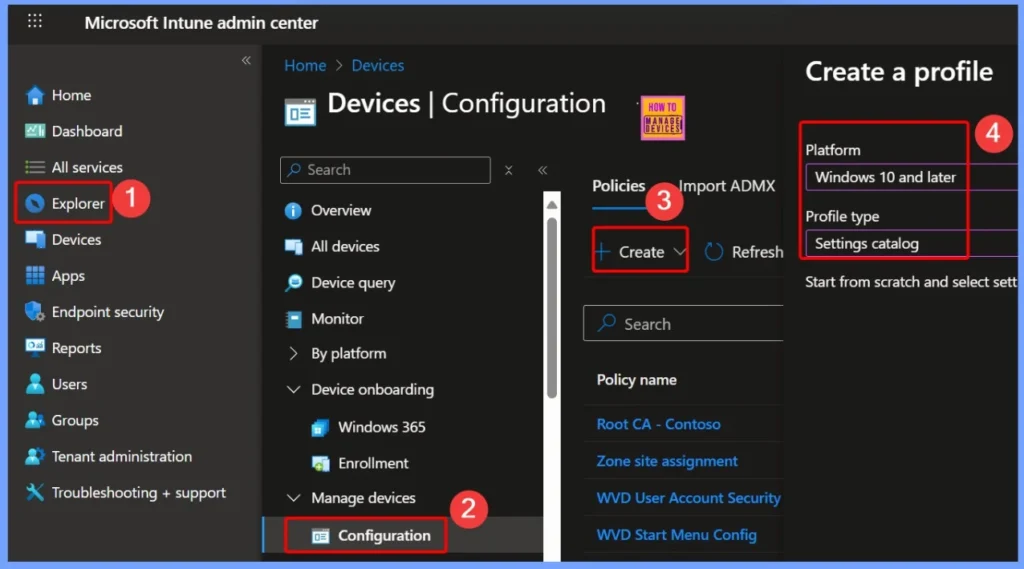
- Go to Devices and then select Configuration.
- Click the Create button and select New Policy.
- Choose Windows 10 and later as the platform.
- Select Settings Catalog as the profile type.
- Microsoft Fixes Windows 11 Update Issue During Shutdown Or Restart
- How to Configure Engaged Restart Snooze options for End Users during Monthly Patch Cycle using Intune
- Easy way to Block Pause Updates Ability in Windows Update for Business via Intune
- Best way Intune to Stop Sending New Policy Updates to Windows Devices Pause Config Refresh Feature
- Simplifying Windows Update Management Integration of Intune and Autopatch
Pause Quality Updates Start Time Policy in Intune
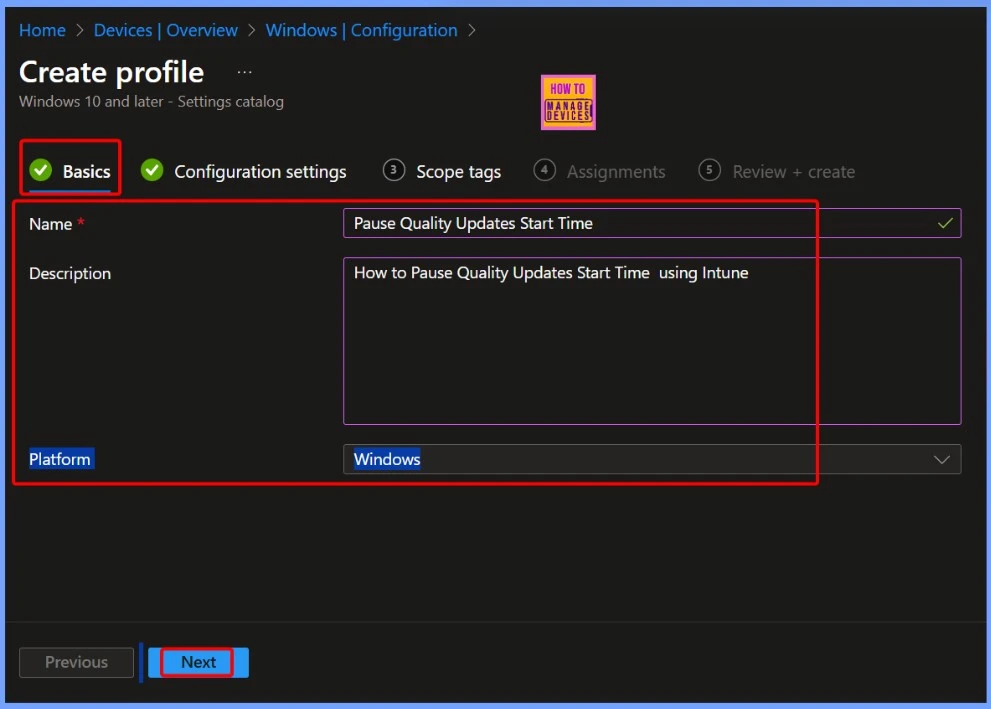
The policy is named Pause Quality Updates Start Time and is designed to help IT administrators control when Quality Updates begin to pause using Intune. Its description, How to Pause Quality Updates Start Time using Intune, explains the purpose of the setting. The platform is automatically set to Windows, ensuring the policy applies to Windows devices.
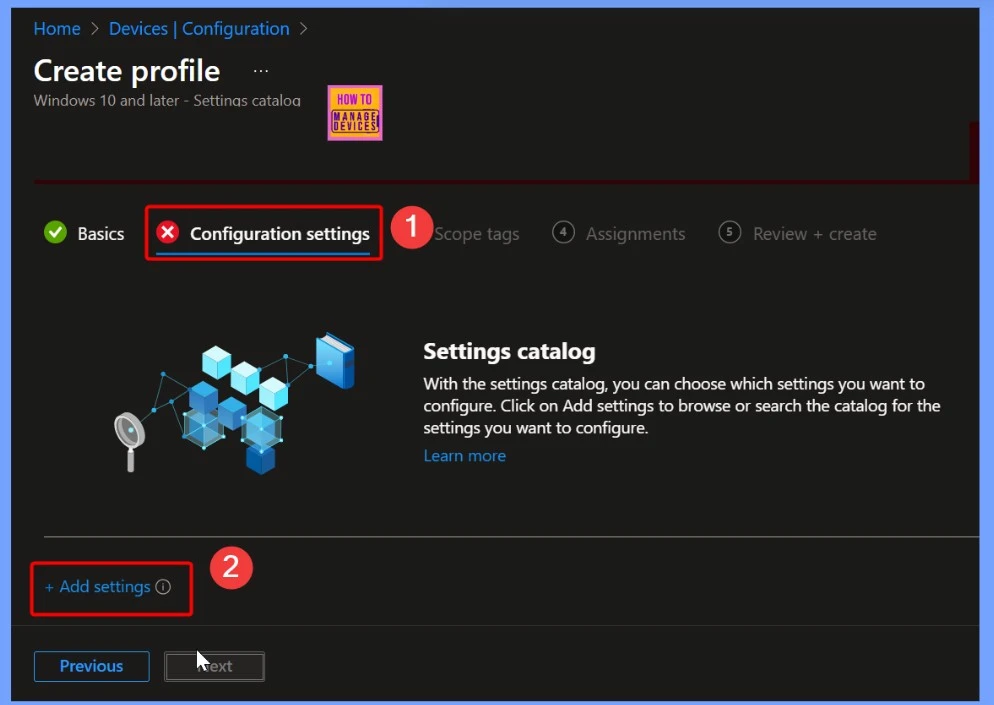
Add Settings in the Configuration Page
On the configuration settings page, select the + Add settings hyperlink. This allows you to include the specific settings you want to configure for the policy. By clicking this option, you can customize the policy further to meet your organisation’s requirements.
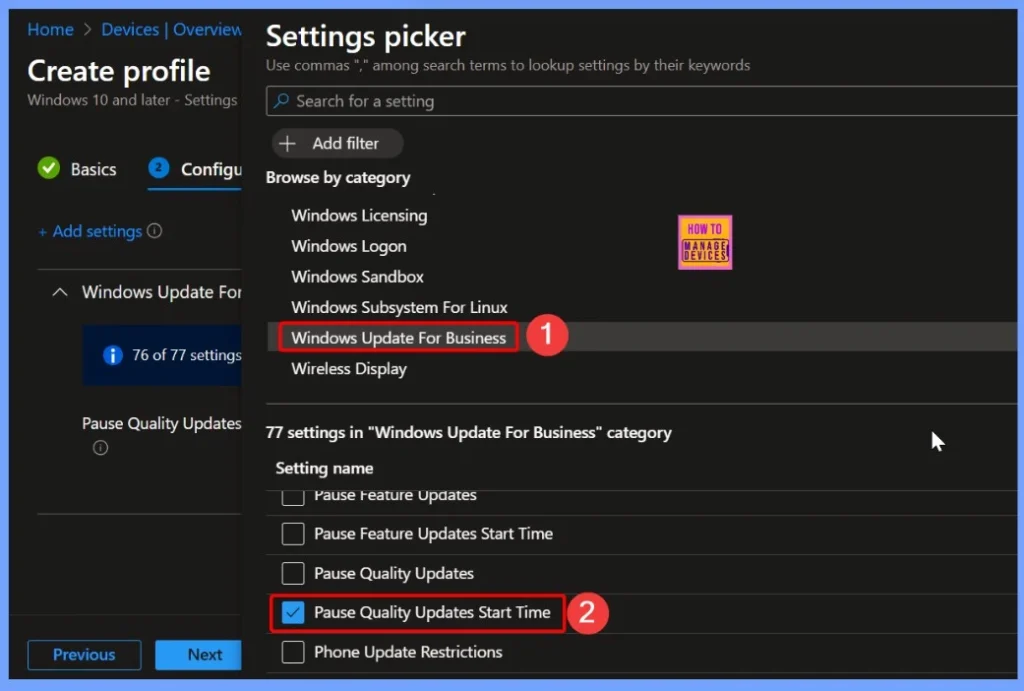
Selecting the Pause Quality Updates Start Time Setting
In the settings picker window, search for the keyword Windows update for business. This will display 77 available settings related to Windows updates. From this list, select the setting Pause quality updates start time to configure when Quality Updates should be paused, helping you manage update schedules more effectively.
How Pausing Quality Updates Helps IT Administrators
This setting helps IT admins by allowing them to choose the exact date and time to start pausing Quality Updates. This gives them better control over when updates are applied, so they can plan for maintenance windows, avoid disruptions during important work hours, and ensure updates happen at the most convenient time for their organisation.
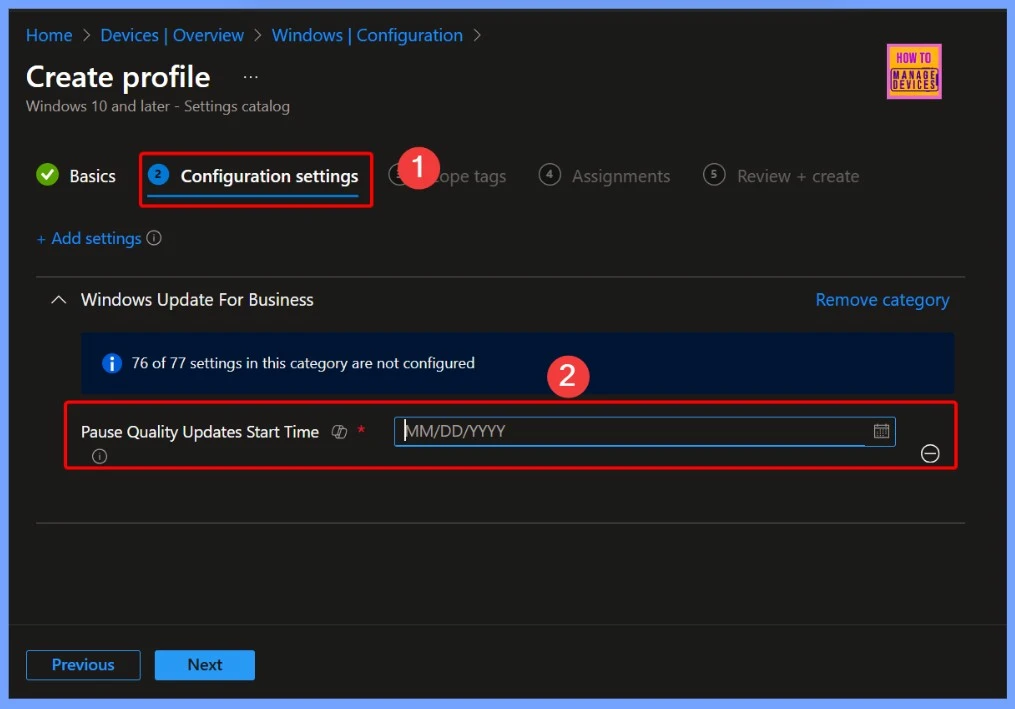
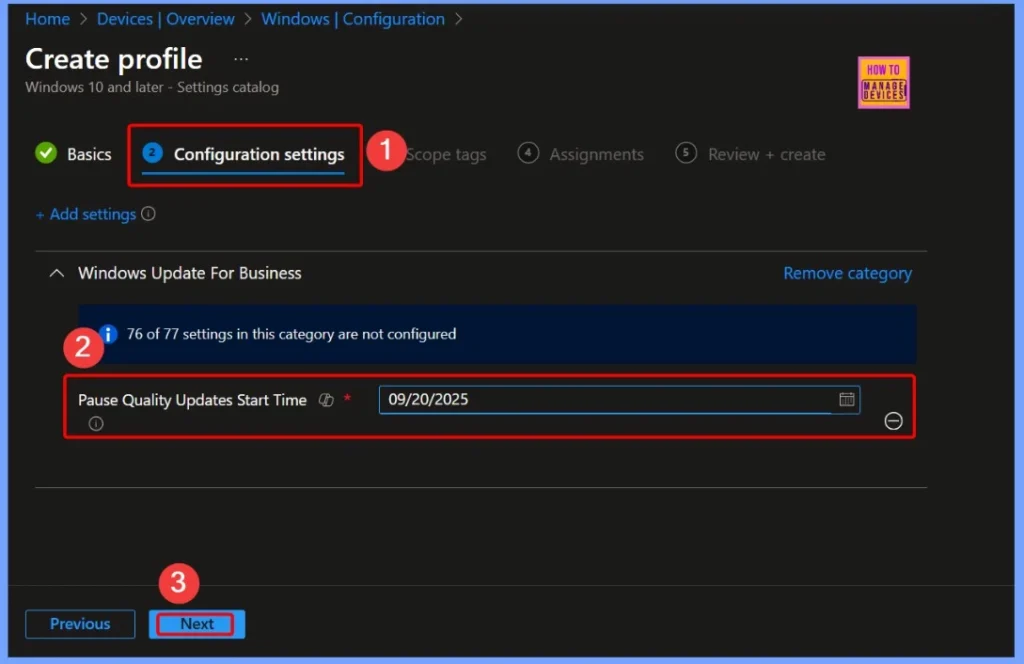
Configuring Pause Quality Updates Start Time with a Specific Date
In the Pause Quality Updates Start Time policy, I selected the date as 9/20/2025. This means that the Quality Updates will be paused starting from September 20, 2025, allowing IT admins to control when updates are applied and plan accordingly to minimise disruptions or perform necessary preparations before updates are installed.
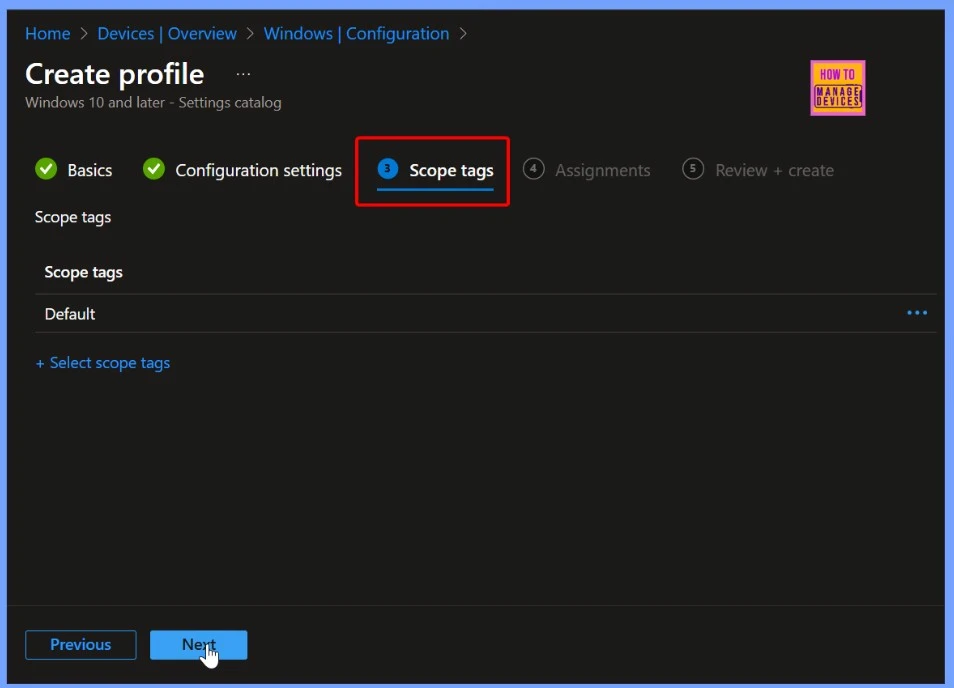
Scope Tag in the Pause Quality Updates Start Time policy
A scope tag in the Pause Quality Updates Start Time policy is used to control who can view or manage the policy within Intune. It helps organisations assign the policy to specific groups, locations, or roles by applying the tag.
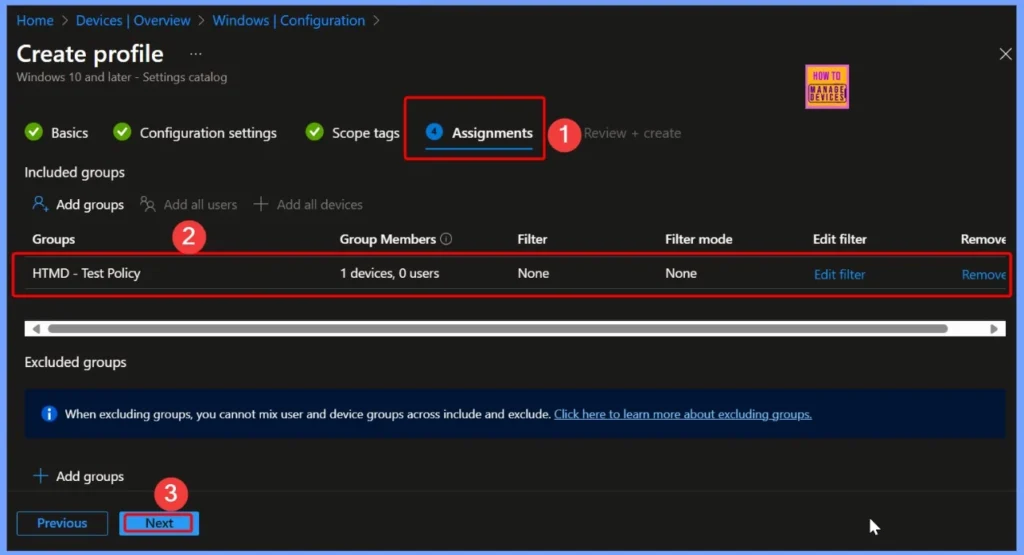
Assignments in the Pause Quality Updates Start Time Policy
In the Pause Quality Updates Start Time policy, assignments define which devices or groups the policy will apply to. Here I select the HTMD Test policy group, it include 1 device and 0 user. After selecting the group click Next to continue.
Review and Create Tab – Confirming Settings Before Deployment
In the Review + Create tab, you should carefully review all the settings you’ve configured before finalising the policy. This step allows you to double-check details such as the platform, profile type, and specific configurations to ensure everything is set up correctly.
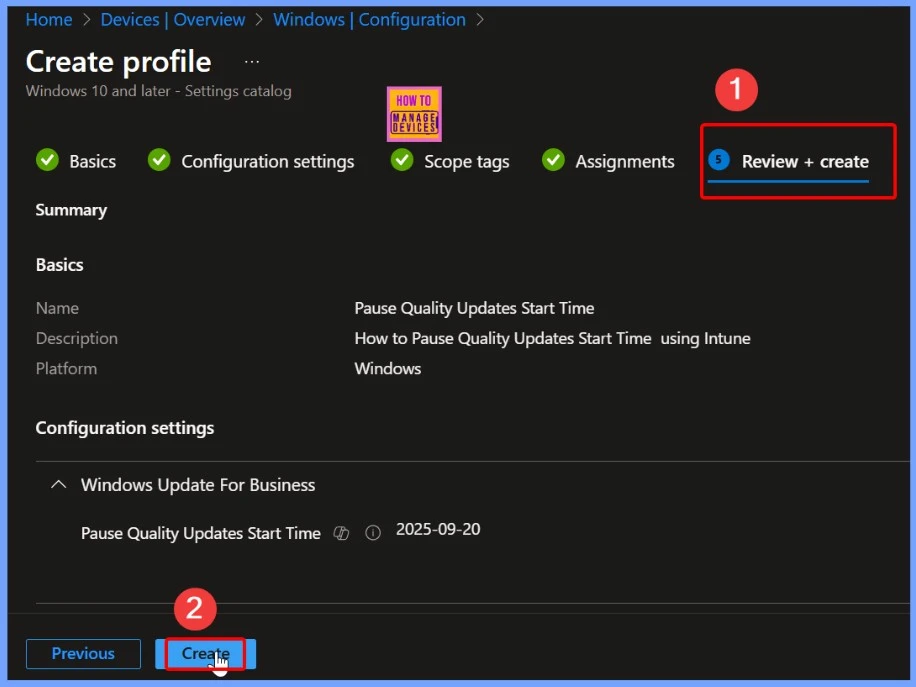
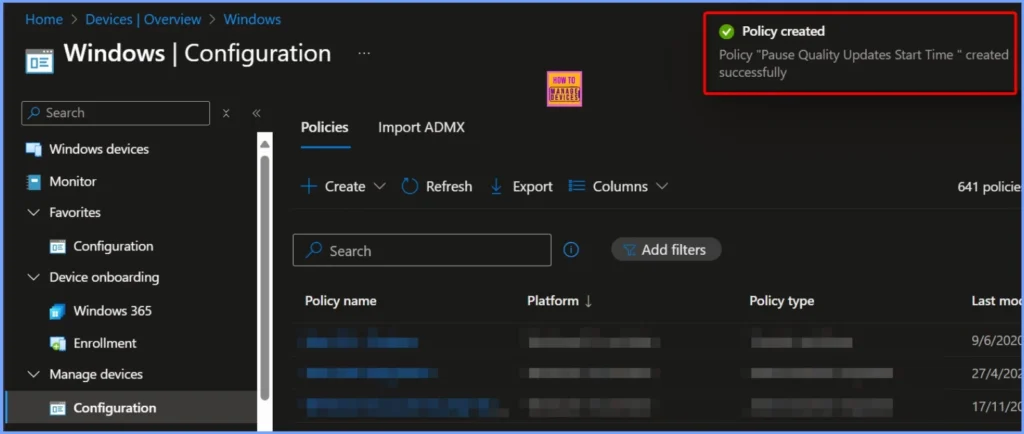
Policy Creation Confirmation Message
After clicking the Create button, you will see a notification confirming that the policy has been successfully created. The message will state that the Pause Quality Updates Start Time policy was created successfully, indicating that your settings have been saved and the policy is now ready to be assigned and applied to the targeted devices or groups.
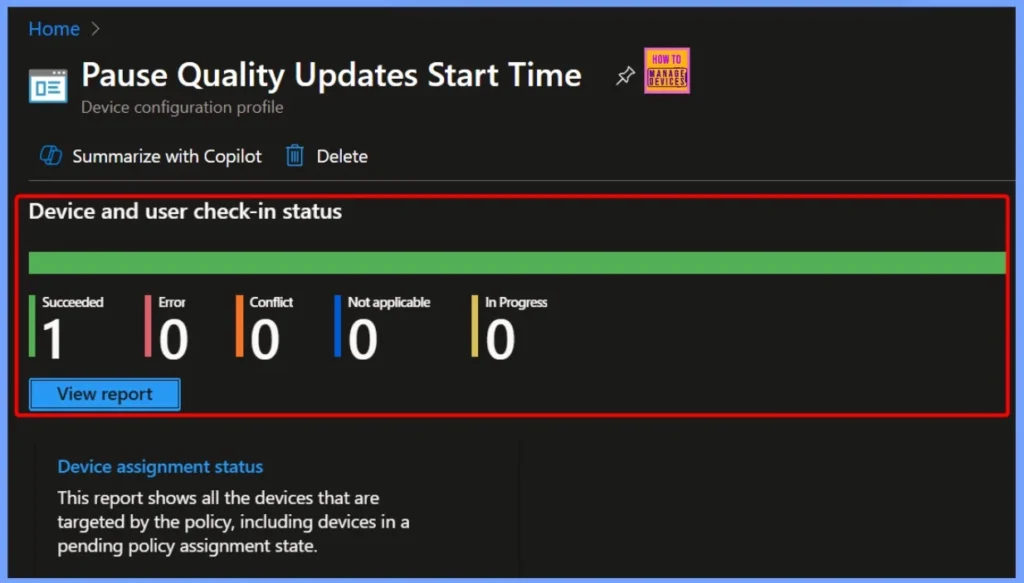
Device and User Check-In Status
This status shows the current status of devices and users after the policy is applied. It means that 1 device or user has successfully checked in and received the policy. There are no errors, conflicts, or pending updates, and no devices or users where the policy doesn’t apply. This helps confirm that the policy is working as expected.
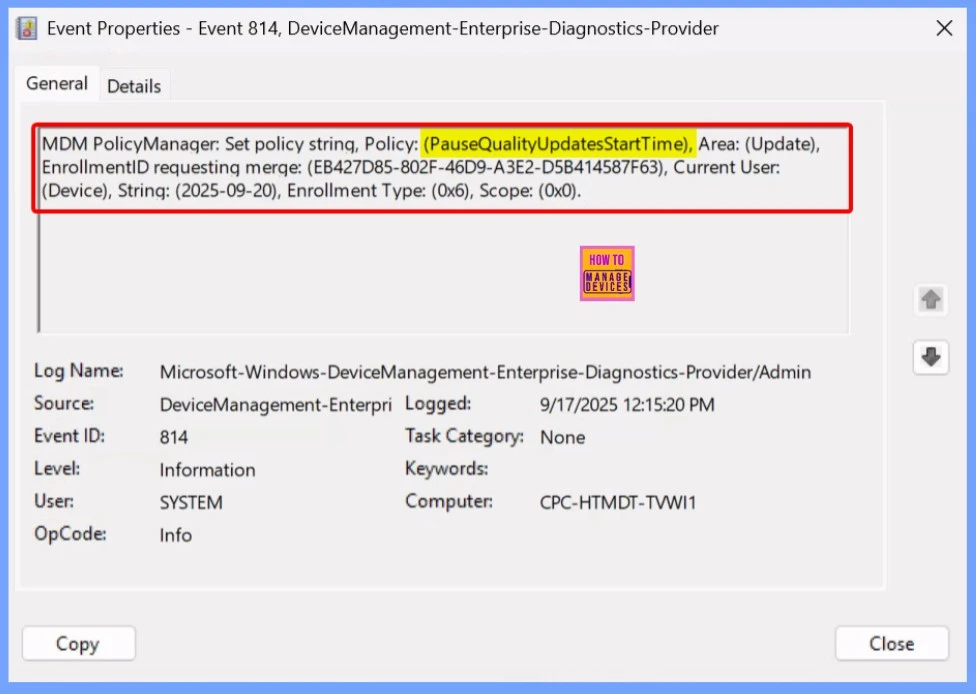
Client Side Verification
The event log message shows that the PauseQualityUpdatesStartTime policy has been set for the device. It confirms the policy area as Update, the enrollment ID, and other technical details. The policy is applied to the current device, with the pause date set to 2025-09-20. This information helps IT admins track which policy has been configured and ensures that the correct settings are being applied to the device.
MDM PolicyManager: Set policy string, Policy: (PauseQualityUpdatesStartTime), Area: (Update),
EnrollmentlD requesting merqe: (EB427D85-802F-46D9-A3E2-D5B414587F63), Current User:
(Device), Strinq: (2025-09-20), Enrollment Type: (0x6), Scope: (0x0).
- Event Viewer > Applications and Services Logs > Microsoft > Windows > DeviceManagement-Enterprise-Diagnostics-Provider > Admin
- Search for Event ID 813 or 814 for configuration profile status updates.
Windows CSP Details – PauseQualityUpdatesStartTime
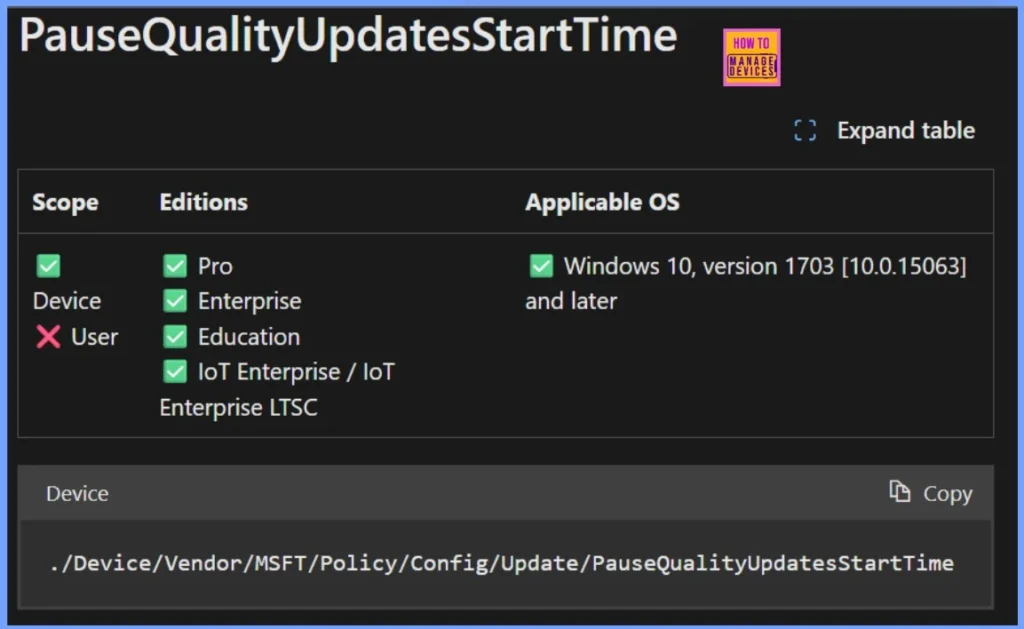
The PauseQualityUpdatesStartTime setting is applicable to devices running specific editions and versions of Windows. It can be applied to Pro, Enterprise, Education, IoT Enterprise / IoT, and Enterprise LTSC editions. The policy is designed for devices, not for individual users, and works on Windows 10, version 1703 (10.0.15063) and later versions.
Path – ./Device/Vendor/MSFT/Policy/Config/Update/PauseQualityUpdatesStartTime
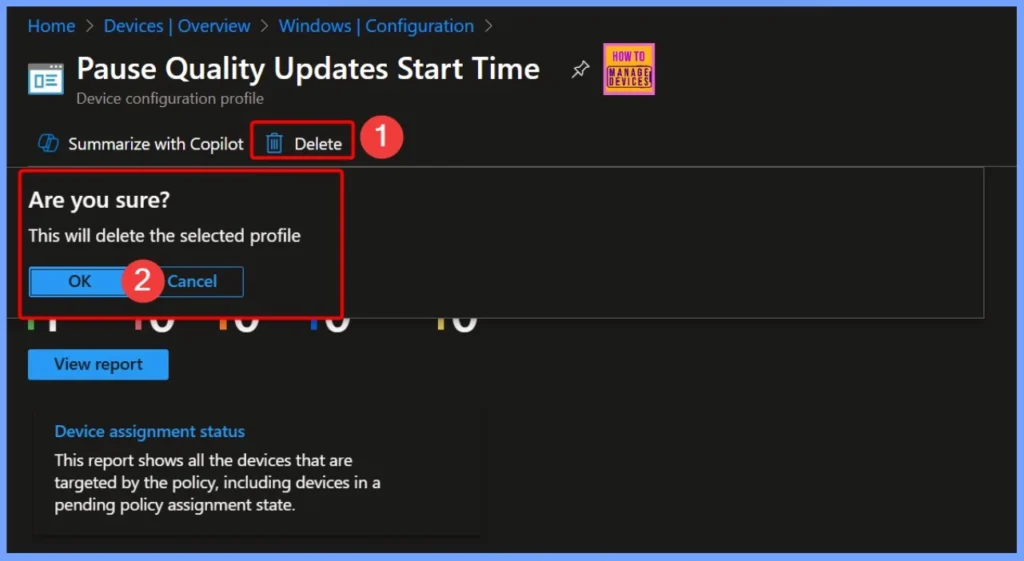
How to Delete Pause Quality Updates Start Time Policy
You can easily delete a policy from the Intune Admin Center whenever it’s no longer needed. Read more – How to Delete Allow Clipboard History Policy in Intune Step by Step Guide. The below window helps you to show more details.
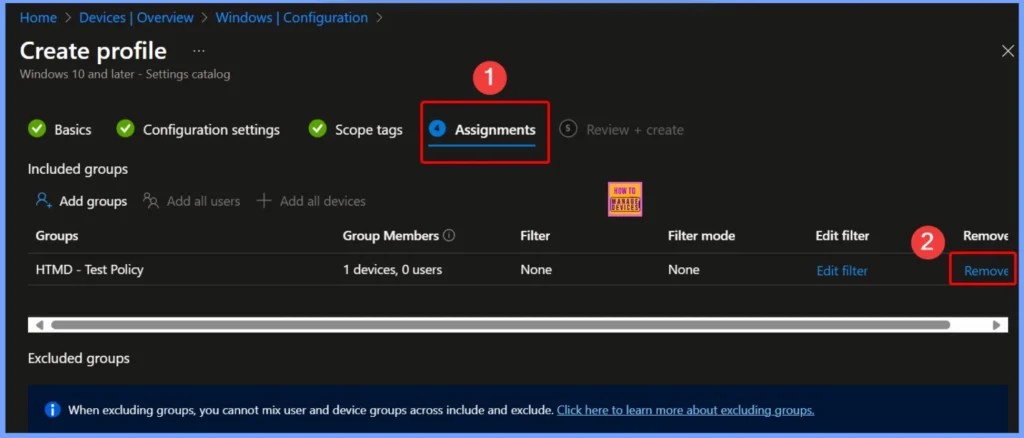
How to Remove the Assigned group from the Pause Quality Updates Start Time Policy
You can easily remove the Assigned group from the Pause Quality Updates Start Time Policy. Read more – How to Remove Assigned Group from Energy Saver Battery Threshold Policy in Intune Settings Catalog.
Need Further Assistance or Have Technical Questions?
Join the LinkedIn Page and Telegram group to get the latest step-by-step guides and news updates. Join our Meetup Page to participate in User group meetings. Also, Join the WhatsApp Community to get the latest news on Microsoft Technologies. We are there on Reddit as well.
Author
Anoop C Nair has been Microsoft MVP from 2015 onwards for 10 consecutive years! He is a Workplace Solution Architect with more than 22+ years of experience in Workplace technologies. He is also a Blogger, Speaker, and Local User Group Community leader. His primary focus is on Device Management technologies like SCCM and Intune. He writes about technologies like Intune, SCCM, Windows, Cloud PC, Windows, Entra, Microsoft Security, Career, etc.


Discussion