






Best way to Enable Per Process Dpi for Display Policy using Intune Setting Catalog
Let’s discuss the Best way to Enable Per Process Dpi for Display in Setting Catalog using Intune. The settings catalog is a simple and effective tool for deploying policies within an organization. The Microsoft Intune Settings Catalog is a powerful resource that enables IT administrators to manage device settings efficiently.
It provides configuration, deployment, and management of settings for organizations. So, here we are deploying a new policy for display. As you all know, every device’s display is important, and one of its features is Per Process Dpi. With the setting catalog, we can enable this policy for users.
The feature Per Process System DPI addresses issues with desktop applications that do not display correctly when the display scale (DPI) changes. This problem can occur if you connect or disconnect a monitor with a different DPI, use a remote device with a different DPI, or manually adjust your display settings. When this happens, some applications may appear blurry.
If these applications have not been updated to handle DPI changes, they will remain blurry until you log out and log back into Windows. Per Process System DPI” only improves the appearance of apps on the primary display or displays with the same DPI.

Table of Contents
What is Per Process Dpi for Display?
What Should you be Aware of when using the Per Process System DPI Setting?
1. It doesn’t work for all apps, as some older apps may always be blurry on high DPI displays.
2. Some apps might behave unexpectedly with Per Process System DPI enabled; in such cases, it should be disabled.
3. Enabling this setting allows you to set a system-wide default or specific DPI overrides for individual apps.
Enable Per Process Dpi for Display Policy using Intune Setting Catalog
We previously discussed various aspects of Per Process Dpi for Display in Settings. Now, we can discuss how these features can be enabled here. I am enabling two policies: one for user-level Per Process Dpi for Display and one for Per Process Dpi for Display.
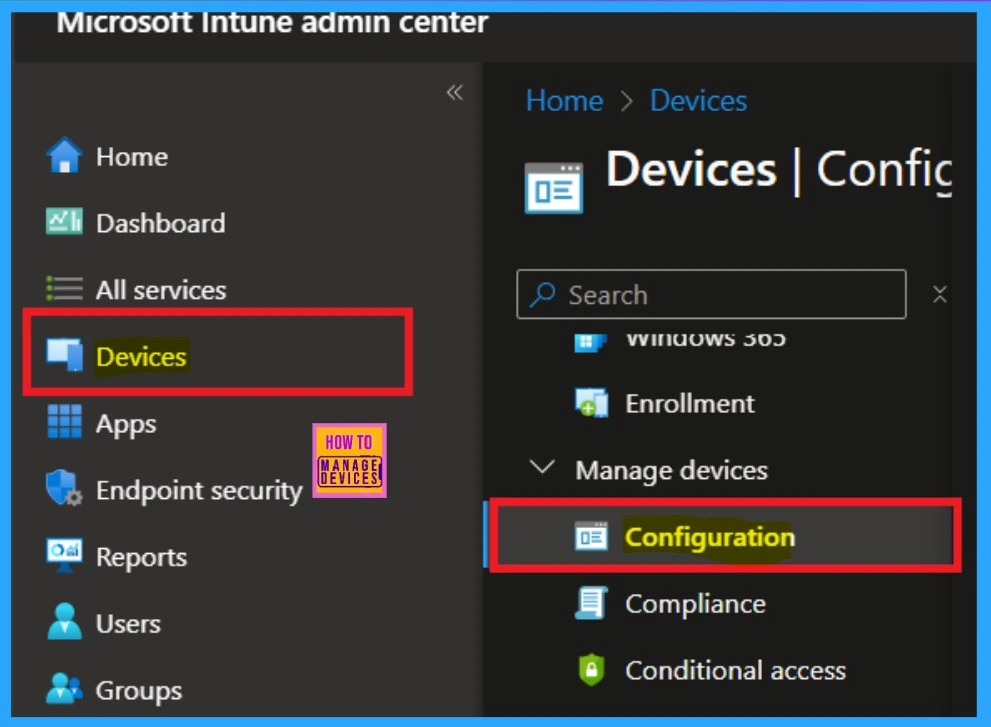
- First, you have to log in to the Microsoft Intune admin center.
- Navigate through Device > Configuration.
| Edition | Applicable OS | Scope |
|---|---|---|
| IoT Enterprise / IoT Enterprise LTSC | Windows 10, version 1803 [10.0.17134] and later | Device |
| Windows SE | User | |
| Education | ||
| Enterprise | ||
| Pro |
- Create Intune Policy to Block Microsoft Accounts
- How to Setup Passwordless Login for Microsoft Accounts
- How to Allow Adding Non-Microsoft Accounts Manually Using Intune Setting Catalog
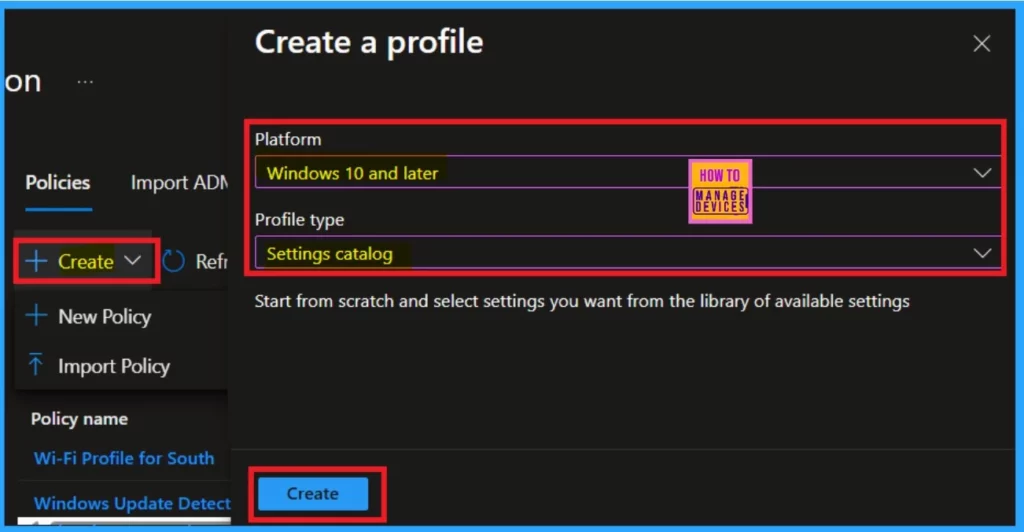
After clicking on the configuration, you will notice a “Create” option on the right side. Click on that, and you’ll be able to select a new policy from there. Here, make sure to choose “Windows 10 and later” as the platform and select Setting Catalog for the profile type.
- Now you can click on the “Next“
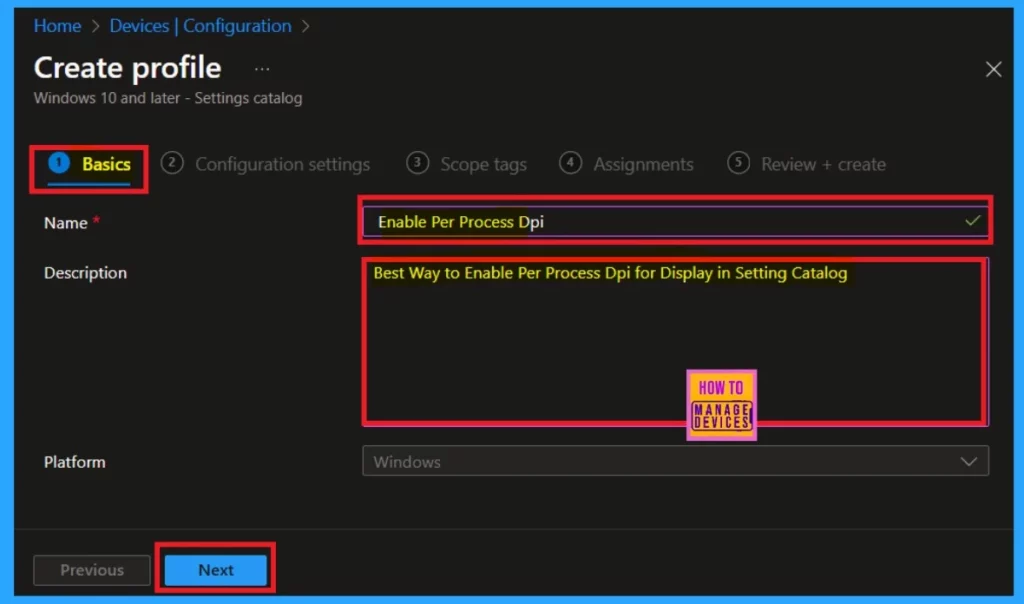
The Basic tab is the first section for creating a policy. In this section, you need to enter essential details such as the name and description of the policy. This information will help you understand the policy later. By default, the platform selected is Windows.
- Once you have completed this, you can click on the “Next” button.
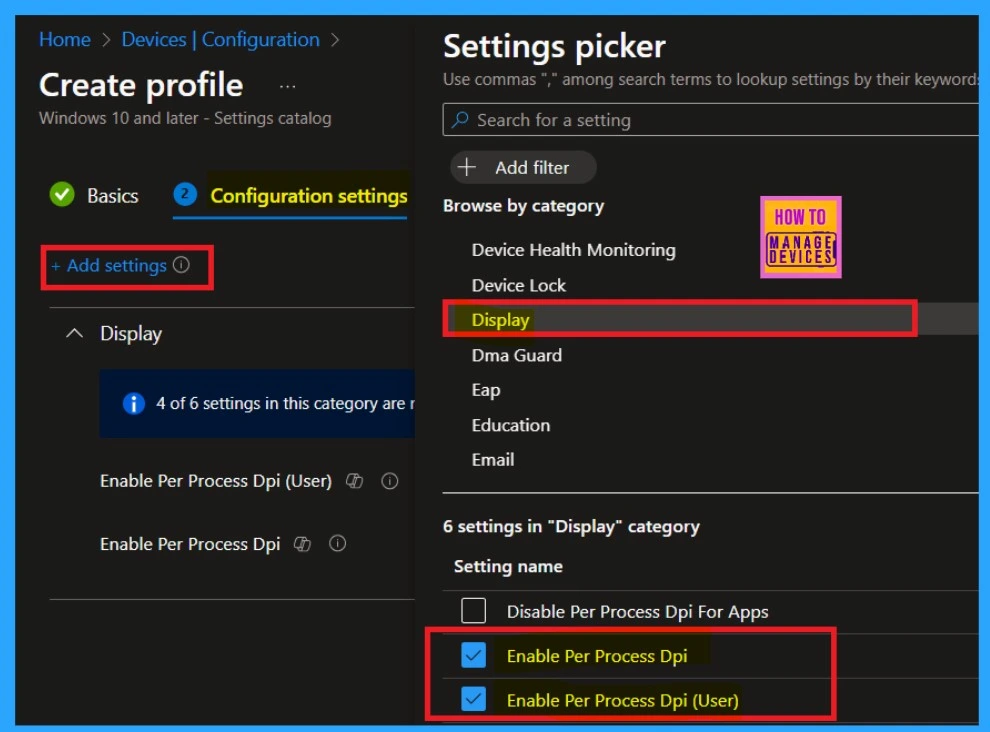
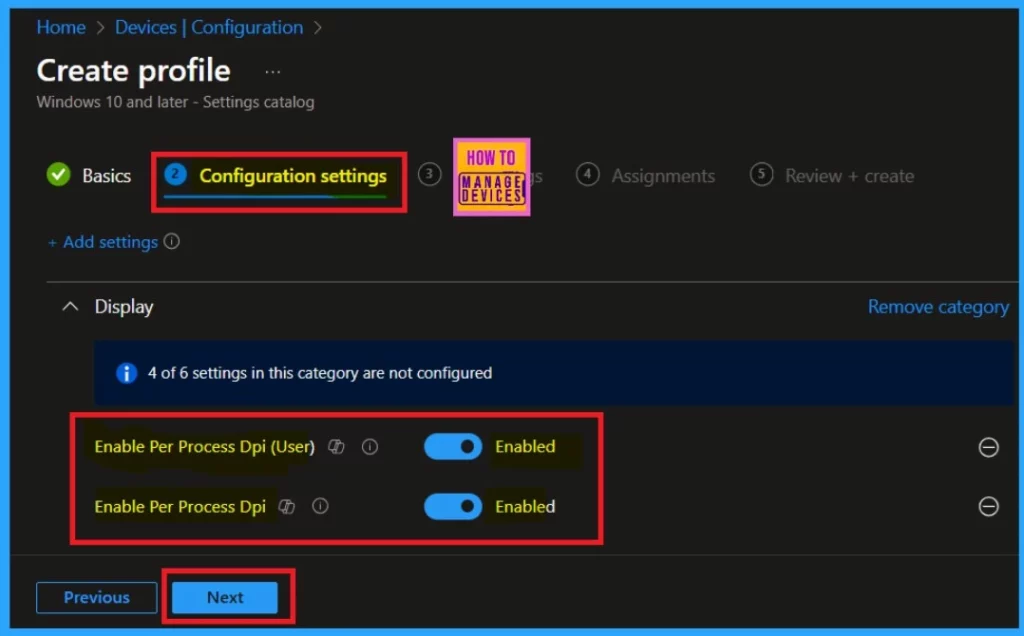
Next is configuration settings menu and click on the “Add Setting” option. This will open a settings picker window. In the window, you can choose to display as category. When you click on the display option, a list of available settings will appear. I selected “Enable Per-Process DPI” for users, as well as “Enable Per-Process DPI” together.
- After making your selections, close the settings Picker window.
When you close the settings picker, you can access your configuration settings on the main page. Here, you can toggle the pane to the left or to the right to enable it, and then click on the Next option.
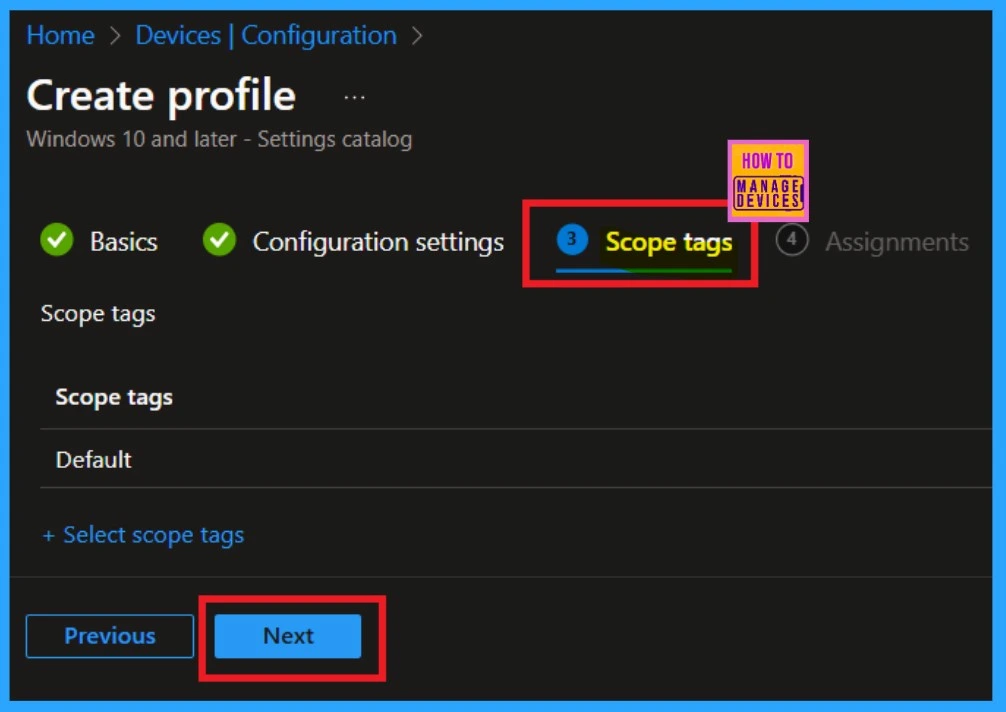
After completing the configuration settings, you will now on the scope tags section. Here, you can add a scope tag to the policy. I did not include any scope types into the policy, I will click on Next, as this is a mandatory step.
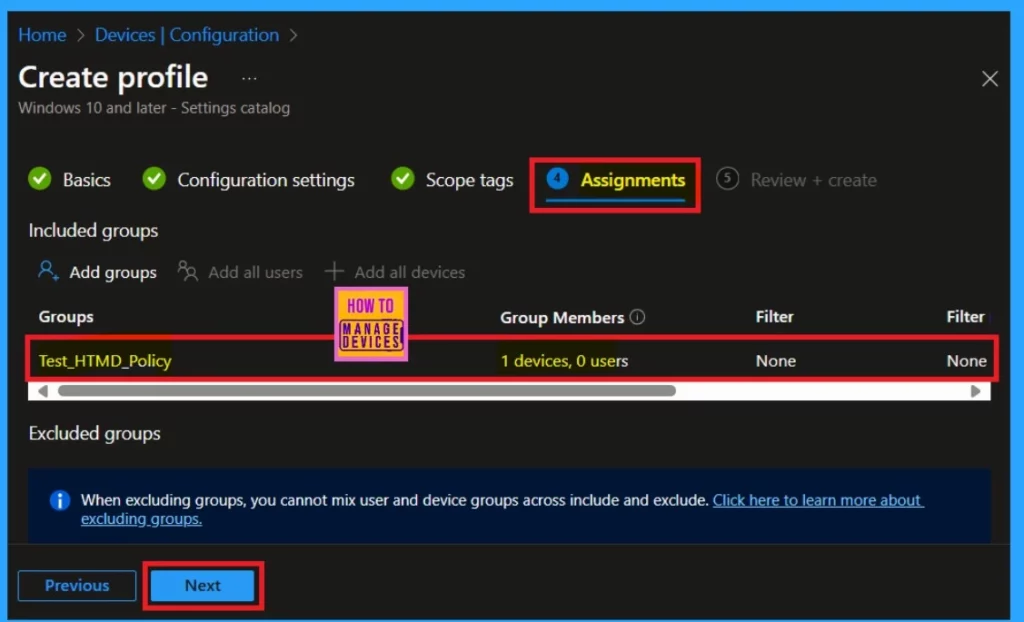
Assignment tabs are crucial because they allow us to deploy the policy to a specified group. Click on the add a group under the “include groups“. and select the group you want to deploy, then click Next.
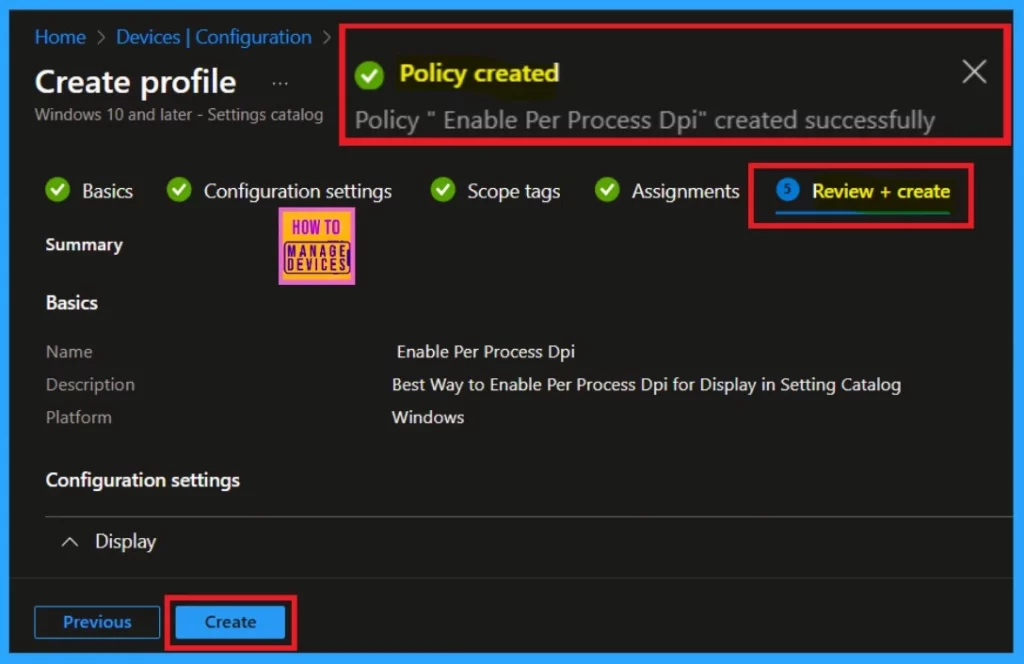
We are now on the “Review + Create” tab. This section act as a summary page, providing you with all the information you filled for policy creation. After reviewing all the information provided, click on the “Next” option to proceed. Now you will get notified that the policy is created successfully.
Monitor Status
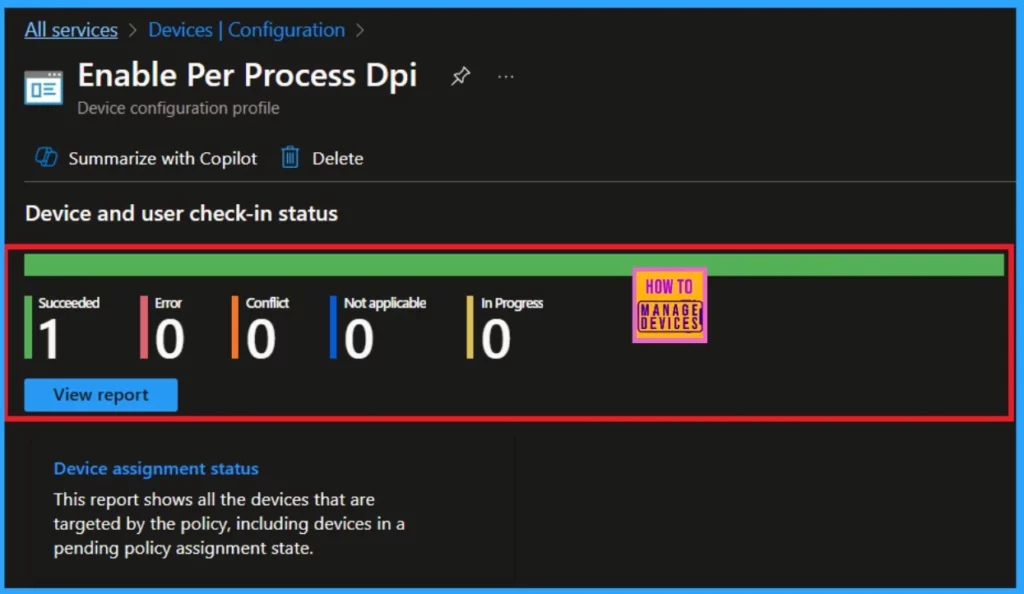
Monitoring the status of a policy is very important. Once you create a policy, it is essential to verify whether it has been successfully implemented. To check the monitoring status, navigate to the device configuration and search for the policy you created.
When you click on the policy, you will be able to see whether it was successful, if there were any conflicts, or if it was not applicable, all these information, details about the policy creation, will be available.
Client Side Verification
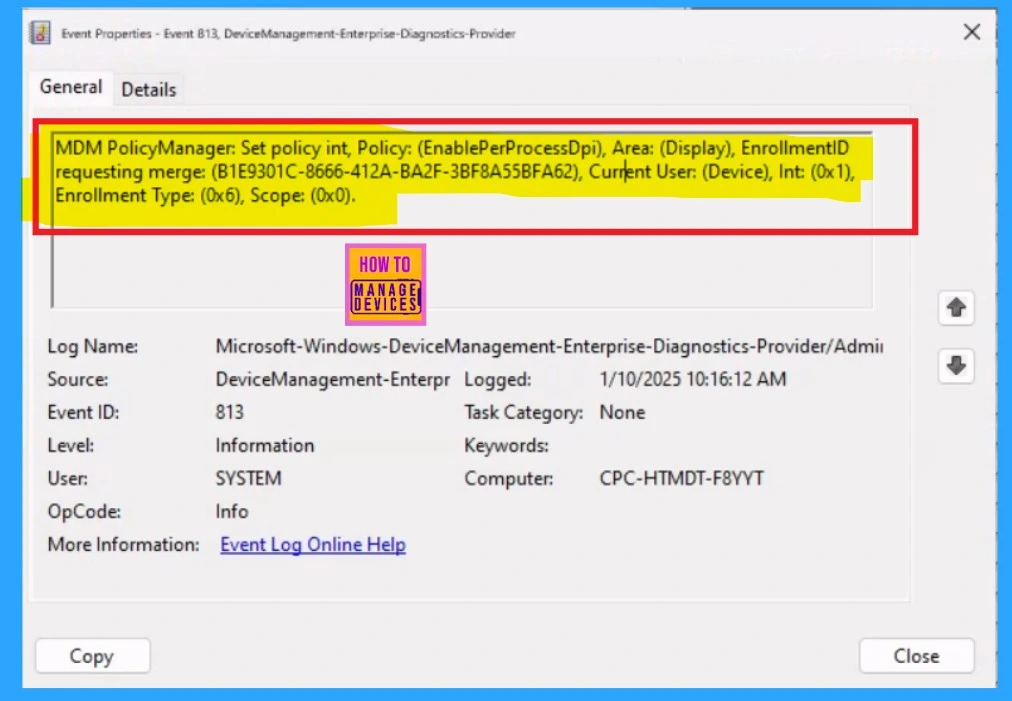
Client-side verification is essential. After syncing the policy, you can review the results using event properties or the Event Viewer. Navigate to: Applications and Services Logs > Microsoft > Windows > Device Management > Enterprise Diagnostic Provider > Admin.
- You can use the filter option to find the result.
- To filter the results, enter “813” in the Event ID field and click OK.
| Policy Details |
|---|
| MDM PolicyManager: Set policy int, Policy: (EnablePerProcessDpi), Area: (Display), EnrollmentID requesting merge: (B1E9301C-8666-412A-BA2F-3BF8A55BFA62), Curnent User: (Device), Int: (0x1), Enrollment Type: (0x6), Scope: (0x0). |
Need Further Assistance or Have Technical Questions?
Join the LinkedIn Page and Telegram group to get the latest step-by-step guides and news updates. Join our Meetup Page to participate in User group meetings. Also, Join the WhatsApp Community to get the latest news on Microsoft Technologies. We are there on Reddit as well.
Author
Anoop C Nair has been Microsoft MVP from 2015 onwards for 10 consecutive years! He is a Workplace Solution Architect with more than 22+ years of experience in Workplace technologies. He is also a Blogger, Speaker, and Local User Group Community leader. His primary focus is on Device Management technologies like SCCM and Intune. He writes about technologies like Intune, SCCM, Windows, Cloud PC, Windows, Entra, Microsoft Security, Career, etc.


Discussion