






PIN Complexity Settings in Windows 11 | 19 Group Policy Settings | 18 Intune Policy Settings
Let’s learn the PIN Complexity Settings in Windows 11. In this blog post, we show you how to enable the PIN complexity feature, which allows you to set up a complex PIN with special characters and uppercase or lowercase letters for users to make PIN more secure on Windows 11.
The PIN Complexity is the best feature of Windows 11; the PIN must be at least four characters, be easier to remember, and offer better security. PIN security is more secure and safe and shorter than a password. Using a PIN helps you to make it easier and safer to sign into your PC.
Windows Hello is a more personal and secure way to get instant access to your Windows 11 devices using a PIN, facial recognition, or fingerprint. Let’s see how you can create a sign-in PIN for your account on Windows 11. It is more convenient to sign in to their accounts, and using a PIN is much easier to remember.
Windows Hello for Business (WHfB) has more granular controls for enterprise customers. A PIN is a (Personal Identification Number); it looks like a password. A PIN can be a set of numbers, special characters, and letters, both uppercase and lowercase. PIN length and complexity make it better than a password.

- OneDrive in Windows 11 Control Policies | 77 Intune Policy Settings | 5 Group Policy Settings
- 4 Best Methods Enable Windows Sandbox | Configure Policies for Windows 11
What are the Features of PIN Complexity Settings in Windows 11?
You can easily set up PIN Complexity settings in Windows 11. The following are the Advantages or features of PIN Complexity in Windows 11.
1. Allows you to set up a complex PIN
2. It is simple that could be compromised easily by hackers
3. The PIN isn’t restricted to four digits
4. It includes special characters, uppercase / lowercase letters
5. It is easy and simple to use
6. It is more secure
7. It is Safe from hackers
How to Sign in with a PIN in Windows 11
A PIN to sign IN to the Windows 11 is more secure than a password. The PIN must be at least 4 characters. The PIN can’t be longer than 127 characters. The below steps and screenshot show how to sign in with a PIN in Windows 11.
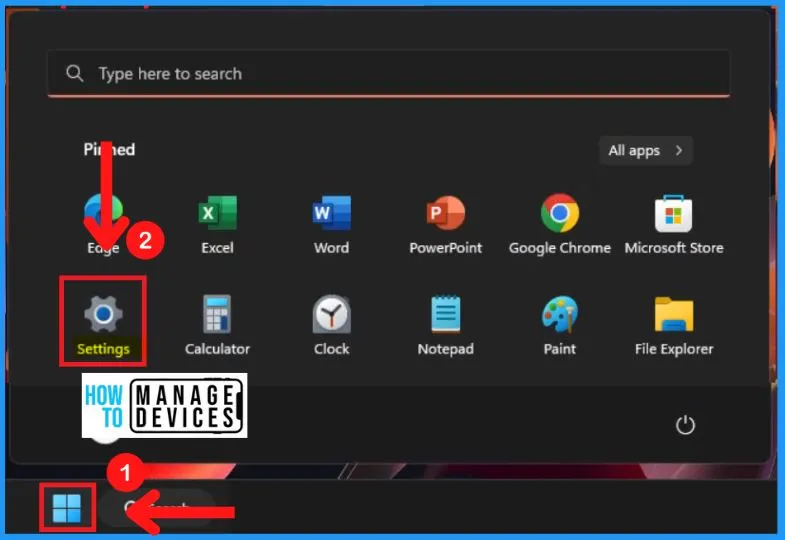
- Select Settings from the Start menu
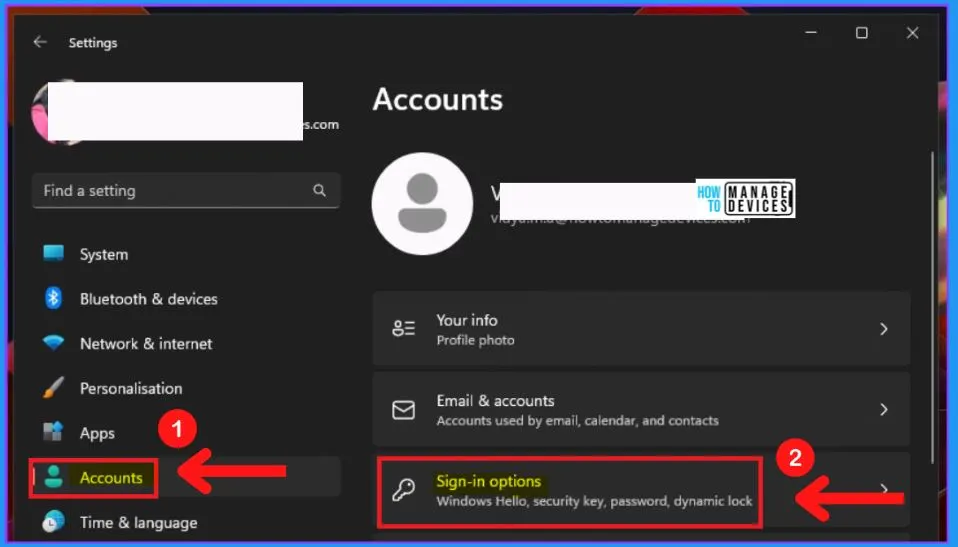
The Sign in options includes Windows Hello, Security key, Password, and Dynamic lock. Windows Hello helps you to sign in to your devices, apps, online services, and networks using your face, fingerprint, or PIN.
- Choose the Accounts tab from the settings page
- Select “Sign in options” from the Account tab
- What Is Windows 10 PIN How To Set PIN For Windows 10 Devices Machines
- Best Methods To Reset Windows 11 PIN Fix Forgot PIN Issue
PIN Settings in Windows 11
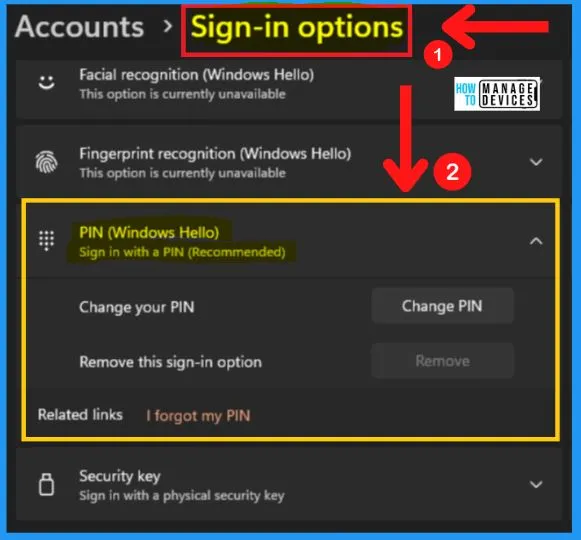
The sign-in options in Windows 11 show settings such as facial recognition, fingerprint recognition, PIN, etc. All these sign-in options are under Windows Hello.
If you don’t see Windows Hello in the Sign-in options, then it means that it may not be available for your device. Windows Hello does not require a compatible camera or fingerprint reader. The PIN Windows Hello includes the following.
| PIN (Windows Hello) | Uses |
|---|---|
| Change your PIN | It helps you to change your PIN |
| Remove this Sign in options | It allows you to remove the PIN sign-in options |
| I forgot my PIN | It will enable you to reset your forgotten PIN |
| Related links | It will allow you to show the associated links |
- Select PIN (Windows Hello) from the below screenshot
Change your PIN
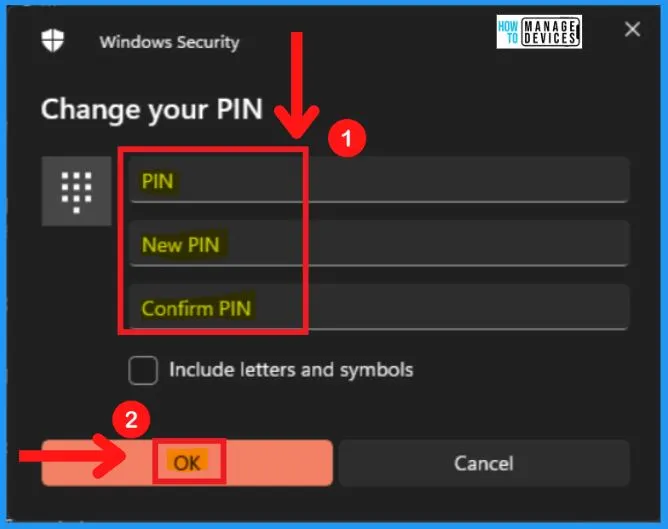
You can easily change your PIN from the below screenshot. The change your PIN window shows the items such as PIN, New PIN, and Confirm PIN. Tick the below square box to include letters and symbols.
| Change your PIN | Used to |
|---|---|
| PIN | Enter your old PIN |
| New PIN | Enter your New PIN |
| Confirm PIN | Enter your New PIN again for confirmation |
- Select OK from the below screenshot
- Snipping Tool in Windows 11 Latest Features | Settings | Uninstall
- 4 Methods to Enable Credential Guard on Windows Devices
Group Policy Settings for PIN Complexity in Windows 11
Check the Group Policy settings options for PIN Complexity in Windows 11. Press the Windows key + R keyboard shortcut, or use GPEIDIT.MSC in the Run box and press Enter. This will open the Group Policy Editor.
NOTE! – You can also configure the group policies in the Domain controller using the following method. You can open the Domain policy using the Run command -> gpmc.msc and press OK. More details domain level group policy settings using ADMX are explained -> Microsoft Edge ADMX Group Policy Templates.
The below screenshot and the steps showing how to choose Windows Hello for Business from Group policy settings.
- Right-click the Start menu
- Select Run from the context menu
- Type GPEIDIT.MSC in the run box
- Select Computer Configuration from the Group policy editor
- Computer Configuration > Administrative Templates > Windows Components > Windows Hello for Business
The Windows Hello for Business includes a set of options such as
- Allow enumeration of emulated smart cards for all users
- Turn off smart card emulation
- Use PIN Recovery
- Use a hardware security device
- Use biometrics
- Configure device unlock factors
- Configure dynamic lock factors
- Use Windows Hello for Business certificates as smart card certificates
- Use Windows Hello for Business
- Use certificate for on-premises authentication
- Use cloud trust for on-premises authentication
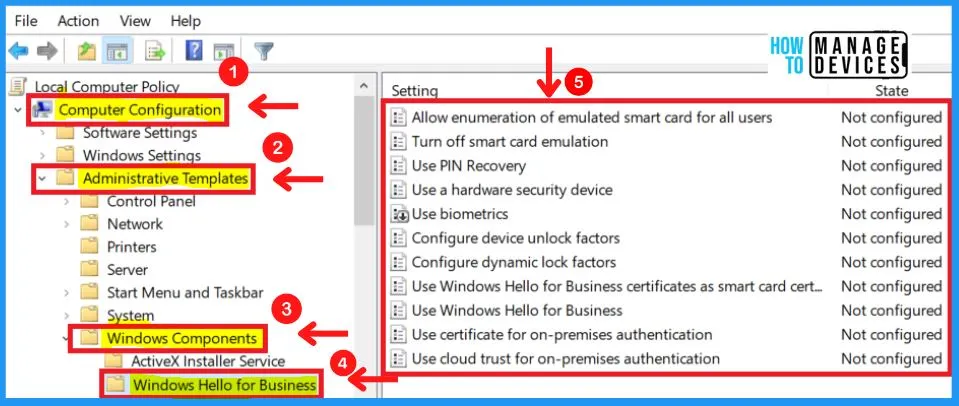
Use PIN Recovery Settings
PIN recovery enables a user to change a forgotten PIN using the Windows Hello for Business PIN recovery service without losing any associated credentials or certificates, including any keys associated with the user’s personal accounts on the device.
To achieve this, the Azure-based PIN recovery service encrypts a recovery secret, which is stored on the device and requires both the PIN recovery service and the device to decrypt. PIN recovery requires the user to perform multi-factor authentication to Azure Active Directory.
- If you enable this policy setting, Windows Hello for Business uses the PIN recovery service
- If you disable or do not configure this policy setting, Windows does not create or store the PIN recovery secret
- If the user forgets their PIN, they must delete their existing PIN and create a new one, and they will have to re-register with any services to which the old PIN provided access
NOTE! – This policy only applies to devices registered with Azure Active Directory.
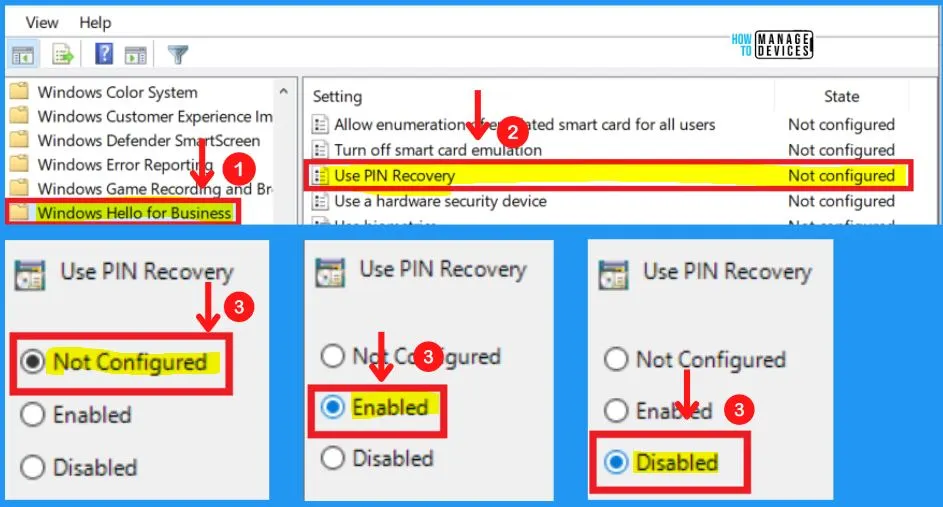
PIN Complexity
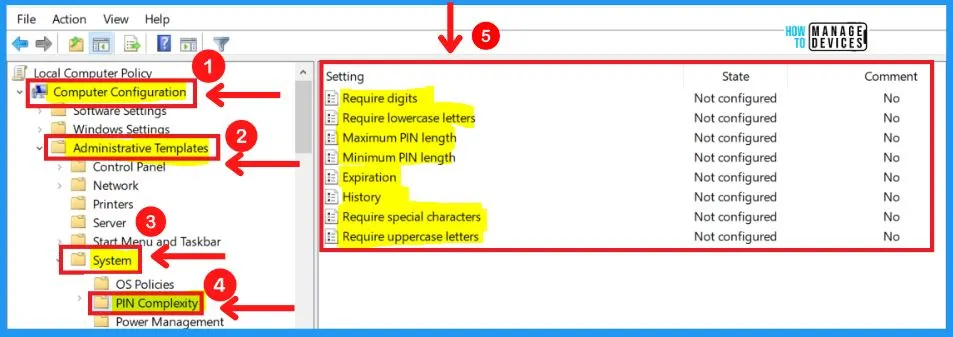
The below screenshot and steps show how to choose from Group policy settings.
- Right-click the Start menu
- Select Run from the context menu
- Type GPEIDIT.MSC in the run box
- Select Computer Configuration from the Group policy editor
- Computer Configuration > Administrative Templates > System > PIN Complexity
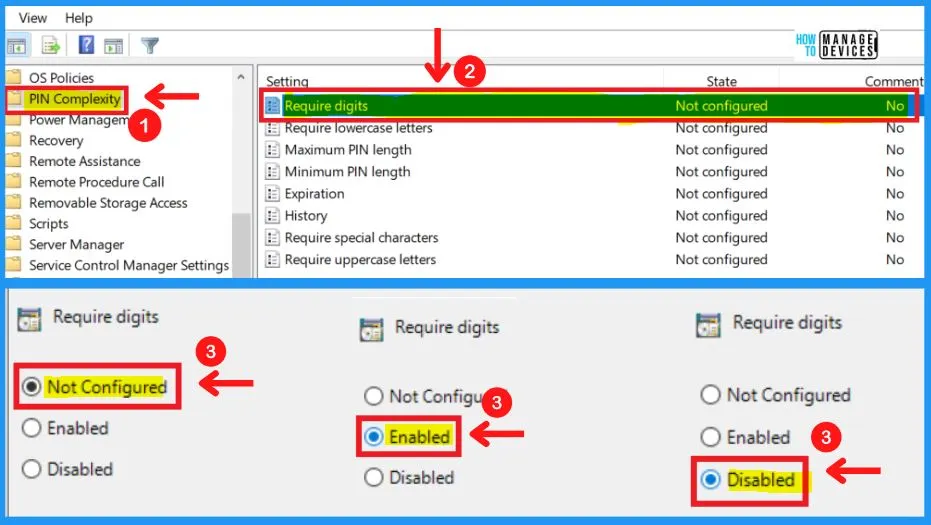
Require Digits
Use this policy setting to configure the use of digits in the PIN. If you enable this policy setting, Windows requires the user to include at least one digit in their PIN.
- If you disable this policy setting, Windows does not allow the user to include digits in their PINs.
- If you do not configure this policy setting, Windows allows but does not require digits in the PIN.
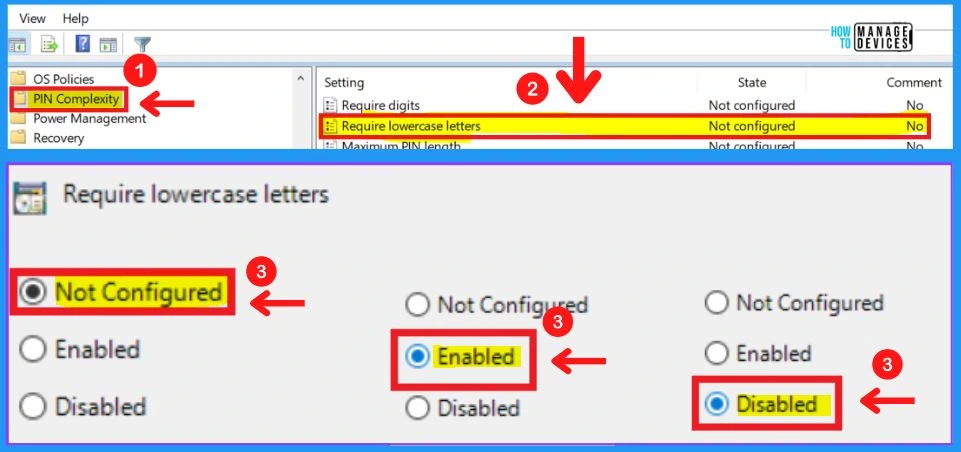
Require Lowercase Letters Configuration for Windows 11
Use this policy setting to configure the use of lowercase letters in the PIN. If you enable this policy setting, Windows requires the user to include at least one lowercase letter in their PIN.
- If you disable this policy setting, Windows does not allow the user to include lowercase letters in their PIN.
- If you do not configure this policy setting, Windows allows but does not require, lowercase letters in the PIN.
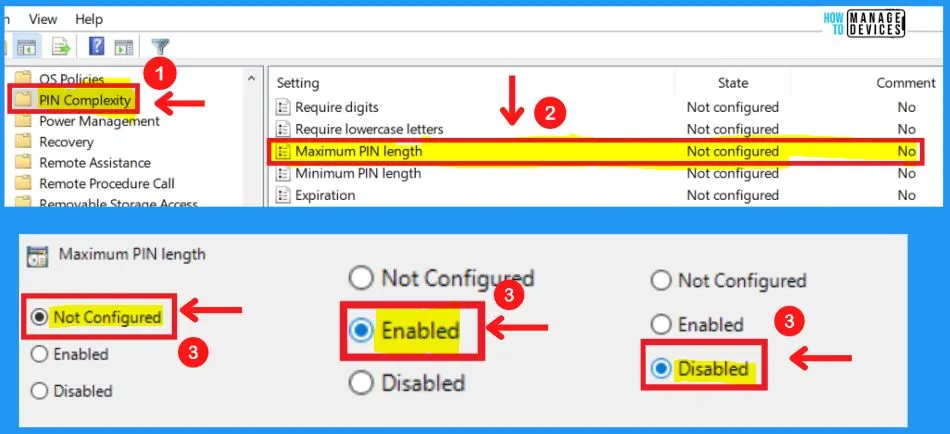
Maximum PIN Length Group Policy Configuration
Maximum PIN length configures the maximum number of characters allowed for the PIN. The largest number you can configure for this policy setting is 127. The lowest number you can configure must be larger than the number configured in the Minimum PIN length policy setting or the number 4, whichever is greater.
- If you configure this policy setting, the PIN length must be less than or equal to this number
- If you disable or do not configure this policy setting, the PIN length must be less than or equal to 127
NOTE! – If the above-specified conditions for the maximum PIN length are not met, default values will be used for both the maximum and minimum PIN lengths.
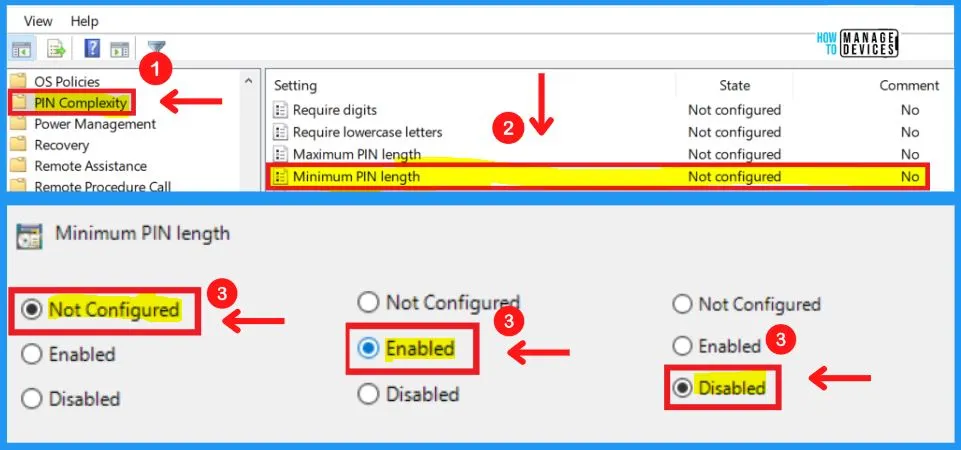
Minimum PIN Length
Minimum PIN length configures the minimum number of characters required for the PIN. The lowest number you can configure for this policy setting is 4. The largest number you can configure must be less than the number configured in the Maximum PIN length policy setting or the number 127, whichever is the lowest.
- If you configure this policy setting, the PIN length must be greater than or equal to this number
- If you disable or do not configure this policy setting, the PIN length must be greater than or equal to 4
NOTE! – If the above-specified conditions for the minimum PIN length are not met, default values will be used for both the maximum and minimum PIN lengths.
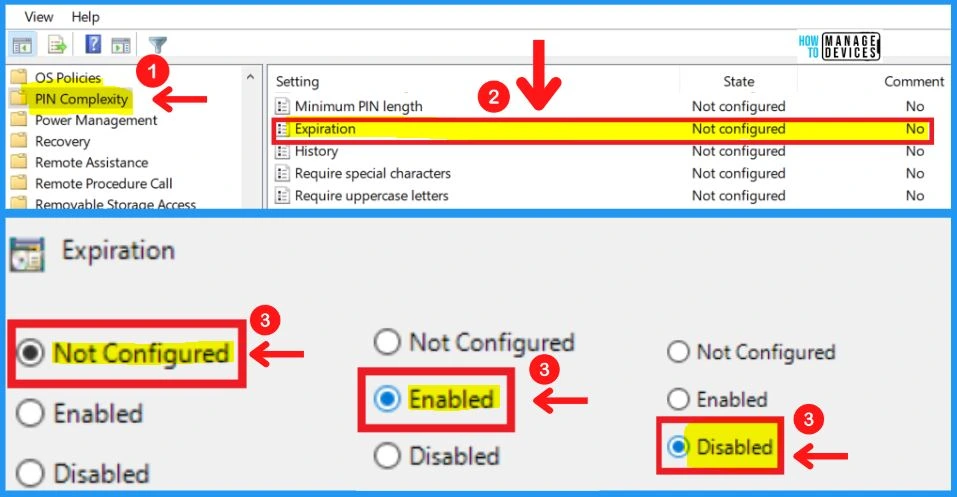
PIN Expiration Settings
This setting specifies the period of time (in days) that a PIN can be used before the system requires the user to change it. The PIN can be set to expire after any number of days between 1 and 730, or PINs can be set never to expire if the policy is set to 0.
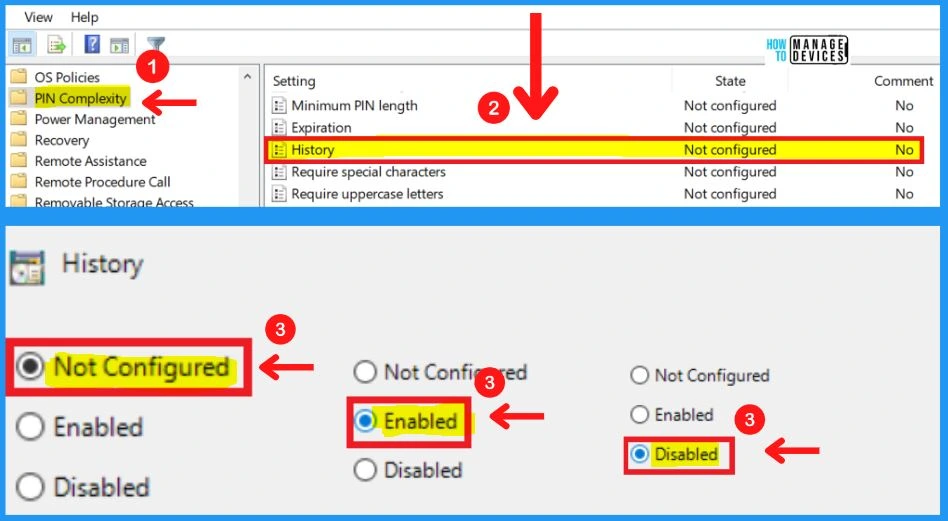
Windows 11 PIN History Group Policy Settings
This setting specifies the number of past PINs that can be associated with a user account that can’t be reused. This policy enables administrators to enhance security by ensuring that old PINs are not reused continually. PIN history is not preserved through PIN reset.
The value must be between 0 to 50 PINs. If this policy is set to 0, then storing previous PINs is not required. Default: 0.
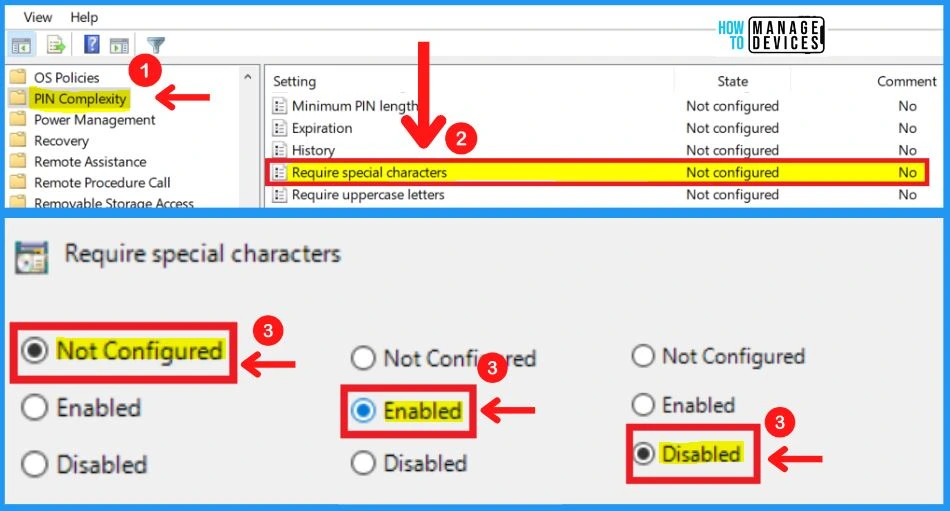
PIN Require Special Characters
Use this policy setting to configure the use of special characters in the PIN. Allowable special characters are:! ” # $ % & ‘ ( ) * + , – . / : ; < = > ? @ [ \ ] ^ _ ` { | } ~ .
- If you enable this policy setting, Windows requires the user to include at least one special character in their PIN.
- If you disable this policy setting, Windows does not allow the user to include special characters in their PIN
- If you do not configure this policy setting, Windows allows but does not require, special characters in the PIN
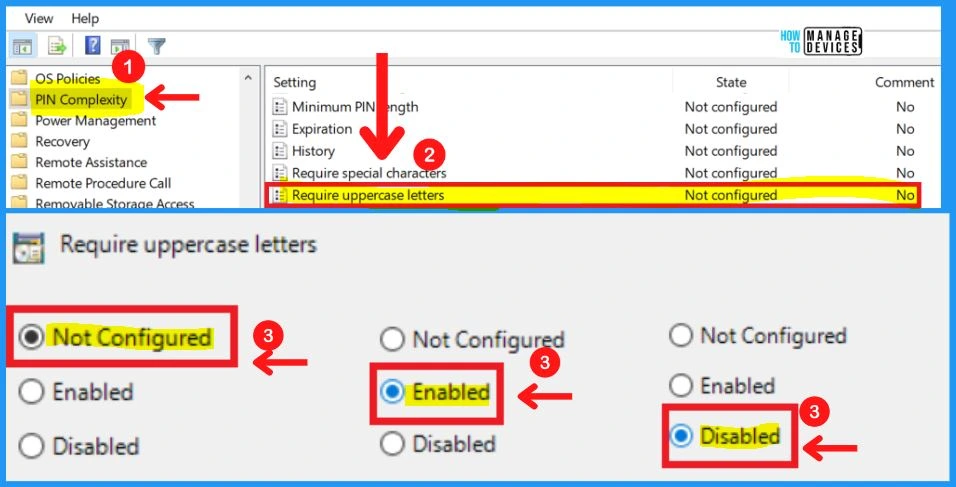
Windows 11 PIN Require Uppercase Letters using Group Policy
Use this group policy setting to configure the use of uppercase letters in the Windows 11 PIN. If you enable this policy setting, Windows requires the user to include at least one uppercase letter in their PIN.
- If you disable this policy setting, Windows does not allow the user to include uppercase letters in their PIN.
- If you do not configure this policy setting, Windows allows but does not require, uppercase letters in the PIN.
- Microsoft Pluton Security Processor for Windows 11 and Enhancements
- Microsoft PC Manager Best Optimizer PC Cleaner for Windows 11 | Features
Intune Policy for PIN Complexity Settings in Windows 11 – Control Policies
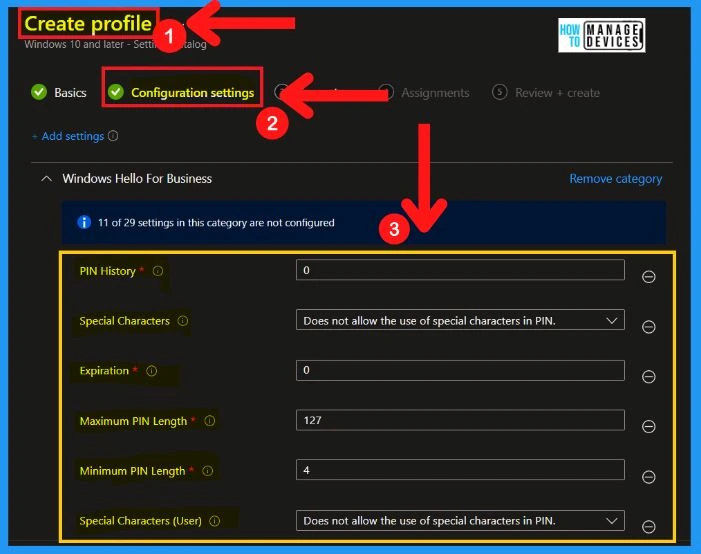
Check the Intune Policy for OneDrive. It would be best if you used the Settings Picker menu to find and select the settings for PIN Complexity. The following are the steps to choose OneDrive using Intune policy.
NOTE! – In Intune, we can configure only Windows Hello for Business (WHfB) policies for enterprises and that is what is covered in this section.
- Search with “PIN Complexity” in the Settings picker search box
- Select Windows Hello for Business
- There are different options available on Windows Hello for Business, as explained below, to select the different settings
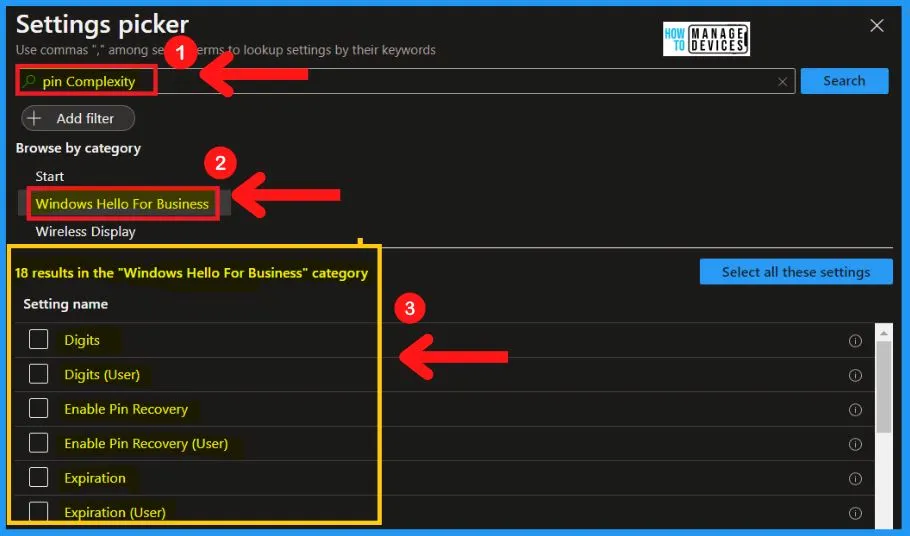
18 Windows Hello for Business Settings in Intune Policy
There are 18 results in the “Windows Hello for Business” category. You can easily select the settings by checking the square box below. All the settings are shown and configured with a default value, such as Enable or Disable.
The below list and screenshot show the 18 Windows Hello for Business settings categories in intune policy settings.
- Digits
- Digits (User)
- Enable Pin Recovery
- Enable Pin Recovery (User)
- Expiration
- Expiration (User)
- Lowercase Letters
- Lowercase Letters (User)
- Maximum PIN Length
- Maximum PIN Length (User)
- Minimum PIN Length
- Minimum PIN Length (User)
- PIN History
- PIN History (User)
- Special Characters
- Special Characters (User)
- Uppercase Letters
- Uppercase Letters (User)
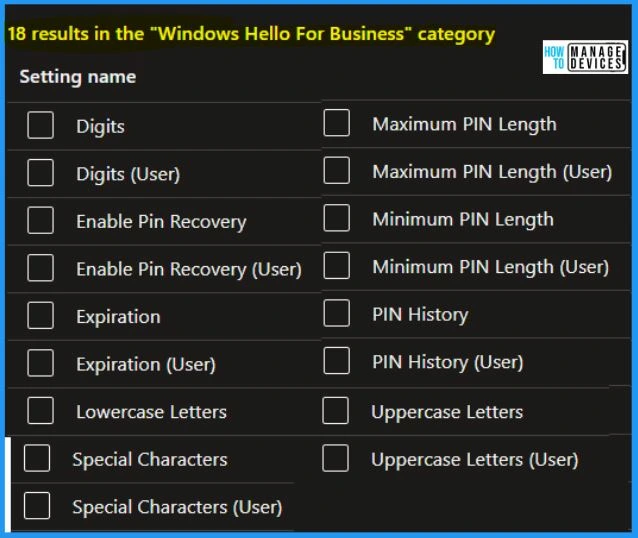
In the Settings catalog, you can get the lists of all the settings and configure them all in one place. This feature helps simplify how you create a policy and see all the available settings in Windows Hello for Business.
Use this policy setting to configure the use of digits in the Windows Hello for Business PIN. A value of 1 corresponds to “Required.”
- If you configure this policy setting to 1, Windows Hello for Business requires users to include at least one digit in their PIN
- A value of 2 corresponds to “Disallow” If you configure this policy setting to 2, Windows Hello for Business prevents users from using digits in their PIN
- If you do not configure this policy setting, Windows Hello for Business requires users to use digits in their PIN
Author
About Author – Vidya is a computer enthusiast. She is here to share quick tips and tricks with Windows 11 or Windows 10 users. She is also keen to find solutions to day-to-day tech problems and write about them.




not able to setup windows hello because microsoft does not let setup of pin.
i tired renaming ngc and created new ppassword. still no help. earlier camera used to blink and ask for setting up of pin while logging, but now it is simply asking for pin.
i’m not a computer geek so help me!