






Prevent Enabling Lock Screen Camera Using Intune
Let’s learn how you can prevent enabling Lock Screen Camera Using Intune. Preventing the enabling of the lock screen camera using Intune is an important security measure that can help protect sensitive information and prevent unauthorized access to devices.
With Intune, IT admins can configure device settings to disable the lock screen camera, which prevents users from taking photos or videos while the device is locked.
This is particularly important in industries where sensitive data is handled, such as healthcare or finance, as it helps prevent unauthorized access to the device’s camera while the device is locked
If you enable this setting, users will no longer be able to enable or disable lock screen camera access on PC
Settings and the camera cannot be invoked on the lock screen.

Disables the lock screen camera toggle switch in PC Settings and prevents a camera from being invoked on the
lock screen. Overall, using Intune to prevent the enabling of the lock screen camera is a vital step towards ensuring the security of mobile devices in any organization.
- New Microsoft Intune Suite For Endpoint Management
- Intune Windows 11 CIS Benchmarks Is Available For Download Now
Prevent Enabling Lock Screen Camera Using Intune
Let’s follow the steps to prevent enabling lock screen Camera Using Intune
- Sign in to the Microsoft Intune Admin portal https://endpoint.microsoft.com/
- Select Devices > Configuration profiles > Create profile.
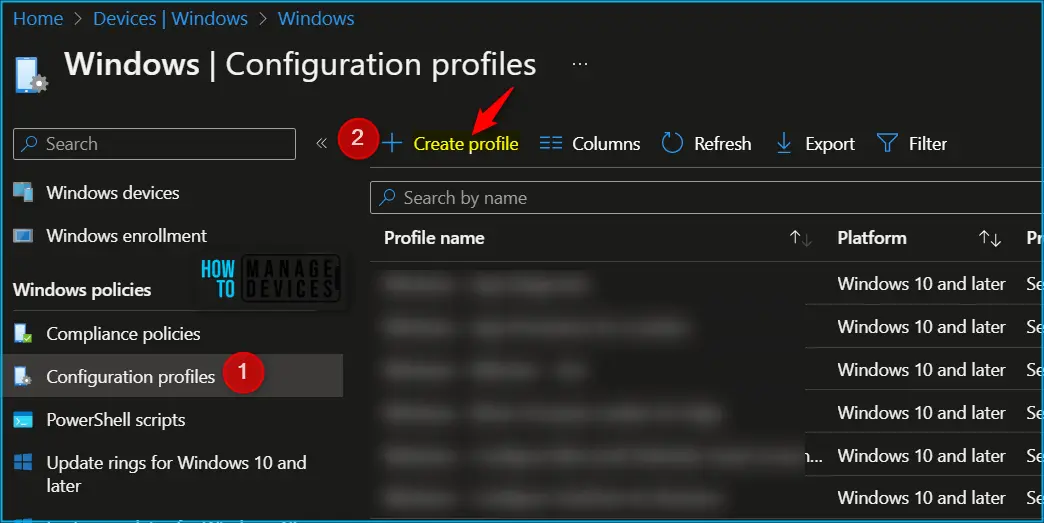
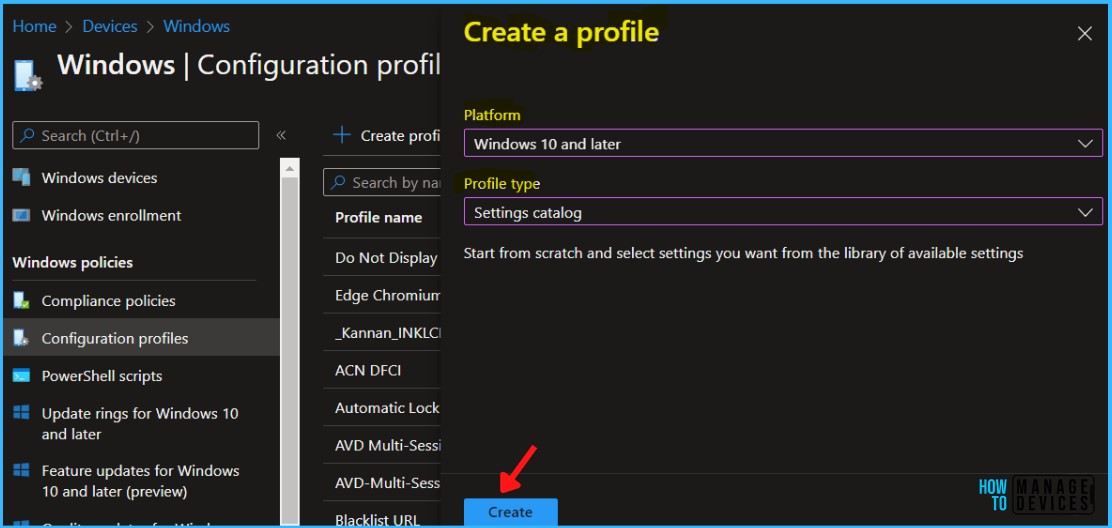
In Create Profile, Select Platform, Windows 10, and later and Profile, Select Profile Type as Settings catalog. Click on Create button.
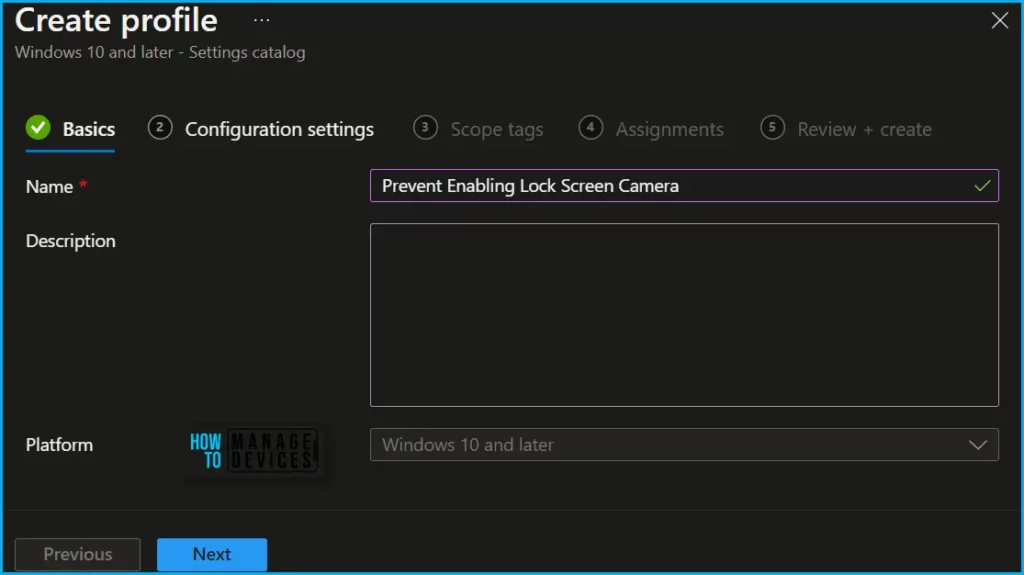
In Basics, enter the descriptive name for the new profile. For example, Prevent Enabling Lock Screen Camera, Description, Enter a description for the profile. This is optional but recommended, and Select Next.
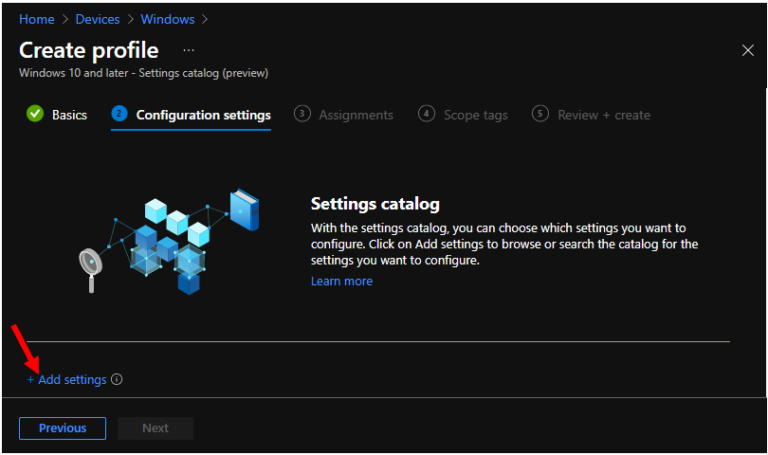
In Configuration settings, click Add settings to browse or search the catalog for the settings you want to configure.
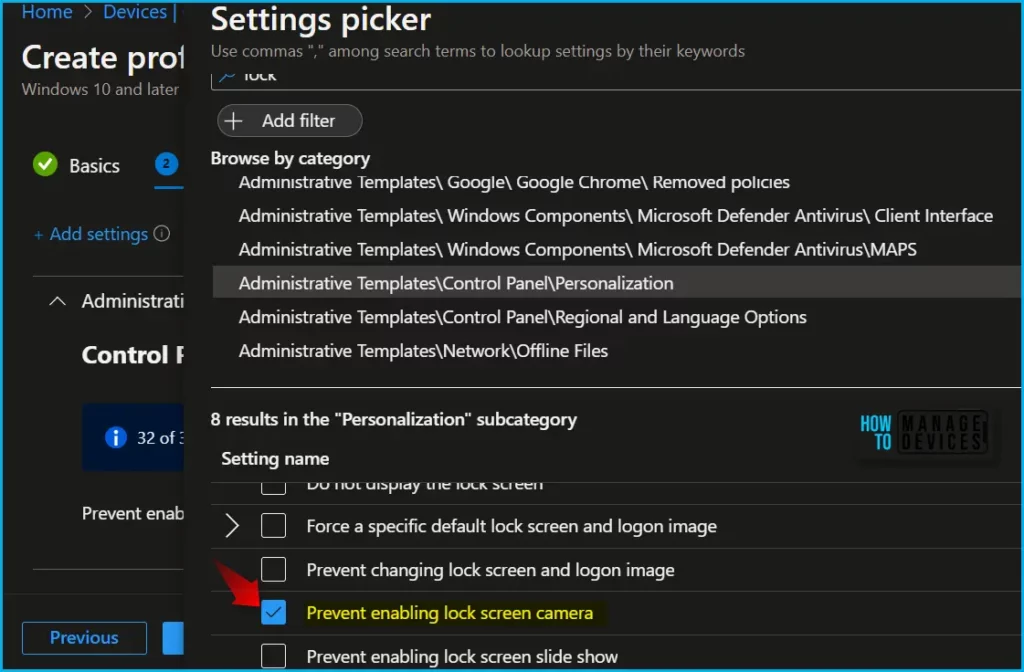
On the Settings Picker windows, Select Administrative Templates\Control Panel\Personalization to see all the settings in this category. Select Prevent Enabling lock screen camera below. After adding your settings, click the cross mark at the right-hand corner to close the settings picker.
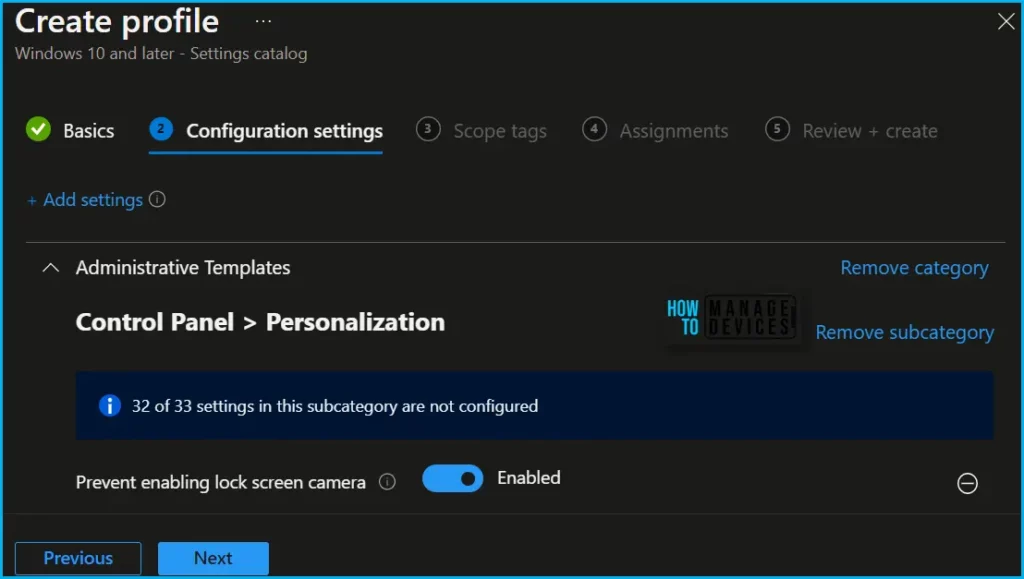
Here you need to select Prevent enabling local screen camera to Enabled and click on Next to proceed.
Disables the lock screen camera toggle switch in PC Settings and prevents a camera from being invoked on the lock screen. By default, users can enable the invocation of an available camera on the lock screen. If you enable this setting, users will no longer be able to enable or disable lock screen camera access in PC Settings, and the camera cannot be invoked on the lock screen.
In Scope tags, you can assign a tag to filter the profile to specific IT groups. Add scope tags (if required) and click Next.
Under Assignments, In Included groups, click Add groups and then choose Select groups to include one or more groups. Click Next to continue.
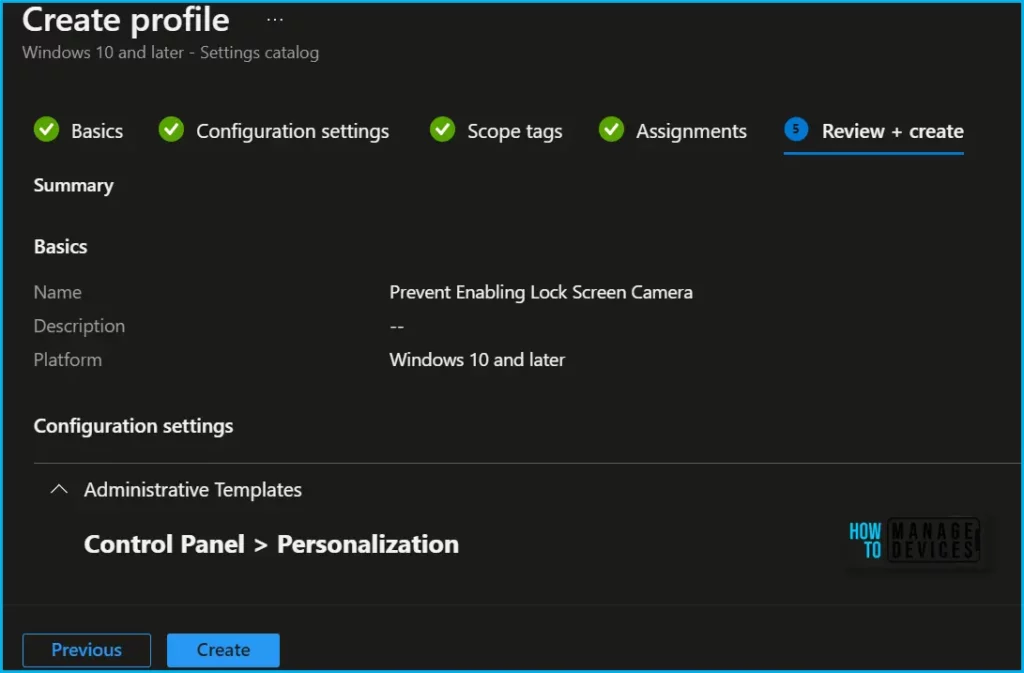
In Review + create, review your settings. When you select Create, your changes are saved, and the profile is assigned.
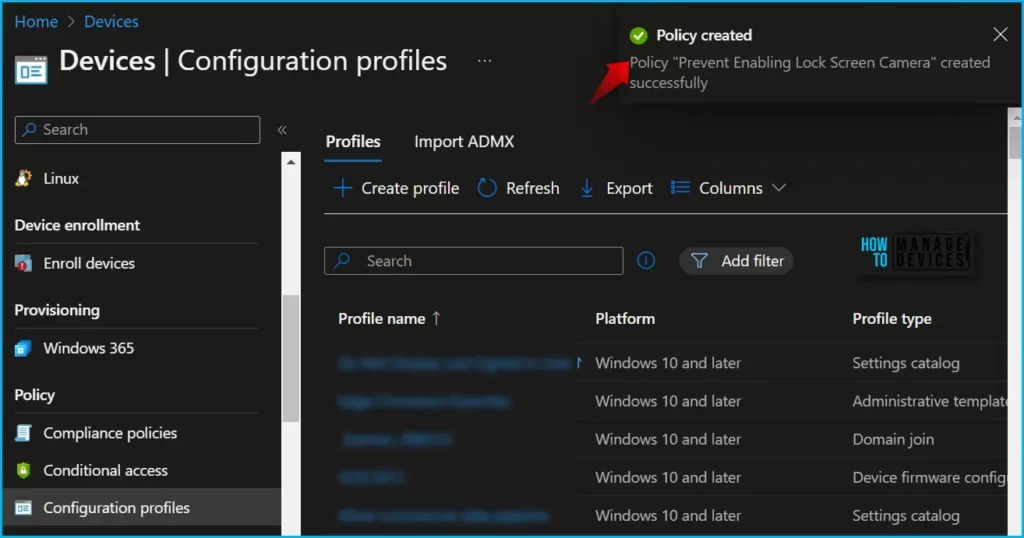
A notification will appear automatically in the top right-hand corner with a message. You can see that Policy “Prevent Enabling Lock Screen Camera” created successfully. The policy is also shown in the Configuration profiles list.
Monitor Policy Deployment in Intune
Intune includes some features to help monitor and manage your device configuration profiles. These charts display the status of a profile, such as if it is being successfully assigned to devices, or if the profile shows a conflict.
To monitor the policy assignment, from the list of Configuration Profiles, select the policy, and here you can check the device and user check-in status. If you click View Report, additional details are displayed.
Additionally, you can quickly check the update as devices/users check-in status reports:
You can troubleshoot the basic security policy from the Intune admin center portal. One example is given below How To Start Troubleshooting Intune Issues from the server-side. The next level of troubleshooting is with MDM Diagnostics Tool to collect the log and information from the client side.
Intune MDM Event Log
The Intune event ID 814 indicates that a string policy is applied to Windows 10 or 11 devices. You can also see the exact value of the policy used on those devices. This is a user-based policy; hence you would be able to see the Current User and user’s SID details.
You can check the Event log path to confirm this – Applications and Services Logs – Microsoft – Windows – Devicemanagement-Enterprise-Diagnostics-Provider – Admin.
The registry is the next place you can check to confirm whether the registry entries are already created and applied or not.
You can use REGEDIT.exe on a target computer to view the registry settings that store group policy settings. These settings are located in the registry path. You can also get the registry information inside HKEY_LOCAL_MACHINE, as shown below.
HKEY_LOCAL_MACHINE\SOFTWARE\Policies\Microsoft\Windows\Personalization:NoLockScreenCamera
Author
About Author – Jitesh, Microsoft MVP, has over six years of working experience in the IT Industry. He writes and shares his experiences related to Microsoft device management technologies and IT Infrastructure management. His primary focus is Windows 10/11 Deployment solution with Configuration Manager, Microsoft Deployment Toolkit (MDT), and Microsoft Intune.


Discussion