






How to Prevent Smart Screen Prompt Override for Files Policy in MS Edge Browser using M365 Admin Center
Hey there, let’s discuss about the topic how to prevent Smart Screen Prompt Override for files in MS Edge Browser using M365 Admin Center. The SmartScreen Prompt Override for Files setting in Microsoft Edge decides whether users can ignore Windows Defender SmartScreen warnings when downloading files that might be risky.
So basically, SmartScreen usually stops any suspicious downloads, but it lets user to override the warning and move on useful for trusted files flagged incorrectly. organizations can disable this override through Microsoft 365 Admin Center (Intune) or Group Policy to enforce stricter security to preventing employees from ignoring warnings and reducing malware risks.
When enabled, SmartScreen automatically blocks suspicious downloads but allows users to ignore the warning and go ahead if user want to take the chance. Disabling this option, user can’t ignore the warnings anymore and have to follow SmartScreen’s security decisions.
The SmartScreen Prompt Override for Files setting in Microsoft Edge controls whether users can bypass Windows Defender SmartScreen warnings when downloading potentially unsafe files. Here we are going to deploy Smart Screen Prompt Override for Files in MS Edge Browser using M365 Admin Center.

Table of Contents
What is the SmartScreen Prompt Override?
How Does SmartScreen Determine If a File is not Safe?
It scans the files using Microsoft’s reputation database, looking at where they come from, how common they are, and digital signatures to block known malicious or suspicious content.
Prevent Smart Screen Prompt Override for Files in MS Edge Browser
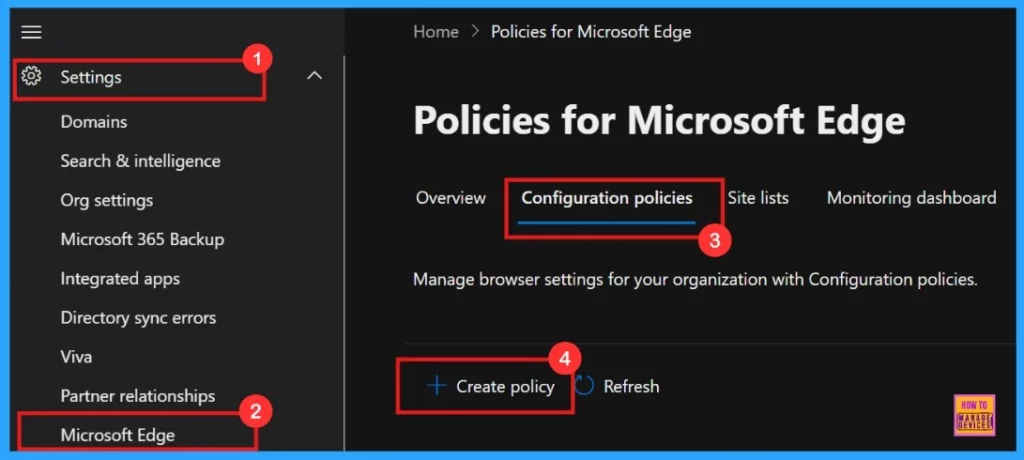
After clicking on the + Create policy, we will enter into a new window where we can see different tabs to create a Configuration policy. Here are the methods to follow:
- Login to Microsoft 365 Admin Center
- Go to Settings
- Select Microsoft Edge
- Click Configuration Policies
- Click on + Create Policy
- Allow or Block Default Popups Window Setting Policy in Edge Browser using M365 Admin Center
- Enable or Disable PDF Secure Mode Policy in MS Edge Browser using M365 Admin Center
- How to Configure Friendly URL Format Policy in MS Edge Browser using M365 Admin Center
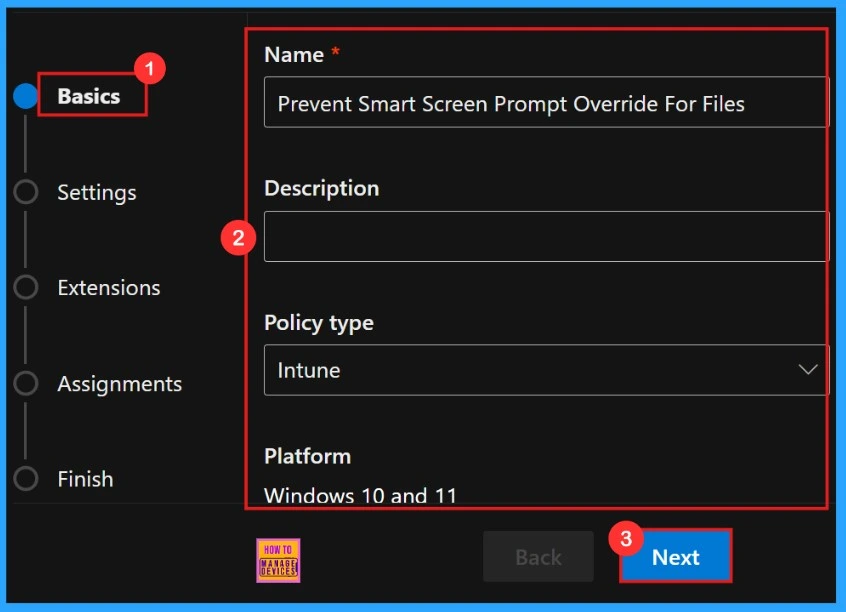
Basics
Basics is the first step to add the policy’s Name, Description, Type, and Platform for later identification. Once we have entered all the details, click on the Next button. We can refer to the screenshot below for this policy’s Basics.
Settings
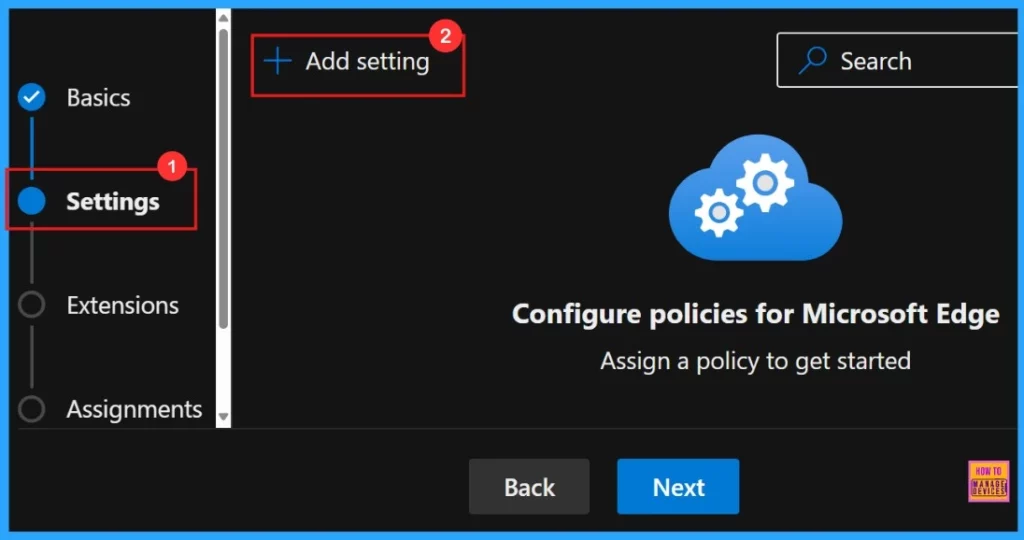
In the Settings tab, we need to click “Add settings“. This is important to choose a configuration setting for deploying a policy. So we need to search for the policy we want to deploy from Additional settings by clicking +Add Settings.
Configure a Setting
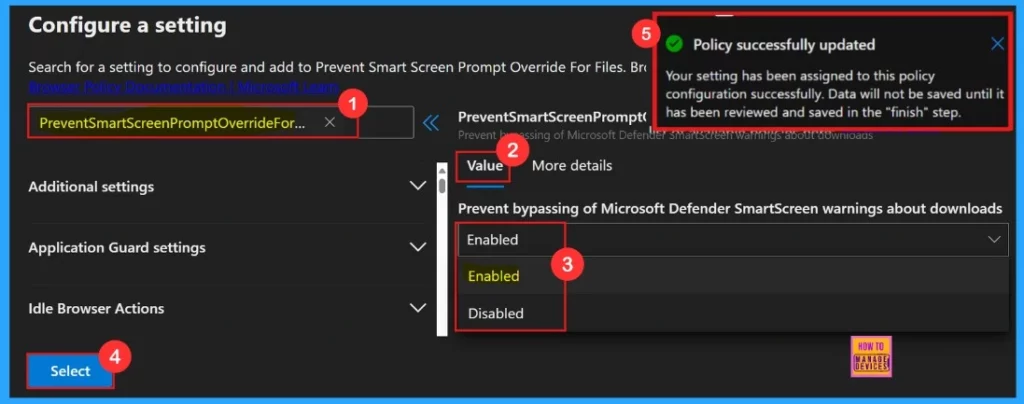
Now we are on the second step Settings where we can assign a configuration policy for Microsoft Edge. This is most important section to create the Policy. When we click on + Add Settings, will enter into Configure a setting page, here we can search the policy name under Additional settings.
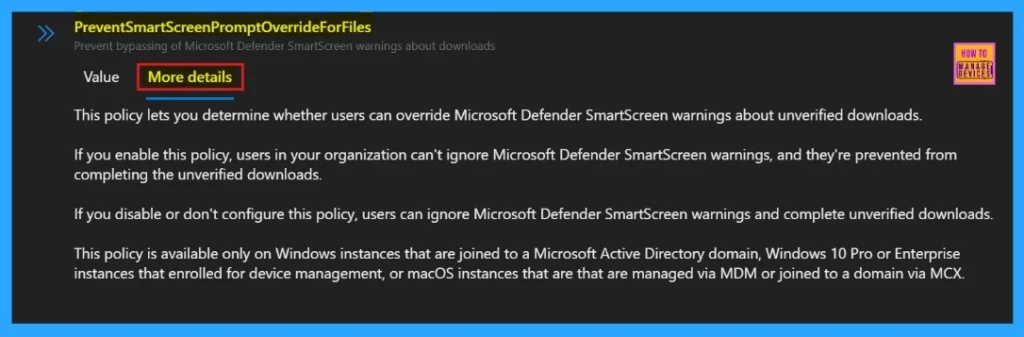
In the Setting window, there shows the Value and More details options. We should add the Value which is mandatory.
Your setting has been assigned to the policy configuration successfully. Data will not be saved until has been reviewed and saved in the Finish step.
More Details
On the More details, you can understand the other informations about the policy which you want to configure. With this details we can understand what changes can done after enabling or disabling the selected policy.
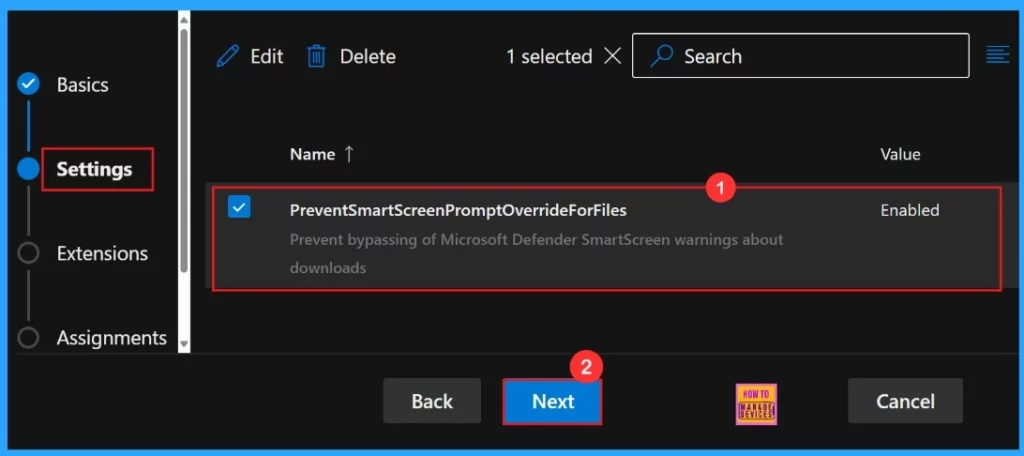
After clicking the select button, we can see the selected policy name and value. Here we need to click on the checkbox near the Policy name and click on the Next button.
Extensions
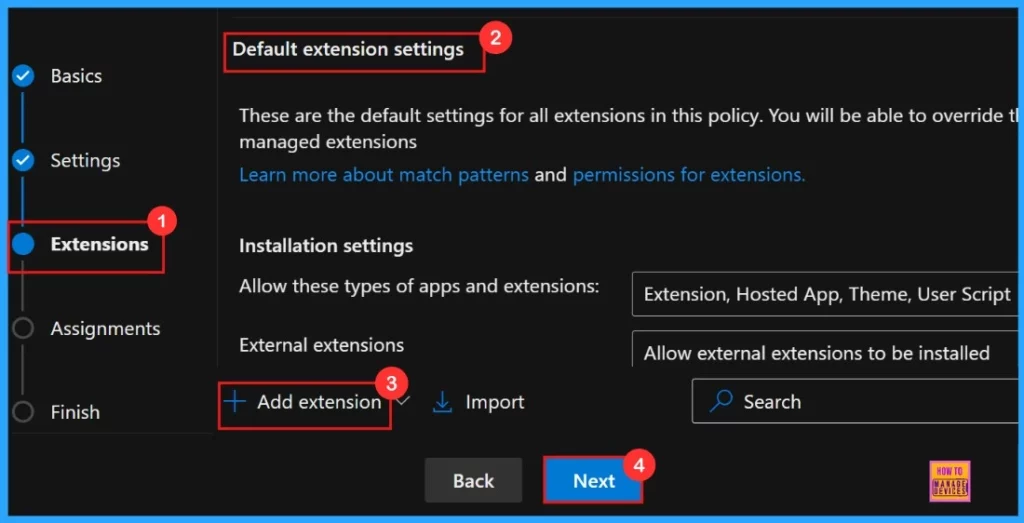
On the third step, Extensions, we can see the policy’s extensions, such as installation settings, Permissions, and URLs. To add an extension, click the + Add extension button. Otherwise, we can skip this section. Here we are moving with the default extension settings.
Assignments
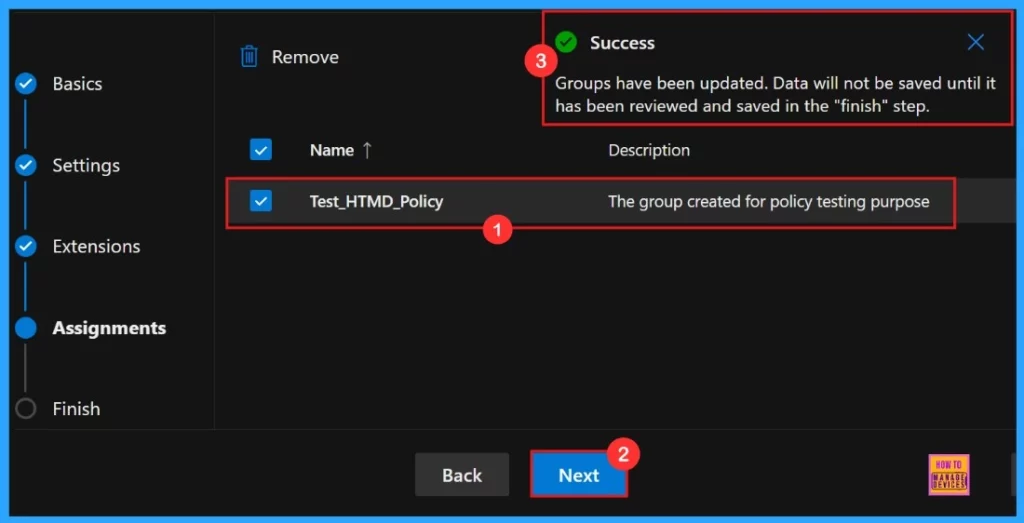
In the fourth step, that is the Assignments tab, which is in configuring a policy, we can select the groups to which the policy is assigned and which user or device is assigned it.
- Click on the +Select group
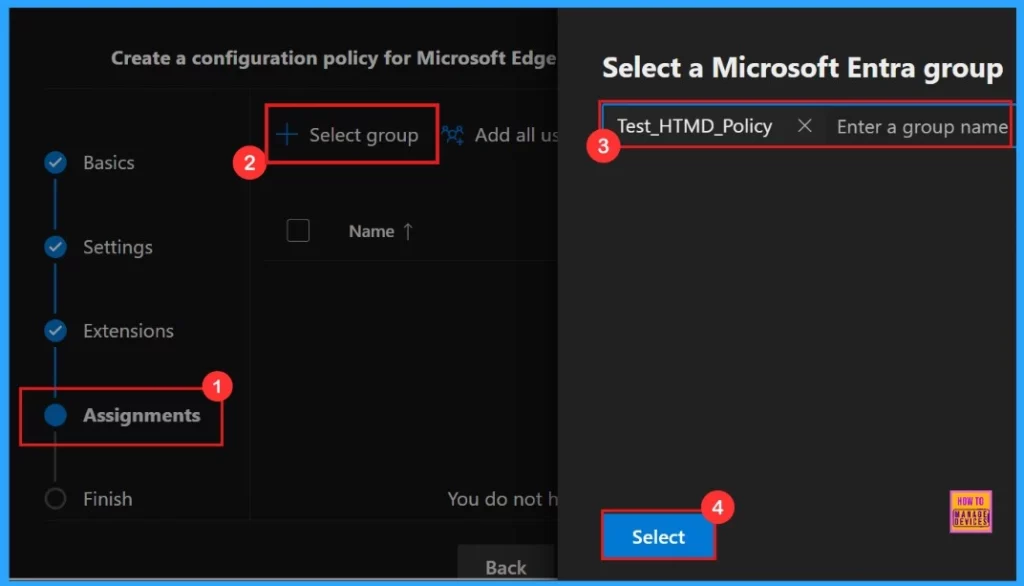
After clicking +Select Group, a pop-up window will displayed on the screen. We can select the group from the Microsoft Entra group provided by default. Here, we selected the Test_HTMD_Policy group from the list. Click on the select button to get a notification , Group has been updated.
- Click Next
Finish
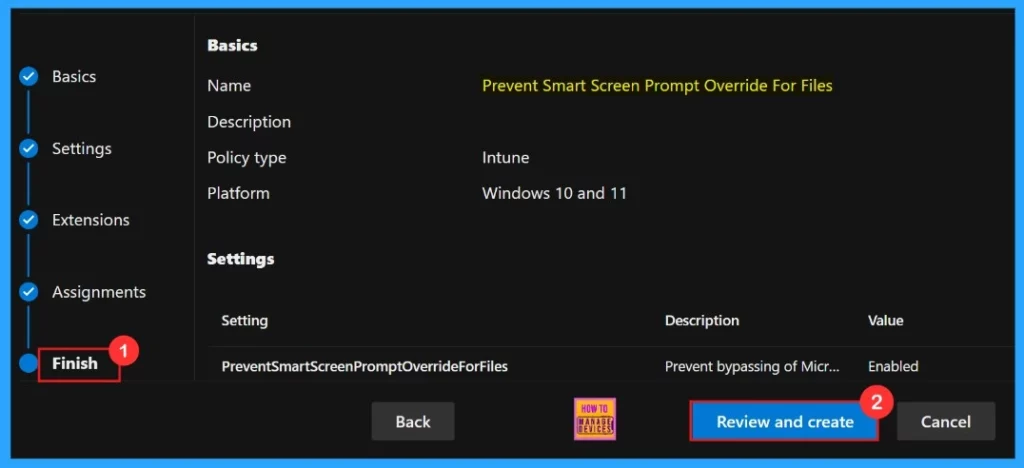
The Finish step is the final stage in creating the policy. In this section, we can review all the details we provided in the previous steps. If we want to make any changes, click the back button to return to the previous window. Once we verified all details are correct, click on Review and Create to proceed.
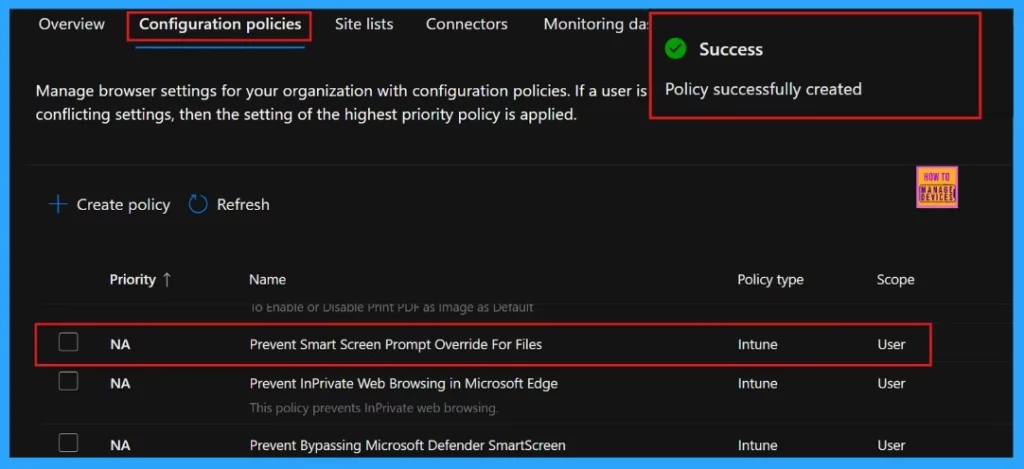
Once we click Review and Create, a notification confirms that the policy was created successfully. We need to wait for deployment process in to the assigned group. We can manually sync the policy through the company portal.
Client-Side Verification
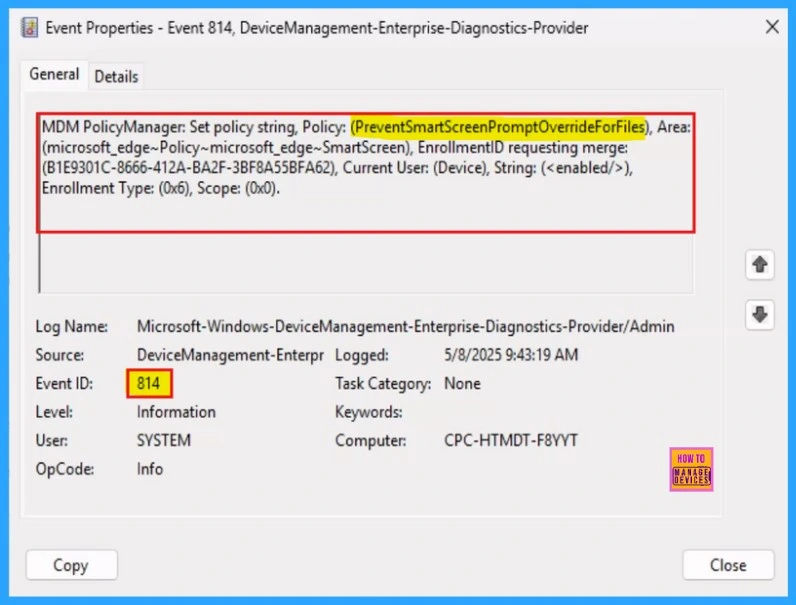
The Event Viewer uses event IDs to identify specific events that can happen on a Windows computer. Event IDs 813 and 814 indicate the successful application of string or integer policies. To verify this, navigate to the Event log path: Applications and Services Logs > Microsoft > Windows > Devicemanagement-Enterprise-Diagnostics-Provider > Admin.
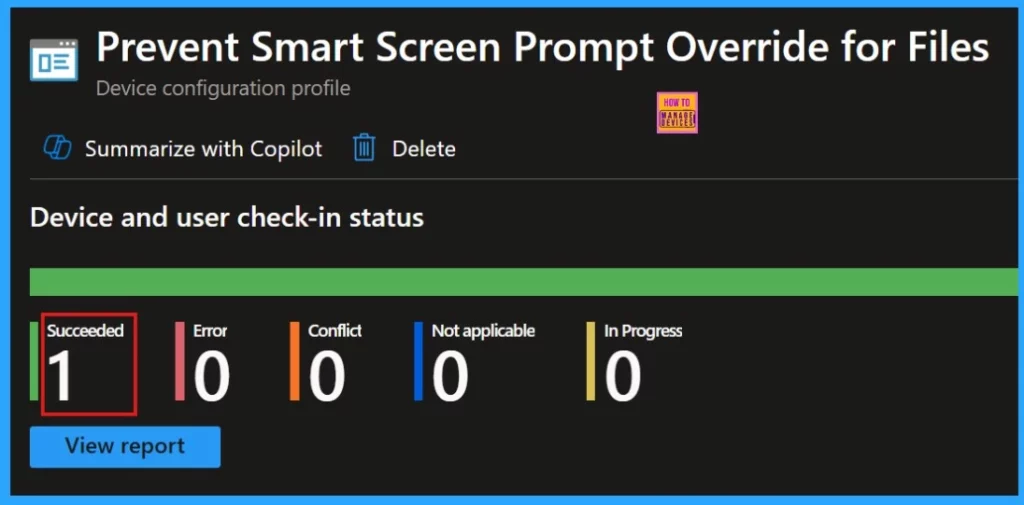
Device and User Check-in Status
After manually syncing the device through the Company Portal, we can verify the policy deployment in the Intune Portal. Navigate to Devices > Configuration, then open the Policies tab to locate the policy. A status of “Successful” confirms that the policy has been correctly applied to the device.
Need Further Assistance or Have Technical Questions?
Join the LinkedIn Page and Telegram group to get the latest step-by-step guides and news updates. Join our Meetup Page to participate in User group meetings. Also, Join the WhatsApp Community to get the latest news on Microsoft Technologies. We are there on Reddit as well.
Author
Anoop C Nair has been Microsoft MVP for 10 consecutive years from 2015 onwards. He is a Workplace Solution Architect with more than 22+ years of experience in Workplace technologies. He is a Blogger, Speaker, and Local User Group Community leader. His primary focus is on Device Management technologies like SCCM and Intune. He writes about technologies like Intune, SCCM, Windows, Cloud PC, Windows, Entra, Microsoft Security, Career, etc.




Discussion