






New way to Take RDP of Windows PC from Windows PC using Windows App
Hey there, let’s discuss the new way to Take RDP of Windows PC from Windows PC using Windows App. The Windows App lets us easily and securely connect to Windows from any device or app, across Windows 365, Azure Virtual Desktop, Remote PC, Remote Desktop Services, Microsoft Dev Box, etc.
Windows App Support lets us easily connect two PCs, making it simple to chat and share files between two Windows-based computers. This functionality is to manage built-in features like Nearby Sharing, which uses Bluetooth or Wi-Fi for file transfers, or tools like Windows Remote Assistance and Quick Assist for remote help.
Windows has solid networking like SMB (Server Message Block) for sharing folders and HomeGroup, that’s been swapped out for newer options. Features like Projection Mode and Miracast allow screen mirroring between PCs, while the Windows Subsystem for Linux (WSL) enables advanced networking configurations.
This let users troubleshoot, control, or collaborate with another PC on the network. Microsoft also supports third-party applications via APIs, enabling developers to create apps that leverage direct Wi-Fi, Ethernet, or cloud-based connections for interactions, such as multiplayer gaming or file synchronisation.

Table of Contents
How to Share Files between Two Windows PCs?
User can share using Nearby Sharing (through Bluetooth or Wi-Fi Direct), OneDrive, SMB shared folders, or just email/cloud services. If we want to transfer things directly, Nearby Sharing is the simplest option that’s already built in.
RDP of Windows PC from Windows PC using Windows App
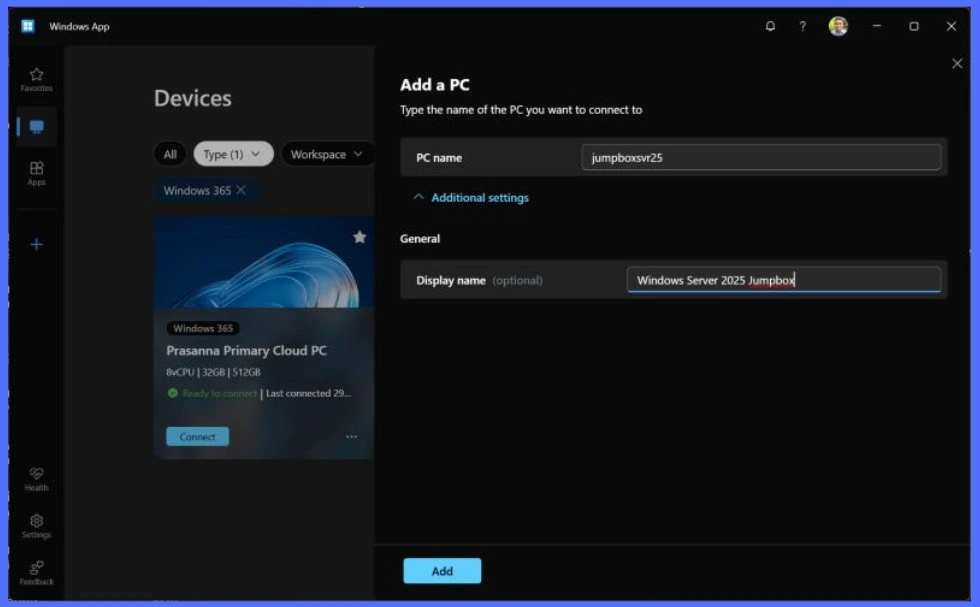
Microsoft is working on adding a new feature to the Windows App that lets PCs connect directly to each other. This means user will be able to do more than just access other devices remotely. With this update, we will be able to easily link our Windows PCs over our local network or the internet.
- User can avail smooth file sharing, remote control, and team collaboration all in one place.
- New Remote App Launcher in Windows App for Web Enhances AVD and Windows 365 Experience
- Allow Disallow Windows Apps to Communicate with Unpaired Devices Policy in Windows 11
- 5 New Windows Apps and Drivers Security Enhancements from Phishing and Malware
Advantages of PC-to-PC Connections into the Windows App
Users will no longer need multiple apps like Remote Desktop, Nearby Sharing, or third-party tools to link PCs. Everything will be in one place, it makes file transfers, screen sharing, and remote control easier.
| Advantages |
|---|
| Simplified Connectivity |
| Enhanced Security |
| Seamless Local & Remote Access |
| Faster File & Resource Sharing |
| Better Multi-Device Workflows |
- 4 Methods to Enable Disable the Most Used Apps List on the Start Menu in Windows 11
- Start Menu Stop Working in Windows 11 Insider Preview Build
- How to Enable Hey Copilot Voice Activation on Windows
Need Further Assistance or Have Technical Questions?
Join the LinkedIn Page and Telegram group to get the latest step-by-step guides and news updates. Join our Meetup Page to participate in User group meetings. Also, Join the WhatsApp Community to get the latest news on Microsoft Technologies. We are there on Reddit as well.
Resource – LinkedIn Post of Prasanna Padmanabhan
Author
Anoop C Nair has been Microsoft MVP from 2015 onwards for 10 consecutive years! He is a Workplace Solution Architect with more than 22+ years of experience in Workplace technologies. He is also a Blogger, Speaker, and Local User Group Community leader. His primary focus is on Device Management technologies like SCCM and Intune. He writes about technologies like Intune, SCCM, Windows, Cloud PC, Windows, Entra, Microsoft Security, Career, etc.


Discussion