






Methods for Allow or Disallow Real-time Protection for Microsoft Defender Antivirus in Windows 11
Let’s discuss Allow or Disallow Real-time Protection for Microsoft Defender Antivirus in Windows 11. Microsoft DefendernAntivirus is a built-in antivirus software for Windows OS. It is designed by Microsoft for users to protect their devices from different malware.
We all know the importance of device protection in this digital world. Several cyber-attacks have occurred, affecting the daily lives of end users. Microsoft Defender Antivirus can easily protect your device from different malware.
There are different types of third-party Antivirus Software available for users. But Microsoft Defender Antivirus is unique, and you can blindly trust this software. Do you know what Real-time Protection for Microsoft Defender Antivirus in Windows is?
It is the best part of Microsoft Defender Antivirus, and it will help you detect whether a file or program that you’re trying to access is infected. This post explains different methods for enabling or disabling real-time Protection for Microsoft Defender Antivirus in Windows 11.

- 3 Ways to Configure Microsoft Defender Antivirus Policies for Windows 11 using Group Policy Intune Policy
- Enable Disable Defender SmartScreen for Microsoft Store Apps in Windows 11
What are the Advantages of Real-time Protection for Microsoft Defender Antivirus?
1. It helps to block almost all malware at first sight in milliseconds
2. It is always on scanning single files and process behaviour monitoring and other heuristics
3. It allows you to block potentially unwanted software that attempts to install itself or run on your device
Allow or Disallow Real-time Protection for Microsoft Defender Antivirus
Real-Time Protect works with a scanning process. This feature scans files and processes for behaviour monitoring and heuristics. Enabling this feature is very effective for device protection. It detects potentially unwanted behaviour monitoring and heuristics.
I already mentioned that different methods are available for allow or disallow Real-time Protection for Microsoft Defender Antivirus. All the methods are simple and easy to do. The table below shows the different methods.
| Different Methods for Allow or Disallow Real-time Protection for Microsoft Defender Antivirus |
|---|
| Allow or Disallow Real-time Protection for Microsoft Defender Antivirus in Windows 11 Using Windows Security |
| Allow or Disallow Real-time Protection for Microsoft Defender Antivirus in Windows 11 Using Local Group Policy Editor |
Allow or Disallow Real-time Protection for Microsoft Defender Antivirus using Windows Security
Using Windows Security is the best option for allowing or disallowing Real-time Protection for Microsoft Defender Antivirus in Windows 11. You can quickly use this method on your device.
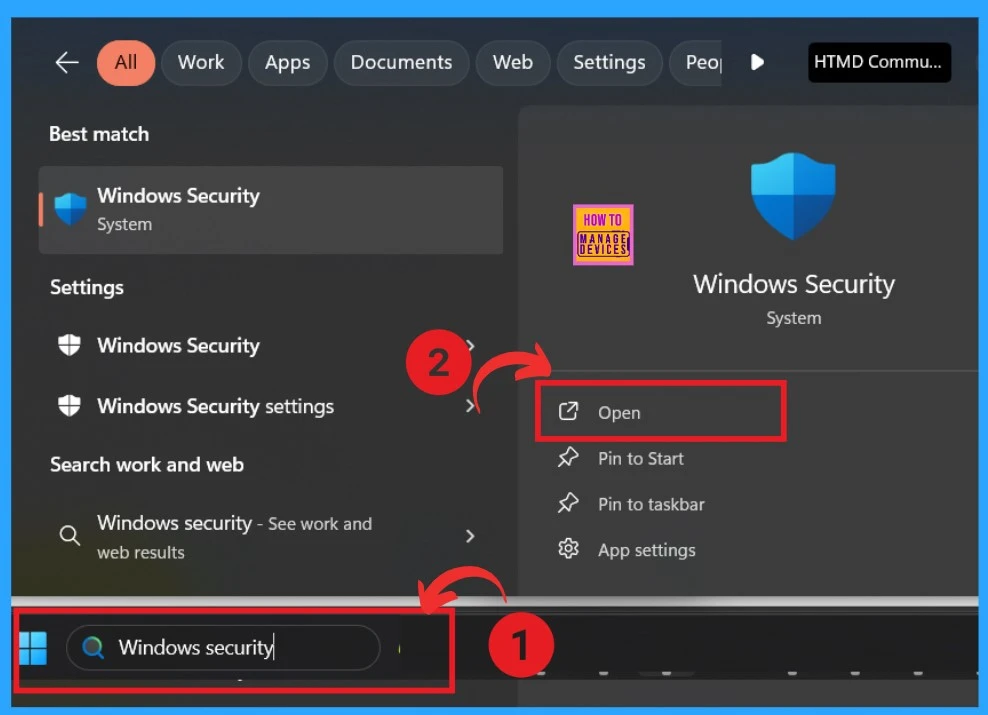
- Search Windows Security on the Search box near the Start Menu
- Open the Windows Security
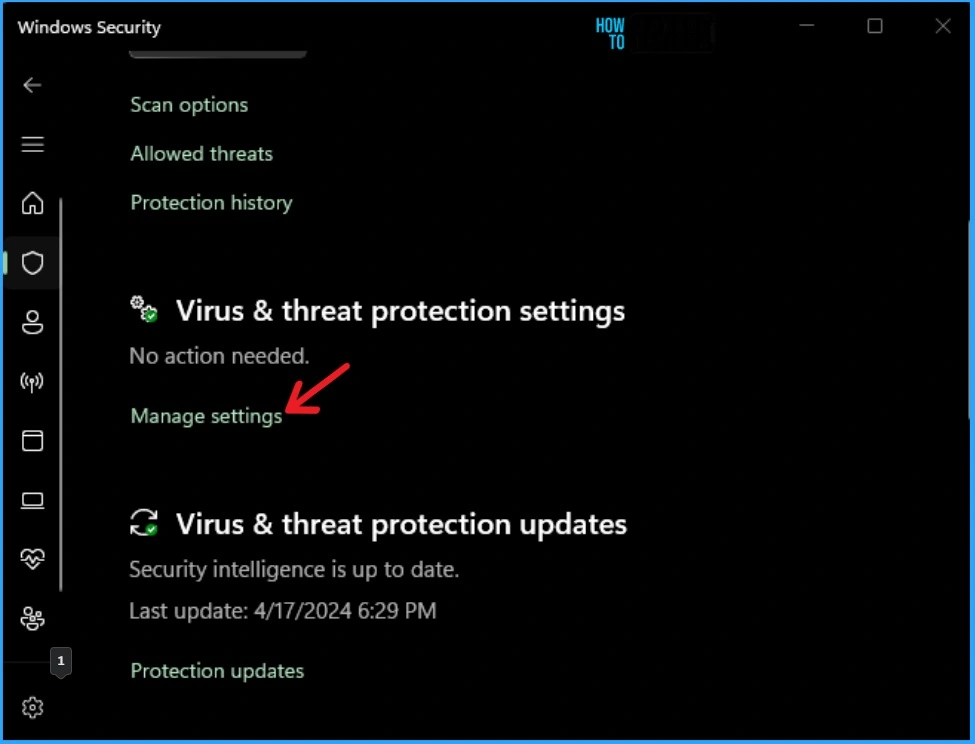
The Windows Security Antivirus software provides many features to protect your device. Here, you can see the Virus and threat protection settings feature. This feature helps you view and update Virus and threat protection, and you can easily manage this option.
- Click on Manage Settings shown on the Virus & Threat Protection settings
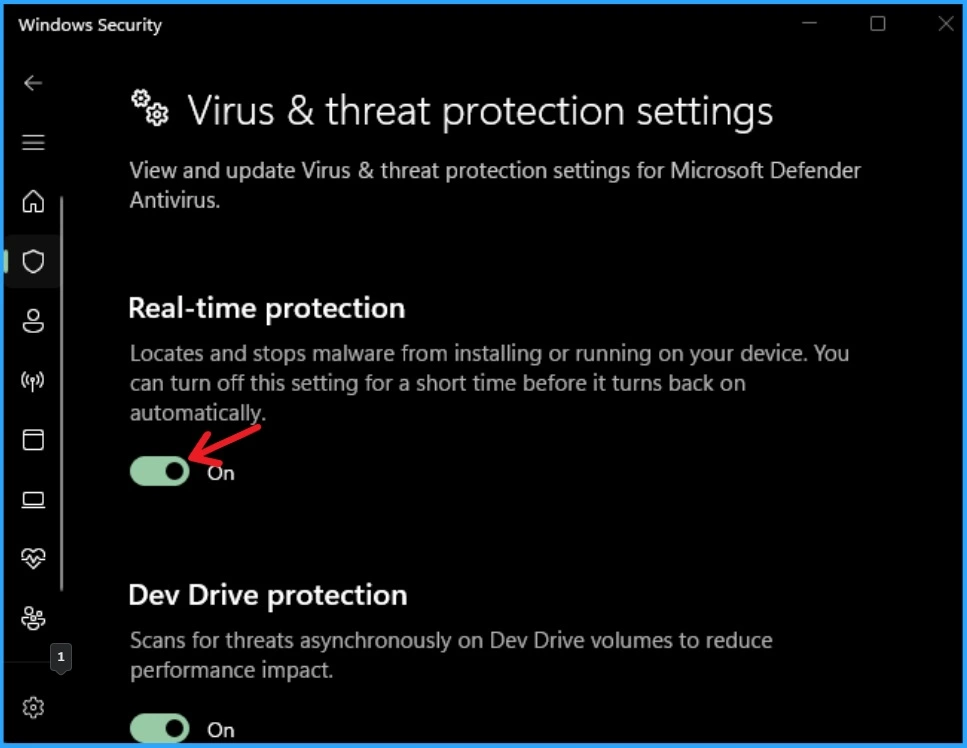
After clicking on Manage Settings, you can see the Real-time protection feature on this window. This feature can locate and stop malware from installing or running on the device. By default, this feature is enabled. You can toggle the pane to the right to enable it if it is not enabled.
- Microsoft Defender Offline Scan Options for Windows PCs
- Microsoft Defender Antivirus Periodic Scanning in Windows 11
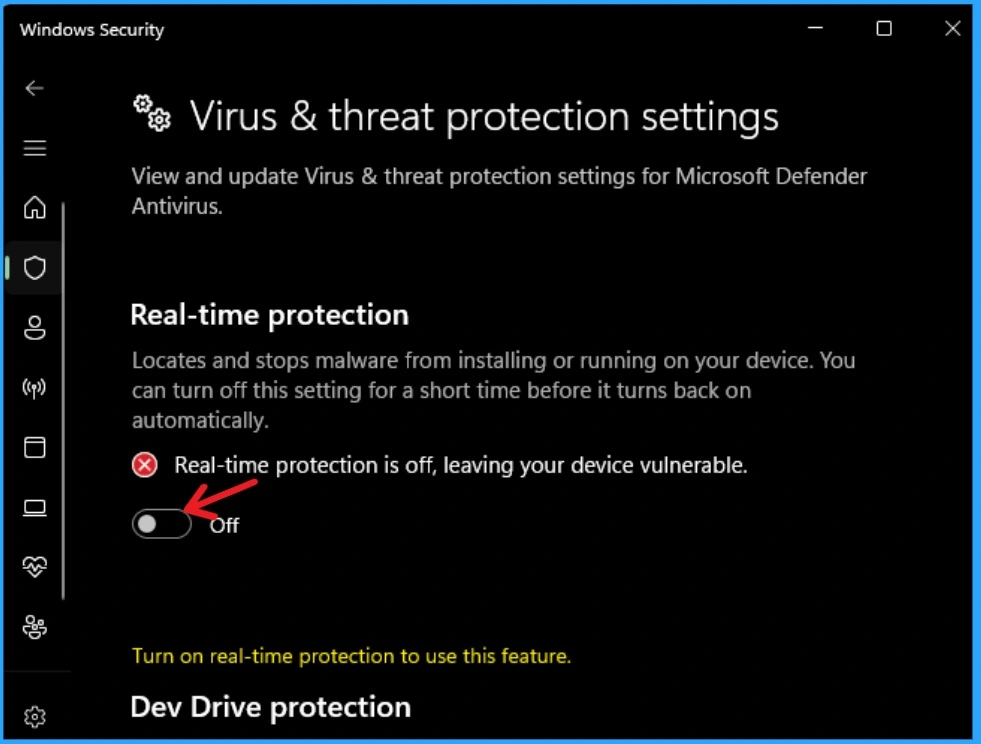
If you want to disable this feature, toggle the pane to the left side. I think it is not a good practice because if you disable this feature, there is a chance of installing or running any malware on your device.
Real-time Protection for Microsoft Defender Antivirus using Local Group Policy Editor
The second method for Allowing or Disabling Real-Time Protection for Microsoft Defender Antivirus in Windows 11 uses the Local Group Policy Editor. It is also simple for users but quite difficult compared to the first method.
Computer Configuration>Administrative Templates>Windows Components>Microsoft Defender Antivirus>Real-time Protection
- Click on the Turn off real-time protection feature from the below window.
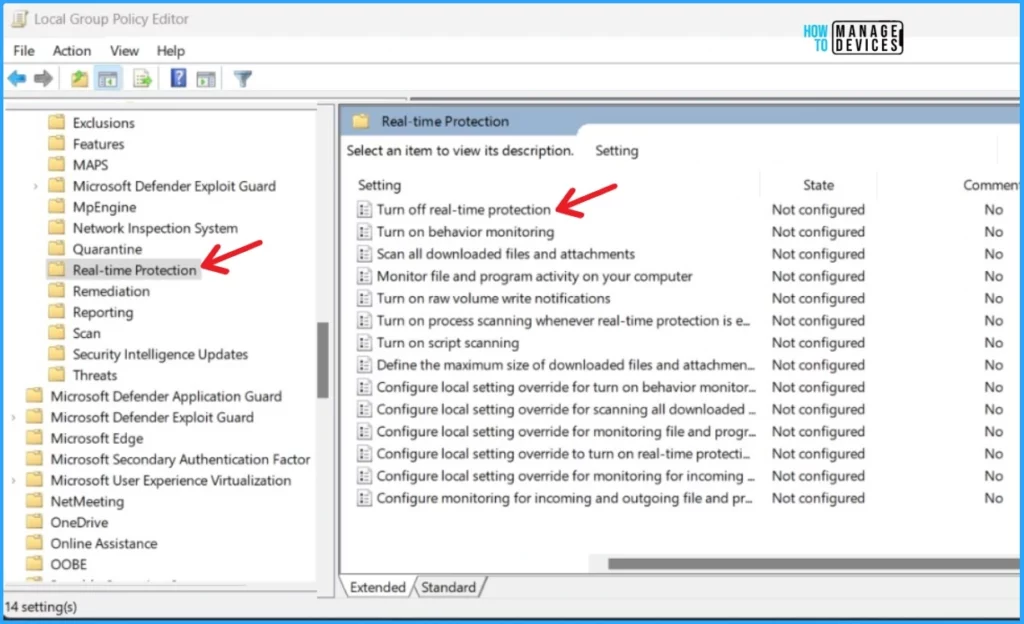
After that, You can see the 3 options on the Turn off real-time protection window. Click on the radio button near the Enabled option. Hit the OK button at the bottom of the window below. If you enable this policy setting, real-time protection is turned off.
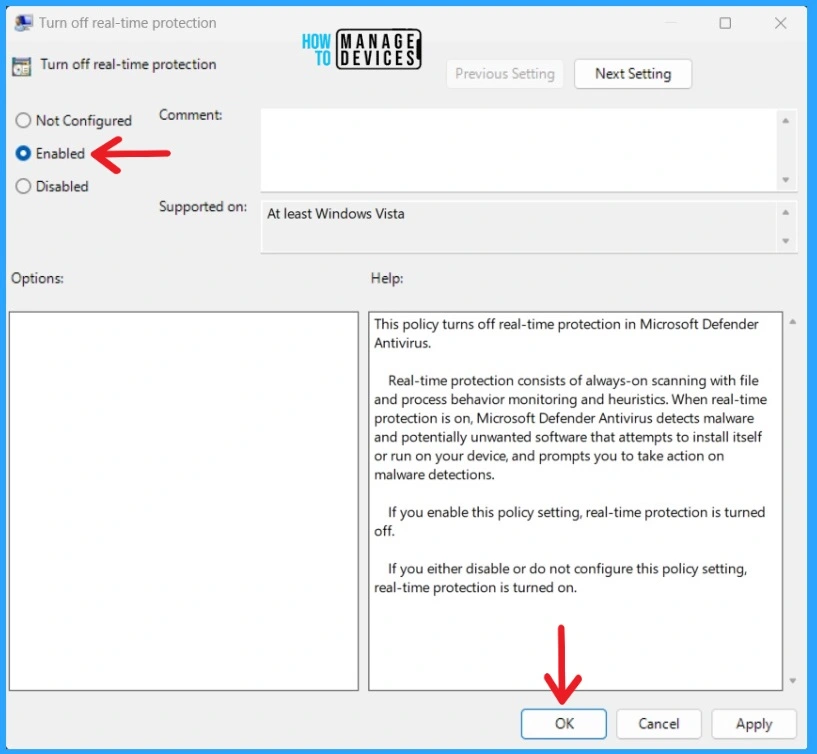
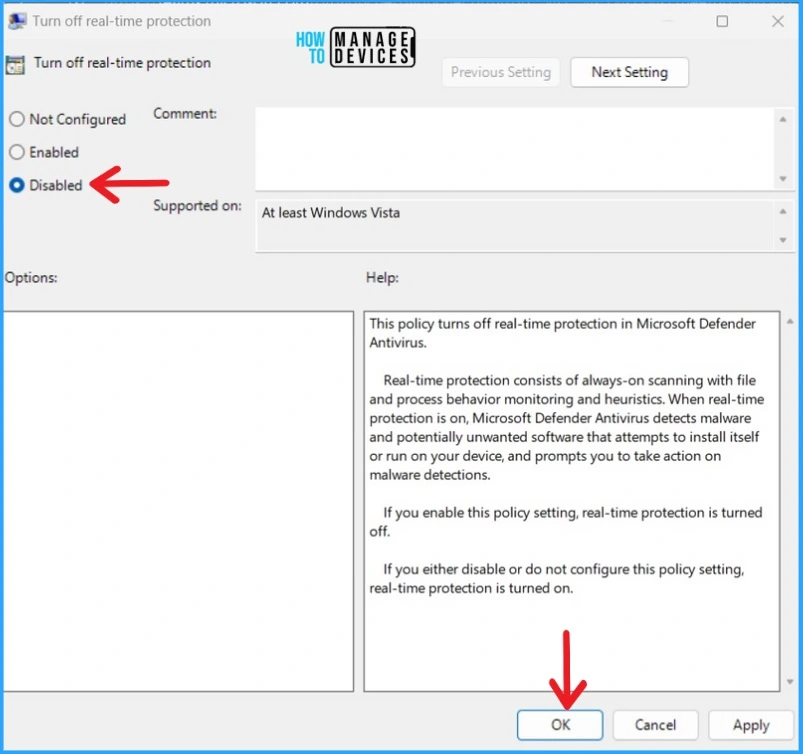
Click on the radio button near the Disabled option. Hit the OK button at the bottom of the window below. If you Disable this policy setting, real-time protection is turned on.
- Best Antivirus for Windows 11 Microsoft Defender | App Browser Protection | Firewall Protection
- 5 Ways to Check App Storage Space Usage in Windows 11
We are on WhatsApp. To get the latest step-by-step guides and news updates, Join our Channel. Click here –HTMD WhatsApp.
Author
Gopika S Nair is a computer enthusiast. She loves writing on Windows 11 and related technologies. She is here to share quick tips and tricks with Windows 11 or Windows 10 users. She is Post Graduate Diploma Holder in Computer Science.




Discussion