






How to Remove Assigned Groups from Attack Surface Reduction ASR Policy in Microsoft Intune
How to Remove Assigned Groups from Attack Surface Reduction ASR Policy in Microsoft Intune. When you remove an assigned group from an Attack Surface Reduction (ASR) policy in Microsoft Intune, you are essentially telling Intune not to apply that specific security rule to those devices anymore.
This is helpful when certain groups no longer require the policy. It also helps prevent potential issues where ASR rules might block legitimate applications or processes. By reducing unnecessary policy enforcement, overall device performance can improve, and IT administrators gain better control over which devices receive the protection.
Removing assigned groups from an Attack Surface Reduction (ASR) policy in Microsoft Intune helps IT admins by giving them more control and visibility over security deployments. It allows them to easily find devices actually need the policy.
It simplifies policy maintenance; admins can remove outdated or test group assignments, ensuring that only relevant and active devices remain under protection. Overall, it helps IT teams maintain a more efficient, stable, and compliant security environment.

Table of Contents
How to Remove Assigned Groups from Attack Surface Reduction ASR Policy in Microsoft Intune
In this post, you will find complete details on how to remove assigned groups from an Attack Surface Reduction (ASR) policy in Microsoft Intune. You will also learn why removing certain groups can be beneficial, such as improving performance, avoiding app conflicts etc.
| Steps |
|---|
| Sign in to the Microsoft Intune Admin Center using your admin credentials. |
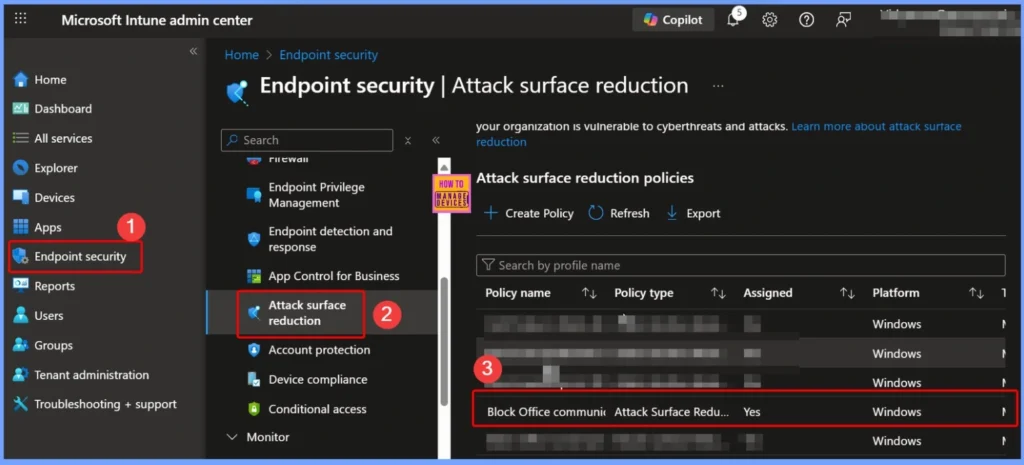
| Go to Endpoint security and select Attack surface reduction. |
| From there, locate the specific ASR policy from which you want to remove the assigned group. |
- Block Vulnerable Signed Drivers Using Intune ASR Rules
- Block Use of Copied or Impersonated System Tools using Defender ASR Rules
- Microsoft Cloud LAPS Password Management Solution
- Microsoft Defender ASR Rules to Block Rebooting Machine in Safe Mode
Edit Assignments to Remove a Group from the ASR Policy
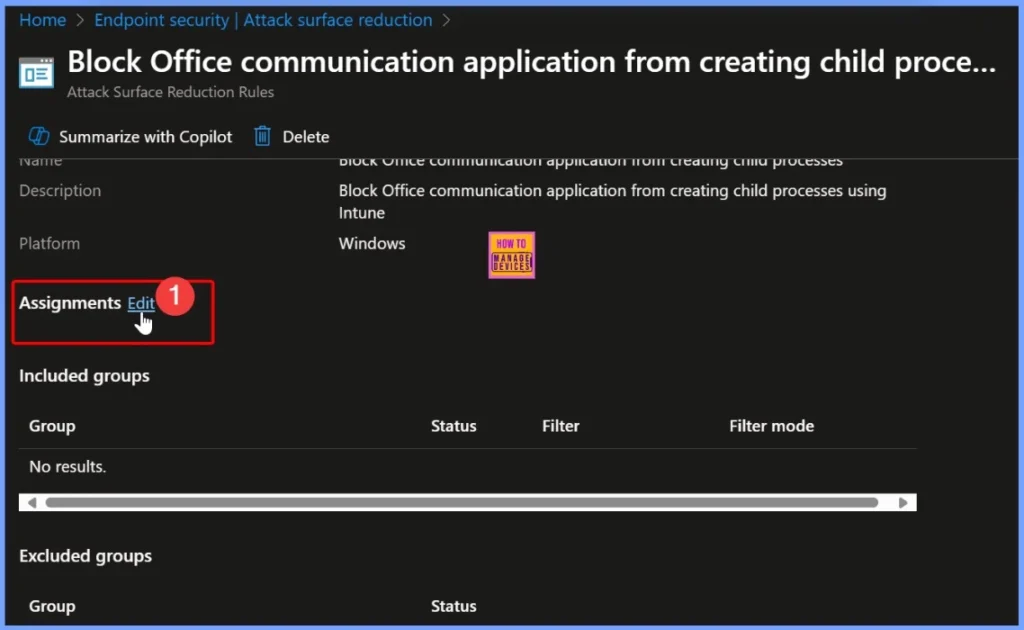
After accessing the selected Attack Surface Reduction (ASR) policy, navigate to the Assignments tab and click the Edit button next to the assignment section. This will open the Assignments panel, where you can view all included and excluded groups. From here, remove the group that you no longer want the policy applied to.
Use the Assignments Tab to Remove a Group
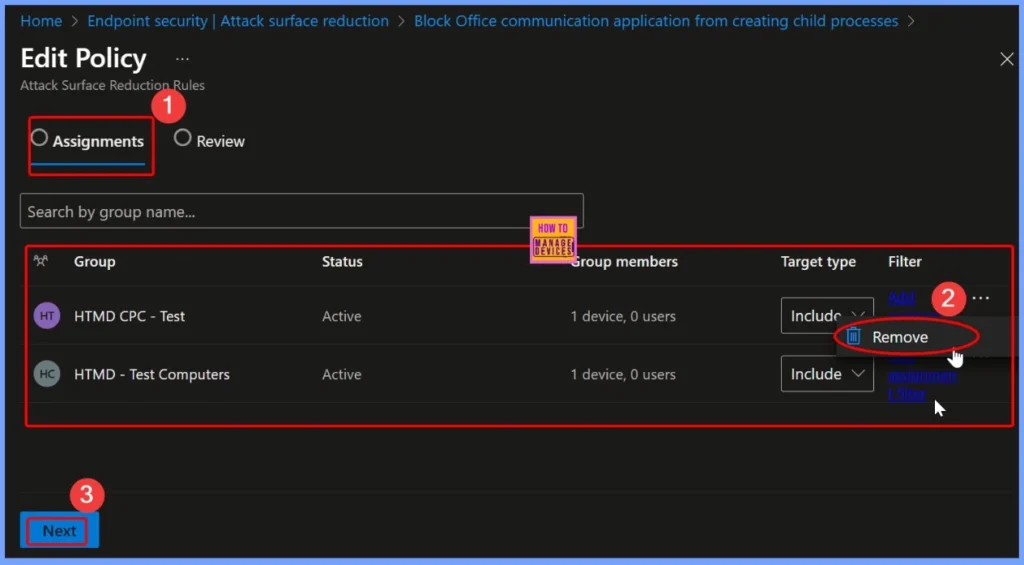
In the Assignments tab of the selected Attack Surface Reduction (ASR) policy, you can view all the groups currently included in the policy. For example, if there are two assigned groups, you’ll see them listed here. To remove one, click the three dots (ellipsis) next to the specific group and select the Remove option.
How to Review and Save the Changes
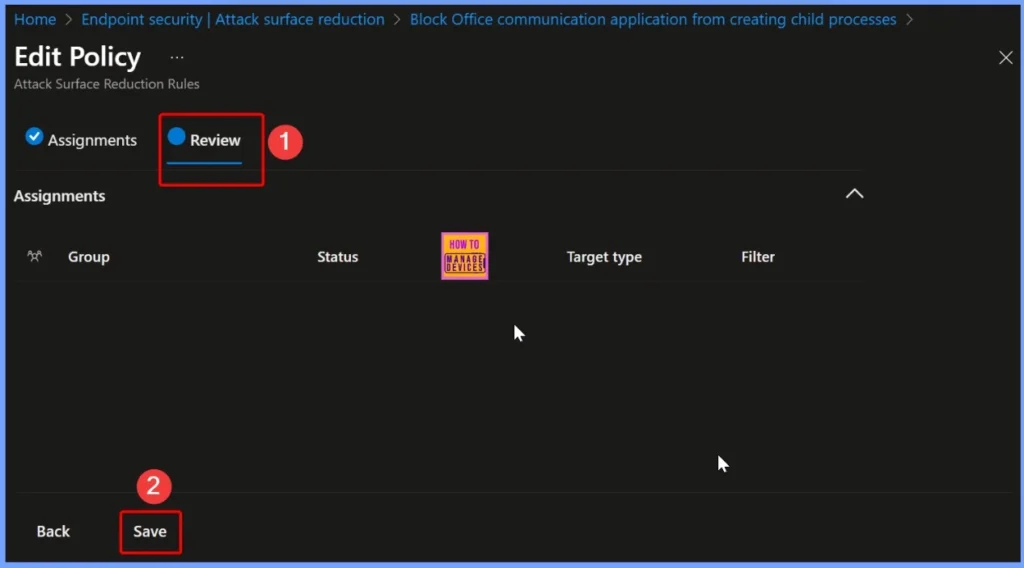
In the Review tab, you can verify that no groups are included in the Attack Surface Reduction (ASR) policy after removal. This confirms that the selected groups have been successfully unassigned. Once you’ve reviewed and confirmed the changes, click the Save button to finalize and apply the updated configuration.
Need Further Assistance or Have Technical Questions?
Join the LinkedIn Page and Telegram group to get the latest step-by-step guides and news updates. Join our Meetup Page to participate in User group meetings. Also, join the WhatsApp Community to get the latest news on Microsoft Technologies. We are there on Reddit as well.
Author
Anoop C Nair has been Microsoft MVP for 10 consecutive years from 2015 onwards. He is a Workplace Solution Architect with more than 22+ years of experience in Workplace technologies. He is a Blogger, Speaker, and Local User Group Community leader. His primary focus is on Device Management technologies like SCCM and Intune. He writes about technologies like Intune, SCCM, Windows, Cloud PC, Windows, Entra, Microsoft Security, Career, etc.


Discussion