






Remove ConfigMgr Package Content from a Distribution Point | Best Method | SCCM | Configuration Manager
Learn how to Remove ConfigMgr Package Content from a Distribution Point (DP). I have seen several issues with the content distribution of SCCM packages.
Several reasons could cause the package content distribution failure, and I have given some examples in the paragraph below this post. The first troubleshooting step to resolve content transfer failures is to remove content to the problematic distribution point(s).
In this post, you will learn how to remove the ConfigMgr package content to individual DPs from the admin console.
The following posts might help to understand related issues with content distribution. Learn about Fix ConfigMgr DP Issue RPC server is Unavailable Error Code 0x800706ba, Fix SCCM SendFiles Failed 0x80070003 Error, and How to ConfigMgr Redistribute Content to Distribution Point.

Table of Contents
Remove Content
Let’s assume you have already distributed the content to distribution points. However, the content distribution failed. The removal action (as part of troubleshooting) makes sure all the source files are removed from the distribution point or distribution point group. The following is one of the troubleshooting steps to fix content distribution issues.
- Remove the content.
- Wait for an ample amount of time (review log files).
- Add the content back to the distribution point.
As I mentioned above, this removal action helps to resolve content distribution-related issues for a particular package. You can remove content from different places in the admin console. The sections below provide more details.
- How to Remove ConfigMgr Package from Multiple DPs at the Same Time | SCCM | Configuration Manager Endpoint
- Learn How to Remove Distribution Point Role DP | SCCM | ConfigMgr
Software Library – Remove ConfigMgr Package Content
Removal action from the Software library is the first and most commonly used method to repair or fix the content distribution issue of a particular package or application. This action is beneficial when you are troubleshooting the distribution issues of a single package/application.
Let’s check how to Remove package or application content from a Distribution Point.
- Navigate to the Software Library workspace.
- Select the content types that you want to remove.
- You can choose any distributed content available in the software library.
- Package
- Applications (CMPivot)
- Software Update
- Boot Image
- Operating System Images
- Etc…
- You can choose any distributed content available in the software library.
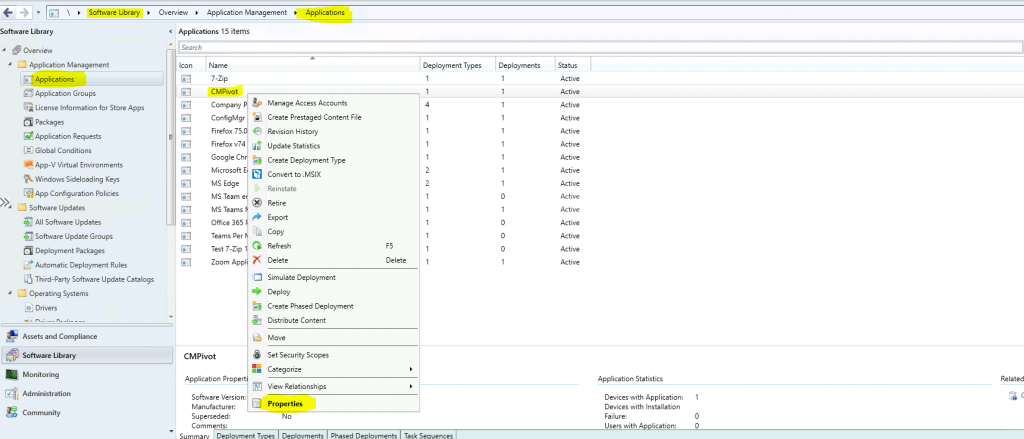
- On the Home tab of the ribbon, in the Properties group, select Properties.
- Click on the Content Locations tab.
- Select the distribution point (or distribution point group) where you want to remove the content.
- Click on the Remove button.
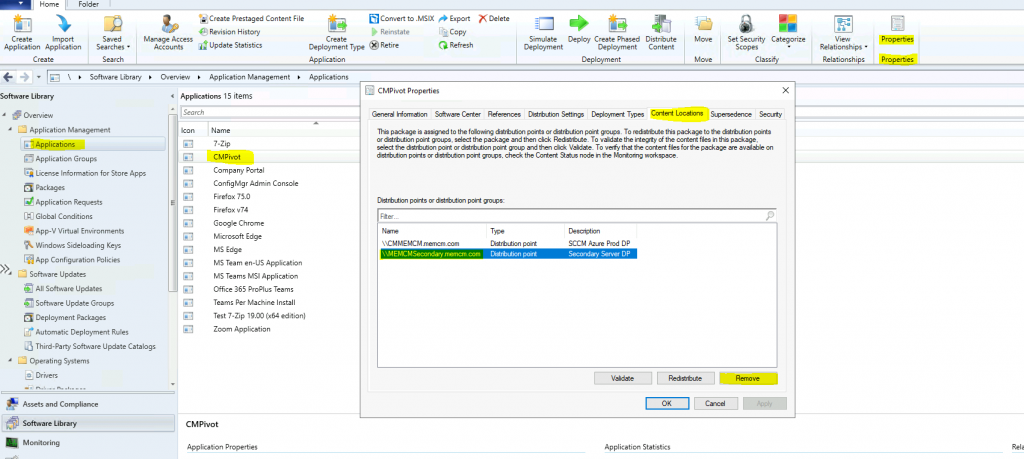
- Click OK on the warning window to initiate the removal of the package content.
Administration workspace
The removal option from Administration workspace distribution point properties is a good option when a particular DP has issues with content distribution for many packages/applications.
Let’s check how to Remove ConfigMgr Package Content from DP properties.
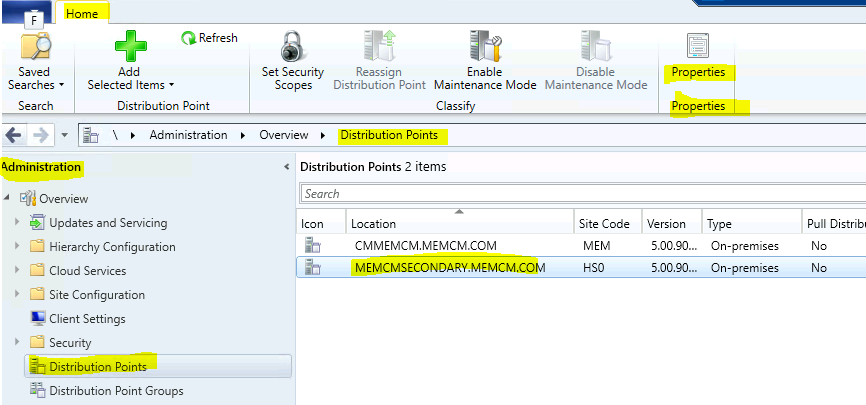
- Navigate to the Administration workspace.
- Select the Distribution Points node.
- Select the distribution point to which you want to remove content.
- Click on the Home tab of the ribbon.
- In the Properties group, select Properties.
- Select the Content tab.
- Select the content to remove.
- Click on the Remove button.
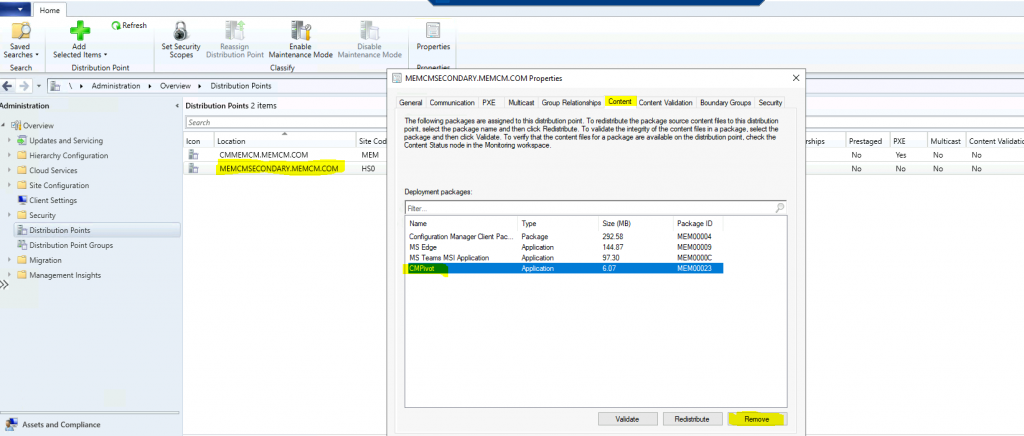
- Click OK on the warning window to initiate the removal of the package content.
Best Place to Remove Package
Here you go! In my experience, the following is the best method for Removing ConfigMgr Package Content for different workloads or deployment packages in SCCM.
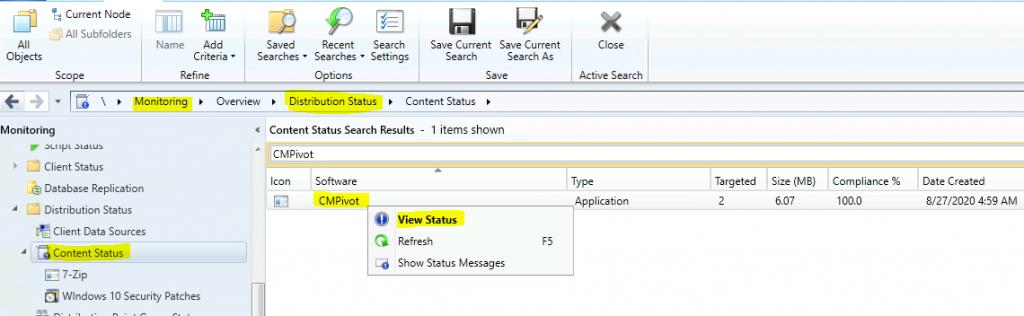
- Navigate to \Monitoring\Overview\Distribution Status\Content Status
- Use the search bar to find deployment packages such as Applications, Task Sequences, Boot Images, and Software Updates.
- Select one particular package (CMPivot) that you want to remove.
- Right-click and select the View Check the View Status option.
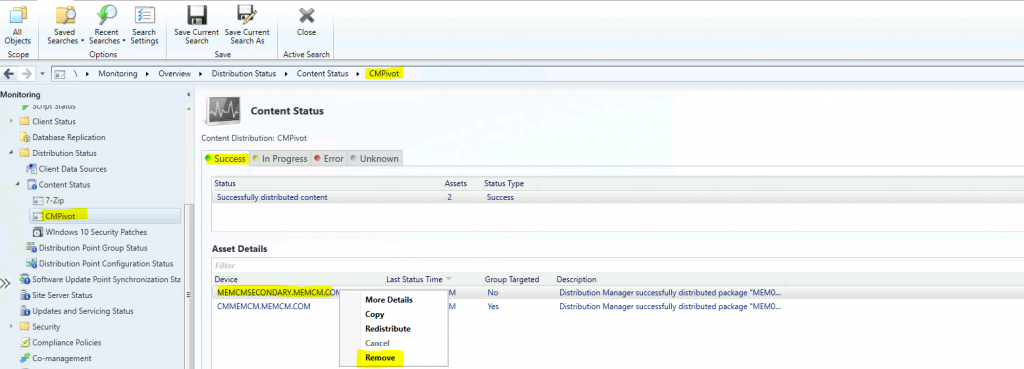
- Select the DP where you have an issue with package replication.
- Right-click on the DP and click on Remove.
- Click OK on the warning window to initiate the removal of the content.
SMSProv.log Process
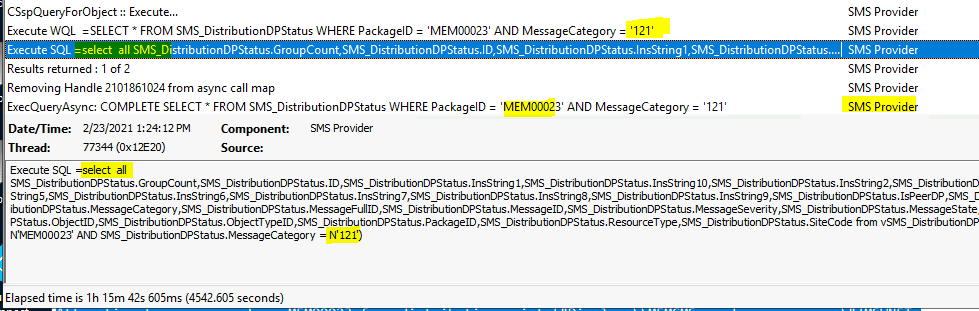
You can refer to the SMSProv.log (SMS Provider log @primary server where the console is installed) snippet to get an overview of Package removal. The following log entries might help you troubleshoot and confirm whether the removal worked.
DeleteInstanceAsync SMS_DistributionPoint.PackageID=”MEM00023″,ServerNALPath=”[\”Display=\\MEMCMSecondary.memcm.com\\”]MSWNET:[\”SMS_SITE=HS0\”]\\MEMCMSecondary.memcm.com\”,SiteCode=”HS0″
- Requested class =SMS_DistributionPoint
- Requested num keys=3
- IExtClassManager::ValidateAuthenticationLevel…
- CExtProviderClassObject::DoDeleteInstance
- Auditing: User MEMCM\anoop deleted an instance of class SMS_DistributionPoint.
- CExtUserContext::LeaveThread : Releasing IWbemContextPtr=605966976
- ExecQueryAsync: START SELECT * FROM SMS_DistributionStatus WHERE PackageID = ‘MEM00023‘ AND Type = 2
- Execute WQL =SELECT * FROM SMS_DistributionStatus WHERE PackageID = ‘MEM00023’ AND Type = 2
Execute SQL =select all SMS_DistributionStatus.Assets,SMS_DistributionStatus.LastUpdateDate,SMS_DistributionStatus.MessageCategory,SMS_DistributionStatus.ObjectID,SMS_DistributionStatus.ObjectTypeID,SMS_DistributionStatus.PackageID,SMS_DistributionStatus.Type from vSMS_DistributionStatus AS SMS_DistributionStatus where (SMS_DistributionStatus.PackageID = N'MEM00023' AND SMS_DistributionStatus.Type = 2)
- ExecQueryAsync: COMPLETE SELECT * FROM SMS_DistributionStatus WHERE PackageID = ‘MEM00023’ AND Type = 2
- ExecQueryAsync: START SELECT * FROM SMS_DistributionStatus WHERE PackageID = ‘MEM00023’ AND Type = 1
- Execute WQL =SELECT * FROM SMS_DistributionStatus WHERE PackageID = ‘MEM00023‘ AND Type = 1
Execute SQL =select all SMS_DistributionStatus.Assets,SMS_DistributionStatus.LastUpdateDate,SMS_DistributionStatus.MessageCategory,SMS_DistributionStatus.ObjectID,SMS_DistributionStatus.ObjectTypeID,SMS_DistributionStatus.PackageID,SMS_DistributionStatus.Type from vSMS_DistributionStatus AS SMS_DistributionStatus where (SMS_DistributionStatus.PackageID = N'MEM00023' AND SMS_DistributionStatus.Type = 1)
- ExecQueryAsync: COMPLETE SELECT * FROM SMS_DistributionStatus WHERE PackageID = ‘MEM00023’ AND Type = 1
- Execute WQL =SELECT * FROM SMS_DistributionDPStatus WHERE PackageID = ‘MEM00023’ AND MessageCategory = ‘121’
Execute SQL =select all SMS_DistributionDPStatus.GroupCount,SMS_DistributionDPStatus.ID,SMS_DistributionDPStatus.InsString1,SMS_DistributionDPStatus.InsString10,SMS_DistributionDPStatus.InsString2,SMS_DistributionDPStatus.InsString3,SMS_DistributionDPStatus.InsString4,SMS_DistributionDPStatus.InsString5,SMS_DistributionDPStatus.InsString6,SMS_DistributionDPStatus.InsString7,SMS_DistributionDPStatus.InsString8,SMS_DistributionDPStatus.InsString9,SMS_DistributionDPStatus.IsPeerDP,SMS_DistributionDPStatus.LastStatusID,SMS_DistributionDPStatus.LastUpdateDate,SMS_DistributionDPStatus.MessageCategory,SMS_DistributionDPStatus.MessageFullID,SMS_DistributionDPStatus.MessageID,SMS_DistributionDPStatus.MessageSeverity,SMS_DistributionDPStatus.MessageState,SMS_DistributionDPStatus.NALPath,SMS_DistributionDPStatus.Name,SMS_DistributionDPStatus.ObjectID,SMS_DistributionDPStatus.ObjectTypeID,SMS_DistributionDPStatus.PackageID,SMS_DistributionDPStatus.ResourceType,SMS_DistributionDPStatus.SiteCode from vSMS_DistributionDPStatus AS SMS_DistributionDPStatus where (SMS_DistributionDPStatus.PackageID = N'MEM00023' AND SMS_DistributionDPStatus.MessageCategory = N'121')
- ExecQueryAsync: COMPLETE SELECT * FROM SMS_DistributionDPStatus WHERE PackageID = ‘MEM00023’ AND MessageCategory = ‘121’
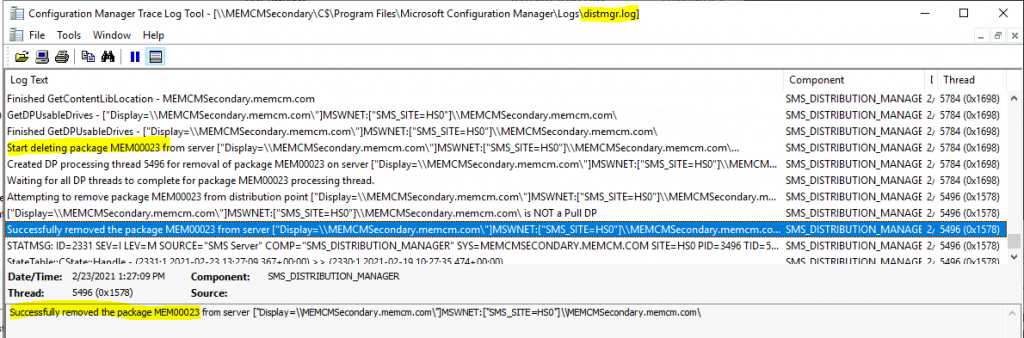
DistMgr.log – Package Content Removal Process
You can refer to the DistMgr.log (@ secondary server) snippet to get an overview of the Package removal process. The following log entries might help you troubleshoot and confirm whether the removal worked.
NOTE! The package MEM00023 has been removed from the secondary server DP. Therefore, I have not seen any activity on the primary server DistMgr.log.
- Adding package ‘MEM00023’ to package processing queue.
- Started package processing thread for package ‘MEM00023’, thread ID = 0x1698 (5784)
- \?\C:\SMSPKGSIG\MEM00023.1 could not be located
- GetContentLibLocation – MEMCMSecondary.memcm.com
- Finished GetContentLibLocation – MEMCMSecondary.memcm.com
- GetDPUsableDrives – [“Display=\MEMCMSecondary.memcm.com\”]MSWNET:[“SMS_SITE=HS0”]\MEMCMSecondary.memcm.com\
- Finished GetDPUsableDrives – [“Display=\MEMCMSecondary.memcm.com\”]MSWNET:[“SMS_SITE=HS0”]\MEMCMSecondary.memcm.com\
- Start deleting package MEM00023 from server [“Display=\MEMCMSecondary.memcm.com\”]MSWNET:[“SMS_SITE=HS0”]\MEMCMSecondary.memcm.com...
- Created DP processing thread 5496 for removal of package MEM00023 on server [“Display=\MEMCMSecondary.memcm.com\”]MSWNET:[“SMS_SITE=HS0”]\MEMCMSecondary.memcm.com\
- Waiting for all DP threads to complete for package MEM00023 processing thread.
- Attempting to remove package MEM00023 from distribution point [“Display=\MEMCMSecondary.memcm.com\”]MSWNET:[“SMS_SITE=HS0”]\MEMCMSecondary.memcm.com\
- [“Display=\MEMCMSecondary.memcm.com\”]MSWNET:[“SMS_SITE=HS0”]\MEMCMSecondary.memcm.com\ is NOT a Pull DP
- Successfully removed the package MEM00023 from server [“Display=\MEMCMSecondary.memcm.com\”]MSWNET:[“SMS_SITE=HS0”]\MEMCMSecondary.memcm.com\
- CStateMsgReporter::DeliverMessages – Created state message file: C:\Program Files\Microsoft Configuration Manager\inboxes\auth\statesys.box\incoming\xam510ne.SMX
- Successfully send state change notification 8ACCAE01-5079-4FCD-A988-C1CD3004B698
- Exiting package processing thread for package MEM00023.
Check the SCCM log files related to DPs. The PkgXferMgr.log file is your best friend for remote DP distribution/package replication issues.
| Log files | Description |
|---|---|
| distmgr.log | Package Application distribution process |
| PkgXferMgr.log | Records the actions of the SMS_Executive component that is responsible for sending content from an SCCM primary site to a remote DP. |
NOTE! – The PkgXferMgr.log is the log file you need to check to understand how removal works for remote DPs.
Resources
- SCCM Install New Distribution Point Role | ConfigMgr
- How to ConfigMgr Redistribute Content to Distribution Point
We are on WhatsApp now. To get the latest step-by-step guides, news, and updates, Join our Channel. Click here – HTMD WhatsApp
Author
Anoop C Nair has been Microsoft MVP for 10 consecutive years from 2015 onwards. He is a Workplace Solution Architect with more than 22+ years of experience in Workplace technologies. He is a Blogger, Speaker, and Local User Group Community leader. His primary focus is on Device Management technologies like SCCM and Intune. He writes about technologies like Intune, SCCM, Windows, Cloud PC, Windows, Entra, Microsoft Security, Career, etc.




Thanks for this article.
I removed a package from a DP from the content status section. Now I am unable to redistribute the package to the DP. When I try to redistribute, the DP I removed it from does not show up as an available option. Everything looked ok for the removal.
Any ideas?
Thanks
Jason