






How to Restrict Personal iOS Devices from Enrolling on Intune
Key Takeaways
- Enrollment Restrictions help control which devices can enroll into Intune.
- Setting Personally owned devices to Block prevents users from enrolling personal iPhones and iPads.
- Keeping MDM set to Allow ensures that corporate-owned iOS/iPadOS devices can still enrol and be managed through Intune.
- Enrollment restrictions are evaluated before the device enrollment process begins.
Let’s Discuss How to Restrict Personal iOS Devices from Enrolling on Intune. Microsoft Intune provides Enrollment Restrictions that help administrators control which devices can be enrolled into the organization. By using these restrictions, organizations can improve security and ensure that only approved devices are managed through Intune. In this guide, we will walk through the steps to create an Enrollment Restriction policy in Intune that blocks personally owned iOS/iPadOS devices while allowing corporate-owned devices to enroll successfully.
Table of Contents
Table of Contents
How to Restrict Personal iOS Devices from Enrolling on Intune
Blocking personal iPhones and iPads helps prevent unmanaged devices from accessing organizational data and applications. Enrollment restriction policies help us restrict/block a set of devices from enrolling in Intune. This post explains how to Restrict Personal iOS Devices from Enrolling in Intune Endpoint Manager.
- 2403 Microsoft Intune New Features March Update
- Get Intune Environment Ready for iOS / Mac Devices Microsoft Endpoint Manager
- Microsoft Intune Vs Jamf macOS Device Management Enhancements
- Onboard iOS/iPadOS Devices to Microsoft Defender for Endpoint
- New Device Restriction Settings Available in Apple Settings Catalog
Create a Device Platform Restriction
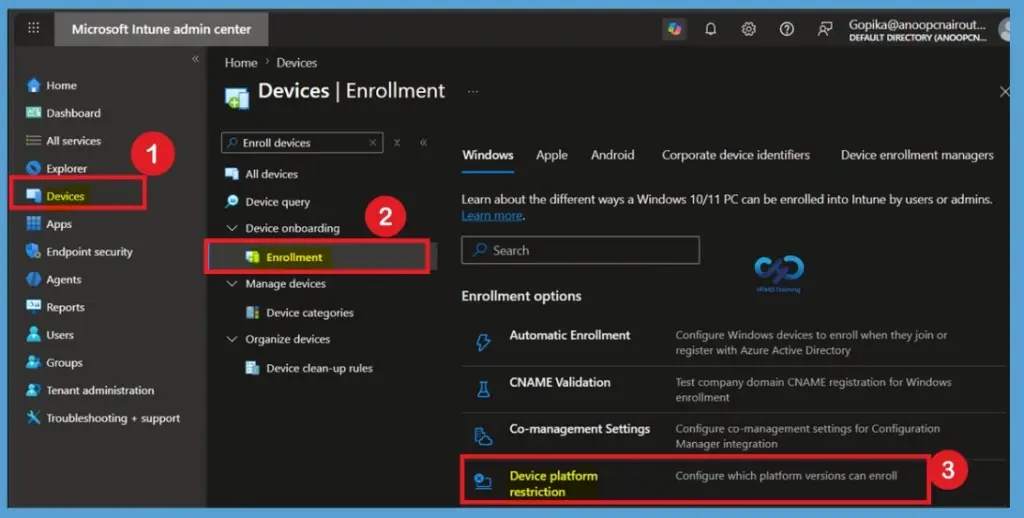
Sign in to the Microsoft Intune Admin Center and navigate to Devices > Device Onboarding > Enrollment > Enrollment Restrictions. Under Device Platform Restrictions, select Create Restriction and provide a suitable name and description for the policy.
Read more – New Device Restriction Settings Available in macOS
New Device Restriction Settings Available in Apple Settings Catalog

Configure the Enrollment Restriction
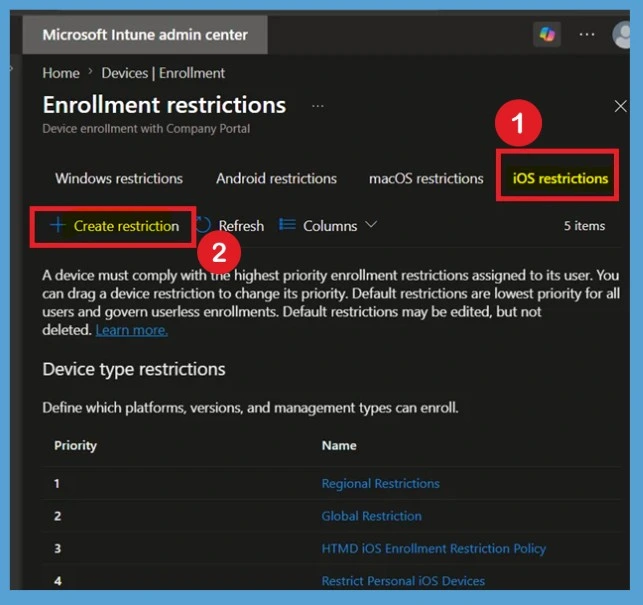
When you click on the Device Platform Restriction, you will be able to select the platform. Here, I selected iOS restriction and click on the Create Restriction. Creating a dedicated enrollment restriction policy allows administrators to control which devices can be enrolled on Intune. This helps organisations enforce security requirements and manage device enrollment more effectively.
Basics Tab
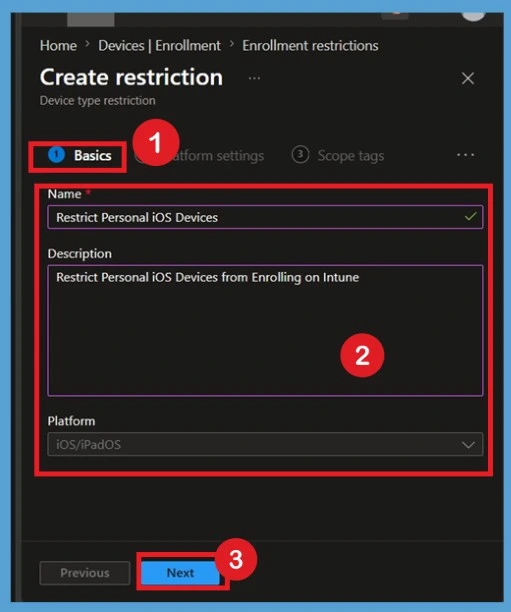
In the Basics tab, provide a meaningful Name and Description for the enrollment restriction policy. This helps administrators easily identify the purpose of the policy in the Intune portal. In this example, the policy is named Restrict Personal iOS Devices, and the description clearly indicates that personal iOS devices will be prevented from enrolling in Intune.
- After entering the required details, verify that the Platform is set to iOS/iPadOS.
- Once the information is reviewed, click Next to proceed to the Platform Settings page.
Know the Platform Settings
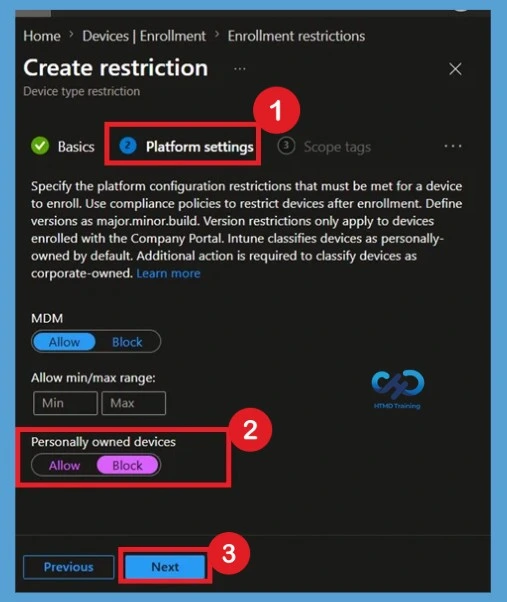
The Platform Settings page allows administrators to configure enrollment restrictions for the selected platform. Here, keep MDM set to Allow so that iOS/iPadOS devices can enrol in Intune management.

- Intune to Introduce Account Driven User Enrollment for iOS/iPadOS
- Setup Enrollment Notification in Intune for Mac Devices
- Easiest Method to Configure iOS MacOS Devices Patching Schedule Using Intune
- Prevent iOS Managed Apps Removable using Intune
How to Block Personal iOS Device Enrollment
To block personal devices, change the Personally owned devices setting from Allow to Block. This configuration prevents users from enrolling personal iPhones and iPads while still allowing enrollment of corporate-owned Apple devices. After configuring the settings, click Next to continue. k. Intune treats devices as personally owned by default unless they are identified as corporate-owned through supported enrollment methods.
- The device type restriction policy is very helpful if you want to restrict Windows Mobile/Phone devices from enrolling on Intune. At the same time, you can allow Windows devices (desktops, laptops, surfaces, etc) to enrol on Intune.
Scope Tags
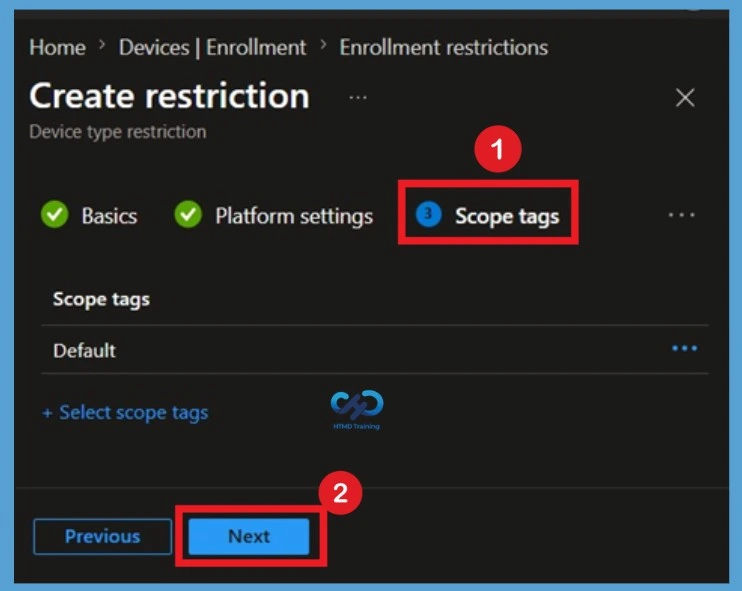
On the Scope Tags page, assign the required scope tags if your organisation uses role-based administration. Scope tags help administrators control access to Intune resources and policies. If scope tags are not required in your environment, you can proceed with the default configuration. This step helps delegate administrative responsibilities without affecting the policy’s functionality.
Assign the Policy
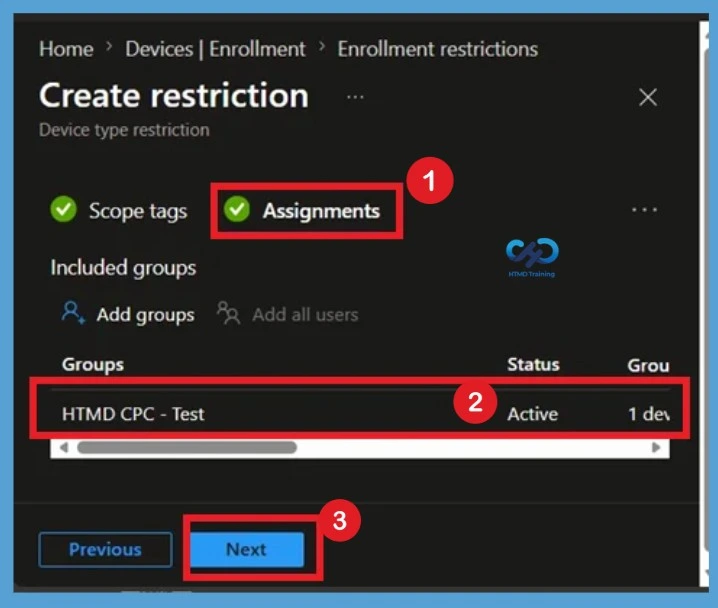
In the Assignments section, select the Microsoft Entra groups that should receive the enrollment restriction policy. Only users included in the assigned groups will be affected by the restriction. Proper assignment ensures that the policy is applied to the intended users. Administrators can initially target a test group before deploying the restriction to a larger user population.
Review and Create
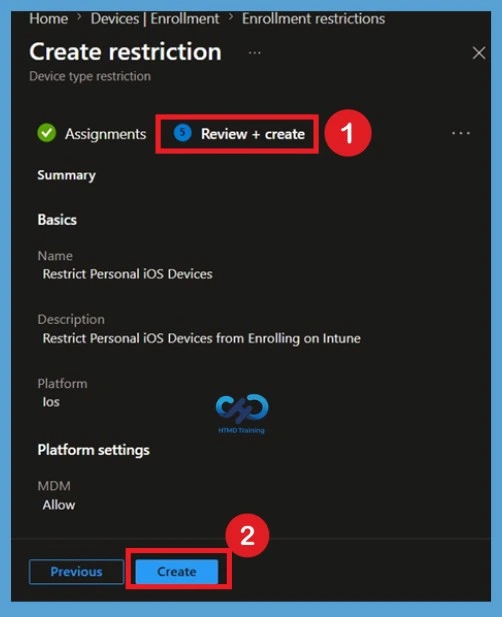
Review the configured settings to verify that the policy meets your organisation’s requirements. Once confirmed, click Create to deploy the enrollment restriction policy. After the policy is created, Intune will begin applying the restriction to the assigned users. The policy will be enforced whenever targeted users attempt to enrol a device.
Intune Home Page Redesign
The newly redesigned Intune Admin Portal Home Page comprehensively reviews the changes and the updated Intune Admin Portal Journey. The dynamic Home Page is used for Intune Administrators, and spotlight options highlight premium features, ensuring easy access to key functionalities.
MEM Admin Portal
Below is a video on the Intune Admin Center Walkthrough for the latest updates. The Intune Admin Portal is one of the first things you must learn. This post explains where the Intune admin portal (aka Endpoint Manager) is. The official name of the Intune admin portal is the MEM Admin Center.
Resources
How to Configure Intune Enrollment Setup for iOS and macOS Devices
Windows 10 Intune Enrollment Manual Process AAD Registration (anoopcnair.com)
Need Further Assistance or Have Technical Questions?
Join the LinkedIn Page and Telegram group to get the latest step-by-step guides and news updates. Join our Meetup Page to participate in User group meetings. Also, Join the WhatsApp Community and WhatsApp Channel to get the latest news on Microsoft Technologies. We are there on Reddit as well.
Author
Anoop C Nair has been Microsoft MVP from 2015 onwards for 10 consecutive years! He is a Workplace Solution Architect with more than 22+ years of experience in Workplace technologies. He is also a Blogger, Speaker, and Local User Group Community leader. His primary focus is on Device Management technologies like SCCM and Intune. He writes about technologies like Intune, SCCM, Windows, Cloud PC, Windows, Entra, Microsoft Security, Career, etc


I’m not sure how we can allow ONLY “Android for Work”
Blocking all other platforms except android will do the trick?
StaffNot exactly because Native Android MDM is different from Android for Work MDM 😉
Thanks for clarifying
Anoop.. Is there a way to prevent users from enrolling their personal devices for Android and iOS, if we have configured intune in hybrid mode with SCCM instead of standalone intune?
StaffSCCM hybrid has parity issues and I don’t think there is any method to block personal Android and iOS devices. But I could be wrong.
Hi Anoop, I
m certainly sure Ive disabled personal owned device enrollment from platform configurations and then block personally owned IOS devices.But I still can enroll my personal iphone from company portal without any restriction. Anything I missed?
Thanks for advise
StaffHey Will! – The first step is to check whether the device is identified as “Personal” in Intune console or not. If it’s identified as personal then, there could be a bug but I never heard about any bug related to this feature. Just wanted to make sure that you set this setting in Enrollment rules….
Hi Anoop,
Is there a way in Intune to block MAM group user signing in to the Company portal by error as we don’t want BYOD’s users signing in to the Company Portal and thus turning their BYOD into Corporate devices.
StaffYou can restrict all the BYOD enrollment via the method which I explained -> https://www.anoopcnair.com/block-personal-windows-devices/#How_to_Block_Personal_Windows_Devices