






SCCM 2103 Upgrade Guide | ConfigMgr | Prerequisites | Step by Step
Let’s check the SCCM 2103 Upgrade Guide and prerequisites for the 2103 version. Microsoft released the latest version of Microsoft Endpoint Manager Configuration Manage.
The 2103 version of Configuration Manager is the opt-in version (you need to use PowerShell to enable it). It is still generally available and out of the opt-in version.
This step-by-step guide provides all the details required to perform an SCCM Server Upgrade to 2103. In the previous post, I predicted the release dates of ConfigMgr 2010.
You can check ConfigMgr 2010 Release Date Predictions | SCCM. But I didn’t predict the 2103 version of ConfigMgr.

Table of Contents
SCCM 2103 Related FAQs
Let’s look at the frequently asked questions about the Configuration Manager 2103 version.
Is the SCCM 2103 version production ready?
What is the latest baseline version of SCCM?
Is Remote Support via CMG supported with the SCCM 2103 version?
What is the SCCM 2103 client version?
What is the SCCM 2103 Console Version?
What is the SCCM 2103 Build version?
Video
Best Upgrade Guide ConfigMgr Primary Server to 2103 Version | SCCM | Prerequisites Endpoint Manager – Best Upgrade Guide ConfigMgr Primary Server to 2103 Version | SCCM | Prerequisites Endpoint Manager – YouTube
Why ConfigMgr 2103? Why not the 2102 Production Version?
Starting this year, the ConfigMgr (a.k.a SCCM) current branch (CB) production version names will be 2103, 2107, and 2111 to better align with other releases within Microsoft Endpoint Manager (MEM).
- The release frequency will be every four months.
- Release at the same time of the year.
What is the Opt-in Ring of ConfigMgr 2103
The Opt-in ring allows organizations to get the newest Configuration Manager Current Branch version using an opt-in PowerShell script.
Slow ring release of SCCM production will be available for all “online” versions of the service connection point. The General version of Configuration Manager 2103 will be available within one (1) month after the opt-in release.
NOTE! – The opt-in version is fully supported for production servers.
- Fix Software Update Deployment Issues with SCCM Clients with KB28458746
- SCCM 2303 Upgrade Step by Step Guide | New Features
- SCCM 2211 Upgrade Step by Step Guide | New Features
- Latest Fixes for SCCM 2207 KB15152495 Hotfix Update Rollup
- SCCM Hotfix KB15599094 NTLM Client Installation Update
Prerequisites of 2103 Version
The following is a quick list of prerequisites for the Configuration Manager 2103 primary server upgrade. Ensure you have reviewed these 12 points before upgrading the SCCM 2103 production version.
- The following SCCM versions are supported for the upgrade to 2103.
- 1910, 2002, 2006, or 2010.
- Read More details about the support Life Cycle of ConfigMgr.
- Install update 2103 at the top-level site of your hierarchy (CAS or Standalone Primary).
- The SCCM version should have an online Service Connection Point.
- Evaluate Checklist – The section below has more details.
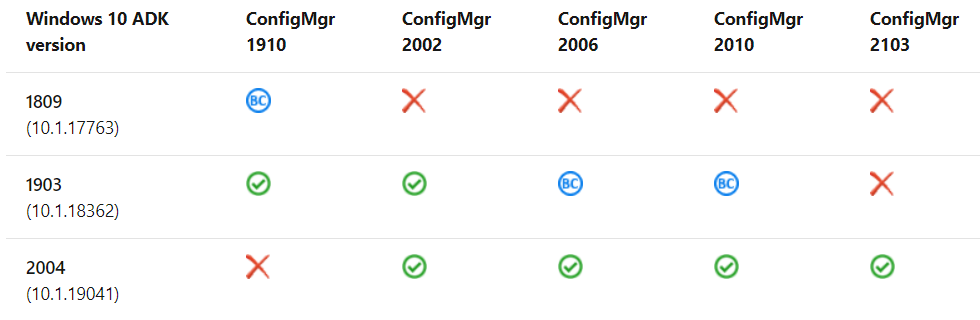
- Upgrade to a supported version of Windows ADK 2004 (2004 is the only version supported for the 2103 version of SCCM). More details here.
- Evaluate SQL Requirements for SCCM 2103 Upgrade – here
- Evaluate Windows Server OS Requirements for ConfigMgr 2103 site server – here
- Evaluate Supported OS versions for clients and devices – here
- Evaluate Supported OS versions for ConfigMgr consoles – here
- Evaluate Recommended hardware – here
- Support for Windows features and networks – here
- Evaluate Support for virtualization environments – here
- Evaluate the Firewall Rules – More details here and here
NOTE! – Enable the site for HTTPS-only or enhanced HTTP – To improve the security of client communications, in the future, the Configuration Manager will require HTTPS communication or enhanced HTTP. Plan to configure the site for HTTPS only or to Use Configuration Manager-generated certificates for HTTP site systems.
More details about this https://www.anoopcnair.com/configmgr-http-only-client-communication-is-going-out-of-support-sccm/
2013 Version Upgrade Check List
The following is Microsoft’s high-level checklist. Let’s review this list before starting the Configuration Manager 2103 primary server upgrade in a production environment.
NOTE – If you have a secondary site that uses SQL Server Express Edition, this check warns if the version is earlier than SQL Server 2016 with service pack 2 (13.0.5026.0).
- All sites run a supported version of Configuration Manager
- Review the status of your product licensing
- Review Microsoft .NET versions
- Review the version of the Windows ADK for Windows 10
- Review SQL Server Native Client version
- Review file and data replication between sites
- Database replication
- File-based replication
- Install all applicable critical Windows updates
- Disable database replicas for management points at primary sites
- Set SQL Server AlwaysOn availability groups to manual failover
- Disable site maintenance tasks at each site
- Temporarily stop any antivirus software
- Back up customized files
- Plan for client piloting
- Plan to use service windows
- Review supported extensions
- Run the setup prerequisite checker (I recommend running the prerequisite check 3-4 days before the production upgrade)
- Update sites
More detailed information about the ConfigMgr 2103 installation checklist is given below https://docs.microsoft.com/en.
Offline Scenario – SCCM Server 2103 Upgrade
Use the service connection tool to download the update when your service connection point is offline.
More details about the process are explained in the post-SCCM Upgrade with an Offline Service Connection Point| ConfigMgr.
Download / Enable ConfigMgr Version 2103
Let’s go through the steps to initiate the download of the opt-in version of Configuration Manager 2103 using the PowerShell script. Once the update is downloaded, you can start the installation of the 2103 version of SCCM. The 2103 version of Configuration Manager is available for all SCCM environments.
- This 2103 version of ConfigMgr is generally available in all applicable ConfigMgr Consoles.
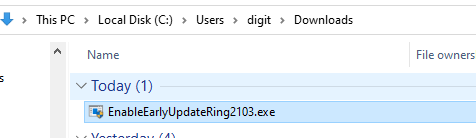
To enable the early ring version of ConfigMgr 2103, use the PowerShell script.Download and Run the PowerShell command or here.Version 2103 opt-in script (EnableEarlyUpdateRing2103.exe)
- Launch ConfigMgr console & navigate through \Administration\ Overview \Updates and Servicing.
- Check 2103 version update of ConfigMgr is already available or not?
- If not, click the “Check for Updates” button from the ribbon menu.
- Click OK to continue.
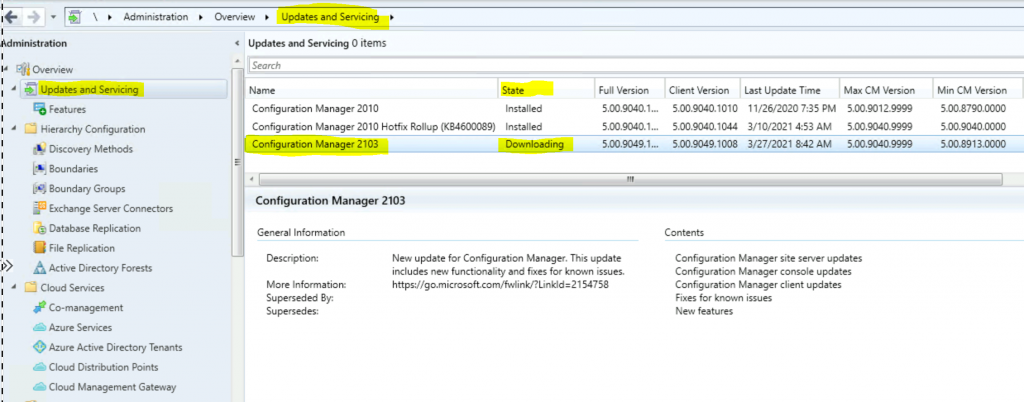
- Configuration Manager 2103 update is available and Downloading.
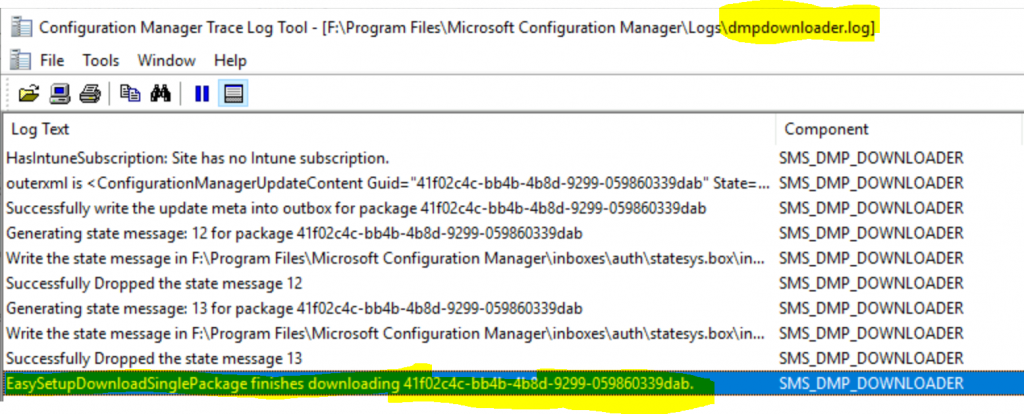
NOTE! – Check the DMPDownloader.log to get more details. More details about the log files are available here.
EasySetupDownloadSinglePackage finishes downloading 41f02c4c-bb4b-4b8d-9299-059860339dab.
Generating state message: 14 for package 00000000-0000-0000-0000-000000000000
searching for QFE packages in F:\Program Files\Microsoft Configuration Manager\EasySetupPayload\offline
Source Location of 2103 Update
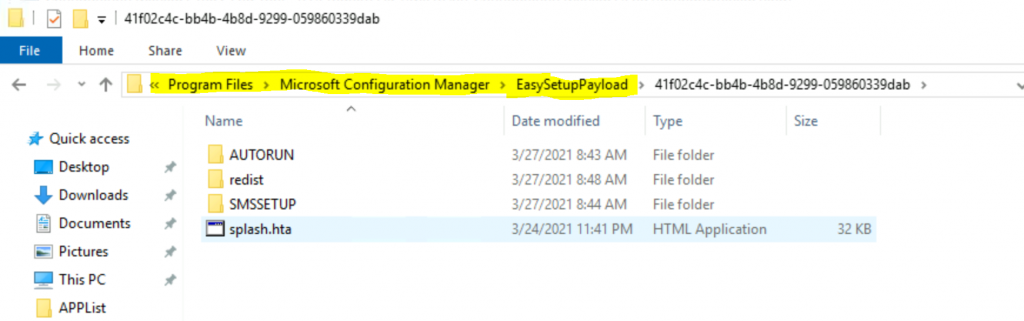
You can see the downloaded file in the following location. You should NOT use these files to update. But this is just for educational purposes. F:\Program Files\Microsoft Configuration Manager\EasySetupPayload.
ConfigMgr 2103 Update Download is Stuck?
The update getting stuck during the downloading stage is common in enterprise organizations and LAB environments. This issue is mostly caused by a proxy or other internet-related issues.
If the issue is not related to a proxy or the internet, there are a couple of ways to fix it. Refer to the previous blog posts to solve the stuck Update Download problems. For more troubleshooting help on Configuration Manager 2103 Download stuck and upgrade issues, see here and here.
Microsoft Doc: https://support.microsoft.com/en-us/help/4490424/understand-and-troubleshoot-updates-and-servicing-in-configmgr
Log Files to Help Troubleshooting 2103
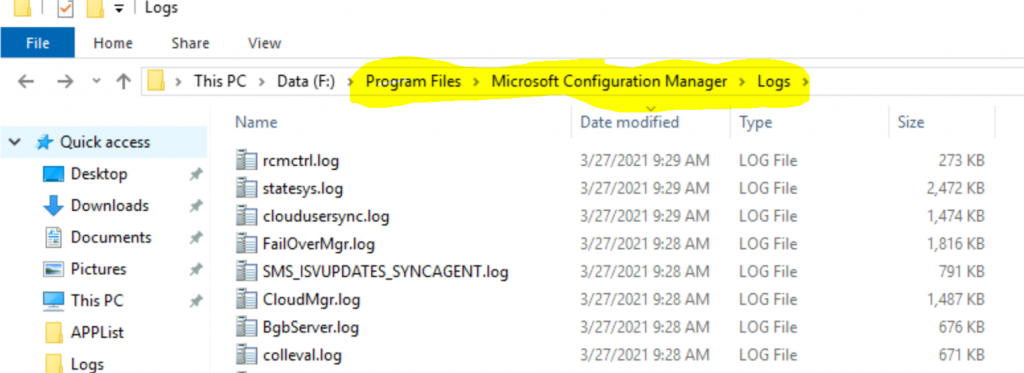
If you can’t see any lines related to redist to download, that means the download has not been completed yet. The location of the log files is F: Program FilesMicrosoft Configuration ManagerLogs.
- DMPDownloader.log for SCCM 2103 source file download issues
- ConfigMgrSetup.log for Redist Files Download Issue
- CMUpdate.log for all the upgrade-related activities
- If the update displays as Downloading and doesn’t change, review the hman.log and dmpdownloader.log for errors.
- The dmpdownloader.log may indicate that the dmpdownloader process waits for an interval before checking for updates. To restart the download of the update’s redistribution files, restart the SMS_Executive service on the site server.
- Another common download issue occurs when proxy server settings prevent downloads from
silverlight.dlservice.microsoft.com,download.microsoft.com, andgo.microsoft.com.
- For more information about installing updates, see In-console updates and servicing.
- For more information about current branch versions, see Baseline and update versions.
Start – ConfigMgr Server Upgrade to 2103
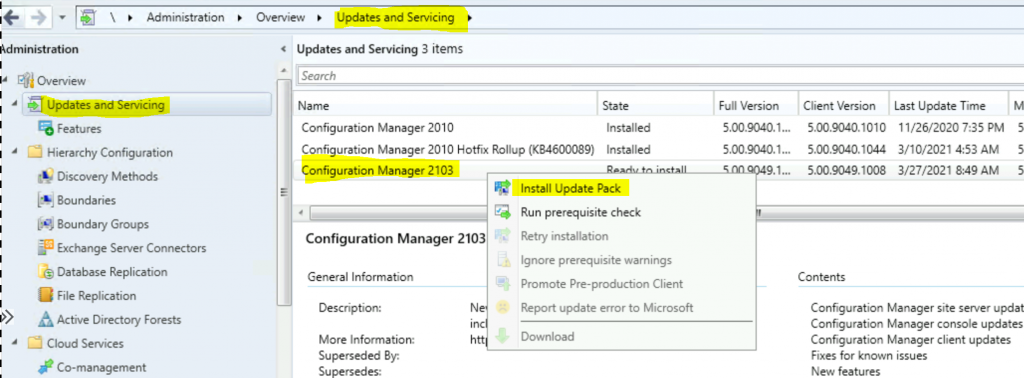
You can start the upgrade process once you have successfully downloaded SCCM version 2103 and the update is Ready to Install.
- Right Click on the Update “Configuration Manager 2103” Update
- Select PreRequisite Check
- Once the Prerequisite Check is completed successfully, proceed to the next step
- Right Click on the Update “Configuration Manager 2103” Update
- Click on Install Update to start the SCCM 2103 installation
NOTE! – Make sure you have completed the prerequisite checks steps two or three days before the actual upgrade to the 2103 version of ConfigMgr.
Update Stuck in the Prerequisite Stage?
The Configuration Manager upgrade prerequisite check can take many hours, depending on your hierarchy/infra. When you have CAS and many primary servers, the 2103 update source files will be copied to primary servers.
NOTE! – Make sure you start the prerequisite checks 3-4 days before the production update/upgrade of SCCM infra.
You can check the status of the prerequisite checks from the monitoring node. More details about SCCM prerequisite checks here.
Features Included – Remove CAS server
Let’s continue with the ConfigMgr 2103 update wizard:
- Click on the “Ignore any prerequisite check settings and install the update regardless of missing requirements” box
- Click on the Next button
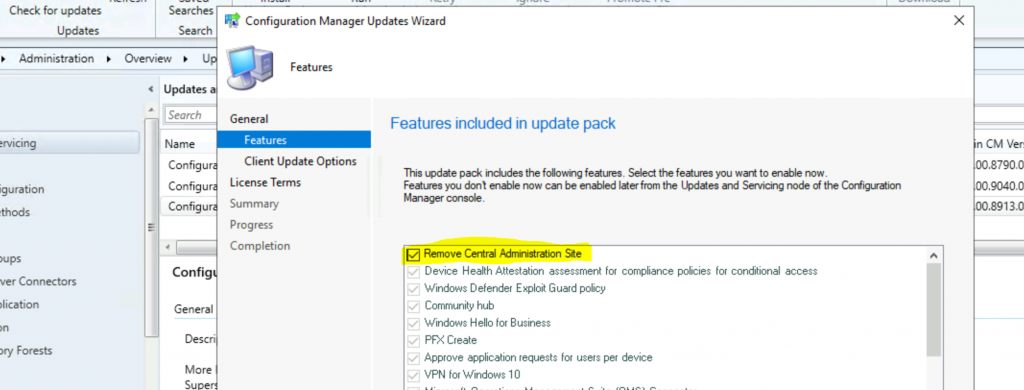
- Select the features you want to enable after the upgrades from the Features Included in Update Pack page
- Enable the “Remove Central Administration Site (CAS)” option
- …..
- Click on Next to continue
- Client Update Settings page configuration
- Upgrade without validating (Direct Production Upgrade)
- Validate in pre-production collection (Test the client before the upgrade)
- Click the NEXT button to continue
NOTE! – More details about client upgrade options are available in the following blog. SCCM Client Upgrade Promote Pre-Production Client to Production.
NOTE! – To take full advantage of new ConfigMgr features, after you update the site, also update clients to the latest version.
License Agreement
- Click on “I accept these License Terms and Privacy Statement. “
- Click on the Next button to continue
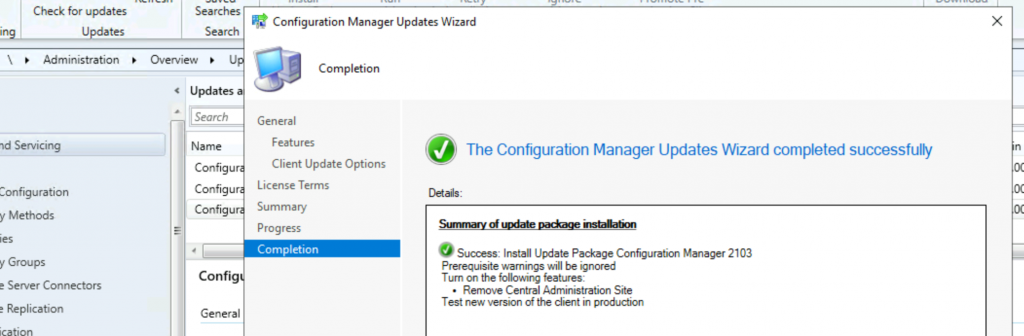
Summary
Summary of update package installation
Install Update Package Configuration Manager 2103
Prerequisite warnings will be ignored
Turn on the following features:
• Remove Central Administration Site
Test new version of the client in production
Click Next and Next to continue
- Click on Close to continue the installation process of 2103 and close the wizard.
SCCM 2103 Primary Server Update Status
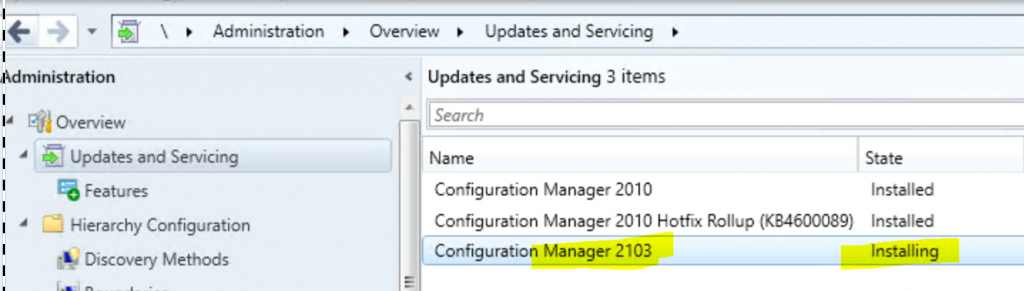
Once you complete the Configuration Manager update wizard, the ConfigMgr 2103 upgrade process will kick off. The updates and servicing node in the ConfigMgr console will show that the update is installing.
Monitor Progress
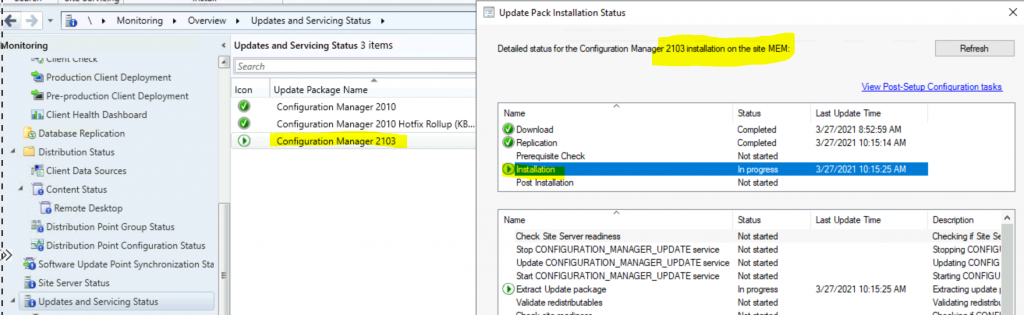
You can start monitoring the ConfigMgr 2103 upgrade from this stage.
- You can click on the link “Show Status” from related objects.
- Show status will show you the details about the installation status in the monitoring workspace.
- \Monitoring\Overview\Updates and Servicing Status\Configuration Manager 2103
- Check the log files referenced in the status to get more detailed information
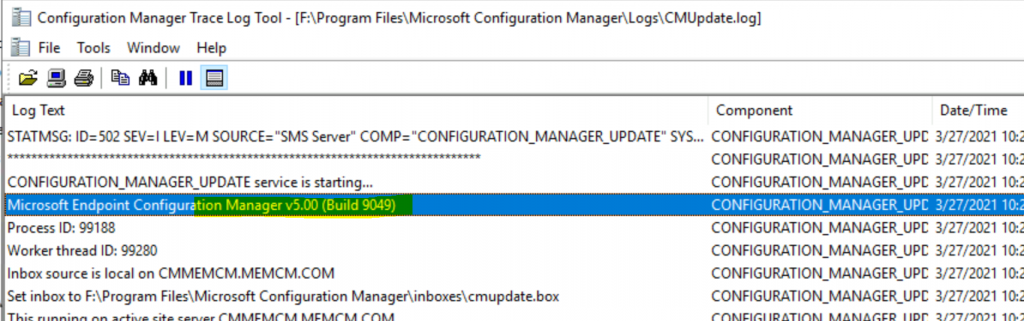
Let’s also check the log snippets of CMUpdate.log to confirm everything is going well with the 2103 upgrade.
Successfully reported ConfigMgr update status (SiteCode=MEM, SubStageID=0xd0005, IsComplete=1, Progress=50, Applicable=1)
File '\?\F:\Program Files\Microsoft Configuration Manager\CMUStaging\41F02C4C-BB4B-4B8D-9299-059860339DAB\SMSSetup\update.map.cab' is signed and trusted.
Extracted \?\F:\Program Files\Microsoft Configuration Manager\CMUStaging\41F02C4C-BB4B-4B8D-9299-059860339DAB\SMSSetup\update.map
Successfully reported ConfigMgr update status (SiteCode=MEM, SubStageID=0xd0005, IsComplete=2, Progress=100, Applicable=1)
INFO: Setup detected an existing Configuration Manager installation. Currently installed version is 9040
Set working directory to the staging folder F:\Program Files\Microsoft Configuration Manager\CMUStaging\41F02C4C-BB4B-4B8D-9299-059860339DAB\SMSSetup
CONFIGURATION_MANAGER_UPDATE service is starting…
Microsoft Endpoint Configuration Manager v5.00 (Build 9049)
NOTE! – Don’t forget to check CMUpdate.log to get more detailed information about the ConfigMgr Primary server upgrades to 2103.
Upgrade Completed
The following 5(Five) sections have been completed as part of the 2103 installation.
- Download – Completed
- Replication – Completed
- Prerequisite Check – Completed with some warnings
- Installation – Completed
- Post Installation – Completed
Admin Console Upgrade to 2103 Version
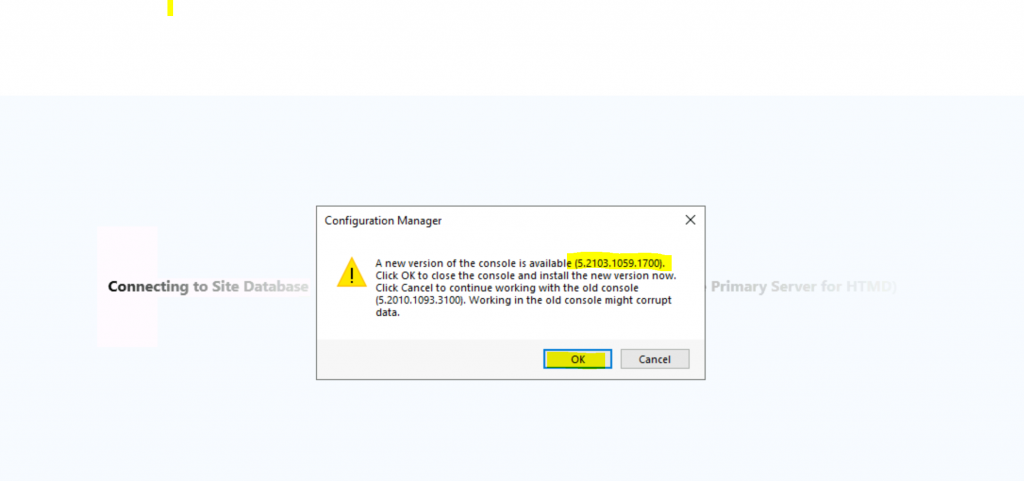
The last step of the ConfigMgr 2103 installation is upgrading the consoles of the Primary and CAS servers.
You must ensure all your remote SCCM console installations are upgraded to the latest version. This is not critical if your remote SCCM console already runs with the n-1 version (where n = 2103 in this scenario). That means you can use the 2010 console version with the 2103 version of the primary server.
Boot Image Client Version
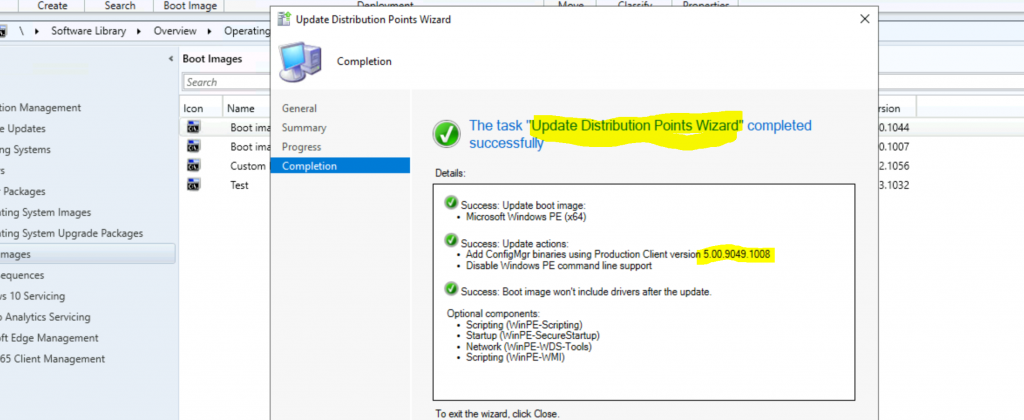
The default boot image client version shows the previous version (2010) even after successfully updating the primary server to the 2103 version. I have initiated the task “Update Distribution points” using the right-click option from the default boot image. This task helped to get the updated client version of the latest boot image.
Success: Update boot image:
 •    Microsoft Windows PE (x64)
 Success: Update actions:
 •    Add ConfigMgr binaries using Production Client version 5.00.9049.1008
 •    Disable Windows PE command line support
 Success: Boot image won't include drivers after the update.
 Optional components:
 •    Scripting (WinPE-Scripting)
 •    Startup (WinPE-SecureStartup)
 •    Network (WinPE-WDS-Tools)
 •    Scripting (WinPE-WMI)
SCCM 2103 Version Details
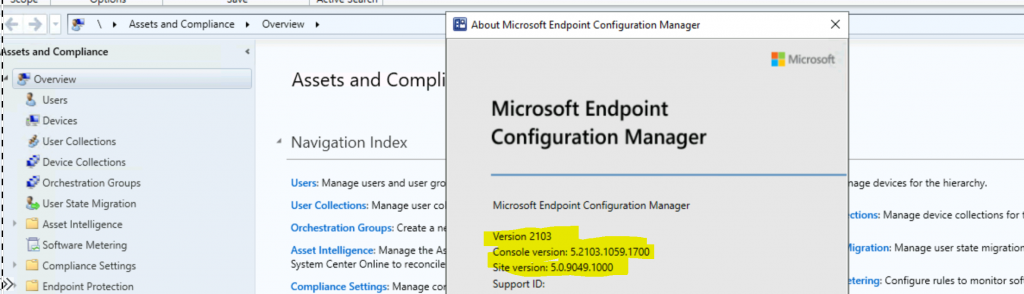
Following are the version details of Configuration Manager 2103.
- Client Version 5.00.9049.1008
- Full Site Version 5.00.9049.1000
- Site version 5.0.9049.1000
- Console Version 5.2103.1059.1700
Resources
- Possible Issues with SCCM 2012 to CB Current Branch Upgrade
- SCCM CB DMPDownloader Troubleshooting with State Messages
We are on WhatsApp now. To get the latest step-by-step guides, news, and updates, Join our Channel. Click here – HTMD WhatsApp
Author
Anoop C Nair has been Microsoft MVP from 2015 onwards for 10 consecutive years! He is a Workplace Solution Architect with more than 22+ years of experience in Workplace technologies. He is also a Blogger, Speaker, and Local User Group Community leader. His main focus is on Device Management technologies like SCCM and Intune. He writes about technologies like Intune, SCCM, Windows, Cloud PC, Windows, Entra, Microsoft Security, Career, etc..




you have a typo in the console version
StaffThank you. Fixed now.