






FIX SCCM Application Deployment Error 0x80110449 -2146368439
Let’s see how to fix the SCCM application deployment error 0x80110449. This post helps you understand how to troubleshoot the SCCM app deployment issues and find a solution or fix for the same.
Application deployment in SCCM can fail due to several reasons. In most cases, the application content is not downloaded on the client’s computer or could be due to application distributions.
The error 0x80110449 was observed when the user tried to install Microsoft Visio applications from Software Center. The application was downloaded the required files to the system.
The translate SCCM app deployment error code helps you understand the error. First of all, you will need to understand the meaning of the error code 0x80110449 (-2146368439).

You can use the method to translate SCCM Error Codes To Error Messages. You have multiple SCCM log viewer options to check different types of log files .log or .lo_ file extensions. I prefer to use CMTrace to translate the error codes. The error 0x80110449 (-2146368439) translates to “This operation is not enabled on this platform.”
Here you can check details for major components involved in SCCM application model troubleshooting, and This post will help you Deep Dive SCCM Application Model Troubleshooting.
- FIX SCCM App Deployment Errors 0x80070002 0x87d01106
- FIX: SCCM Application Installation Failed 0x87D00607
- FIX: SCCM Application Installation Failed Unmatched Exit Code 1603
SCCM Application Deployment Error 0x80110449
The first step in SCCM App Deployment troubleshooting is to check the Software Center and get the error message or error code.
Clicking on the Install, the application started downloading the content and showing the Retry option. Here in the below, you can see the Status Failed. You can click on Failed highlighted link to get more information about the application failure.
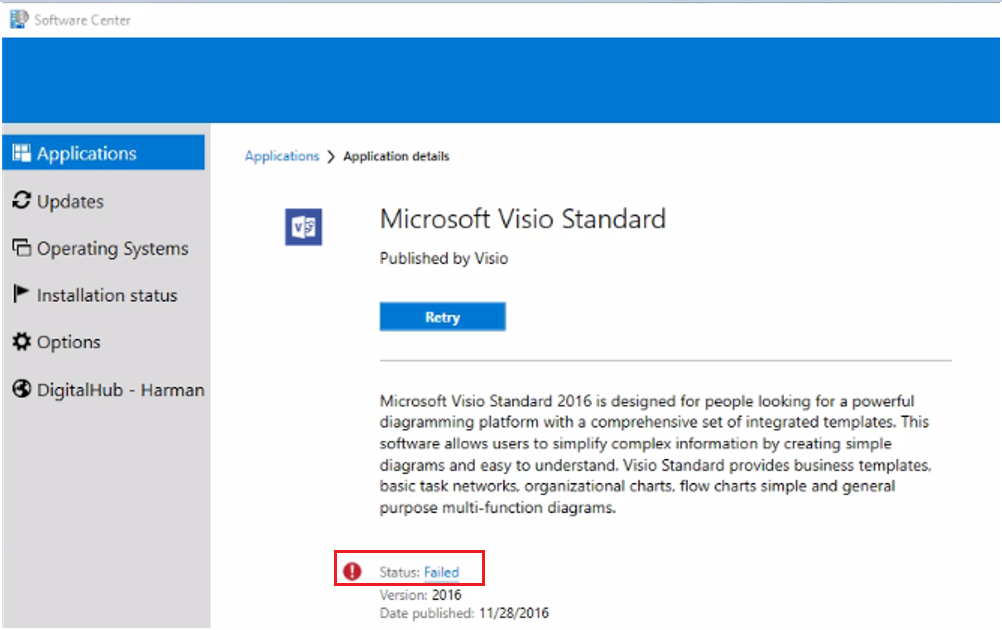
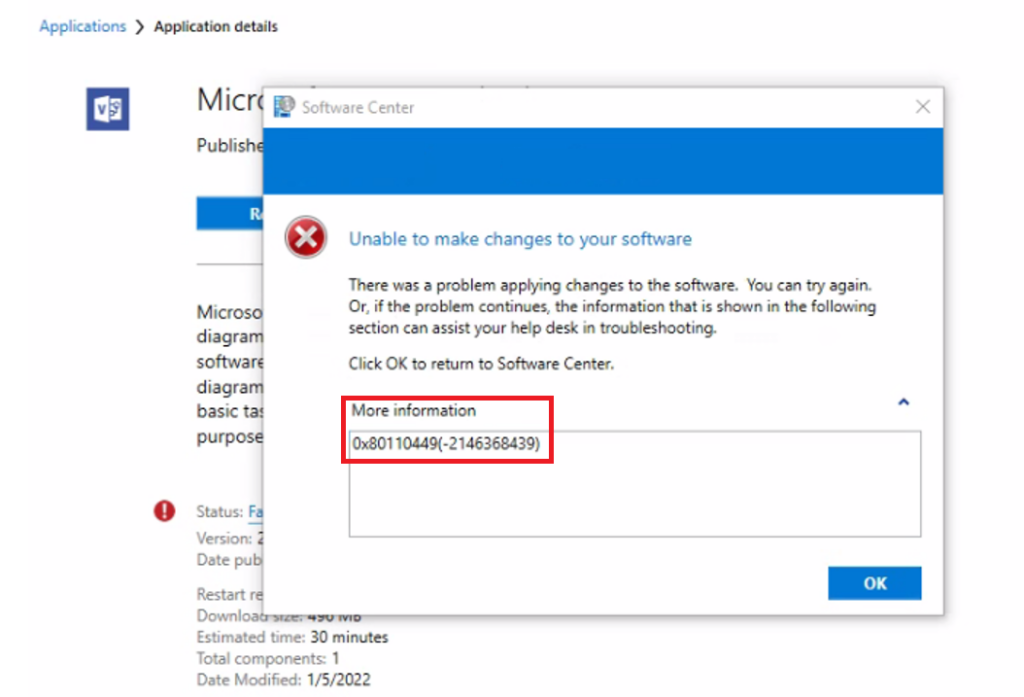
The error application installation failed 0x80110449 -2146368439 was received while installing an application from Software Center. You may receive the message “Unable to make changes to your software”.
It indicates there was a problem applying changes to the software. You can try again, Or if the problem continues, the information shown in the following section can assist your helpdesk in troubleshooting.
Clicking on More Information, The software change returned error code 0x80110449(-2146368439).
You can track the activity in AppDiscovery.log using the Deployment Type Unique ID or Deployment Type Name.
Next, the client evaluates the desired state of the application based on the Deployment Purpose. This step also involves detecting whether the application has any dependencies or supersedence rules that should be honored.
This activity can be tracked in AppIntentEval.log using the Application and Deployment Type Unique ID. After reviewing the AppEnforce.log to follow the installation, You might experience the Unmatched exit code (2148598857) is considered an execution failure.
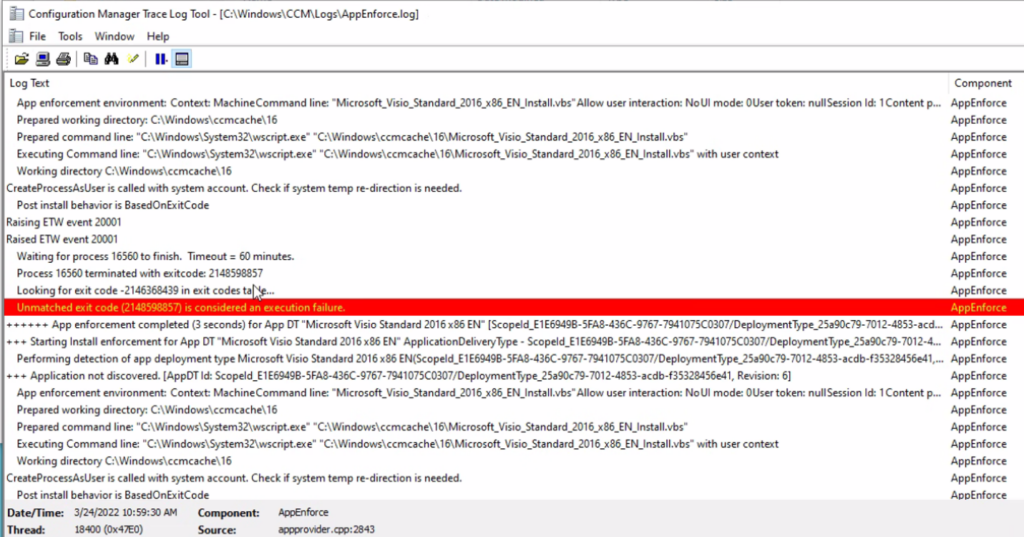
+++ Starting Install enforcement for App DT "Microsoft Visio Standard 2016 x86 EN" ApplicationDeliveryType - ScopeId_E1E6949B-5FA8-436C-9767-7941075C0307/DeploymentType_25a90c79-7012-4853-acdb-f35328456e41, Revision - 6, ContentPath - C:\Windows\ccmcache\16, Execution Context - System	AppEnforce	3/24/2022 10:45:04 AM	9984 (0x2700)
    Performing detection of app deployment type Microsoft Visio Standard 2016 x86 EN(ScopeId_E1E6949B-5FA8-436C-9767-7941075C0307/DeploymentType_25a90c79-7012-4853-acdb-f35328456e41, revision 6) for system.	AppEnforce	3/24/2022 10:45:04 AM	9984 (0x2700)
+++ Application not discovered. [AppDT Id: ScopeId_E1E6949B-5FA8-436C-9767-7941075C0307/DeploymentType_25a90c79-7012-4853-acdb-f35328456e41, Revision: 6]	AppEnforce	3/24/2022 10:45:04 AM	9984 (0x2700)
    App enforcement environment:
	Context: Machine
	Command line: "Microsoft_Visio_Standard_2016_x86_EN_Install.vbs"
	Allow user interaction: No
	UI mode: 0
	User token: null
	Session Id: 1
	Content path: C:\Windows\ccmcache\16
	Working directory: 	AppEnforce	3/24/2022 10:45:04 AM	9984 (0x2700)
    Prepared working directory: C:\Windows\ccmcache\16	AppEnforce	3/24/2022 10:45:04 AM	9984 (0x2700)
    Prepared command line: "C:\Windows\System32\wscript.exe" "C:\Windows\ccmcache\16\Microsoft_Visio_Standard_2016_x86_EN_Install.vbs"	AppEnforce	3/24/2022 10:45:04 AM	9984 (0x2700)
    Executing Command line: "C:\Windows\System32\wscript.exe" "C:\Windows\ccmcache\16\Microsoft_Visio_Standard_2016_x86_EN_Install.vbs" with user context	AppEnforce	3/24/2022 10:45:04 AM	9984 (0x2700)
    Working directory C:\Windows\ccmcache\16	AppEnforce	3/24/2022 10:45:04 AM	9984 (0x2700)
CreateProcessAsUser is called with system account. Check if system temp re-direction is needed.	AppEnforce	3/24/2022 10:45:04 AM	9984 (0x2700)
    Post install behavior is BasedOnExitCode	AppEnforce	3/24/2022 10:45:04 AM	9984 (0x2700)
Raising ETW event 20001	AppEnforce	3/24/2022 10:45:04 AM	9984 (0x2700)
Raised ETW event 20001	AppEnforce	3/24/2022 10:45:04 AM	9984 (0x2700)
    Waiting for process 15960 to finish.  Timeout = 60 minutes.	AppEnforce	3/24/2022 10:45:04 AM	9984 (0x2700)
    Process 15960 terminated with exitcode: 2148598857	AppEnforce	3/24/2022 10:45:09 AM	9984 (0x2700)
    Looking for exit code -2146368439 in exit codes table...	AppEnforce	3/24/2022 10:45:09 AM	9984 (0x2700)
    Unmatched exit code (2148598857) is considered an execution failure.	AppEnforce	3/24/2022 10:45:09 AM	9984 (0x2700)
FIX SCCM Application Deployment Error 0x80110449
Let’s check how to FIX SCCM App Deployment Error 0x80110449. This is probably seen due to a mismatch of office installed architecture.
The same issue was posted in HTMDForum for Microsoft Visio install error 0x80110449(-2146368439). When a community member tried to install Visio 2016 32 bit standard edition installation. And The client’s computer already has a Microsoft office professional 2016 64 bit edition.
If you want to install and run more than one version of Office on the same PC, here are some tips to help you avoid most setup errors:
You can try for manual installation of the available version of any of the PCs you have with the same configuration to identify the cause.
Suppose you tried to install a 64-bit or 32-bit version of the Office suite or an Office standalone application such as Visio on a computer that already has either the 32-bit or 64-bit version of Office. In that case, you could see an error message similar to the one below.
This occurs because you can’t mix 64-bit and 32-bit versions of Office.
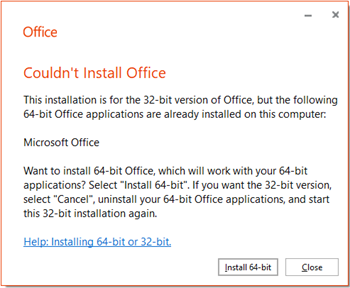
To fix this error and switch from 32-bit to 64-bit (or vice-versa), you must do the following in this order.
Uninstall Office – Go to Uninstall Office from a PC and follow the steps to uninstall the version of Office (or standalone Office application, such as Visio or Project) you don’t want.
Install the 32-bit or 64-bit version of Office – Remove the 32-bit version, and the office 64 Bit version will install successfully.




Discussion