






FIX: SCCM Application Installation Failed 0x87D00607
Let’s understand how you can FIX SCCM Application Installation Failed 0x87D00607. The error 0x87D00607 (-2016410105) prompts when you attempt to install an application from SCCM software center. The error 0x87D00607 Translate SCCM Error Codes to Error Messages “Content not found.”
Application Model is used these days extensively for Software Distribution from SCCM. However, troubleshooting Application deployment using this model is not easy due to the number of components involved. The client-side flow for application deployment post will help you to perform troubleshooting for failed deployment.
Here you can check details for major components involved in SCCM application model troubleshooting, This post will help you in learning the following pointers Deep Dive SCCM Application Model Troubleshooting
Issue Summary – SCCM Application Installation Failed 0x87D00607
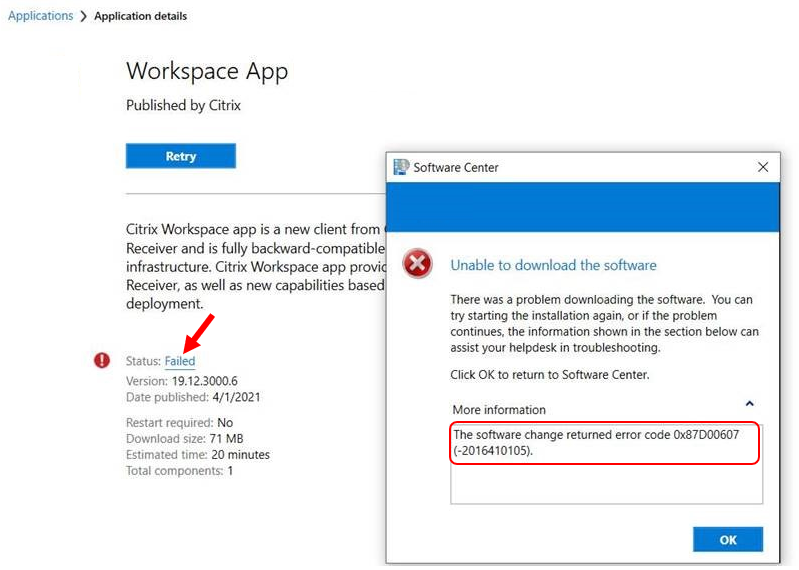
The error application installation failed 0x87D00607 (-2016410105) was received while installing an application from Software Center. It indicates there was a problem downloading the software from SCCM. You can try starting the installation again, or if the problem continues, the information shown in the section below can assist your helpdesk in troubleshooting.

The software change returned error code 0x87D00607, Unable to download software with Status Failed.
After reviewing the CITaskMgr.log to track the content download for this application, you will see the below highlights –
CITaskMgr.log – Records tasks initiated for each application and deployment type, such as content download and install or uninstall actions.
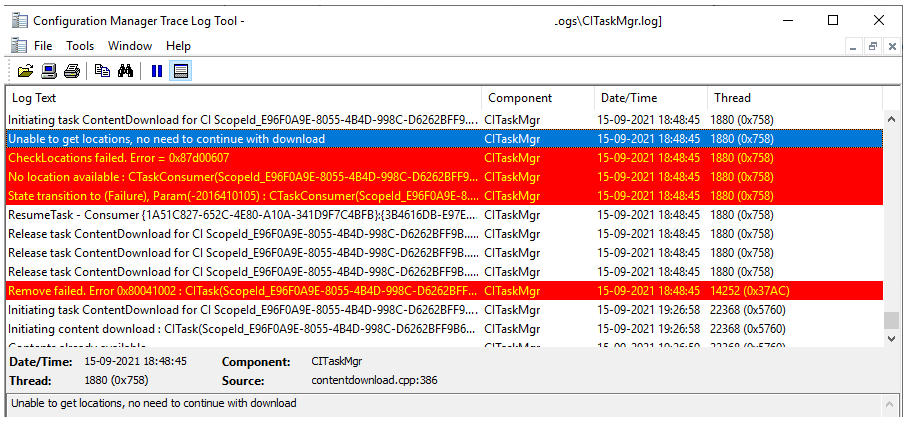
Unable to get locations, no need to continue with download	CITaskMgr	15-09-2021 18:48:45	1880 (0x0758)
CheckLocations failed. Error = 0x87d00607	CITaskMgr	15-09-2021 18:48:45	1880 (0x0758)
No location available : CTaskConsumer(ScopeId_E96F0A9E-8055-4B4D-998C-D6262BFF9B6C/DeploymentType_21993b9c-f4cc-4d5f-9638-e47d211cdada.2.{1A51C827-652C-4E80-A10A-341D9F7C4BFB})	CITaskMgr	15-09-2021 18:48:45	1880 (0x0758)
State transition to (Failure), Param(-2016410105) : CTaskConsumer(ScopeId_E96F0A9E-8055-4B4D-998C-D6262BFF9B6C/DeploymentType_21993b9c-f4cc-4d5f-9638-e47d211cdada.2.{1A51C827-652C-4E80-A10A-341D9F7C4BFB})	CITaskMgr	15-09-2021 18:48:45	1880 (0x0758)
FIX – SCCM Application Installation Failed 0x87D00607
Let’s check the possible solutions to FIX SCCM Application Installation Failed 0x87D00607. It could be different based on the details you get into logs –
#Possible Solution 1 –
Let’s first validate whether the application content is properly distributed to distribution points or groups. To avoid issues with the content distribution of SCCM packages. Let’s check how to Redistribute package or application content to Distribution Point.
I had seen in many scenarios If we are facing the content download issue in all sites locations. Try to remove the content distribution, and package redistribution will work.
#Possible Solution 2 –
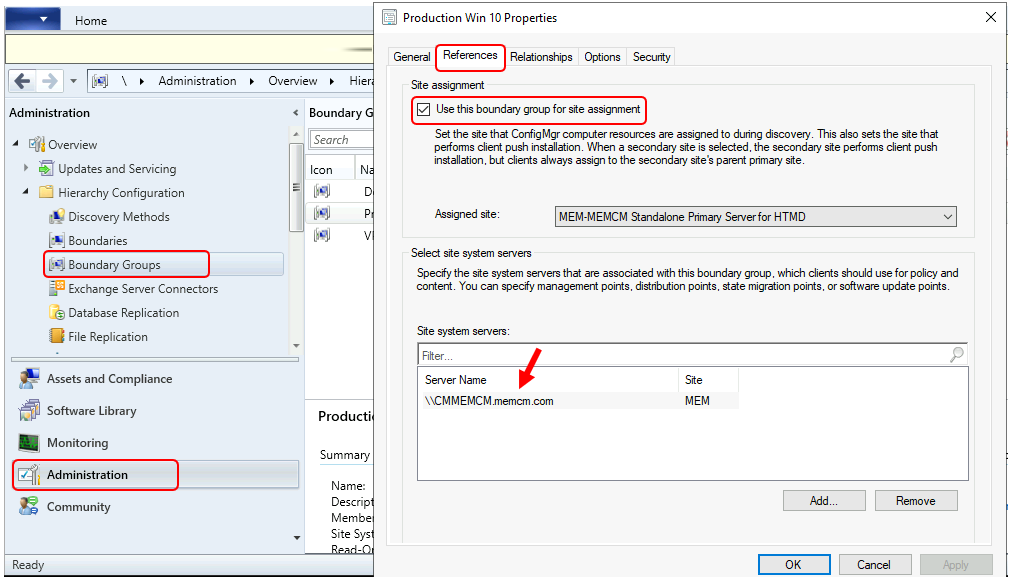
It’s important to check the configuration of the Boundary groups. If the distribution point is not assigned correctly, It will not properly work.
- In the Configuration Manager console, Navigate to Administration\Overview\Hierarchy Configuration\Boundary Groups.
- Right-click the boundary group and click on References tab.
- Under Site assignment, Ensure to check Use this boundary group for site assignment.
- Under the Site system servers click on Add and add the site server. Click on Apply and OK to save the changes.
You can get more information about Boundary Groups in ConfigMgr
Resources
- Fix the SCCM Software Center cannot be loaded Issue with ConfigMgr
- FIX Software Center Crash Error SCNotification Has Stopped Working | SCCM | ConfigMgr
- HTMD Blog #2 Archive Posts
Author
About Author -> Jitesh has over 5 years of working experience in the IT Industry. He writes and shares his experiences related to Microsoft device management technologies and IT Infrastructure management. His primary focus area is Windows 10 Deployment solution with Configuration Manager, Microsoft Deployment Toolkit (MDT), and Microsoft Intune.




Hi Anoop,
Could you please tell me how to fix this error code
sccm 0x87d00207 parsing error
StaffHave you checked CITaskMgr.log and tried the solution given in the post?
Hi, I work at an organization with 1 site and 7 distribution points (6 on prem and one cloud DP). I am getting the 0x87D00607 on every application that our users try to install via software center. I have checked everything in your post about this error and all seems well. The one thing to note is that we recently changed VPNs from cisco to forticlient. Whenever someone creates a tunnel to work and tries to install something via software center it fails with the 0x87D00607 error no matter the application. When we disconnect the VPN and the machine is still connected to the internet the software downloads from the cloud DP and installs just fine. Also machines in the office that do not need to use our VPN work just fine as well. Any thoughts as to why our VPN is stopping the download of the content? I assume that is what is happening.
There might be another problem, on user computer network connection is set as Metered Connection, and in that case Software Center will drop the same error. Just turn off Metered Connection using Settings/Network and Internet/Properties/Set as metered connection – OFF