






FIX SCCM Client Inactive Issue after the Upgrade SCCM Notification Server Component Issue
Let’s FIX SCCM Client Inactive Issue after the Upgrade. The SCCM server infra upgrade happens every 6 months, and it’s common that you could get SCCM Notification Server Component related issues. SCCM CB Release has Changed 2 Versions per year in March (xx03) and September (xx09). This was expected because of the changes in the Windows release cycle.
When the SCCM clients are unhealthy/inactive or report problems accessing the SCCM server infra, your SCCM infra is not providing much value. SCCM uses a fast channel notification to indicate the client status, such as Online, Offline, etc.
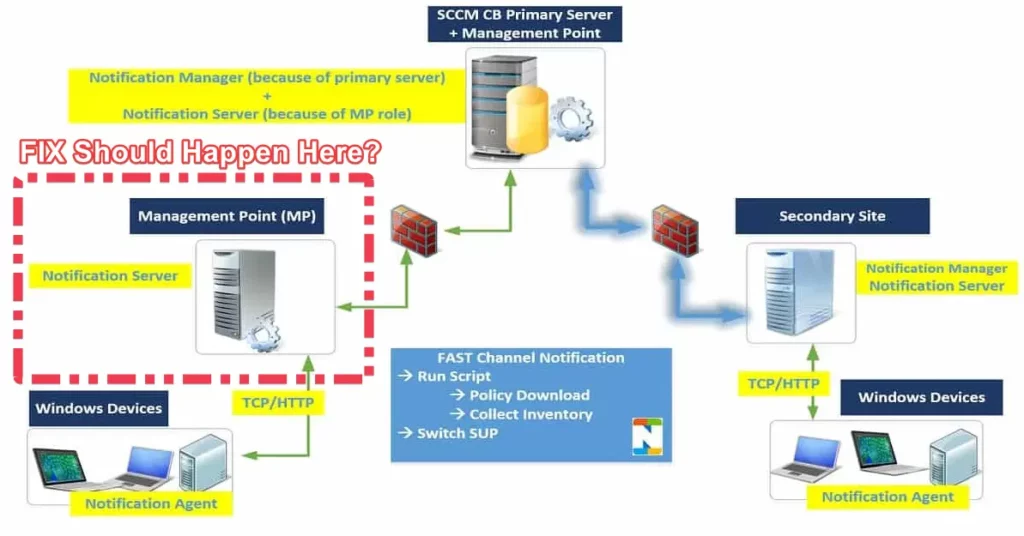
There are three components in SCCM CB fast channel notification. The notification manager will be located along with site servers (Primary/Secondary). It generates “push messages” for clients, sends notifications to the BGB server (MP), and stores the results.
The problem with inactive client issues explained in the below section is directly related to SCCM Fast Channel notification. SCCM uses fast channel notification for other workloads, such as Run PowerShell Script Directly from the Collection.

- A big thanks to LEMUEL FERNANDES for sharing this issue and the resolution per his real-world experience. We will discuss the issue and the fix in detail in this post.
What is the SCCM Client Health?
The first step is to understand what client health is! SCCM Client Health refers to the state of the core client components. When the SCCM core client components and dependant Windows components are not active and functioning, the SCCM client is NOT healthy.
The core components will vary depending on the features (or agents) enabled for your SCCM infra. The Client is Health = Windows, and SCCM Core Client Components are ACTIVE & FUNCTIONING. More reading FIX SCCM Client Issues Automation Process Resolution.
- Overview Of Client Online Status In SCCM Console
- SCCM 2303 Upgrade Step By Step Guide | New Features

SCCM Notification Server Component – SCCM CB Fast channel push notification?
The problem is that the SCCM CB client is not showing as ONLINE in the console. Rather, it always stays OFFLINE. The problem is ONLY with FAST notification channel communication; normal deployments + policies are working fine.
First, you must ensure all the notification components are installed correctly on the server and client sides. This can be confirmed using the following log files.
- SCCM CB Notification Server/Manager
- BGBServer.log
- BgbHttpProxy.log
- BgbSetup.log
- BGBisapiMSI.log
You need to check the log files on my primary and MP (both are on the same server), and BGBServer.log shows a warning all the time “WARNING: Notification Server (%systemroot%\system32\dllhost. exe) with TCP port 10123 is NOT allowed by Windows Firewall on all interfaces.”
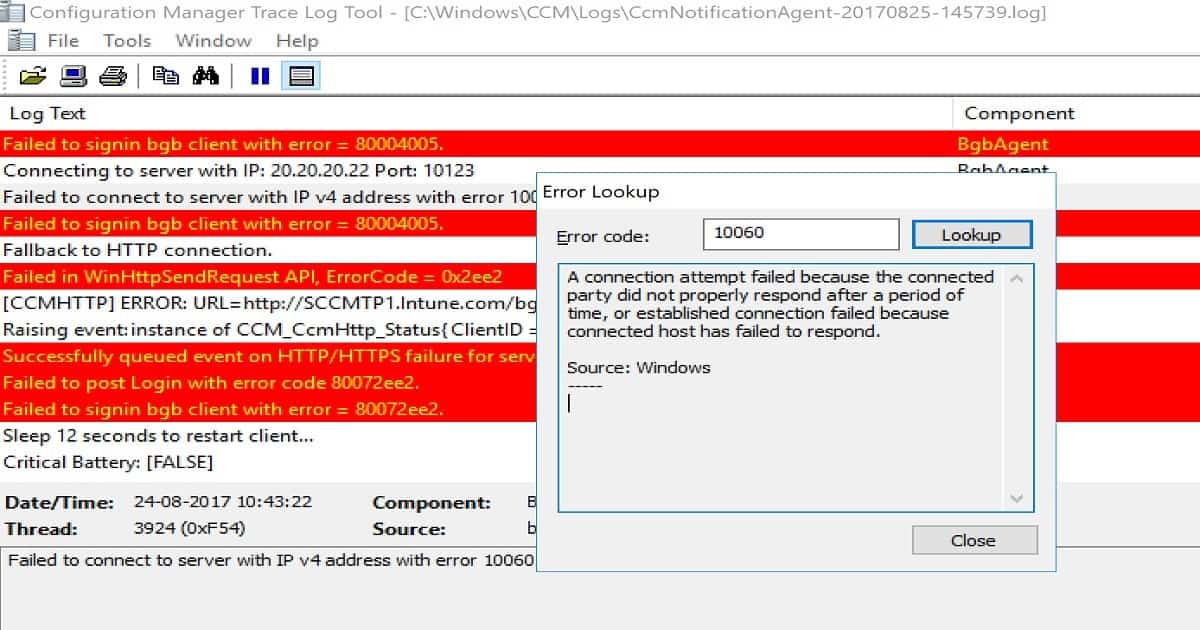
SCCM Notification Server Component Client-side troubleshooting
The notification agent was running. But, the CcmNotificationAgent.log log showed loads of errors. One of the errors clearly indicated that there could be a communication issue between the server and the client.
Issue SCCM Client Shows Inactive
After the SCCM CB version upgrade was successful, we noticed all the clients are inactive in the SCCM console with a black cross shown below in the screenshot.
In the component status, the SMS_NOTIFICATION_SERVER component shows an error. Navigate to Monitoring > Overview > System Status > Component Status to check the component status.

Site Component Manager failed to install this component because the Microsoft Installer File for this component (bgbisapi.msi) could not install.Fix SCCM Client Shows Inactive
Now let’s check if this type of issue arises after the SCCM CB upgrade and how we can fix this issue. I will show you the resolution in detail. We uninstalled MSDTC and reinstalled it using the below steps on the SCCM Management Point Server:

The first step is to Open the command prompt with “Administrator” > then run the below command.
You can use Command Prompt (CMD)
- net stop msdtc
- msdtc -uninstall
Delete the below registry key if present. Try to remove the complete msdtc folder. If the registry key is not present, then we are good.
- HKEY_LOCAL_MACHINE\Software\Microsoft\Msdtc
- HKEY_LOCAL_MACHINE\System\CurrentControlset\Services\Msdtc
As the next step, try to reboot the SCCM server and wait for the server to go back online. Execute the below command in the command prompt with “Administrator.”
- Msdtc -install
- Msdtc -resetlog
- net start msdtc
Once the above steps are completed, then go ahead and complete the following steps:
- Run > type services.msc > Enter.
- Find for SMS_Site_Component_Manager service and restart the service.
- Now you will see the bgbserver was able to install successfully.

Once all these activities are completed, wait for 6 hours. Then go to the SCCM console. You will see all the clients come up with the green icon.
Thanks for your patience in reading this post. I know this post must be helpful. Please share your feedback, and if you like us, don’t forget to follow HTMD Community.
Author
Debabrata Pati has more than 8+ years of experience in IT. Skilled in MEMCM, Azure, and Powershell. More than Six (6) years of experience in MEMCM (SCCM) administration, OSD, and Troubleshooting for the environment with more than 100K client devices.




We recently upgraded our sccm site version from 1902 to 2309. After the upgradation completed successfully, all the clients are showing inactive. We performed the steps as mentioned above but still the clients are showing inactive and the client version is also of 1902. How can we make these clients online and upgrade the client version as well? Please suggest.