






SCCM Dynamic Report Link to Get Specific Application Details | ConfigMgr
In this blog post, we will learn how to create an SCCM Dynamic report link to get specific application details installed on systems.
Most SCCM administrators might receive requests to provide reports, such as which specific application is installed on how many devices. Then, as an admin, you have to go to the SQL database, write a query, extract a report, and share it.
This is a daily task for the SCCM admin, so we should automate it and create a custom query link. I will share my experience creating a Dynamic report link to get the specific applications installed on the machines.
After creating the custom report link, you can share it with respective members to get the details quickly.

Table of Contents
How to Create Dynamic Report Link
Before creating a custom report link, create a folder to keep all the custom links. The ConfigMgr Console and SQL server report link offer options to create custom reports.
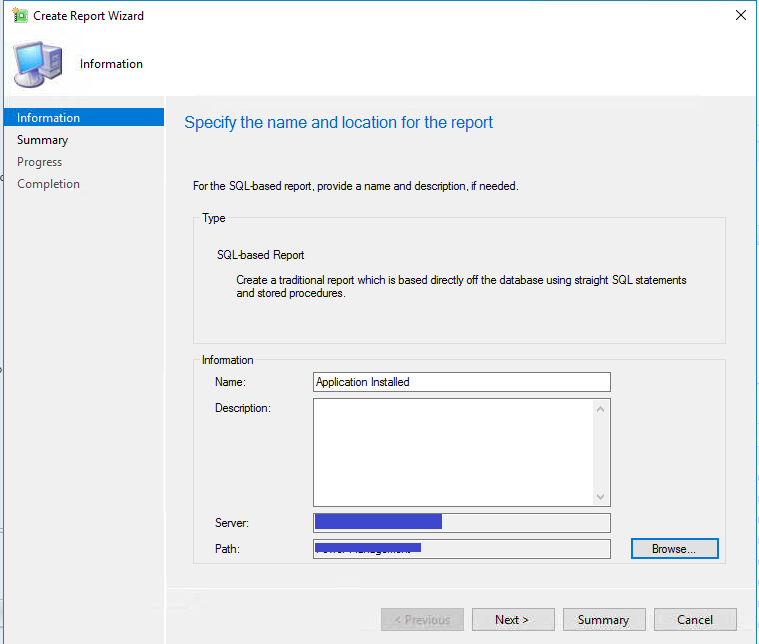
In the Configuration Manager console, go to the Monitoring tab -> Reporting and right-click to create a report. Provide the report’s name and browse the path where you want to save it.
Click next to complete the task. Then, edit the report in the report builder.
You can also browse the SQL server report link, go to the folder location, select the report name you created in the ConfigMgr console, and edit the report with the report builder.
You can see this screen below, as we have already integrated Power BI with our lab SCCM environment. But in your case, the following would not be the same.
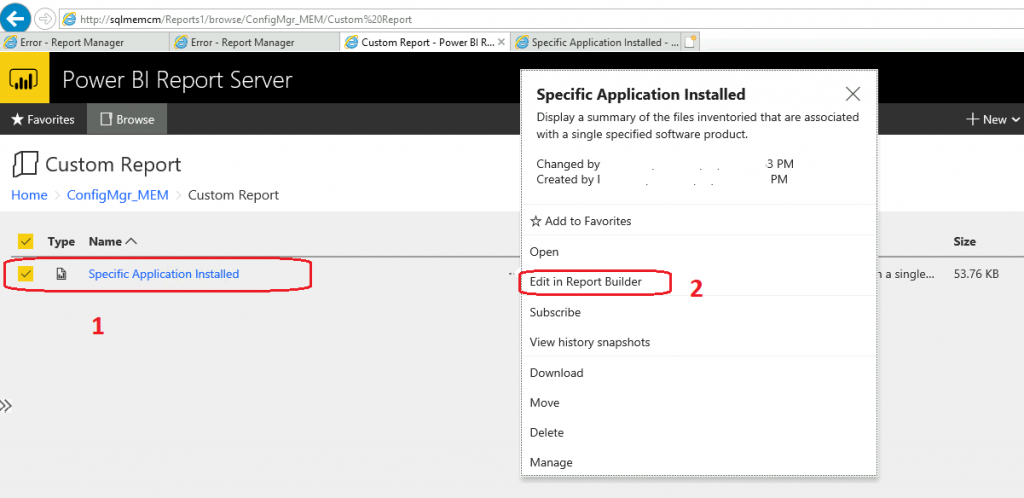
Note: If you have already installed the report builder in the ConfigMgr box, then you can edit the report in the same box.
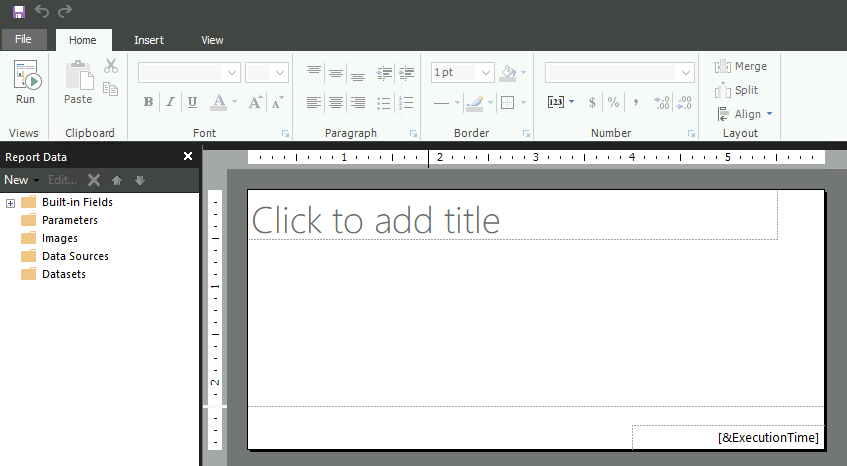
Once you edit the report in the report builder, it will show on the screen below.
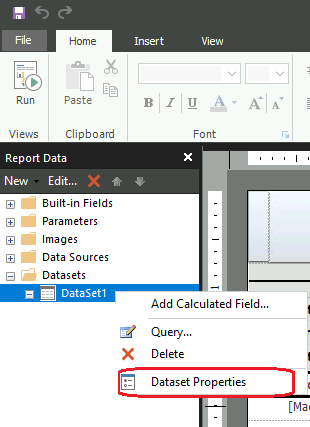
Expand the datasets. Select the dataset and right-click it. Then click ‘Dataset Properties‘.
Paste the query below into the Query field.
select VRS.Name0 as 'Machine Name',
ARP.DisplayName0 as 'Application Name',
ARP.Version0 as 'Version',
ARP.Publisher0 as 'Publisher',
ARP.InstallDate0 as 'Application Installed Date'
from v_Add_Remove_Programs ARP
join v_R_System VRS on ARP.ResourceID=VRS.ResourceID
where ARP.DisplayName0 like @ProgramName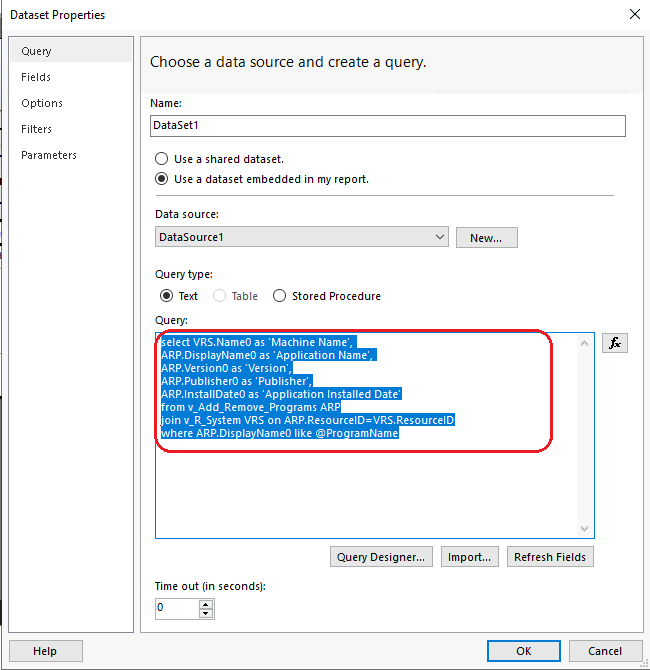
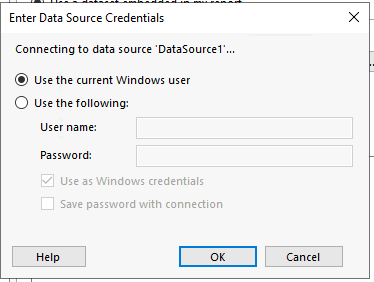
After pasting the query, click on the Ok button. You will be asked to provide the username and password to connect to the data source. If you have full permission, you can choose to use the Current Windows User option. Otherwise, you can use your username and password.
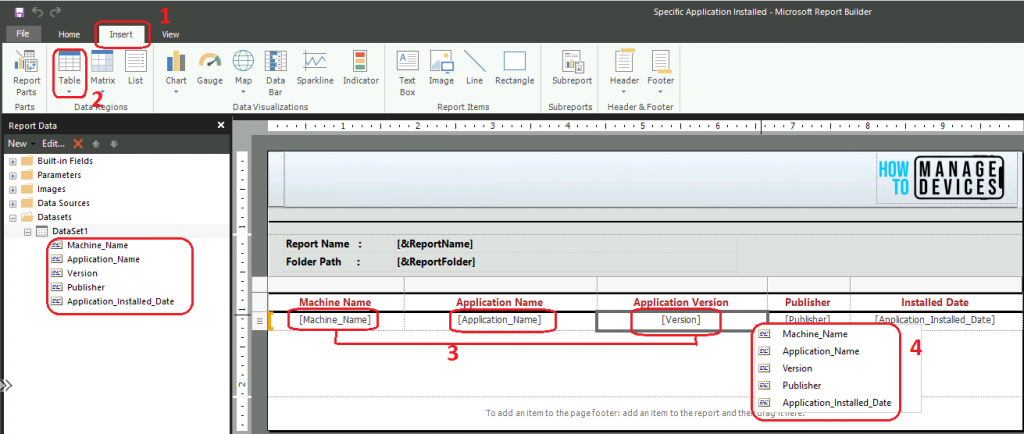
Once you submit the OK button, you will see all the fields created below Datasets. Now go to the ‘Insert’ tab and Create a table according to the requirement. Format the table and select the appropriate fields in each column.
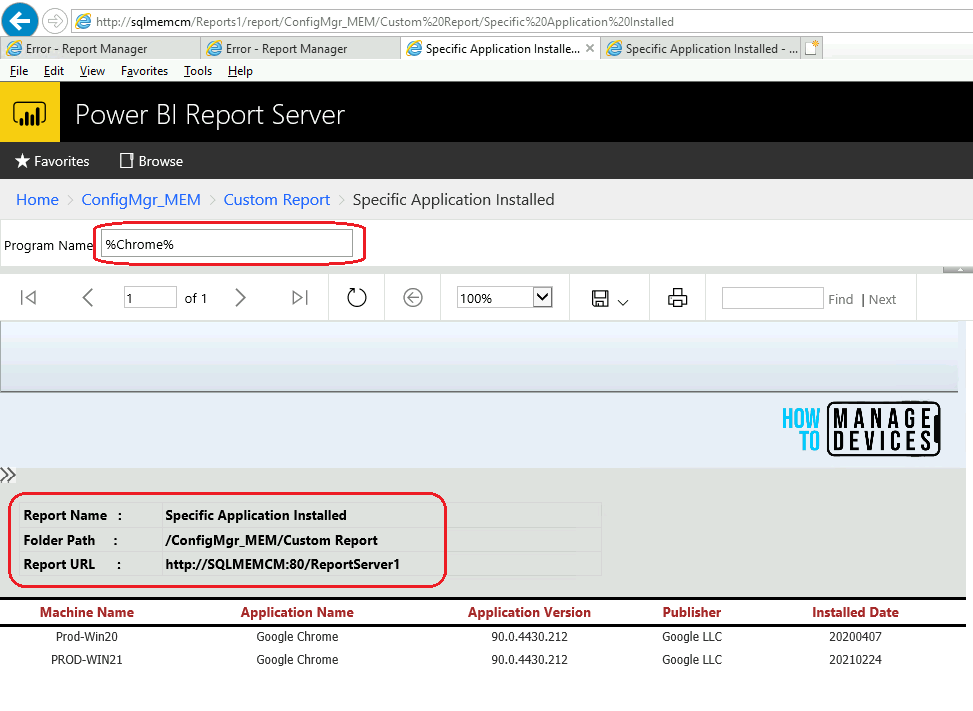
For example, I’m using the Report Name, Folder Path, Report URL, etc., on the report page.
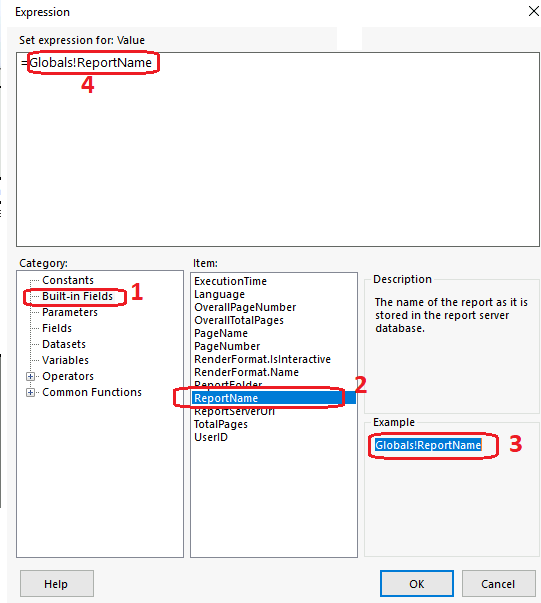
To create such a field, create another table and specify the name you want to use in the table. In each field, Right-Click on the column and select Expression.
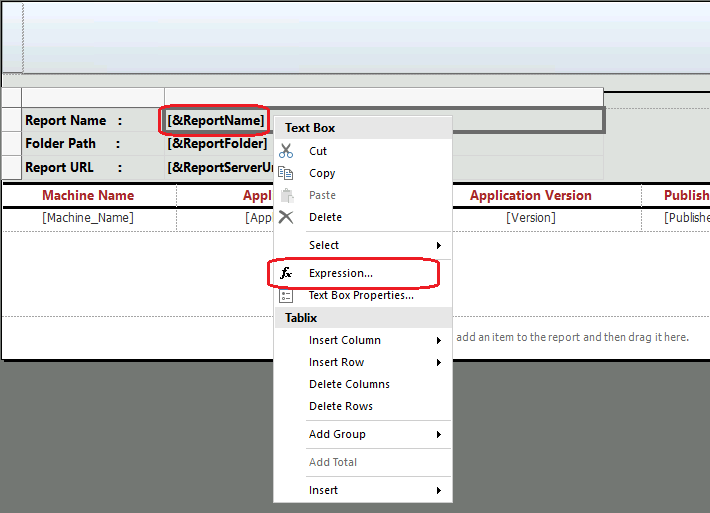
Go to ‘Built-in Fields‘ and choose the appropriate Item according to the table. Copy the field from the Example and paste it into the Value Expression Tab. Then click Ok.
Result of the Dynamic Report
To check the report, click on the report link and open it on the browser. Put the name of the application you want to look for and click on View Report to get the results.
Resources
- https://docs.microsoft.com/en-us/sql/reporting-services/install-windows/configure-report-server-urls-ssrs-configuration-manager?view=sql-server-ver15
- SCCM Primary Last Logon User Report | SQL Query | ConfigMgr
- SQL Query for SCCM Configuration Baselines Results | ConfigMgr
We are on WhatsApp. To get the latest step-by-step guides and news updates, Join our Channel. Click here –HTMD WhatsApp.
Author
Debabrata Pati has more than 8+ years of experience in IT. Skilled in MEMCM, Azure, and Powershell. More than Six (6) years of experience in MEMCM (SCCM) administration, OSD, and Troubleshooting for the environment with more than 100K client devices.




Very useful report it helpt me to extract the exact number of machines impacted after Docker changed the ULA agreement, Thank you