






Fix SCCM Failed to Run Task Sequence because it is not active yet
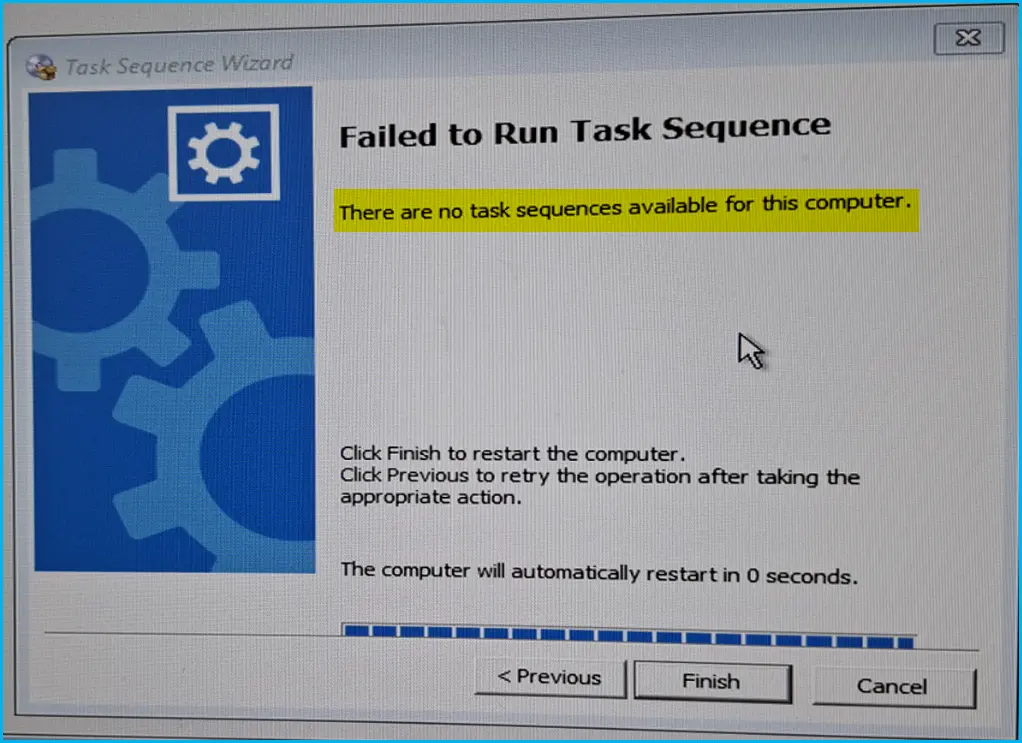
In this post, you will learn how to troubleshoot and apply a fix SCCM Failed to Run Task Sequence because it is not active yet. The task sequence wizard might prompt you with the error message, There are no task sequences available for this computer.
The task sequence error is the most common, The Failed to Run Task Sequence problem also exists when there is a duplicate Mac address, SMBIOS existence, which might have caused conflict with the identification of the devices, which can be resolved by setting up an exception in the SCCM Hierarchy Settings.
Troubleshooting steps depend on the scenarios and details you notice in the deployment logs. However, the error message is easily visible from the task sequence prompt. Examining the SMSTS log for task sequence failure issues is recommended to help you understand the failure prompt and details about the error message you received before you start troubleshooting.
If you want to review when specific or all steps added in the Task Sequence have been executed successfully, In that case, you can filter smsts.log, which helps analyze log files by highlighting executed steps quickly.

- FIX: SCCM There Are No Task Sequences Available For This Computer
- OSD Known Issues Troubleshooting Guide | SCCM | ConfigMgr
Issue Summary – SCCM Deployment Failed to Run Task Sequence because it is not active yet
While performing the operating system deployment from SCCM, you might encounter the task sequence error “Failed to Run Task Sequence” because there is no task sequence available for this computer. You can retry the operation after taking the appropriate action, which we will discuss.
SMSTS.log is one of the important SCCM log files that will help you troubleshoot installation issues related to Operating System Deployment (OSD). When the task sequence fails with an error, it is important to know the location of the SMSTS log which keeps changes based on the deployment progress.
| Task Sequence Step | Log Location (Client Side) |
|---|---|
| WinPE (Before HDD are formatted and partitioned) | x:\windows\temp\smstslog\smsts.log |
| WinPE (After HDD are formatted) | x:\smstslog\smsts.log copied to c:\_SMSTaskSequence\Logs\Smstslog\smsts.log |
| Installed Operating System (Before the SCCM client is installed) | c:\_SMSTaskSequence\Logs\Smstslog\smsts.log |
| Installed Operating System (After the SCCM client is installed) | c:\windows\ccm\logs\Smstslog\smsts.log |
| Installed Operating System (When the Task Sequence is completed) | c:\windows\ccm\logs\smsts.log |
When you notice that your SCCM task sequence fails, the first thing that you check is smsts.log file. While the TS sequence runs, you can open the smsts.log file by pressing the F8 key. Type CMTrace, and you can view the smsts.log file.
You will notice that the SCCM Task Sequence fails initially in this scenario. You will collect the logs at WinPE X:\Windows\temp\smstslog\smsts.log. To get the command prompt window, you have to press the F8 key and locate the location to open the smsts log.
Type CMTrace to view the SMSTS.log file. In the command prompt, type the below command directly to open SMSTS log file in the CMTrace log viewer. After reviewing the SMSTS.log on the client machine, you will get the highlight, Skipping task sequence CCM011B8 because it is not active yet.
cd x:\windows\temp\smstslog
cmtrace smsts.log
Important – If you press the F8 key and the command prompt doesn’t appear, you have not enabled the command support for the boot image.
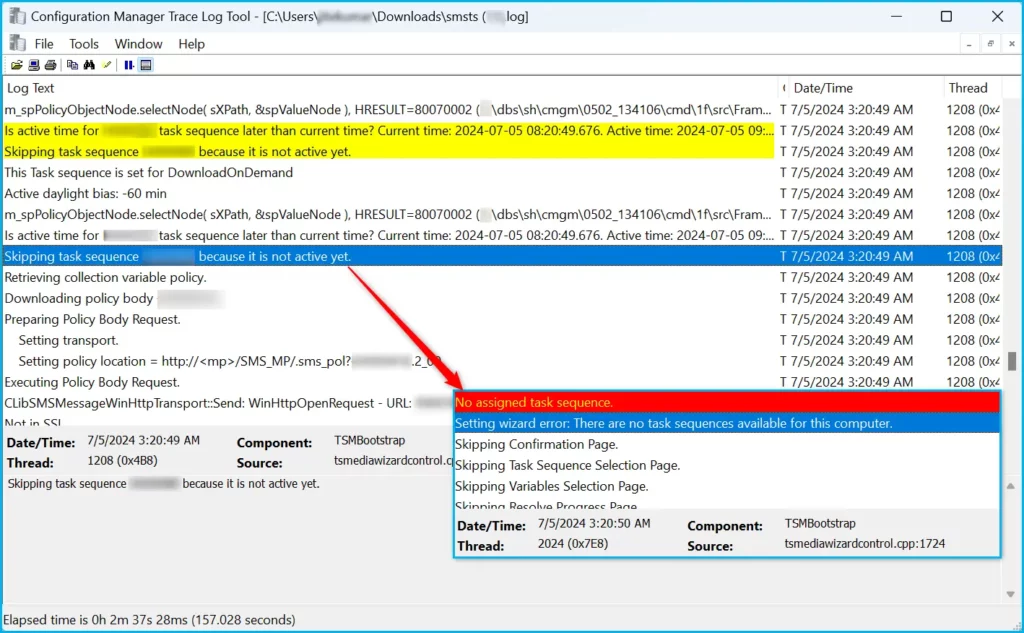
This Task sequence is set for DownloadOnDemand	TSMBootstrap	7/5/2024 3:20:49 AM	1208 (0x04B8)
Active daylight bias: -60 min	TSMBootstrap	7/5/2024 3:20:49 AM	1208 (0x04B8)
m_spPolicyObjectNode.selectNode( sXPath, &spValueNode ), HRESULT=80070002 (C:\dbs\sh\cmgm\0502_164106\cmd\1f\src\Framework\TSCore\tspolicy.cpp,2933)	TSMBootstrap	7/5/2024 3:20:49 AM	1208 (0x04B8)
Is active time for CCM011B8 task sequence later than current time? Current time: 2024-07-05 08:20:49.676. Active time: 2024-07-05 09:02:00.000.	TSMBootstrap	7/5/2024 3:20:49 AM	1208 (0x04B8)
Skipping task sequence CCM011B8 because it is not active yet.	TSMBootstrap	7/5/2024 3:20:49 AM	1208 (0x04B8)
No assigned task sequence.	TSMBootstrap	7/5/2024 3:20:50 AM	2024 (0x07E8)
Setting wizard error: There are no task sequences available for this computer.	TSMBootstrap	7/5/2024 3:20:50 AM	2024 (0x07E8)
Skipping Confirmation Page.	TSMBootstrap	7/5/2024 3:20:50 AM	2024 (0x07E8)
Skipping Task Sequence Selection Page.	TSMBootstrap	7/5/2024 3:20:50 AM	2024 (0x07E8)
Skipping Variables Selection Page.	TSMBootstrap	7/5/2024 3:20:50 AM	2024 (0x07E8)
Skipping Resolve Progress Page.	TSMBootstrap	7/5/2024 3:20:50 AM	2024 (0x07E8)
Fix SCCM Failed to Run Task Sequence because it is not active yet
Let’s check the possible solution to fix if there are no task sequences available for this computer as SCCM Failed to Run Task Sequence because it is not active yet. Configuration Manager automatically runs the task sequence for the required deployment according to the configured schedule.
If you deploy an OSD Task Sequence and leave the option default in the scheduling tab, the deployment will be active at the current time. However, you might encounter an issue while performing the deployment, as SCCM will skip the Task sequence that is not active yet.
When a Windows PE client starts from PXE or boot media, it doesn’t evaluate deployment schedules, which include start, expiration, and deadline times. Only configure schedules in deployments to clients that start from the full Windows OS.
If you schedule a start time for a required deployment that’s earlier than the date and time when the task sequence is available, the Configuration Manager client downloads the content at the assigned start time. This behavior occurs even though you scheduled the task sequence to be available at a later time.
Important – The deployment availability time cannot be less than the current time minus one day.
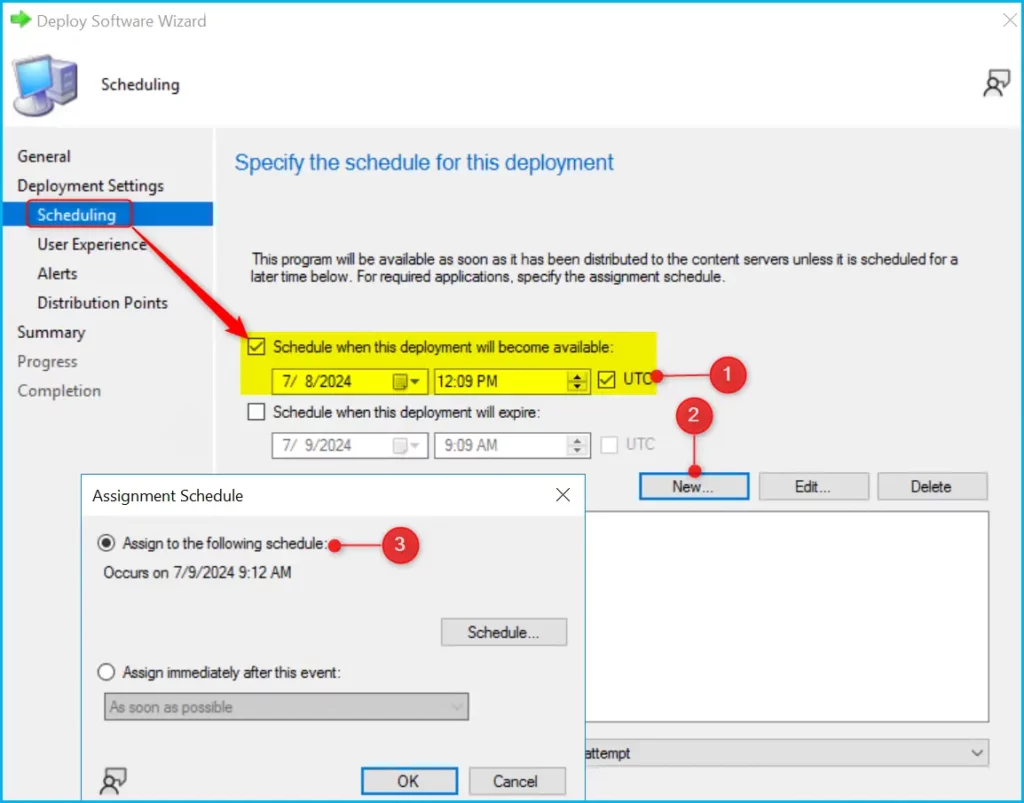
Additionally, you can control how to run the content by setting up deployment options. You can get more details at SCCM Task Sequence Available Deployment Options In Distribution Points Tab.
Modify Scheduling for Existing Task Sequence Deployment
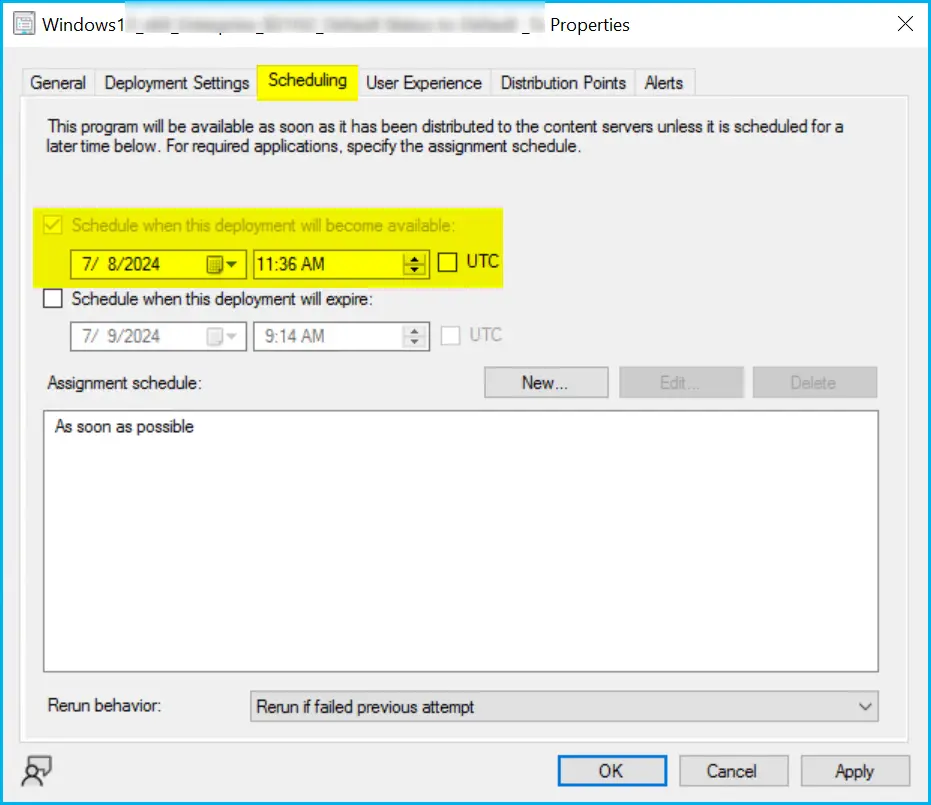
You can schedule a trigger based on either days of the week, or dates of the month. It’s best to have the deployment schedule configured a few or maximum hours (cannot be less than the current time minus one day) before. To change the schedule of the deployed task sequence.
- In the Configuration Manager console, navigate to the Software Library workspace, expand Operating Systems, and select Task Sequences.
- Select Deployment tab. Right-click on the existing deployment and select Properties. Switch to the Scheduling tab. Under Schedule when this deployment will become available, change the time—Click Apply, and OK.
I hope the above suggested validation helps you to resolve the Failed to Run Task Sequence error message and perform the deployment smoothly on the next attempt. If you encounter this issue and have suggestions or solutions to add, you can share them with us in the comment section to help the community.
We are on WhatsApp. To get the latest step-by-step guides and news updates, Join our Channel. Click here –HTMD WhatsApp.
Author
About Author – Jitesh, Microsoft MVP, has over six years of working experience in the IT Industry. He writes and shares his experiences related to Microsoft device management technologies and IT Infrastructure management. His primary focus is Windows 10/11 Deployment solution with Configuration Manager, Microsoft Deployment Toolkit (MDT), and Microsoft Intune.




This article is informative and provides useful insights.
Thank You