





How to Check and Verify ConfigMgr SCCM Mixed Mode Certificate Details
How to Check and Verify ConfigMgr SCCM Mixed Mode Certificate Details. Proper certificates are needed to Authenticate and Encrypt the data flow between ConfigMgr clients and Management Point (even in Mixed mode).
Sometimes, we must play with certificates to resolve client authentication and registration issues. The following steps would help fix that kind of issue.
- Free ConfigMgr Training Part 2 | 20 Hours Of Technical | SCCM HTMD Blog (anoopcnair.com)
- Deploy Install SCCM Client Via Intune – Co-Management
- Learn Intune Beginners Guide MDM MAM MIM
- SCCM Failed to Download Updates Error Invalid Certificate Signature
- SCCM Configure Settings for Client PKI certificates ConfigMgr
| Iddex |
|---|
| How to Check and Verify ConfigMgr SCCM Mixed Mode Certificate Details |
| SMS certificate Store Details (MMC) |
| Export certificates |
| Import Certificates |
| Certificates Stored Folder Location in Windows Explorer or the File System |
| Certificates are stored in a folder location in Windows Explorer or the File System. |
How to Check and Verify ConfigMgr SCCM Mixed Mode Certificate Details
This post covers the above index topics on checking and verifying ConfigMgr SCCM Mixed Mode Certificate Details Endpoint Manager.
SMS certificate Store Details (MMC)
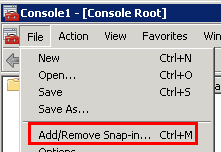
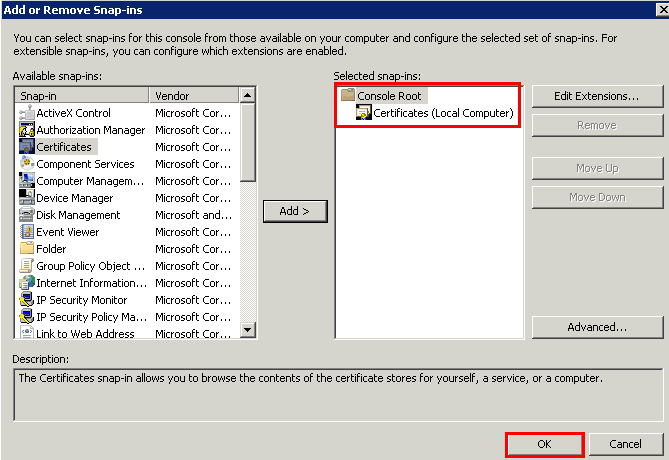
Launch MMC (mmc.exe) and Click on File —> Add/Remove Snap-in

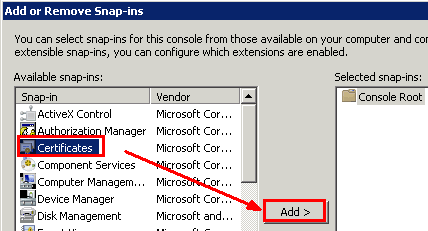
Select Certificates from Available Snap-ins and click on the Add button
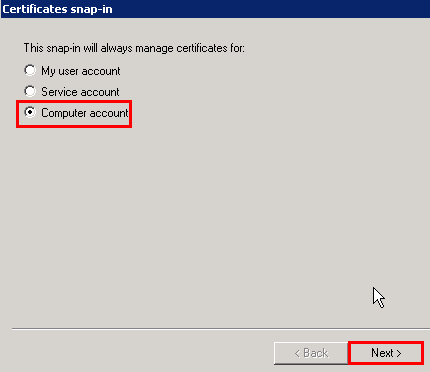
Select “Computer Account” and click NEXT
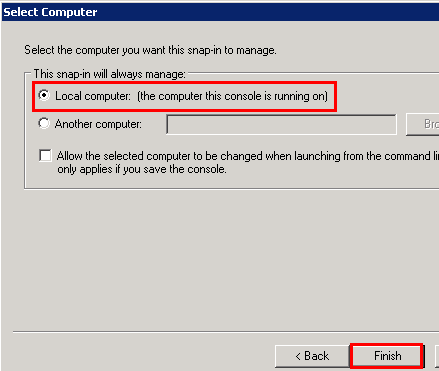
Select Local Computer and click on FINISH.
Click OK on the “Add or Remove Snap-ins” window.
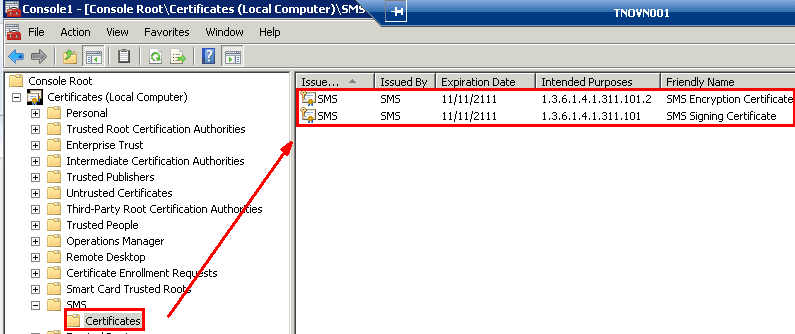
Here are the TWO certificates, SMS Signing Certificate and SMS Encryption Certificate, used for Authentication and Encryption.
- Managing Data Limits for Network Connections in Windows 11
- Fix Windows BSOD Issue caused by Crowdstrike Update Major Impact around the Globe
- How to Change the Automatic Sleep Settings in Windows 11
Export certificates
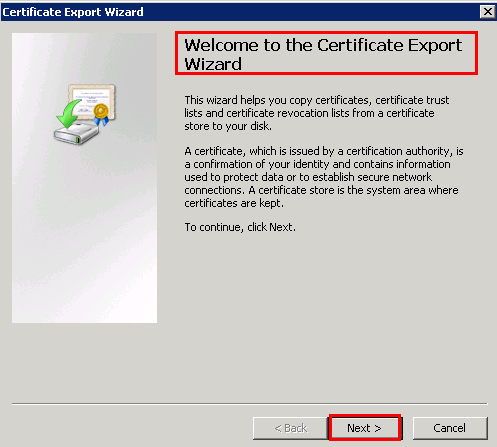
You need to right-click on the certificate All Tasks – Export….This will open up Certificate Export Wizard.
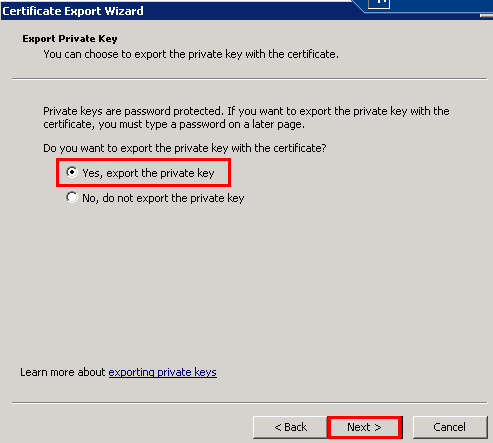
Select Yes, export the private key and click Next.
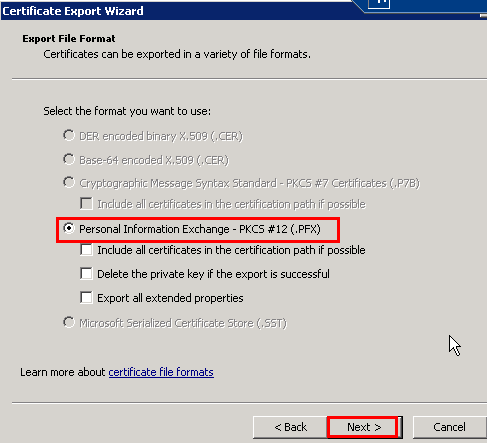
Select the Export File Format page, Personal Information Exchange – PKCS #12(.PFX), and click NEXT (You can select the INCLUDE and EXPORT checkboxes mentioned in the screenshot below)
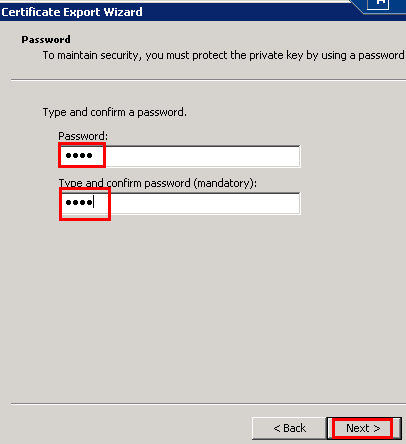
Type in the password on the Password window and click NEXT
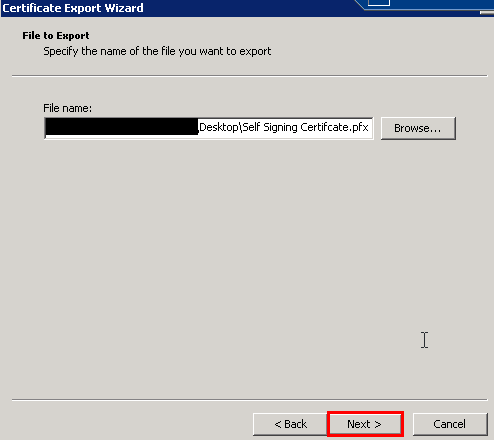
On the File to Export page, enter the file name you wish to store the exported certificate. Please do not give it an extension. Click NEXT
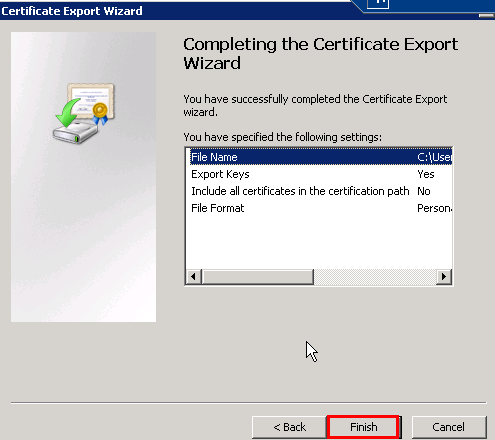
Click on FINISH
Import Certificates
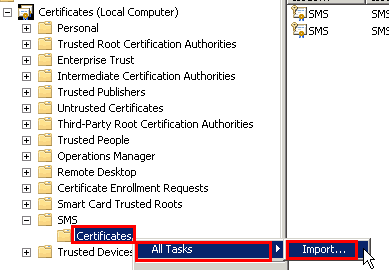
Right-click on “Certificates (Local Computer)” –> “SMS” -> “Certificates” –> All Tasks –> Import.
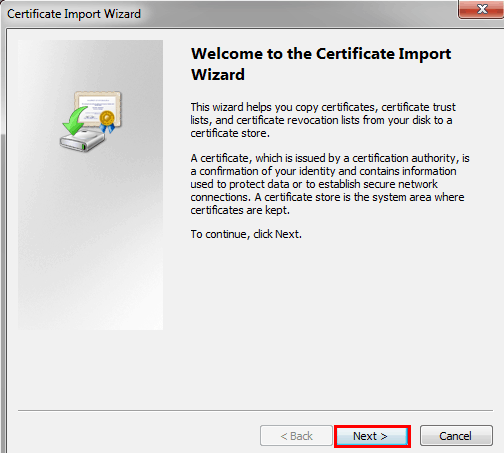
On the “Welcome to the Certificate Import Wizard” page, click NEXT.
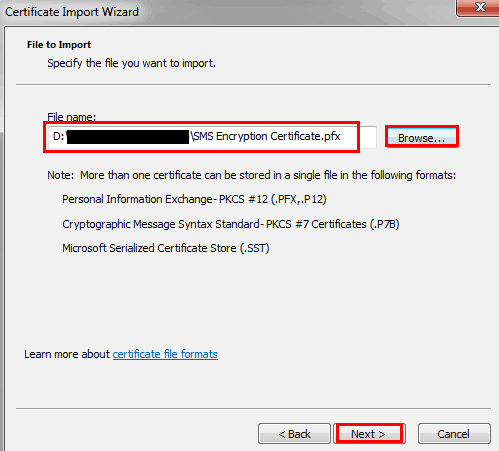
Browse through and provide the path of the certificate export file you are importing, and click “NEXT.”
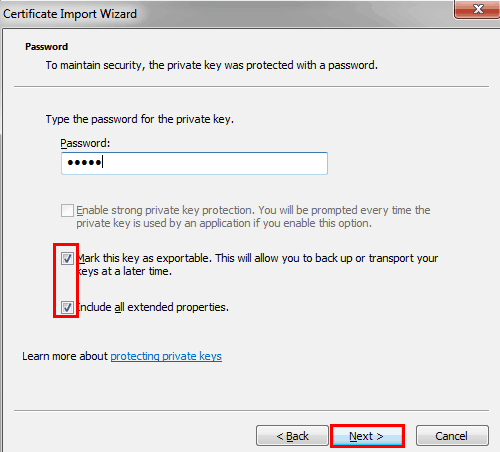
Enter the password you used in the export process, and Mark this key as exportable. This will allow you to back up or transport your keys later”, and click “NEXT.”
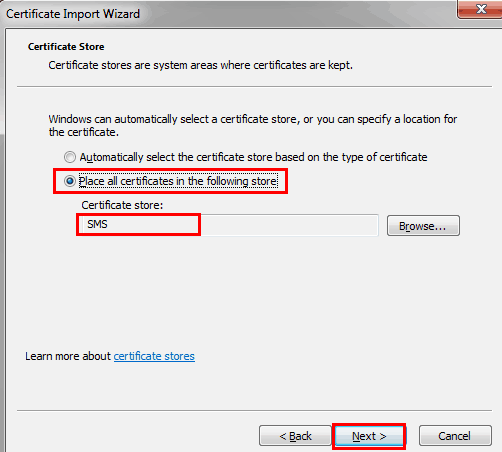
“Place all certificates in the following store” should already be selected, and the Certificate store value should already say “SMS.” Click NEXT
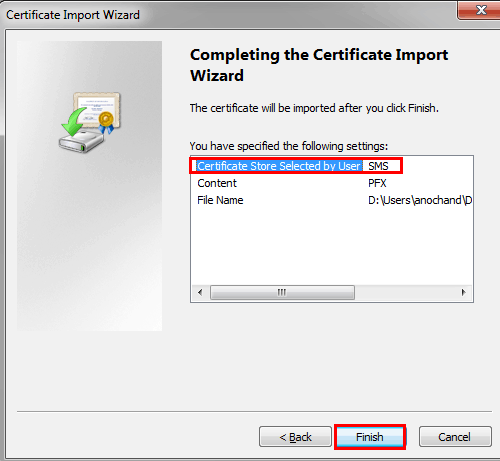
Click FINISH
- SCCM 1805 ConfigMgr Generated Certificate for HTTP Communication
- Supported Windows Server OS for SCCM Servers
- Fix SCCM Failed to Create SQL Always On Certificate Error
- How to Create Upload Apple Push Notification Service APNs Certificate Using SCCM CB
- Fix SCCM Failed to Run Task Sequence because it is not active yet
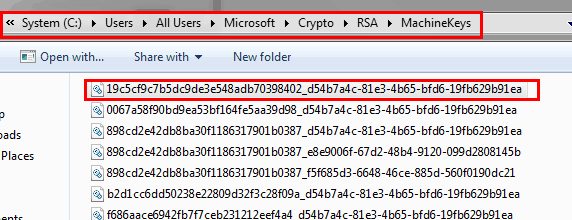
Certificates Stored Folder Location in Windows Explorer or the File System
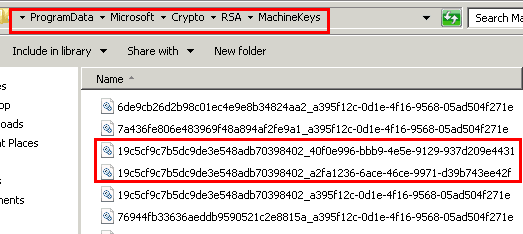
- Windows 2008 R2 servers – “C:\ProgramData\Microsoft\Crypto\RSA\MachineKeys”
- Windows 7 workstations – “C:\Users\All Users\Microsoft\Crypto\RSA\MachineKeys”
- Note – Both SMS certificates are stored in the 19cf* Machine Key files.
Find the Location and Name of the Private Key file Associated with the Certificates.
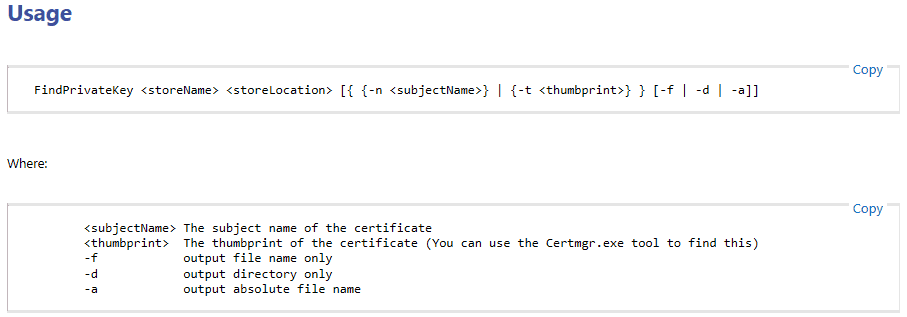
- FindPrivateKey.exe tool can be used to find out those details.
- Syntax and examples of FindPrivateKey.exe in the following MSDN link.
- Download FindPrivateKey.exe HERE
- Fix SCCM Sites that don’t have Proper HTTPS Configuration Issue ConfigMgr
- SCCM HTTPS Setup Guide for MP DP SUP Site Systems
- SCCM 1805 ConfigMgr Generated Certificate for HTTP Communication
- Fix Error 403 HTTP STATUS FORBIDDEN SCCM Software Update Patch Package Download Failed ConfigMgr
- Intune SCEP HTTP Errors Troubleshooting Made Easy With Joy-#5
We are on WhatsApp. To get the latest step-by-step guides and news updates, Join our Channel. Click here –HTMD WhatsApp.
Author
Anoop C Nair has been Microsoft MVP from 2015 onwards for 10 consecutive years! He is a Workplace Solution Architect with more than 22+ years of experience in Workplace technologies. He is also a Blogger, Speaker, and leader of the Local User Group Community. His main focus is on Device Management technologies like SCCM and Intune. He writes about technologies like Intune, SCCM, Windows, Cloud PC, Windows, Entra, Microsoft Security, Career, etc.




Thx for your thread. There is no information on the internet conterning SCCM self-signed certificates implementation.
But the most important question is… How to check the cert is used, data is encrypted. Which log file to check?
If you have information regarding this…
Thx in advance.
Luc