






SCCM OMS Connector Setup Log Analytics Connector
Hi, in this post, we will discuss the SCCM OMS Connector Setup Log Analytics Connector. I will explain how to integrate SCCM and OMS to take advantage of an intelligent cloud-attached environment.
The SCCM OMS Connector lets you connect Configuration Manager (SCCM) with Log Analytics in Microsoft Operations Management Suite (OMS). This means you can easily sync device collection data from the SCCM hierarchy to OMS.
We will need to use queries to retrieve and visualize results related to monitored environments. For instance, to retrieve results from different computers, we must create computer groups to trigger the queries against them.
In SCCM, you can classify your servers, clients, and other devices into collections. Once you integrate SCCM with OMS, you can import all SCCM collections as computer groups in OMS. Integrating SCCM with OMS via the SCCM OMS Connector has several benefits.

SCCM OMS Connector Setup Log Analytics Connector
Windows 10 and Office 355 pro plus upgrades are happening quickly. You usually go through a manual pilot process selecting pilot users, pilot devices, etc. However, the manual method is not very effective and is not fast enough to cope with the fast-paced upgrade process.
Use the SCCM OMS Connector to connect Configuration Manager to Log Analytics in OMS to sync device collection data. This makes data from your Configuration Manager hierarchy available in OMS. However, I’m not very sure how relevant or value-added the OMS connector is after the production release of the SCCM Desktop Analytics connector.
Microsoft is developing data-driven analytics to make your life easy by selecting pilot users, devices, and applications. This solution is called Desktop Analytics.
Desktop Analytics (an extension to Windows Analytics) would help you create pilot and production rings. A Desktop Analytics connector allows you to integrate your SCCM Windows devices with desktop analytics.
OMS Connector = Log Analytics Connector
Prerequisites of SCCM OMS
This section will show the prerequisites for connecting SCCM with OMS.
- Latest SCCM Version (Stay Current)
- Access to create Azure Web apps (or Need help from the team)
- Azure Subscription (I need some help from Azure Subscription Admins)
- Log Analytics workspace (I need Some more help to get contributor access)
- Install Log Analytics or SCCM OMS connector on the server where the Service Connection Point is online
- Install Azure Log Analytics Agent (on the same server mentioned above)—I don’t cover this topic in the post.
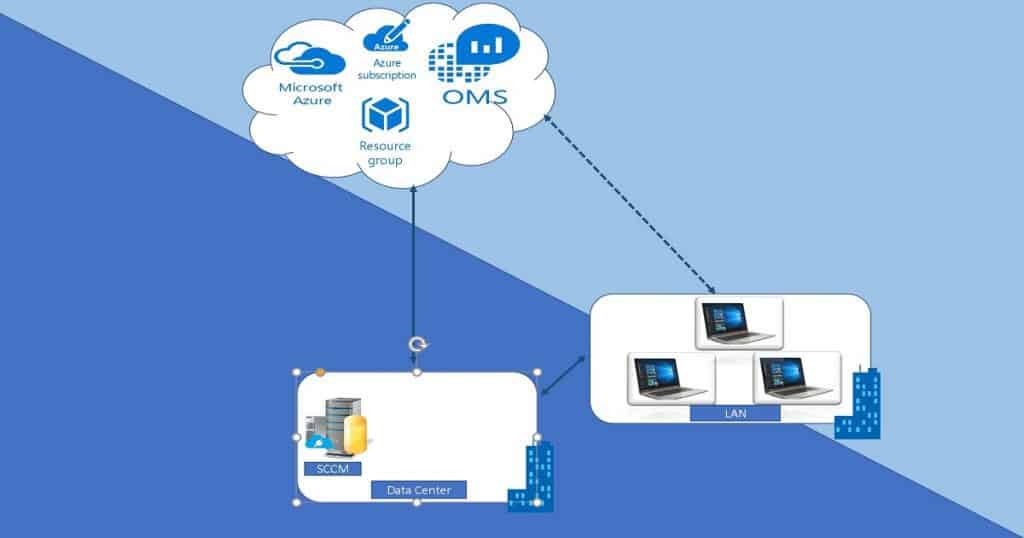
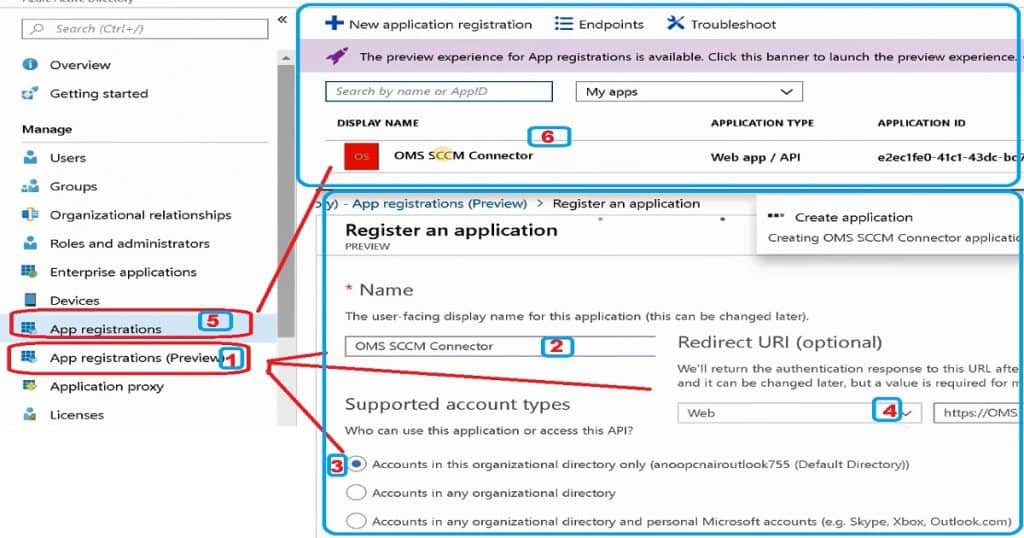
Create Azure Web App for SCCM OMS Connector Authentication
It would help if you created Azure web apps to authenticate the SCCM OMS connector with Azure Log Analytics (OMS) workspace. This Azure app helps avoid repeated use of service accounts, and its Azure Web app authentication is more secure.
The following steps will help you create the Azure web app for SCCM OMS connector authentication.
- Sign in to your Azure Account through the Azure portal
- Select Azure Active Directory
- Select App registrations (Preview)
- Click on New Registration
- Enter a useful name for the Azure App
- Select Accounts in the organizational directory only (default option) from Supported account types.
- Select Web and provide a URL in a valid format (you do not need to get a working URL; https:///a.com will work) from the Redirect URI.
- Click on Register to create the app.
- Click on App registrations (NOT Preview) and open the created Azure App for the next set of actions explained below.
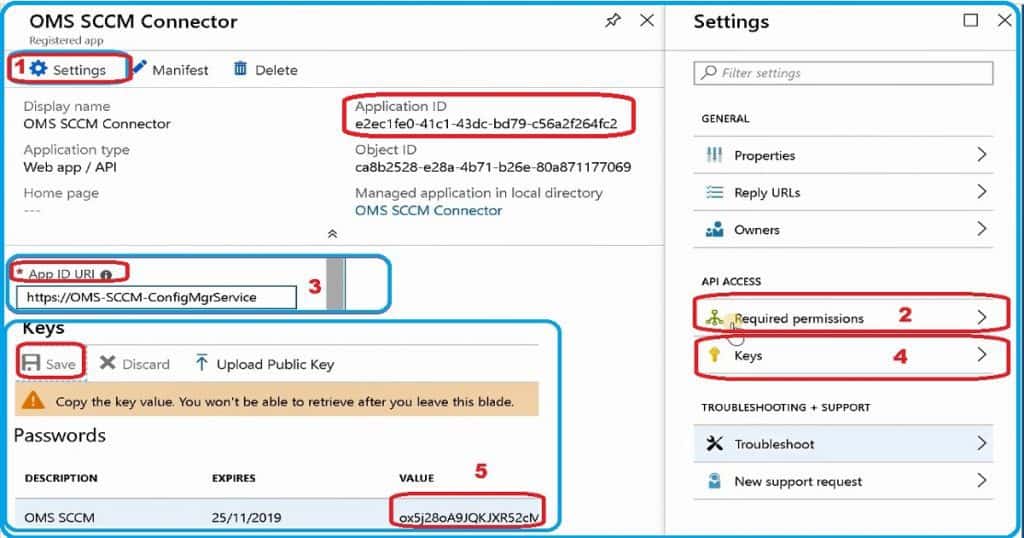
Get the Azure App Secret Key, APP ID, and Client ID
The following steps will give you the Azure App secret key, application ID, or Client ID details. These details are needed to import the Azure authentication application in the SCCM OMS connector wizard.
- Sign in to your Azure Account through the Azure portal
- Select Azure Active Directory
- Select App Registrations
- Copy the Application ID (This ID is the client ID that you need in the SCCM console)
- Select the Registered App and click Settings
- Select the Keys to tab from Settings
- Provide a description called “Key Description” = Any Name, Expires = Duration “1 Year”, and click on the SAVE button from Passwords.
- Copy Secret Key (this key is required for Secret Key used in SCCM)
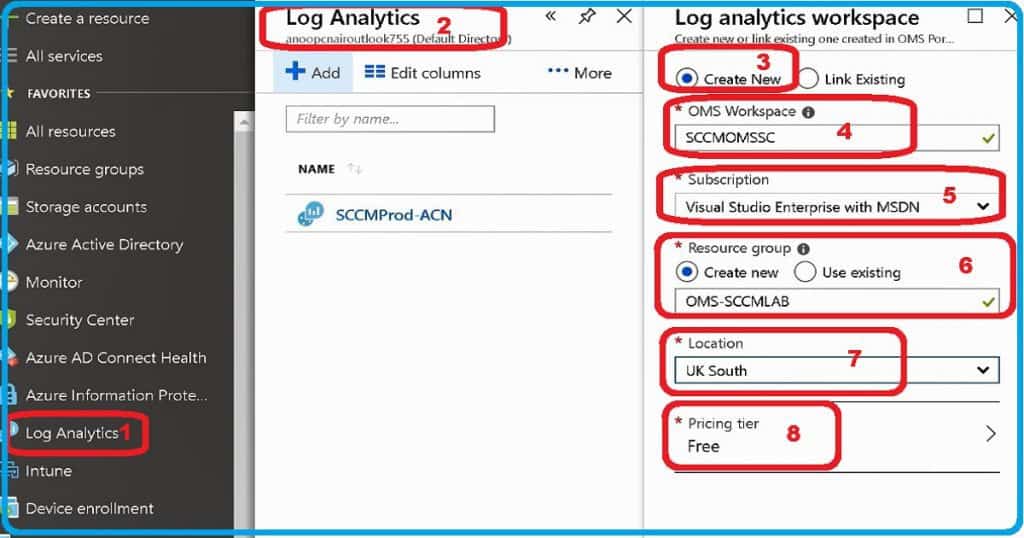
Create Azure Log Analytics Workspace
You can skip this step when you already have the OMS Azure log analytics workspace for your subscription. If you don’t have an existing OMS workspace, please follow the below steps (SCCM OMS Connector).
- Sign in to your Azure Account through the Azure portal
- Select Log Analytics
- Click +Add button
- Click on Create New from the Log Analytics workspace
- Enter a useful name for the new OMS Workplace
- Select your Subscription details
- Create a new Resource Group or Use the existing Resource Group
- Select the appropriate location
- Select the appropriate Pricing tier – 1. Free, 2. Per Node (OMS), and 3. Per GB (Standalone)
- Click OK and OK to complete the OMS Workspace
Provide Contributor Access to Azure Web Application
To access the Log Analytics workspace and other related resource groups in your subscription, you must provide Contributor access to the Azure web application you created in the above section.
The following step will help you provide Contributor access to Azure App (SCCM OMS Connector).
- Sign in to your Azure Account through the Azure portal
- Select Subscription tab
- Select the Access Control (IAM) tab from the subscription blade
- Click on +Add Role Assignment to bring up the Add Role Assignment blade
- Select the “Contributor” role from the Role assignment blade
- Select Azure AD user, group, or service principal from “Assign Access to.“
- Select the Azure Web Application we created in the above section to provide access.
- Make sure the Azure Web App is listed under Selected Members
- Click Save to provide appropriate access to
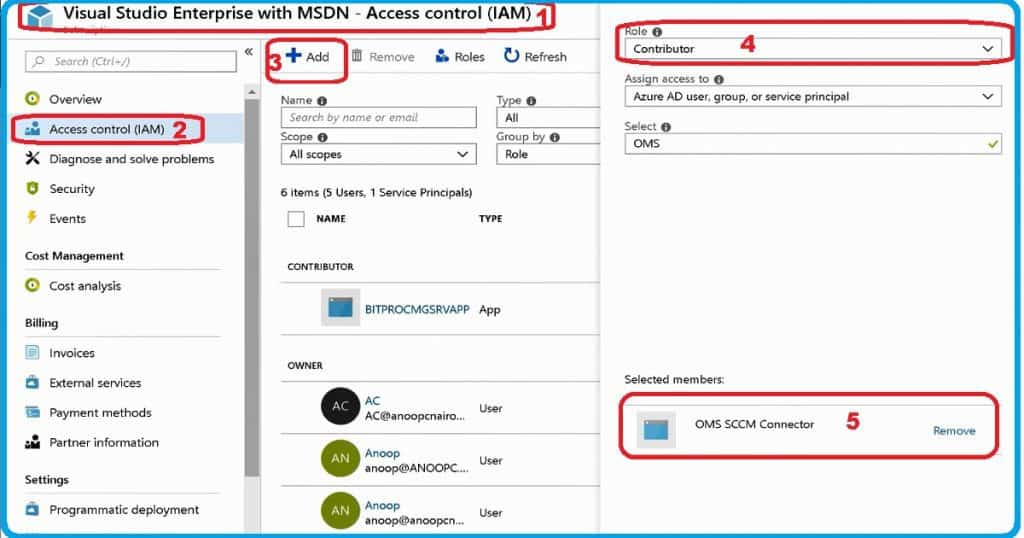
Create SCCM OMS Connector
As mentioned in the prerequisite section, you must install the SCCM OMS connector on a service connection point configured for online mode.
The following steps will help you complete the OMS connector setup.
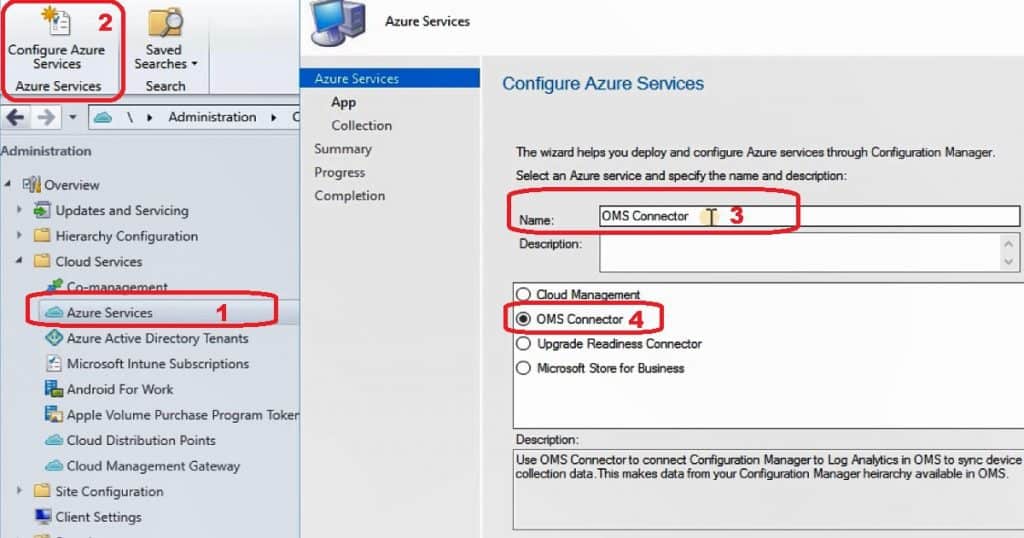
Navigate to SCCM console – Administration – Cloud Services – Azure Services. Enter SCCM OMS Connector and Description on the Configure Azure Services page. Select OMS Connector and click on the Next button.
- Select Azure Public Cloud from the App Properties page.
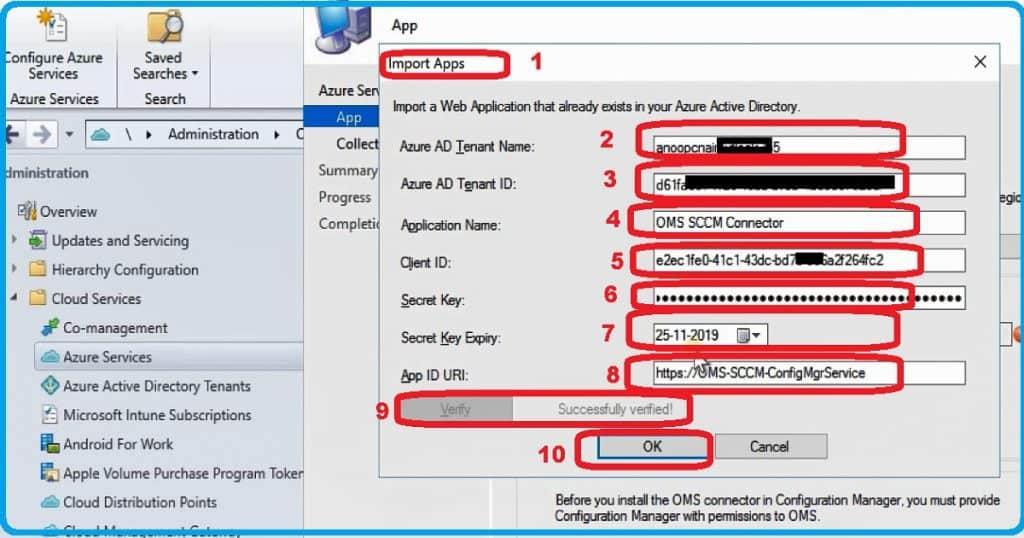
- Click on the Import button from the Web application to import an Azure web application we created in the above section.
- From the Import App windows, fill out all the below details that you collected from the above sections –
- Azure AD Tenant Name
- Azure AD Tenant ID
- Application Name
- Client ID
- Secret Key
- Secret Key Expiry – Select future date
- App ID URI
- Click on the Verify button to enable the OK button. The OK button will be allowed once the Azure web App verifies the Azure Log Analytics workspace permissions.
- Click on the NEXT button to go to the Collections page of the SCCM OMS connector wizard.
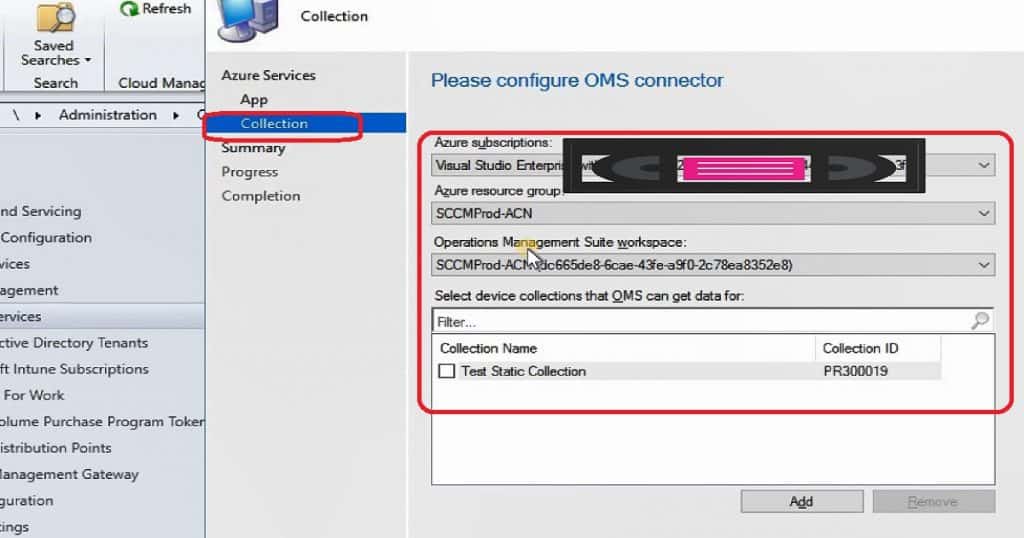
All the fields on the Configure OMS connector (Collection) page will be populated automatically.
- Azure Subscription
- Azure Resource Group—To get the correct Operations Management Suite (OMS) workspace, select the correct resource group from the drop-down menu.
- Select device collections that OMS can get data for:
- Click on Add to select the device collections
- Click on the Next button to go to the next page of the SCCM OMS connector Wizard
- Click on the Next and Close button to finish the SCCM OMS connector configuration
- The last step is importing the SCCM collections to OMS.
Resources
- Prerequisites for the SCCM OMS Connector Log Analytics Connector
- Connect SCCM with OMS Workspace
- Use the portal to create an Azure AD application
We are on WhatsApp now. To get the latest step-by-step guides, news, and updates, Join our Channel. Click here. HTMD WhatsApp.
Author
Anoop C Nair is Microsoft MVP! He is a Device Management Admin with more than 20 years of
experience (calculation done in 2021) in IT. He is a Blogger, Speaker, and Local User Group HTMD Community leader. His primary focus is Device Management technologies like SCCM 2012, Current Branch, and Intune. He writes about ConfigMgr, Windows 11, Windows 10, Azure AD, Microsoft Intune, Windows 365, AVD, etc.




hi,
does it valid for SCCM 2111. i do not see OMS connector on Azure service as this feature is removed.
how can i connect sccm to log analytics
StaffYou are correct OMS Connector (Log Analytics connector for Azure Monitor) This is deprecated – first release after July 1, 2021 – https://www.anoopcnair.com/sccm-unsupported-features-updated-lst/