






SCCM Package Deployment Options in Distribution Points Tab
In this post, you will learn more about SCCM Package Deployment Options. The package has two deployment options to select either you want to download content from the distribution point and run it locally or Run the program from the distribution point.
You can also select the deployment options when a client uses a distribution point from the neighbor boundary group or the default site boundary group.
With the available deployment options, you will know which desired Deployment options are on the Distribution Point pane when you deploy the package or task sequence to a collection.
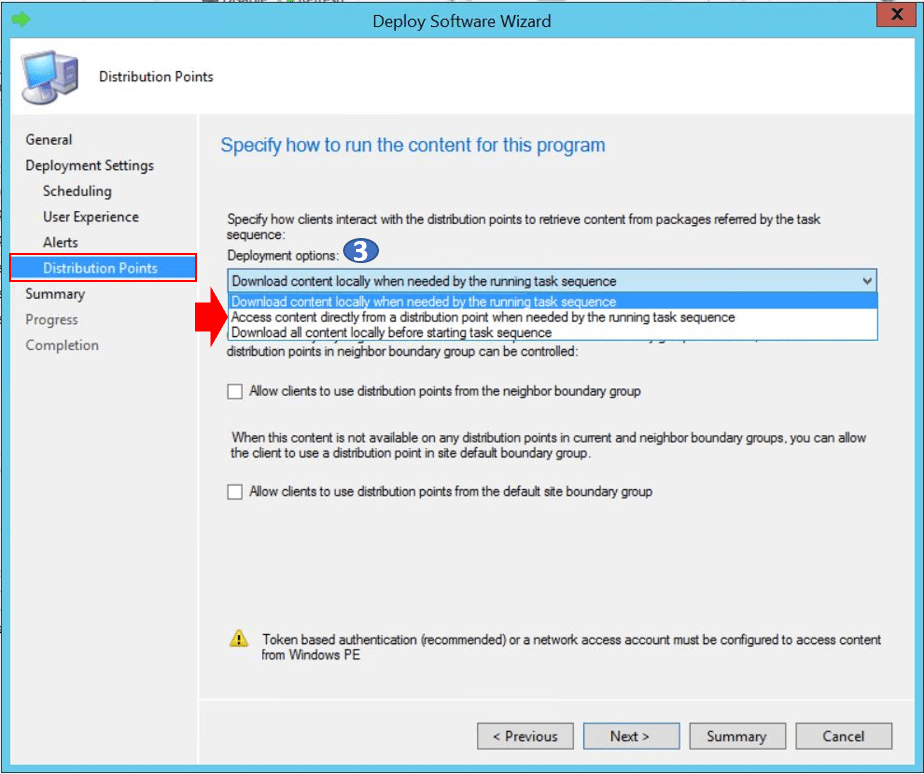
Similarly, for the applications, you will get the two deployment options, and basically, there are three deployment options available in the Distribution Points tab that appears when you deploy a Task Sequence, depending on your selection.

- Best way to Find Package Size from ConfigMgr Console
- SCCM Task Sequence Available Deployment Options
- ConfigMgr Reports Application Package Distribution
Package Deployment Options
There are two deployment options available in the Distribution Points tab for the package. Let’s check the options available –
- Download Content from Distribution point and run locally – Specify that clients download the application content from the distribution point and run it locally when they use a distribution point from a neighbor or the default site boundary groups.
- Run program from distribution point – Select this option to do not download content when an application runs.
Modify Existing Package Deployment Options
To change the deployment options for the existing package, Follow the below steps –
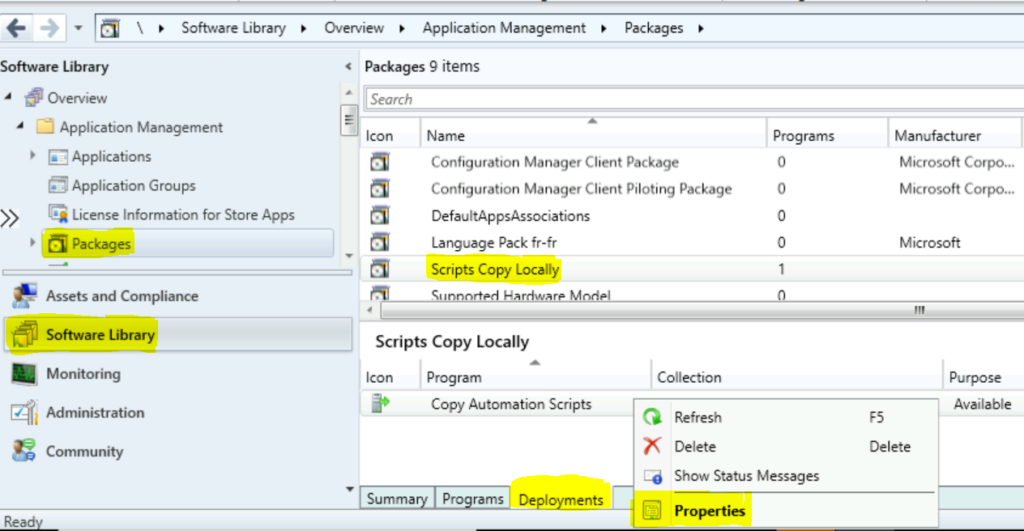
- In the Configuration Manager console, go to the Software Library workspace, expand Application Management, and select Packages.
- Select an existing package and select the Deployments tab. Right-click on the existing deployment and select Properties.
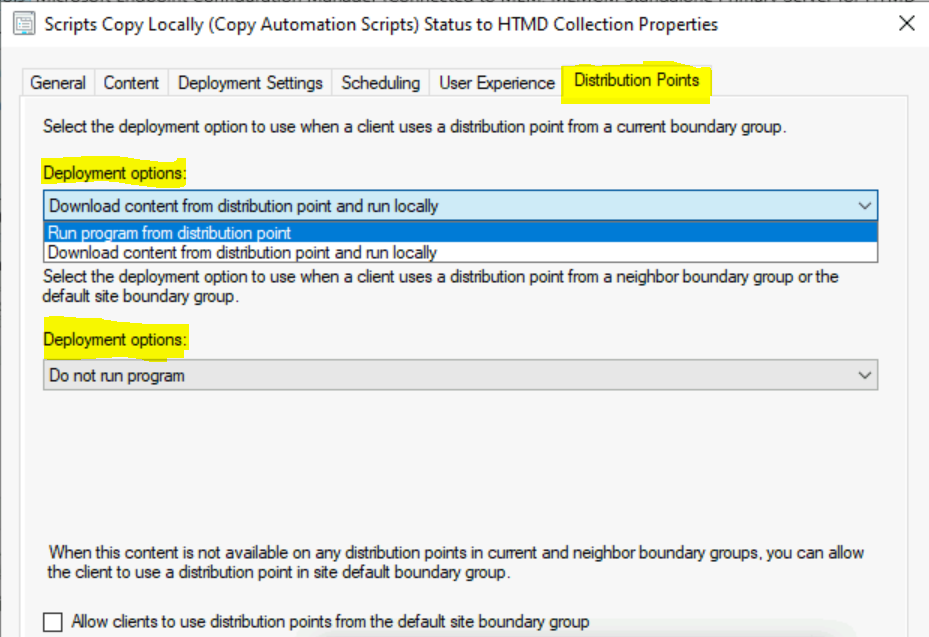
Switch to the Distribution Points tab, and Under Deployment options, there are two deployment options available:
- Run program from distribution point
- Download content from distribution point and run locally
Important⚠️– If you configure the deployment option to Run program from the distribution point, make sure to enable the option to Copy the content in this package to a package share on distribution points on the Data Access tab of the package properties. Otherwise, the package is unavailable to run from distribution points.
You can also specify if clients should download the application when using a distribution point from a neighbor or the default site boundary groups. By default, this setting is Do not run program.
Note – A cloud distribution point doesn’t support package deployments with the option to Run program from distribution point.
Enable SCCM Package Deployment Options
Let’s see how you can enable the option to Copy the content in this package to a package share on distribution points to use the deployment option Run program from the distribution point.
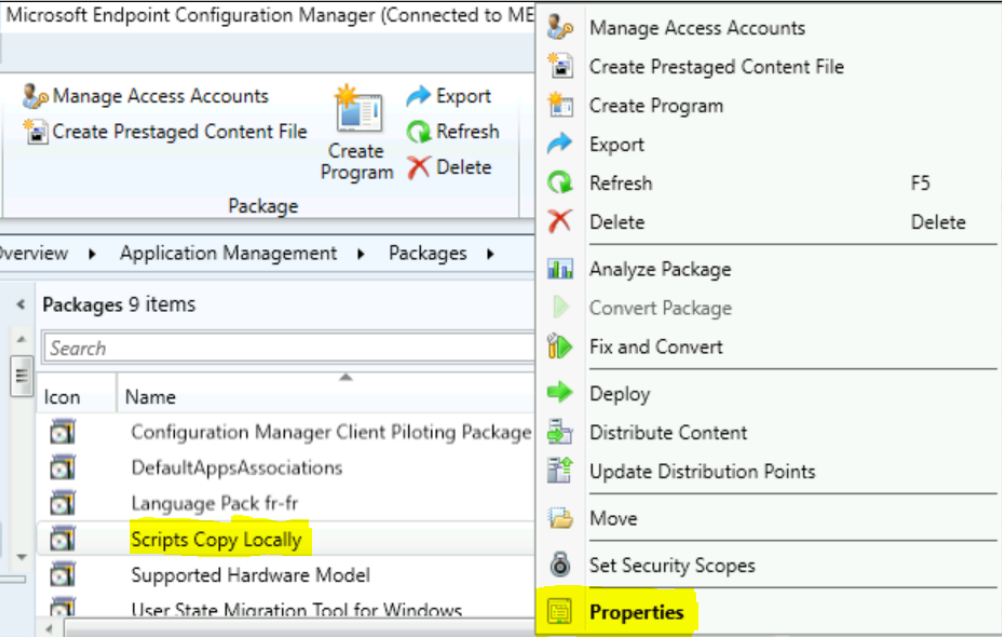
In the Configuration Manager console, go to the Software Library workspace, expand Application Management, and select the Packages node. Select the package and Right-click, choose properties.
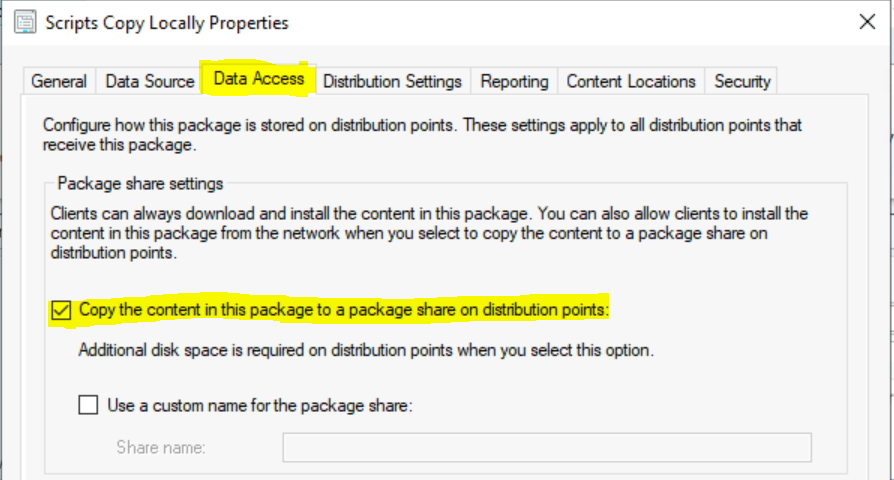
On the Data Access tab of this package properties, select Copy the content in this package to a package share on distribution points.
This feature is only available with packages that allow you to run the package directly from Distribution Point.
Once you have configured the above settings to package properties, you will be able to use two sets of available deployment options in the distribution points tab.
SCCM Task Sequence Deployment Options
Another benefit would be when you try to deploy task sequence, and you will see another deployment option in the distribution points tab “Access content directly from a distribution point when needed by the running task sequence.“
These dynamically depend on the selections in the deployment and attributes of the task sequence, so you may not be able to see all three deployment options available.- You can check more details on SCCM Task Sequence Available Deployment Options in Distribution Points Tab
Note – You need to make sure all the referenced package in the task sequence has configured the settings “Copy the content in this package to a package share on distribution points.“
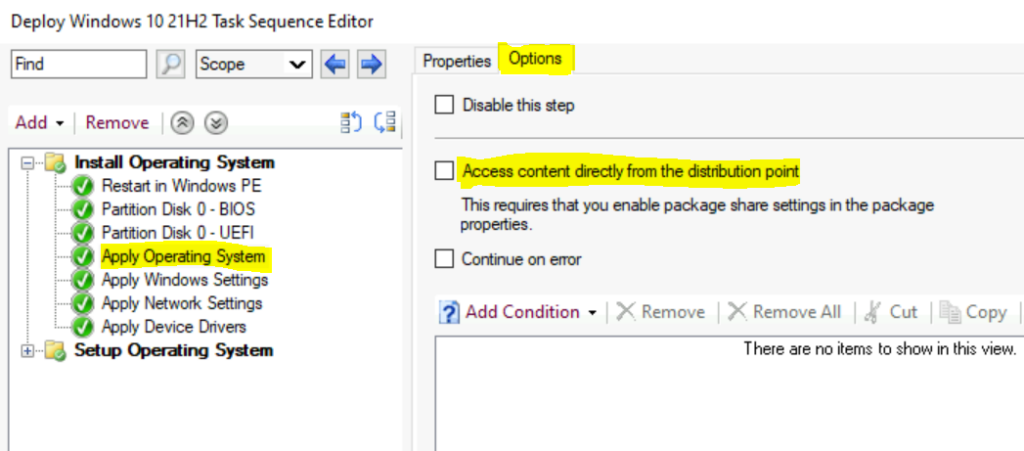
Options for Apply OS Image
Once you select the package, share settings on the Data Access tab of the OS image properties.
You can configure the task sequence to access the OS image directly from the distribution point. For example, use this option when deploying operating systems to embedded devices with limited storage capacity.
- Launch Configuration Manager console, go to the Software Library workspace, expand Operating Systems, and select the Task Sequences node.
- In the Task Sequence list, select the task sequence that you want to edit. Select Edit to modify
Move to Apply OS Image step in the task sequence. Besides the default options, the following additional settings on the Options tab of the task sequence step to Access content directly from the distribution point.
Note – When selecting this option, also configure the package share settings on the Data Access tab of the OS image properties.




Discussion