






SCCM Resource Explorer Deep Dive Helps to Troubleshoot and Fix Issues
Let’s check details about SCCM resource explorer helps to troubleshoot issues related to hardware inventory, etc. You can check all the details about the devices from the ConfigMgr Resource explorer tool. I’m going to share some real-world tips.
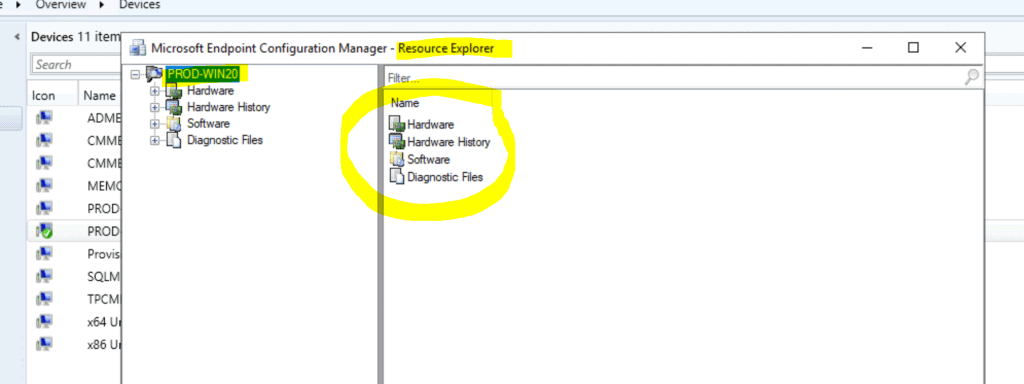
Resource explorer is an in-console tool, and that is integrated with the SCCM admin console. You don’t have to install it separately, so it comes with ConfigMgr console installation. The tool helps you to get the hardware inventory and hardware inventory history information.
You can use Resource Explorer in SCCM to view information about a particular device. You can also use resource explore from Microsoft Endpoint Manager (MEM) Intune admin center portal. You can enable this Access SCCM Resource Explorer From Intune Portal using the Tenant attach feature.
SCCM Resource Explorer
Apart from Windows PC’s hardware inventory, you can view much more information from the resource explorer tool in SCCM. The following list gives you other information that you can find within resource explorer for an SCCM managed device.

- Hardware Inventory
- Hardware Inventory History
- Software Inventory
- Diagnostic files
You can use the information available in resource explorer to build other workloads within SCCM. I think the info from resource explorer can help you make WQL queries for the particular version of the application installed. Also, information like product ID can help you build the detection logic for application deployment scenarios.
How to Open SCCM Resource Explorer
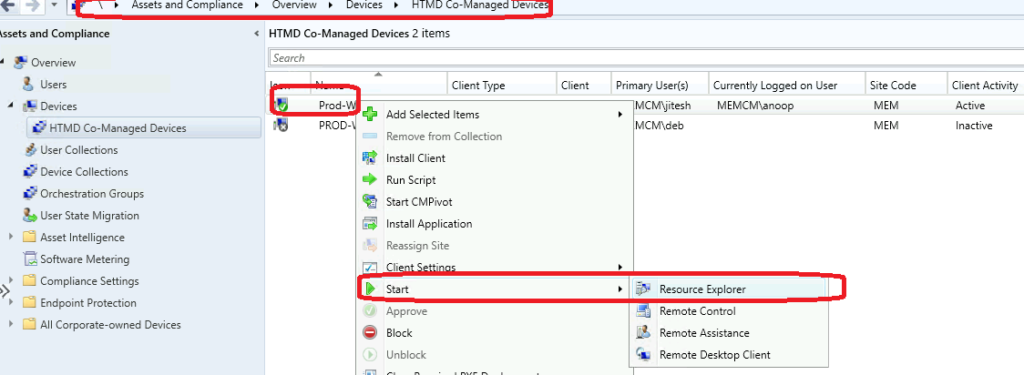
You can launch/open resource explorer from the SCCM console itself, as I mentioned above. You can use resource explorer to troubleshoot all kinds of issues and collect the SCCM client logs.
- Launch SCCM Console.
- Navigate to \Assets and Compliance\Overview\Devices\ and select any one of the devices or device collection.
- Right-click on one of the devices and select Start and click on Resource Explorer.
Hardware Inventory Details from Resource Explorer
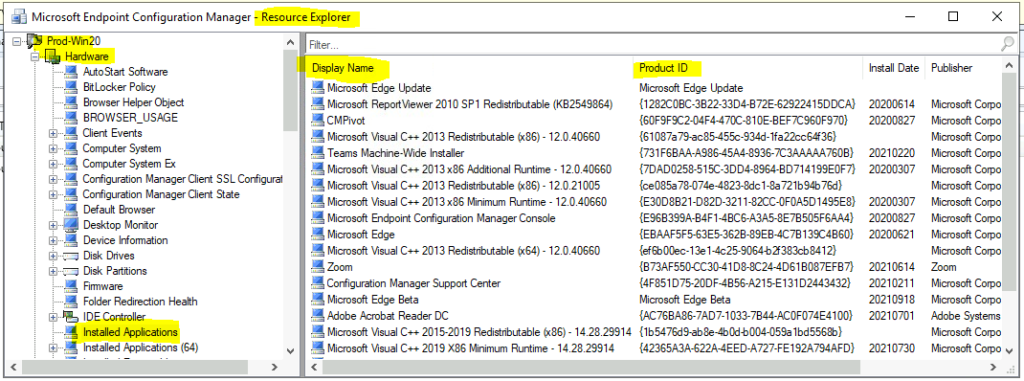
You can check many hardware inventory details from resource explorer, which helped me troubleshoot hardware inventory issues with SCCM clients. The resource explorer’s hardware node helps get the current or latest hardware inventory information about a particular device.
The hardware inventory in SCCM collects software information as well, so don’t go with the name. I can give you some examples in the below list about the inventory information collected through the SCCM hardware inventory feature. Also, all this information is easily accessible from the resource explorer tool.
- Autostart Software
- Bitlocker Policy
- Browser Usage
- Configuration Manager Client State
- Disk Drives
- Disk Partitions
- Installed Applications
- Office 365 Configurations
- etc…
Hardware History
Hardware history information of a device helps us troubleshoot issues related to recent configuration changes in policies, app installations, etc. The detailed information about the recent changes on that device if compared with the previous inventory details.
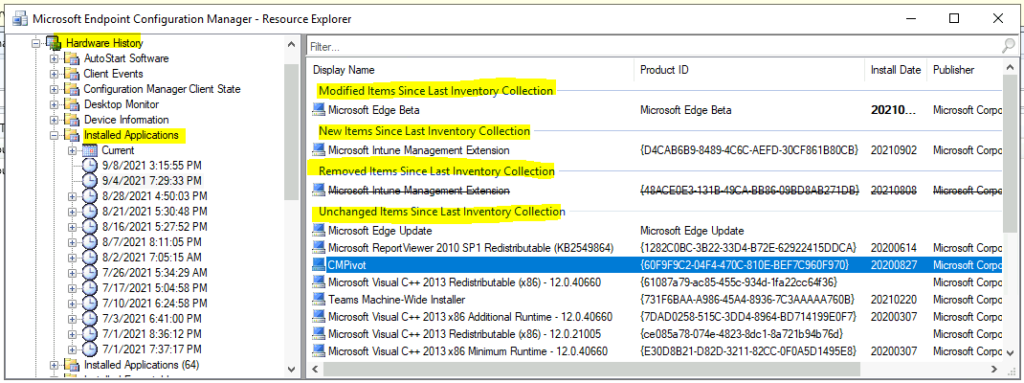
Each subnode within the hardware inventory node for more information about current and previous inventory nodes, etc. The following information about the recent changes is very helpful in terms of troubleshooting issues. Some of the useful change information from the device is listed down.
- Modified items since last inventory collection
- New Items since last inventory collection
- Removed items since last inventory collection
- Unchanged items since last inventory collection
I have taken an example of an installed applications node to explain the above list of scenarios. You can see some of the following examples of removed and new items installed since the last inventory collection—also, modified items since the previous inventory items in the below list.
- Microsoft Intune Management Extension {48ACE0E3-131B-49CA-BB86-09BD8AB271DB} 20210808 Microsoft Corporation 1.45.207.0
- Microsoft Edge Update Microsoft Edge Update 1.3.151.27
- CMPivot {60F9F9C2-04F4-470C-810E-BEF7C960F970} 20200827 Microsoft Corporation 5.2006.1026.1000
Software Inventory
The SCCM resource explorer helps you to analyze the software inventory-related details of a device. You will have this information available when you already enabled software inventory from client settings policies. I have not enabled it in my lab environment.
I also don’t recommend using software inventory; instead, you can use SCCM configuration items and baseline to collect the exe and other file details from SCCM clients. CIs and baselines are much more efficient than using software inventory. The following are the nodes available under Software Inventory in the resource explorer.
- Collected Files
- File Details
- Last Software Scan
- Production Details
Diagnostic Files
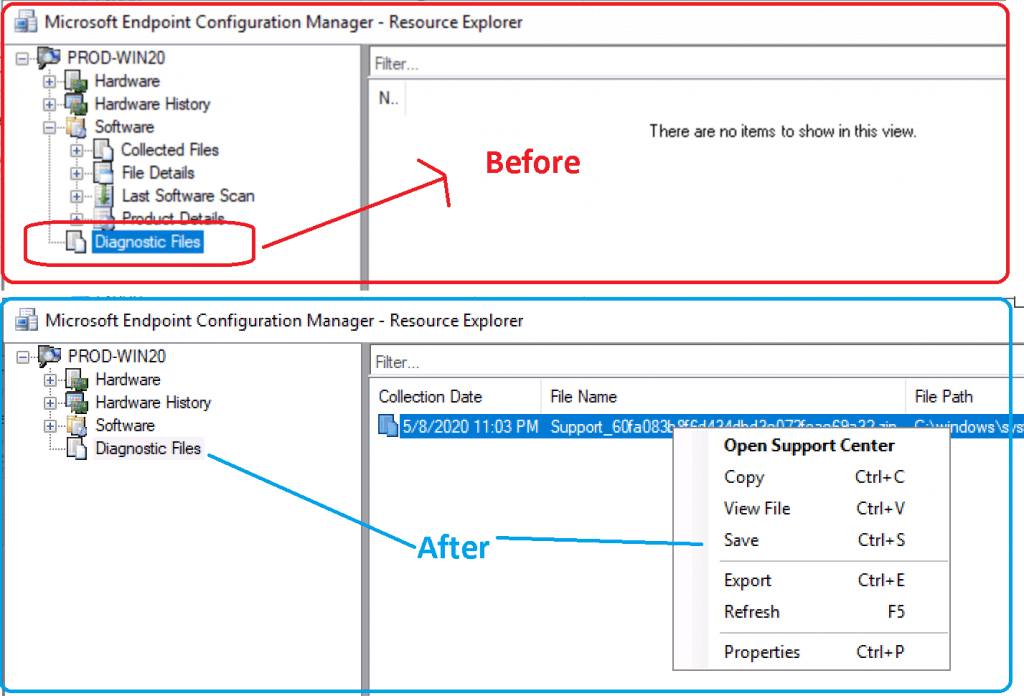
The diagnostic files node helps to collect the SCCM client logs from the Windows 10 and Windows 11 PCs. The collection of the SCCM client logs process is very helpful in troubleshooting the issue and remotely collecting the records without disturbing end-users and remote support folks in case the user is in the small office.
The collected logs will get removed automatically based on the Delete Aged Collected Diagnostic Files maintenance task schedule. You can check the results from the SCCM resource explorer tool.
You can download the log files from the resource explorer tool -> Diagnostic node. You have many options to save the log files or directly open them with the support center tool. More details available Learn How To Collect SCCM Client Logs Using ConfigMgr Console.
Author
Anoop is Microsoft MVP! He is a Solution Architect in enterprise client management with over 17 years of experience (calculation done in 2018). He is Blogger, Speaker, and Local User Group HTMD Community leader. His main focus is on Device Management technologies like SCCM 2012, Current Branch, and Intune. He writes about ConfigMgr, Windows 11, Windows 10, Azure AD, Microsoft Intune, Windows 365, AVD, etc…..…




Discussion