






SCCM Secondary Server Installation Failed Error | ConfigMgr | Fix
I got the error “Unable to complete secondary site server installation” while installing a new Configuration Manager secondary server. Let’s try to fix the SCCM Secondary Server Installation Failed Error.
Another error I could see in the ConfigMgr console related to SQL DB permissions. Either the user account running Configuration Manager Setup or NT AUTHORITY\SYSTEM does not have sysadmin SQL Server role permissions on the SQL Server instance.
- New SCCM Secondary Server Installation Guide | Step by Step | ConfigMgr.
- Latest SCCM Secondary Server Upgrade Guide | ConfigMgr | Configuration Manager
- SCCM Secondary Site Server Upgrade to Latest Version | ConfigMgr
| Index |
|---|
| Secondary Site Server Logs |
| Show Install Status – Secondary Server |
| ConfigMgrPreReq.log |
| Validation Checks |
| Event Logs on the Secondary Site Servers |
| Results-Fix Secondary Server Installation Failed Error |

Secondary Site Server Logs
Before troubleshooting the SCCM Secondary server installation failed issue, let’s understand the related log files.
- Check the ConfigMgrPreReq.log on the primary server.
- Once the prerequisite is completed successfully, Refer to the following logs on the new secondary server.
- smstvc.log for secondary server installation-related log on secondary server C:\.
- SMS_BootStrap.log on secondary server C:\.
- ConfigMgrSetupWizard.log is not helpful for secondary server installation.
- ConfigMgrSetup.log will be used to validate the installation of the secondary server.
- Event Viewer Logs on the secondary site server.
Show Install Status – Secondary Server
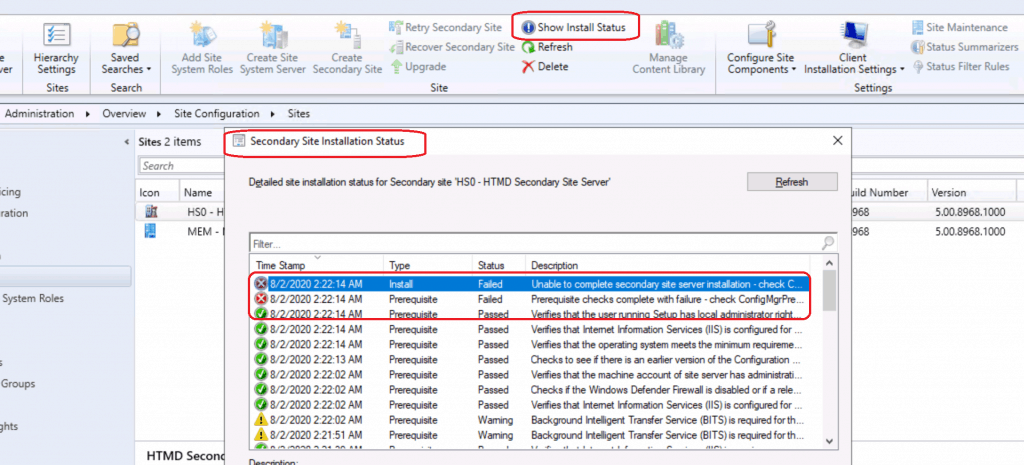
Let’s find more details about the secondary server installation failure from the ConfigMgr console.

- Navigate to \Administration\Overview\Site Configuration\Sites.
- Click on the new secondary server.
- Click on Show install status (secondary server installation).
[Failed]:Either the user account running Configuration Manager Setup or NT AUTHORITY\SYSTEM does not have sysadmin SQL Server role permissions on the SQL Server instance selected for site database installation, or the SQL Server instance could not be contacted to verify permissions. Setup cannot continue.
[Failed]:Prerequisite checks complete with failure - check ConfigMgrPrereq.log in the root of the primary site server system drive
[Failed]:Unable to complete secondary site server installation - check ConfigMgrSetup.log in the root of the secondary site server system drive
ConfigMgrPreReq.log
To understand the initial details of the secondary server installation failure, you must refer to the ConfigMgrPreReq.log on the primary server.
*** [28000][18456][Microsoft][SQL Server Native Client 11.0][SQL Server]Login failed for user 'MEMCM\CMMEMCM$'
*** [28000][18456][Microsoft][SQL Server Native Client 11.0][SQL Server]Login failed for user 'MEMCM\CMMEMCM$'
*** Failed to connect to the SQL Server, connection type: SMS Master
ERROR: Failed to connect to SQL Server database
MEMCMSecondary.memcm.com; Dedicated SQL Server instance; Error; Configuration Manager requires a dedicated SQL Server instance to host its site database.
*** [28000][18456][Microsoft][SQL Server Native Client 11.0][SQL Server]Login failed for user 'MEMCM\CMMEMCM$'
*** [28000][18456][Microsoft][SQL Server Native Client 11.0][SQL Server]Login failed for user 'MEMCM\CMMEMCM$'
*** Failed to connect to the SQL Server, connection type: SMS Master
INFO: Checking sql index create memory
ERROR: Failed to connect to SQL Server database.
MEMCMSecondary.memcm.com; SQL Index Create Memory option; Warning; SQL Index create memory is not configured as default value of 0 and might hit issue
ERROR: Failed to connect to SQL Server database.
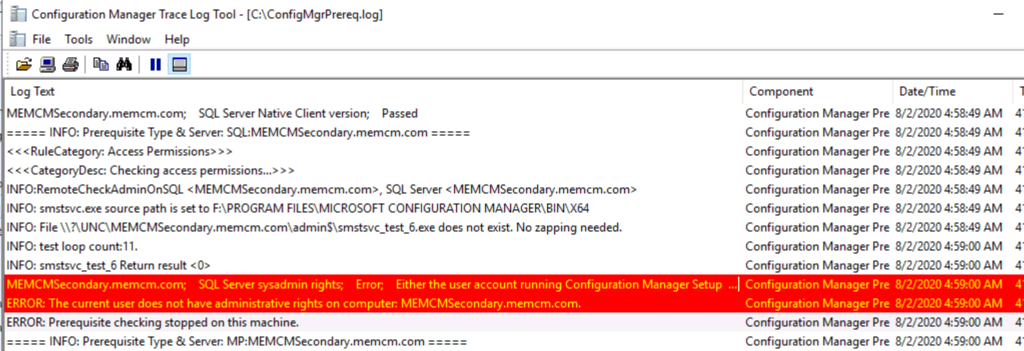
- The details of ConfigMgrPreReq.log provide more information about the issue. It all points to SQL DB permission-related issues.
MEMCMSecondary.memcm.com; SQL Server sysadmin rights; Error; Either the user account running Configuration Manager Setup or NT AUTHORITY\SYSTEM does not have sysadmin SQL Server role permissions on the SQL Server instance selected for site database installation, or the SQL Server instance could not be contacted to verify permissions. Setup cannot continue.
ERROR: The current user does not have administrative rights on computer: MEMCMSecondary.memcm.com.
ERROR: Prerequisite checking stopped on this machine.
Validation Checks
- I have given the user account I’m using to install the secondary site server sysadmin and security admin permissions.
- I have already given sysadmin & security admin permission to the primary server computer account.
Event Logs on the Secondary Site Servers
I have checked the event logs from the secondary to get more details about the installation error. It seems that there is no issue with the primary computer account permissions.
- The ConfigMgrPreReq.log file above indicates a user account.
- I logged into the secondary server.
- Launched event viewer logs (eventvwr).
- Checked Security Logs.
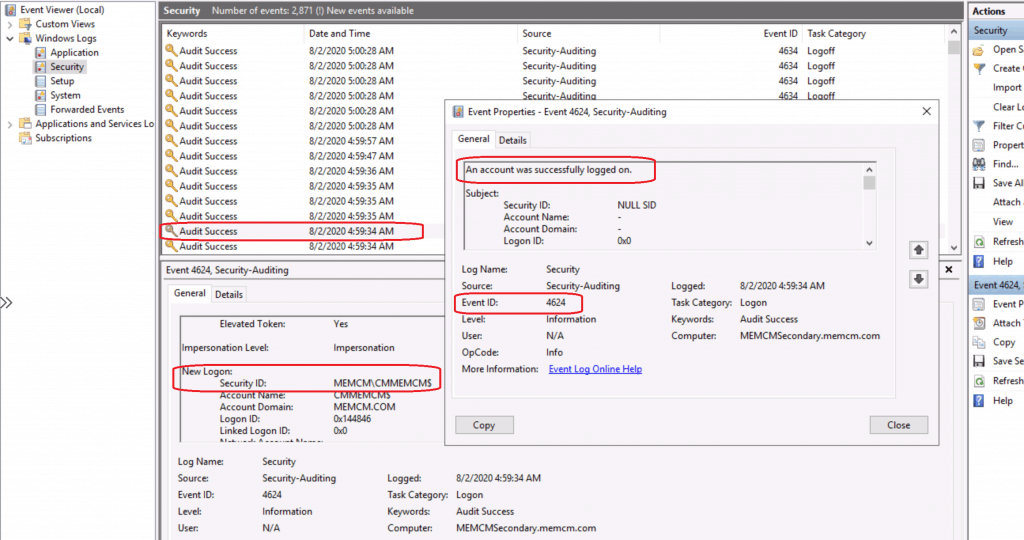
Event ID 4624 from security-related event logs indicates that An account was successfully logged on with MEMCM\CMMEMCM$.
All I can see is Event ID 4624
- Login success with primary server computer account – MEMCM\CMMEMCM$
Log Name: Security
Source: Microsoft-Windows-Security-Auditing
Date: 8/2/2020 4:59:34 AM
Event ID: 4624
Task Category: Logon
Level: Information
Keywords: Audit Success
User: N/A
Computer: MEMCMSecondary.memcm.com
Description:An account was successfully logged on.
Subject:
Security ID: NULL SID
Account Name: -
Account Domain: -
Logon ID: 0x0
Logon Information:
Logon Type: 3
Restricted Admin Mode: -
Virtual Account: No
Elevated Token: Yes
Impersonation Level: Impersonation
New Logon:
Security ID: MEMCM\CMMEMCM$
Account Name: CMMEMCM$
Account Domain: MEMCM.COM
Logon ID: 0x144846
Linked Logon ID: 0x0
Network Account Name: -
Network Account Domain: -
Logon GUID: {1ea1a268-7b4d-acaa-935c-395cf806a0ea}
Process Information:
Process ID: 0x0
Process Name: -
Network Information:
Workstation Name: -
Source Network Address: 10.1.0.6
Source Port: 58674
Detailed Authentication Information:
Logon Process: Kerberos
Authentication Package: Kerberos
Transited Services: -
Package Name (NTLM only): -
Key Length: 0
This event is generated when a logon session is created. It is generated on the computer that was accessed.
The subject fields indicate the account on the local system which requested the logon. This is most commonly a service such as the Server service, or a local process such as Winlogon.exe or Services.exe.
The logon type field indicates the kind of logon that occurred. The most common types are 2 (interactive) and 3 (network).
The New Logon fields indicate the account for whom the new logon was created, i.e. the account that was logged on.
The network fields indicate where a remote logon request originated. Workstation name is not always available and may be left blank in some cases.
The impersonation level field indicates the extent to which a process in the logon session can impersonate.
The authentication information fields provide detailed information about this specific logon request.
- Logon GUID is a unique identifier that can be used to correlate this event with a KDC event.
- Transited services indicate which intermediate services have participated in this logon request.
- Package name indicates which sub-protocol was used among the NTLM protocols.
- Key length indicates the length of the generated session key. This will be 0 if no session key was requested.
Event Xml:
4624
2
0
12544
0
0x8020000000000000
3337
Security
MEMCMSecondary.memcm.com
S-1-0-0 - - 0x0 S-1-5-21-2901188661-3025291148-348095268-1107 CMMEMCM$ MEMCM.COM 0x144846 3 Kerberos Kerberos - {1ea1a268-7b4d-acaa-935c-395cf806a0ea} - - 0 0x0 - 10.1.0.6 58674 %%1833 - - - %%1843 0x0 %%1842
Validation Checks to Fix
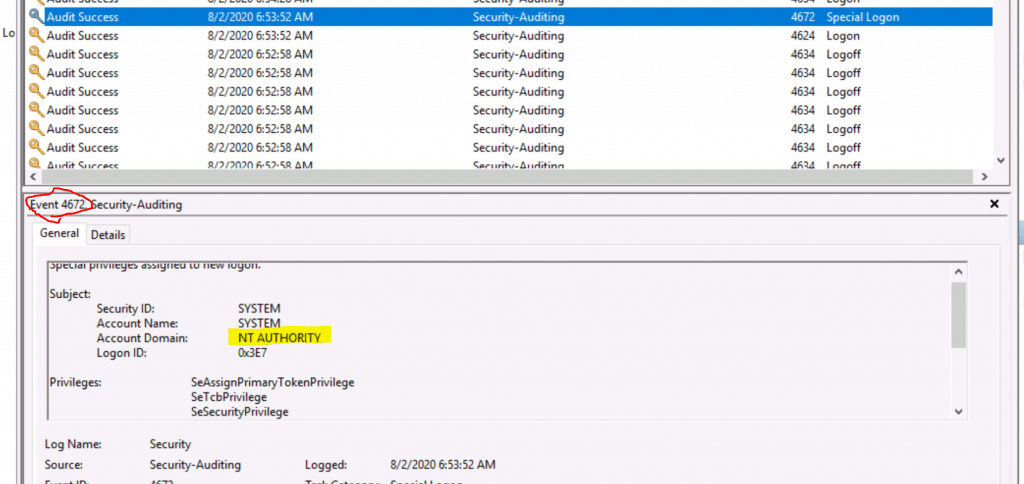
I continued validating the security logs from the event viewer. It seems the NT Authority (system account) defined in the SQL server is also trying to log in, as per the following event log.
Even ID 4672 -Special privileges assigned to new logon.
Subject:
Security ID: SYSTEM
Account Name: SYSTEM
Account Domain: NT AUTHORITY
Logon ID: 0x3E7
Fix Secondary Server Installation Failed Error
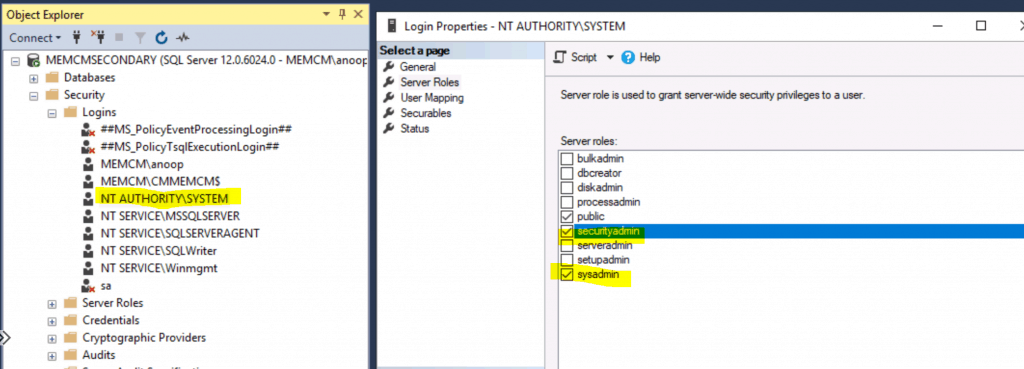
It seems the permissions of the primary server computer account and NT Authority\System account. NT Authority\System account didn’t have the following permissions.
- Security Admin
- SysAdmin
- Given those permissions as per the following guide.
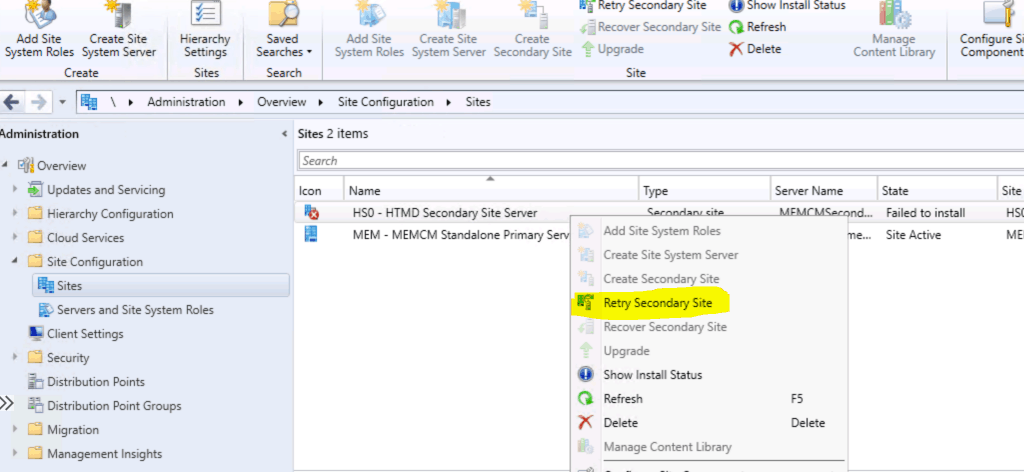
Navigate to \Administration\Overview\Site Configuration\Sites. Right-click on the new secondary server.
- Click on the Retry secondary Site option.
- Complete the Secondary Server Installation wizard.
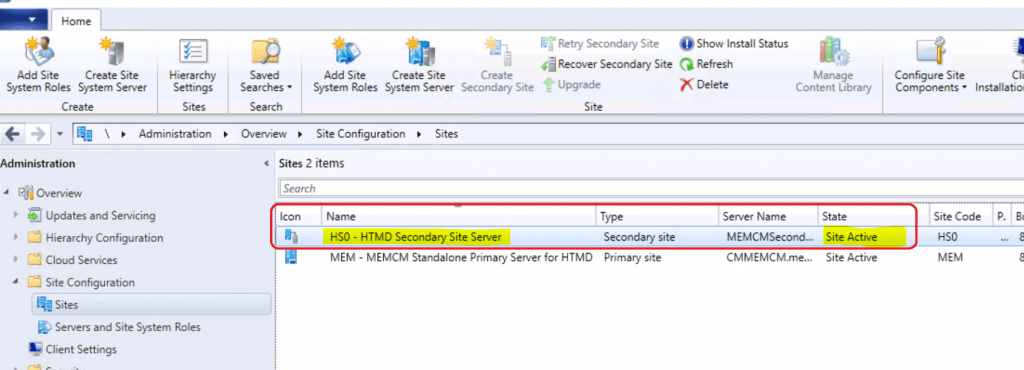
Results–Fix Secondary Server Installation Failed Error
The secondary server installation was completed successfully. And the site server status shows as Site Active.
Resources
- List of prerequisite checks for Configuration Manager
- Install a secondary site
- Add SCCM Server Computer Account to SQL Login Sys Admin Access
We are on WhatsApp. To get the latest step-by-step guides and news updates, Join our Channel. Click here –HTMD WhatsApp.
Author
Anoop C Nair is Microsoft MVP! He is a Device Management Admin with more than 20 years of experience (calculation done in 2021) in IT. He is a Blogger, Speaker, and Local User Group HTMD Community leader. His primary focus is Device Management technologies like SCCM 2012, Current Branch, and Intune. He writes about ConfigMgr, Windows 11, Windows 10, Azure AD, Microsoft Intune, Windows 365, AVD, etc.




Thanks for this contribution Anoop , this article save my day (had to implement a Snd Fallback site)
One more question can i remove on computer id on primary/secondary sql instance ,or have to remain here for service data broking?