






SCCM Secondary Site Server Upgrade to Latest Version | ConfigMgr
Let’s learn the process of the SCCM Secondary Site Server Upgrade to the Latest Version. I have already explained how to upgrade the primary server to the 2006 version. Make sure you have all the prerequisites in place.
A secondary site is meant to be installed as a subordinate to a primary site, thereby enhancing the primary site’s capability to control devices in areas with poor network connections. It’s crucial to note that while a secondary site broadens the coverage of the primary site, the primary site continues to manage all clients.
Secondary sites are linked to a primary site. You cannot relocate them to a different parent site without uninstalling and then reinstalling them as a child site beneath the new primary site. However, you can transfer content between two peer secondary sites to facilitate the management of file-based replication of deployment content.
The upgrade of secondary servers is significant in avoiding replication issues. I recommend installing a secondary site as soon as possible.

- How to Install a Secondary Server
- How to FIX SCCM Secondary Server Installation Failure.
- Latest SCCM Secondary Server Upgrade Guide | ConfigMgr | Configuration Manager
Start SCCM Secondary Site Server Upgrade
Once the parent primary server is upgraded to the latest version of ConfigMgr, you can start installing the secondary server. Let’s begin the SCCM Secondary Site Server Upgrade.
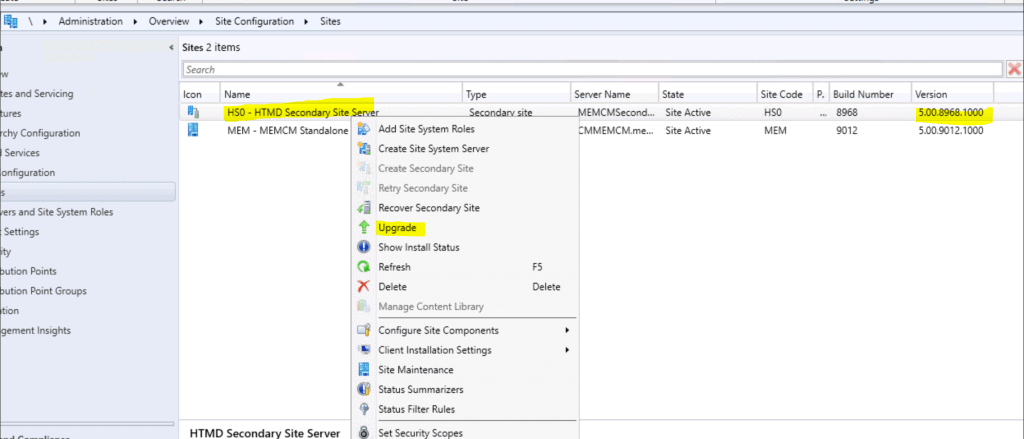
- Navigate to \Administration\Overview\Site Configuration\Sites.
- Select the Secondary server.
- Click on the Upgrade option to kick start the upgrade process.
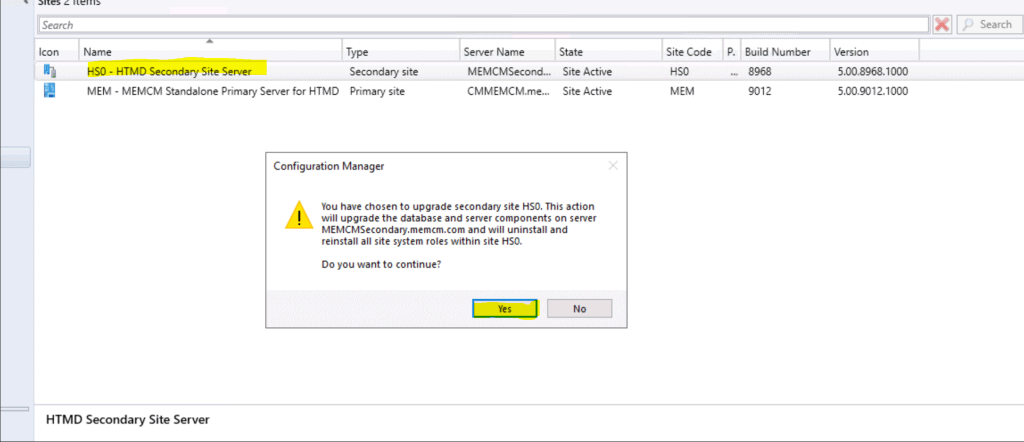
You have chosen to upgrade the secondary site HS0. This action will:
- Upgrade the database
- Upgrade server components on secondary server MEMCMSecondary.memcm.com.
- Uninstall and reinstall all site system roles within site HS0.
- Click on Yes from the popup window.
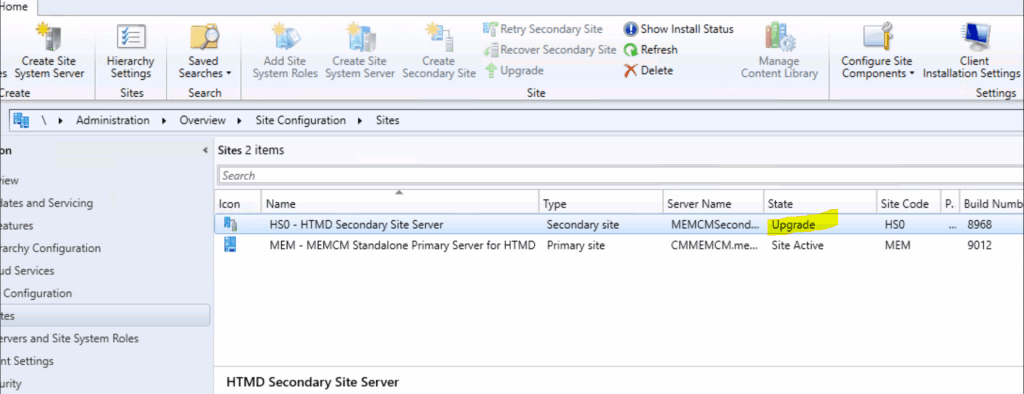
Progress of Secondary Site Upgrade
The secondary site state is changed from Site Active to Upgrade.
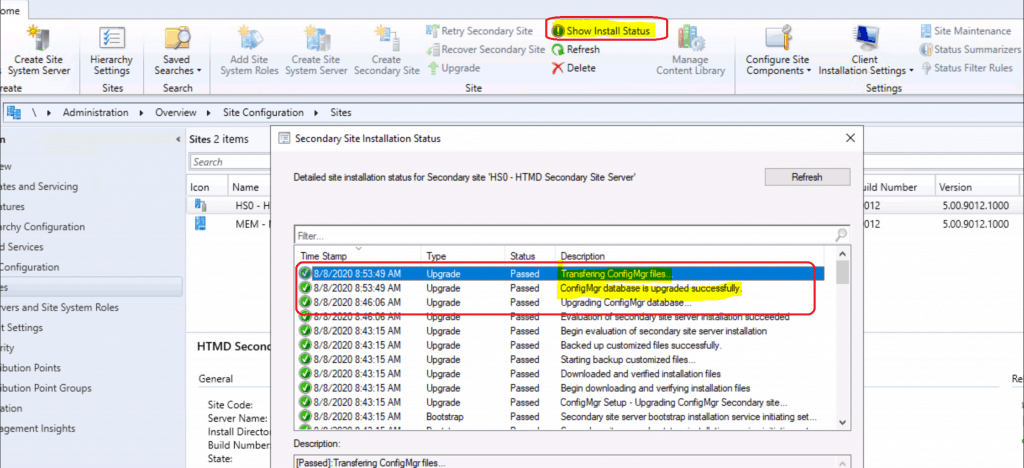
Show Install Status
You can check the Configuration Manager secondary site server upgrade status from the primary server console.
- Navigate to \Administration\Overview\Site Configuration\Sites.
- Select the Secondary server.
- Click on Show Install Status from the ribbon menu.
SMStsvc.log @ Secondary Server
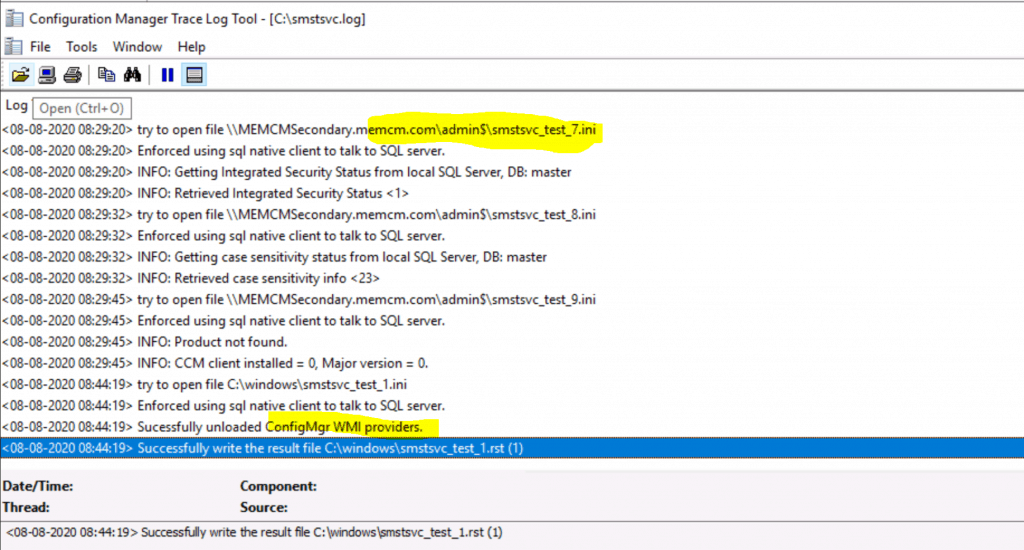
Once the prerequisite checks are completed, the secondary server starts the upgrade process. You can check the details about the initial upgrade process using SMStsvc.log.
try to open file \MEMCMSecondary.memcm.com\admin$\smstsvc_test_5.ini
Enforced using sql native client to talk to SQL server.
INFO: NONLBSUPS: Database:.
INFO: NONLBSUPS: return 1.
try to open file \MEMCMSecondary.memcm.com\admin$\smstsvc_test_6.ini
Enforced using sql native client to talk to SQL server.
INFO: Parameter SQL Server MEMCMSecondary.memcm.com, Database master.
INFO: SQLADMIN return 1
try to open file \MEMCMSecondary.memcm.com\admin$\smstsvc_test_7.ini
Enforced using sql native client to talk to SQL server.
INFO: Getting Integrated Security Status from local SQL Server, DB: master
INFO: Retrieved Integrated Security Status <1>
try to open file \MEMCMSecondary.memcm.com\admin$\smstsvc_test_8.ini
Enforced using sql native client to talk to SQL server.
INFO: Getting case sensitivity status from local SQL Server, DB: master
INFO: Retrieved case sensitivity info <23>
try to open file \MEMCMSecondary.memcm.com\admin$\smstsvc_test_9.ini
Enforced using sql native client to talk to SQL server.
INFO: Product not found.
INFO: CCM client installed = 0, Major version = 0.
try to open file C:\windows\smstsvc_test_1.ini
Enforced using sql native client to talk to SQL server.
Sucessfully unloaded ConfigMgr WMI providers.
Successfully write the result file C:\windows\smstsvc_test_1.rst (1)
SMS_Bootstrap.log @ Secondary Server
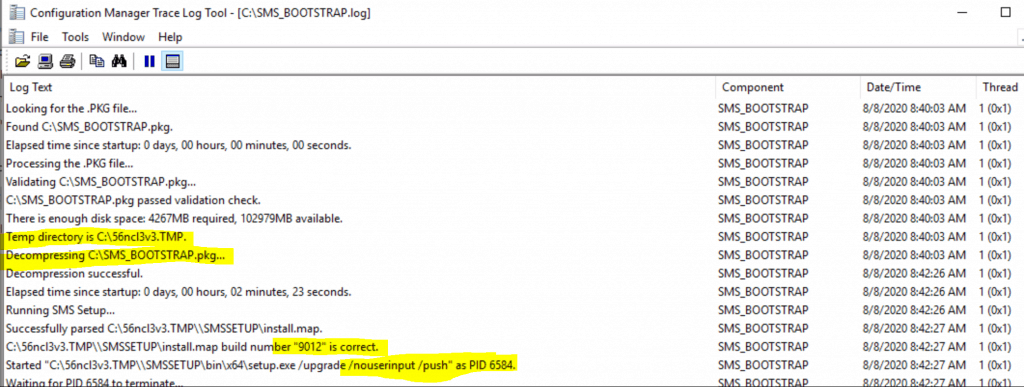
The SCCM 2006 source files are copied from the primary to the secondary server through the SMS_Bootstratp.log file in the C:\ drive. You can also notice that the SMS setup started running.
Microsoft Endpoint Configuration Manager v5.00 (Build 9012)
Starting SMS_BOOTSTRAP.
Microsoft Endpoint Configuration Manager v5.00 (Build 9012)
Copyright (C) 2011 Microsoft Corp.
Set current directory to C:.
INFO:Action:.
Successfully read C:\SMS_BOOTSTRAP.ini.
Started for the first time.
Current time: Sat Aug 08 08:40:03 2020
Looking for the .PKG file…
Found C:\SMS_BOOTSTRAP.pkg.
Elapsed time since startup:
Processing the .PKG file…
Validating C:\SMS_BOOTSTRAP.pkg…
C:\SMS_BOOTSTRAP.pkg passed validation check.
There is enough disk space: 4267MB required, 102979MB available.
Temp directory is C:\56ncl3v3.TMP.
Decompressing C:\SMS_BOOTSTRAP.pkg…
Decompression successful.
Elapsed time since startup: 0 days, 00 hours, 02 minutes, 23 seconds.
Running SMS Setup…
Successfully parsed C:\56ncl3v3.TMP\SMSSETUP\install.map.
C:\56ncl3v3.TMP\SMSSETUP\install.map build number "9012" is correct.
Started "C:\56ncl3v3.TMP\SMSSETUP\bin\x64\setup.exe /upgrade /nouserinput /push" as PID 6584.
Waiting for PID 6584 to terminate…
ConfigMgrSetup.Log @ Secondary Server
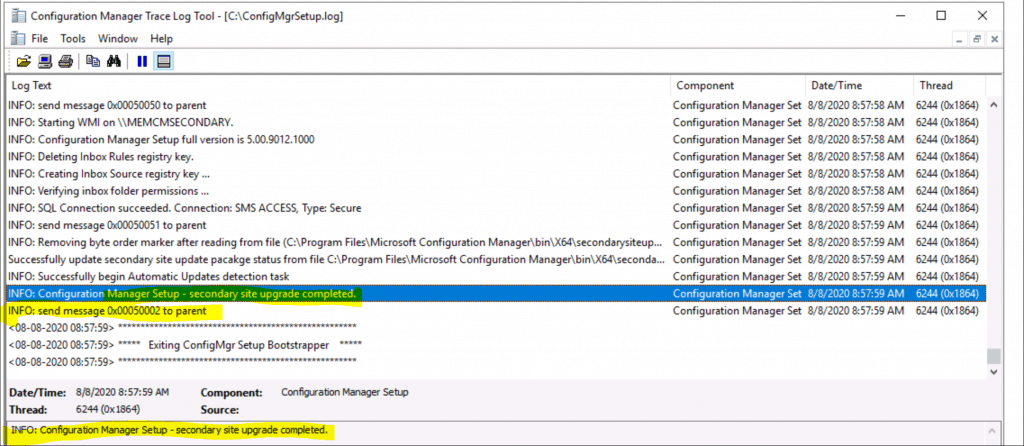
The ConfigMgrSetup.log at the secondary server to confirm the upgrade of the ConfigMgr secondary server.
INFO: SQL Connection succeeded. Connection: SMS ACCESS, Type: Secure
INFO: send message 0x00050051 to parent
INFO: Removing byte order marker after reading from file (C:\Program Files\Microsoft Configuration Manager\bin\X64\secondarysiteupdatepackage.xml)
Successfully update secondary site update package status from file C:\Program Files\Microsoft Configuration Manager\bin\X64\secondarysiteupdatepackage.xml
INFO: Successfully begin Automatic Updates detection task
INFO: Configuration Manager Setup - secondary site upgrade completed.
INFO: send message 0x00050002 to parent
Exiting ConfigMgr Setup Bootstrapper
Results – SCCM Secondary Site Server Upgrade
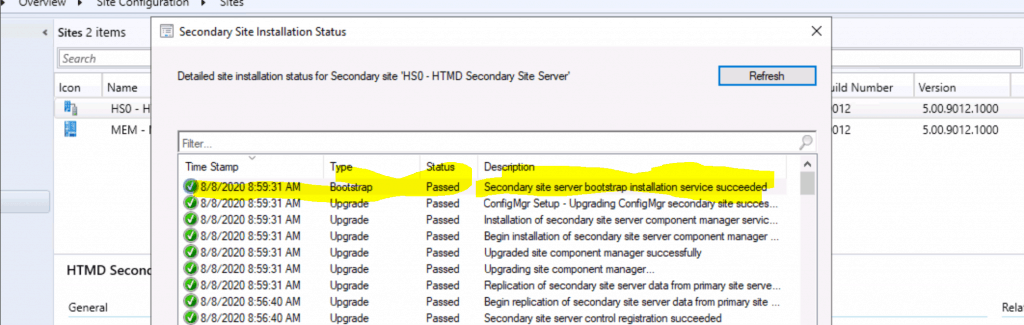
You can verify the successful upgrade of the SCCM CB 2006 secondary server from the Primary server, which shows the install status button.
- Navigate to \Administration\Overview\Site Configuration\Sites.
- Select the Secondary server.
- Click on Show Install Status from the ribbon menu.
[Passed]:Secondary site server bootstrap installation service succeeded
[Passed]:ConfigMgr Setup - Upgrading ConfigMgr secondary site successfully.
[Passed]:Installation of secondary site server component manager service succeeded
[Passed]:Upgraded site component manager successfully
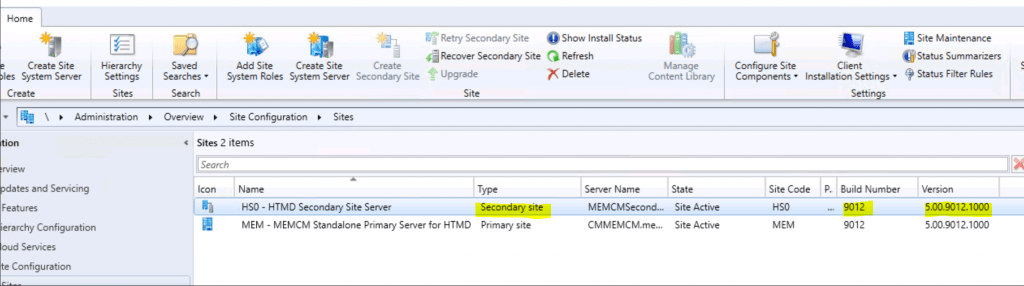
- You can check the state of the secondary site server. The state changed from Upgrade to Site Active.
- And the Secondary Site Server version is 5.00.9012.1000.
- I successfully completed the upgrade of the Secondary server.
Video Experience – SCCM Secondary Site Server Upgrade
This video will show how to upgrade the secondary site server to the 2006.
Resources
- How to Check ConfigMgr Task Sequence Size | SCCM
- Possible Issues with SCCM 2012 to CB Current Branch Upgrade
We are on WhatsApp. To get the latest step-by-step guides and news updates, Join our Channel. Click here –HTMD WhatsApp.
Author
Anoop C Nair is Microsoft MVP! He is a Device Management Admin with more than 20 years of experience (calculation done in 2021) in IT. He is a Blogger, Speaker, and Local User Group HTMD Community leader. His primary focus is Device Management technologies like SCCM 2012, Current Branch, and Intune. He writes about ConfigMgr, Windows 11, Windows 10, Azure AD, Microsoft Intune, Windows 365, AVD, etc.




Does it required downtime/server reboot for secondary servers ?
StaffYes downtime is required
Does it require downtime only on secondary server or complete SCCM infrastructure. I hope Primary server will not have impact while the upgrade is running on secondary server.
StaffYes, it does require downtime for the secondary server. And yes, the primary server is not impacted.
Thanks Anoop.