






SCCM Server Patching Tips Using Orchestration Groups Scripts
Let’s catch up and understand the real-world experience with SCCM Server Patching Tips Using Orchestration Groups—more details about ConfigMgr Orchestration Group Setup Step-by-Step Guide for Server Patching.
I am a big fan of this feature, “Service a server group.” Many of us might not know what it does or how to implement it because it was in Pre-Release (I’m not sure if it moved to production in MECM 2002), so we are trying to make it easier for you.
I was assigned a project to automate the failover during patch deployment, and that’s when I started researching this function.
Coincidentally, Anoop C Nair organized an event called “Global Azure BOOTCAMP 2018,” and I registered. Among many tech talks about automation, Dexter explained PS functions, and I asked about the Node Drain-in Node Drain-Out for the same matter we are talking about.

- Best SCCM Patching Software Update Deployment Process Guide
- ConfigMgr Default Reports Software Updates | SCCM Patching Reports
- SCCM Patching Basics Video Recording Available Now | ConfigMgr
- SCCM Third-Party Software Updates Setup Step-by-Step Guide Post 1
| Index |
|---|
| SCCM Server Patching Tips |
| SCCM Server Patching Tips Using Orchestration Groups Scripts |
| Examples – SCCM Server Patching Tips Using Orchestration Groups Scripts |
SCCM Server Patching Tips
This article will help IT and Configuration Manager administrators who currently manage a mostly on-premises Server management infrastructure (SCCM Server Patching Tips Using Orchestration Groups) automate cluster patching instead of manually patching.
There is not much information or use cases for this feature, but thanks to “Adaptiva- Matt Tinney”, who wrote about it back in 2018, which helped me understand it early. https://insights.adaptiva.com/2018/configmgr-server-groups-take-control-patching/
Later, somewhere in 2020 (04/01/2020), Microsoft also released an article about it: Service a server group – Configuration Manager | Microsoft Learn
NOTE: These are the two links from where I have copied most of the information.
SCCM Server Patching Tips Using Orchestration Groups Scripts
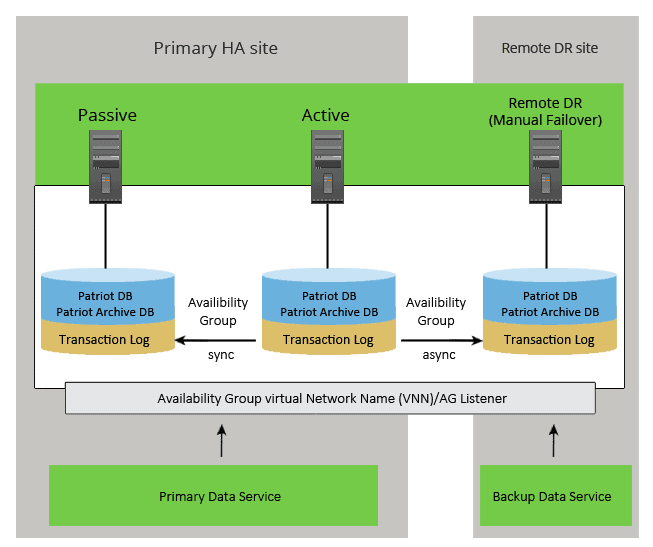
I tested it in SCCM 1606 for patching SQL Clusters, as it’s meant to make cluster patching a lot easier than we think. It automatically takes care of load-balancing for you after you perform the failover, patch, and move the cluster back to load after reboot.
Starting in Configuration Manager version 1606, you can configure server group settings for a collection to define how many, what percentage, or in what order computers in the collection will install software updates. You can also configure pre-deployment and post-deployment PowerShell scripts to run custom actions.
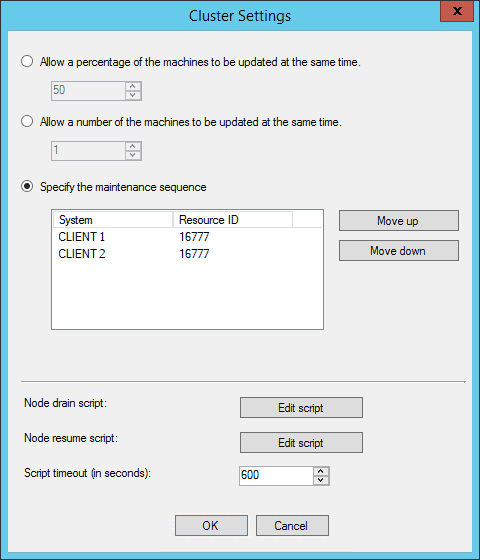
When you deploy software updates to a collection with server group settings configured (SCCM Server Patching Tips Using Orchestration Groups Scripts), Configuration Manager determines the maximum number of computers that can install the updates at any given time and makes the same number of deployment locks available.
Only computers that get a deployment lock will start software update installation. When a deployment lock is available, a computer gets the lock, installs the software updates, and then releases the lock when the installation completes.
Then, the deployment lock becomes available for other computers. If a computer cannot release a deployment lock, you can manually release all server group (SCCM Server Patching Tips) deployment locks for the collection.
- Server groups were replaced by orchestration groups starting in SCCM version 2002. For more information, see Orchestration groups.
- Pre-release features are in the Current Branch for early testing in a production environment.
- These features are fully supported but are still in active development and might receive changes until they move out of the pre-release category.
- You must turn on this feature to make it available. For more information, see Use pre-release features from updates.
Important – All of the computers in the collection must be assigned to the same site. SCCM Server Patching Tips Using Orchestration Groups Scripts.
In the Assets and Compliance workspace, click Device Collections, right-click the collection containing the server group’s computers, and then click Properties.
Select All devices that are part of the same server group on the General tab, then click Settings.
On the Server Group Settings page, specify one of the following settings:
Allow a percentage of machines to be updated simultaneously: This specifies that only a certain percentage of clients are updated concurrently. If, for example, the collection has ten clients and is configured to update 30% of clients simultaneously, then only three clients will install software updates at any given time.
Allow the number of machines to be updated simultaneously: This option specifies that only a certain number of clients are updated simultaneously.
Specify the maintenance sequence: This ensures that clients in the collection are updated in the order you configure, one at a time. A client will only install software updates after the client ahead of it in the list has finished installing them.
Specify whether to use a pre-deployment (node drain) script or a post-deployment (node resume) script. SCCM Server Patching Tips Using Orchestration Groups post and pre-deployment Scripts.
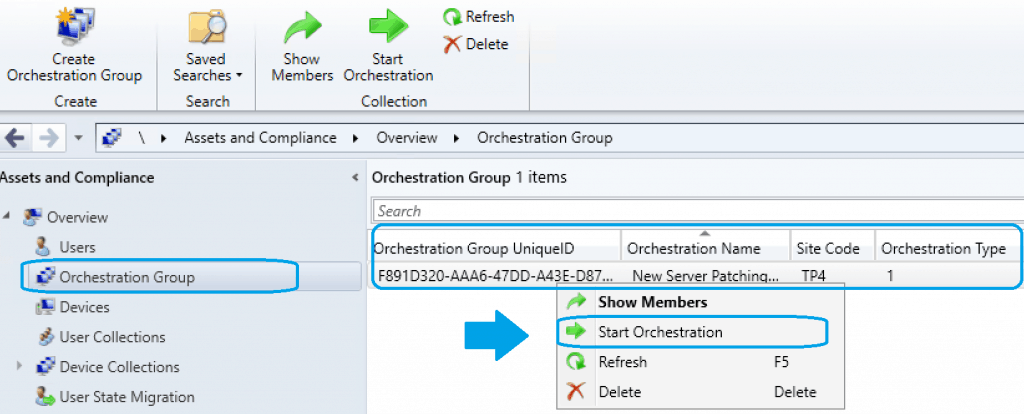
Read More – SCCM Orchestration Group Setup Step-By-Step Guide
Warning – Microsoft does not sign custom scripts. It is your responsibility to maintain the integrity of these scripts.
Examples – SCCM Server Patching Tips Using Orchestration Groups Scripts
The following are examples that you can use in testing for pre-deployment and post-deployment scripts that write the current time to a text file:
Pre-Deployment Script
#Start
$a = Get-Date
Write-Output "Universal Time: " + $a.ToUniversalTime() |
Out-File C:\Windows\Temp\start.txt
Post-deployment Script
#End$a = Get-DateWrite-Output "Universal Time: " + $a.ToUniversalTime() |Out-File C:\Windows\Temp\end.txt
Disclaimer—The information provided on the site is for general informational purposes only. All information on the site is provided in good faith; however, we make no representation or warranty of any kind, express or implied, regarding the accuracy, adequacy, validity, reliability, availability, or completeness of any information on the website.
Resources
We are on WhatsApp. To get the latest step-by-step guides and news updates, Join our Channel. Click here –HTMD WhatsApp.
Author
Deepak Rai is a Technical Lead with over 14 years of experience in IT. He specializes in SCCM, Intune, and Azure. Throughout his career, he has worked on various platforms such as Active Directory, Exchange, Veritas NETBACKUP, Symantec Backup Exec, NDMP devices like Netapp, EMC Data Domain, Quantum using Backup Exec 2010 and 2012, and HP StorageWorks 4048 MSL G3. He also has experience in data deduplication-related troubleshooting. Ultimately, he returned to his roots as an IT Engineer focusing on SCCM technology.




This is only partly correct: Specify the maintenance sequence: This ensures that clients in the collection are updated in the order you configure, one at a time. A client will only install software updates after the client ahead of it in the list has finished installing them.
This will install updates in that order, but lets say you list Node 1 first, it installs updates and starts to reboot. so Node 2 now starts updates. Well something is holding up Node 1’s reboot and maybe it’s trying to failover SQL to node 2, but node2 already started install and is now done and rebooting. SQL just failed altogether.
This happened to us and ticket with Microsoft confirmed the outcome. They only install in that order, they don’t monitor that server 1 is done and rebooted before starting Node 2.
Did you use Cluster aware update feature within that SQL cluster node that will avoid that situation