





SCCM Software Center Custom Tab Setup | ConfigMgr | Best Options
Let’s check the SCCM Software Center Custom Tab Setup to give users a better experience with the support portal, internal SharePoint sites, etc. In the previous post, I shared the options to Customize the ConfigMgr Software Center Appearance.
With the version of SCCM 2103, Microsoft provides one of the best branding options for the Software Center. There are options to change the font colors within the software center.
I have a post that discusses the difference between the SCCM Software Center and the Client Applet. Five (5) default tabs are available in the software center, and those are listed below. However, you can create custom tabs in the ConfigMgr Software Center to provide end-users with one-stop application access.
- Applications
- Updates
- Operating Systems
- Installation Status
- Device Compliance
- Options
Table of Contents
Prerequisites
It would help if you ensured the following prerequisites are in place to get the best user experience with the SCCM software center custom tab. The software center custom tabs option will also work with the previous version of Configuration Manager. So, the following prerequisite is only necessary if you want to enable WebView2 browser control.

- ConfigMgr 2103 or later production version to get end-users the latest updated custom tab experience.
- .NET Framework version 4.6.2 or later.
- Microsoft Edge WebView2 runtime (fixed version) – This will get automatically installed if it’s not installed.
- The WebView2 browser control provides improved security and user experience.
- SCCM How to Hide Tabs in New Software Center Customization
- Microsoft Connected Cache Issue for Enterprise Customers Fixed
- Advanced Insights of SCCM Data
How to Setup SCCM Software Center Custom Tab
Let’s set up the SCCM Software Center Custom Tab from the client settings.
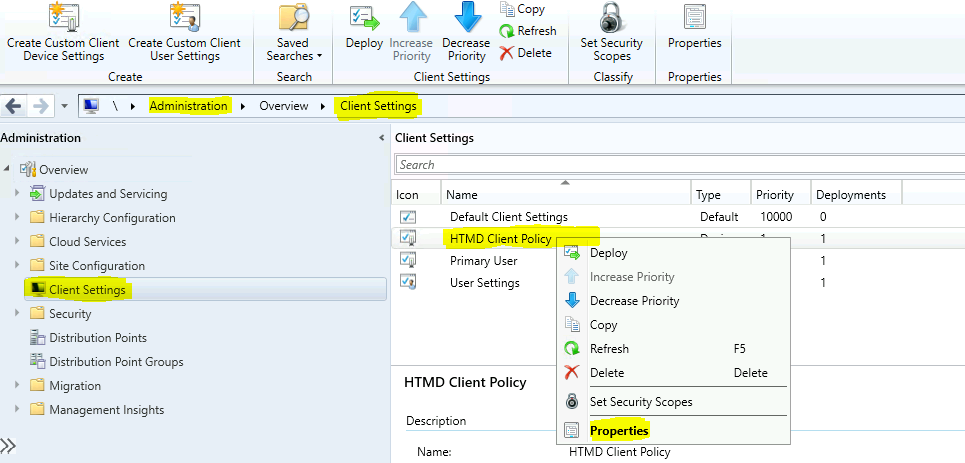
- Launch the SCCM Admin Console using the account with appropriate access to change the client settings.
- Navigate the client settings node in the administration workspace – \Administration\Overview\Client Settings.
- Select the client settings for which you want to add a custom tab.
- Right-click on the Client Settings policy and select properties.
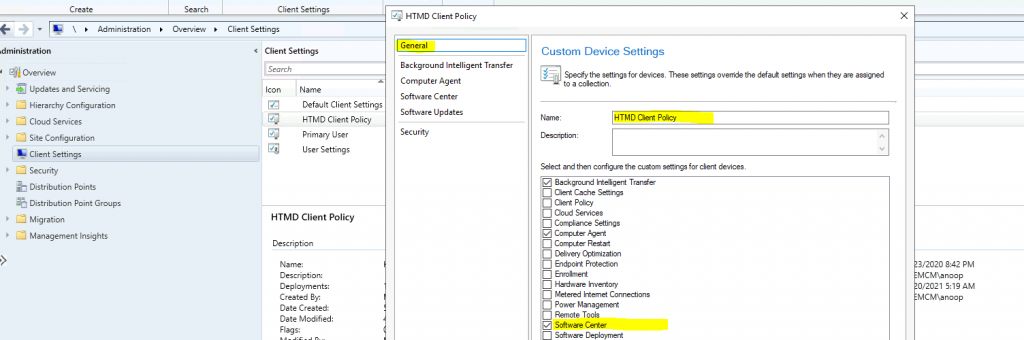
- Make sure Software Center is selected from the General tab.
- Click on the Software Center tab.
- Select the User Portal -> Software Center.
- Select these new Settings to Specify Company Information -> Yes.
- Software Center Settings -> Click on the Customize button to start the branding.
- Click on the Tabs options.
- Click on the Add Tab button to add a new SCCM Software Center custom tab.
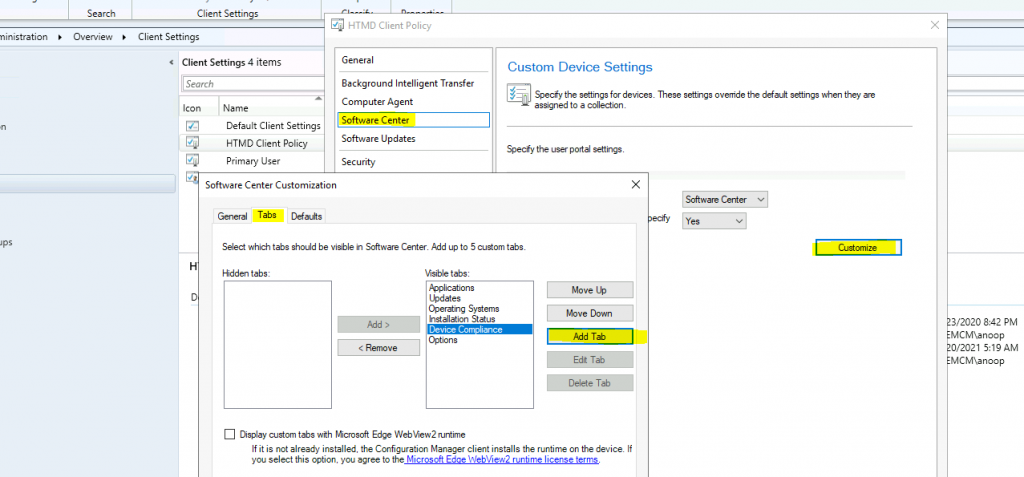
NOTE! – Make sure you enable the checkmark near – Display custom tabs with Microsoft Edge Web Views 2 runtime option to have better security and user experience for end-users with custom tab.
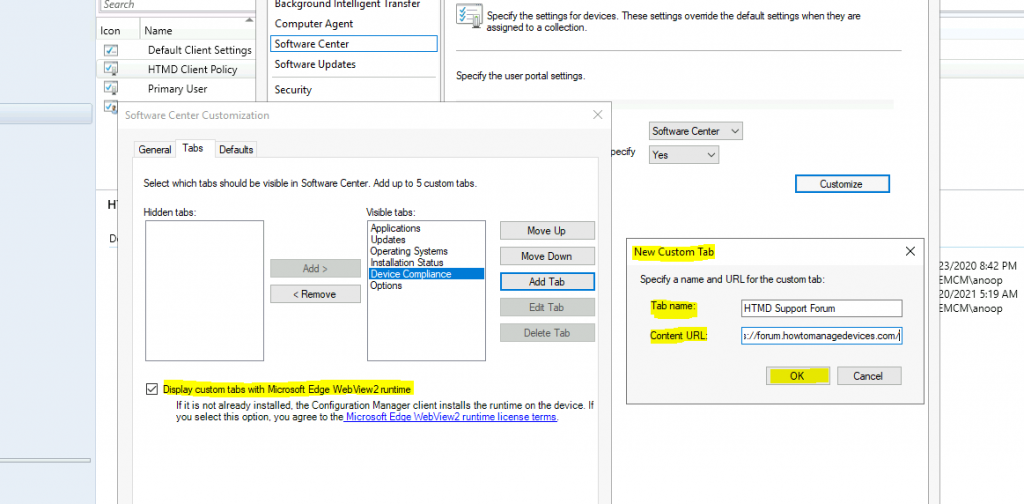
- From the New Custom Tab window, specify a name and URL for the custom tab:
- Enter the custom Tab Name -> HTMD Support Forum.
- Enter the Content URL: -> https://forum.howtomanagedevices.com/.
- Click OK, OK, and OK to save the Software Center custom tab settings.
NOTE! – Some website features (javascript rendering?) may not work in a custom tab in Software Center. Make sure that you have tested the results before deploying this to a large set of client devices. You might need to specify only trusted or intranet website addresses when you add a custom tab.
Result – Client Custom Tab
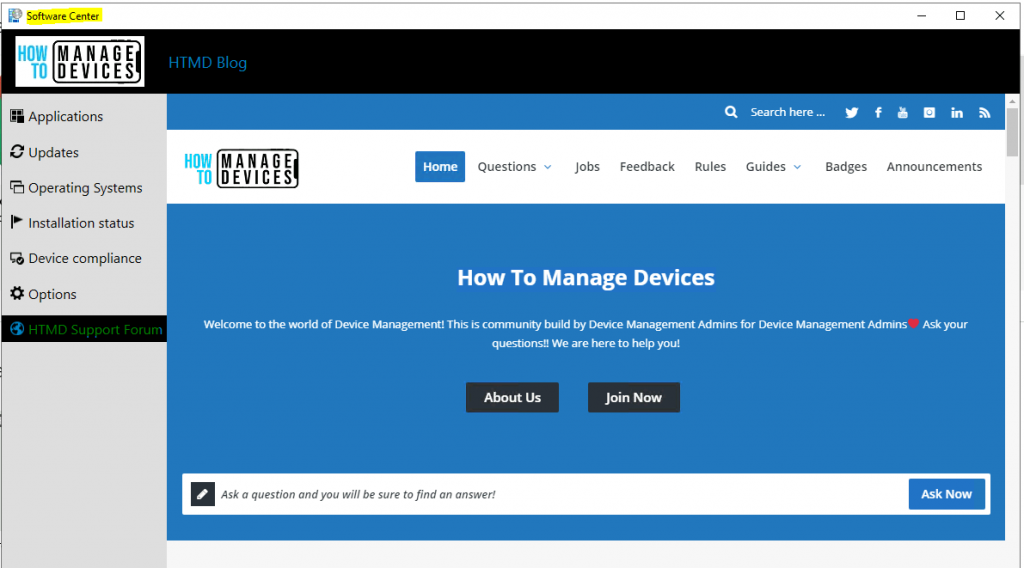
Let’s check the end-user experience of SCCM Software Center custom tabs. As you can see in the screenshot below, the HTMD Support Forum custom tab is available in the Software Center.
When you click on the Custom Tab, the How to Manage Devices Forum website opens, which was configured in the above client settings policy.
Resources
- Software Center settings (Microsoft Docs)
- SCCM Software Center and Client Applet
We are on WhatsApp. To get the latest step-by-step guides and news updates, Join our Channel. Click here –HTMD WhatsApp.
Author
Anoop C Nair has been Microsoft MVP for 10 consecutive years from 2015 onwards. He is a Workplace Solution Architect with more than 22+ years of experience in Workplace technologies. He is a Blogger, Speaker, and Local User Group Community leader. His primary focus is on Device Management technologies like SCCM and Intune. He writes about technologies like Intune, SCCM, Windows, Cloud PC, Windows, Entra, Microsoft Security, Career, etc.




Software link