






FIX SCCM SQL Backlog Issues using SQL Transmission Queue Stored Procedure
Let’s try to identify and fix SCCM SQL Backlog Issues using SQL Transmission Queue Stored Procedures. Here’s how to Fix SCCM ConfigMgr Inbox Backlog Issues.
You can have a look at the Site to Site Replication post for more details about the new replication model. This post is a continuation of the site-to-site replication post.
Several Stored Procedures can be used to obtain more details about the backlog and monitor the Transmission Queue.
The first and most useful one is the stored procedure called spDiagDRS. Run EXEC spDiagDRS to get the below results (shown in the picture): SCCM SQL Backlog Issues.

- FIX SCCM SQL Replication Issues Using Replication Link Analyzer
- FIX: SCCM Site Database Has A Backlog Of SQL Change Tracking Data
| Index |
|---|
| How to Fix SCCM ConfigMgr Inbox Backlog Issues |
| SCCM SQL Transmission Queue |
| SCCM SQL Backlog Issues |
How to Fix SCCM ConfigMgr Inbox Backlog Issues
Let’s try to understand how to Fix SCCM ConfigMgr Inbox Backlog Issues. The following are some of the SQL-stored procedures and queries that can help you fix replication issues. However, you should start troubleshooting SCCM replication issues from the Replication Link Analyzer.

The stored procedure spDiagDRS offers details about queued messages. Look at the columns OutgoingMessagesInQueue and IncomingMessagesInQueue.
In an ideal scenario, there should NOT be any queued messages, and the values of those columns should be ZERO. In my example, “OutgoingMessagesInQueue” is 257, which means there is some error in the send, and we have a backlog.
The stored procedure “spDiagDRS” will also tell us about each replication group’s status and last sync time. In my example, SiteSending is CAS, and SiteReceiving is PR1.
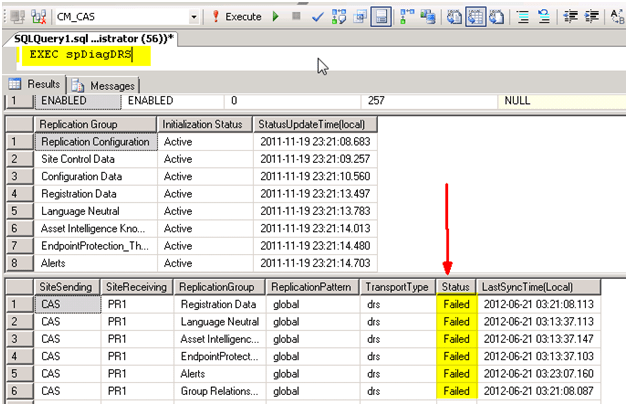
The following spDiagDRS – How to Fix SCCM ConfigMgr Inbox Backlog Issues.
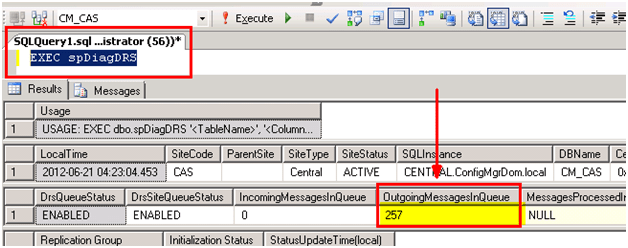
Apart from spDiagDRS, there are some very useful stored procedures that we can use at the time of backlog troubleshooting. See the list of Stored Procedures below.
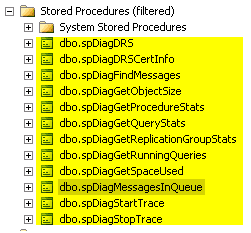
We will provide more details about these stored procedures in future blog posts. For now, you can check out the following examples and parameters.
EXEC spDiagMessagesInQueue
EXEC spDiagGetReplicationGroupStats
EXEC spDiagGetProcedureStats
EXEC spDiagGetQueryStats
EXEC spDiagGetRunningQueries
EXEC spDiagStartTrace
EXEC spDiagStopTrace
Transmission Queue is another option that we should consider in case of a backlog (or stuck outgoing messages).
All the other queues (ConfigMgrDRSSiteQueue, ConfigMgrRCMQueue, ConfigMgrDRSMsgBuilderQueue, ConfigMgrDRSQueue etc. ) shown in the following pic are application-related.
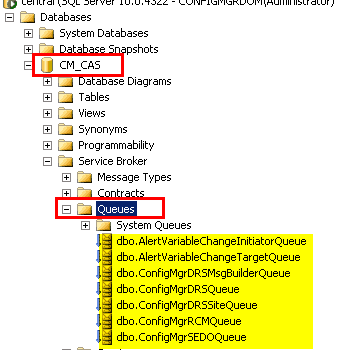
SCCM SQL Transmission Queue
To check the Transmission Queue, you need to run the SQL query below. With the query below, we can check Transmission for a particular primary site (in the below query, CAS server site code = CAS, and the Primary site code is PR1).
SQL Query to check the transmission_status in SCCM SQL-based replication is given in the below link – SCCM-SQL-backlog-Check-Query/SQL Backlog Check.sql at main · AnoopCNair/SCCM-SQL-backlog-Check-Query (github.com)
In the picture below, you can see the records waiting for transmission. The “transmission_status” column provides more details about any transmission errors, which will be very helpful for further troubleshooting.
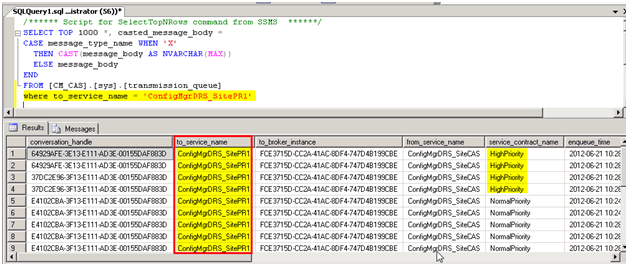
How to Fix SCCM ConfigMgr Inbox Backlog Issues Endpoint Manager?
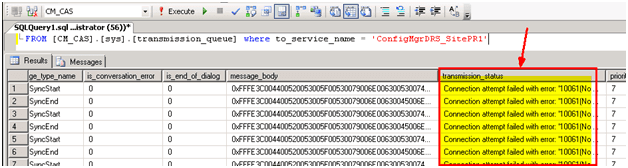
vLogs view is the DRS (Data Replication Service) log file. This will provide us with more details about the DRS process and backlog.
Run the following SQL query – to get more details about these logs.
Select top 1000 * from vLogs order by LogTime descSCCM SQL Backlog Issues
RCM_ReplicationLinkStatus table can also provide us with more details about the link status between the sites.
Run the SQL Query – “select * from RCM_ReplicationLinkStatus”. Look at the StatusName column for more details like Failed, Degraded, etc.
select * from RCM_ReplicationLinkStatus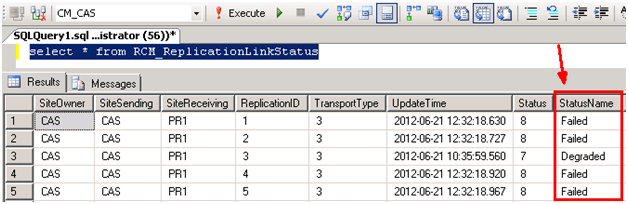
TRACE stored procedure – For In-depth analysis of backlog. This can be performed by using the following stored procedures. Caution – this will create a lot of overhead on the SQL server and also use a lot of disk space because of the creation of the ConfigMgrDBTrace.trc file.
EXEC spDiagStartTrace
EXEC spDiagStopTrace
You can start the trace process with EXEC spDiagStartTrace. This process will create trc (trace file) – in the SQL installed location.
“C:\Program Files\Microsoft SQL Server\MSSQL10.MSSQLSERVER\MSSQL\DATA\ConfigMgrDBTrace trc”.
This process will also start tracing every SQL server event. To stop the trace, use EXEC spDiagStopTrace. Ensure that you STOP the trace ASAP; otherwise, it may adversely impact the server.
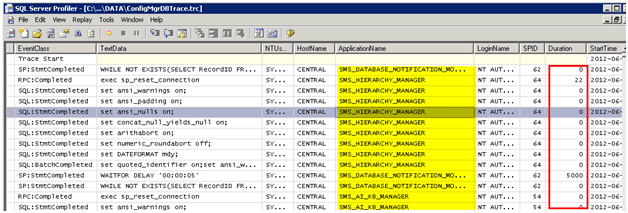
You can use SQL Server Profiler to open the trc file. You will get depth details about each event performed by the SQL server during the time of TRACE. like Duration, EventClass, StartTime, etc.
We are on WhatsApp. To get the latest step-by-step guides and news updates, Join our Channel. Click here –HTMD WhatsApp.
Author
Anoop C Nair has been Microsoft MVP from 2015 onwards for 10 consecutive years! He is a Workplace Solution Architect with more than 22+ years of experience in Workplace technologies. He is also a Blogger, Speaker, and leader of the Local User Group Community. His main focus is on Device Management technologies like SCCM and Intune. He writes about technologies like Intune, SCCM, Windows, Cloud PC, Windows, Entra, Microsoft Security, Career, etc.




Good One Anoop.I can help you in adding some more queries to this which will help in troubleshooting backlogs.
StaffYes, please provide me the queries that may help the community. Thank you
Hi Anoop, good one. So, as per this I see that I have 13412 in “OutgoingMessagesInQueue”. Now, I certain points on which I need clarification are:-
1. Is this because of these many messages are there in queue, my database replication status showing as “Link has failed” ? If yes, how can I push them or probably clear them to make the link active?
2. If not, what could be the reason for my link showing as failed when I have verified that all the necessary ports are open and as a matter of fact, it worked till couple of days back.
3. I understand that these backlogs will get generated when the link breaks(hope my understanding is correct). If yes, when the network link gets rectified shouldn’t be these backlogs start getting pushed and make the database replication healthy?
I am not a SCCM guy, so confused within few concepts. I would really appreciate if you can throw some light on it.
I have entries in my ConfigMgrRCMQueue related to an old site.
This caused the ConfigMgrRCMQueue te become disabled and I can’t enable it. Now my other links to other secondaries is down.
Any idea how to get removed the entries in ConfigMgrRCMQueue so that it can be enabled again ?
Hi Anoop,
I have entries in my ConfigMgrRCMQueue which caused all my links to be down.
Could you tell me how i can clear the entries from ConfigMgrRCMQueue ?
Those entries are related to old secondary sites 🙁
StaffHi ! – I don’t recommend editing DB directly.
Hi Anoop,
Yes i do not like that either: changing the DB directly, but…
using END CONVERSATION ‘Conversation_id’ did solve my problem 🙂
StaffHi Johan ! – Great to know that. I’m already preparing a post related to same.
Regards
An0op
Hello,
I am facing the following issue:
We have 4 Primary sites and one Central CAS Server. We lost the The CAS site by a HD failure. We only have a recent backup of the Site CAS Database only no backup for any configuration for the site.
We Prepared a new server did a Fresh installation of Windows 2008 R2 Sp1 install all Prerequisite for System Center Configuration Manager 2012 Sp1 and Run the Setup for Sysem Center Configuration Manager. I choose reinstall
1- Recover A Site
2- Reinstall this site Server (CAS Server)
3- Use a site Database that has been manually recovered. (I restored the last backup of the database)
Follow the Wizard, and the installation completed successfully.
Now when I am opening my CAS Console it is Read only mode. It has been like this since 24 hrs so far and no sign of improvement.
If I open any other primary site it is also in Read Only mode. All Site are in the unknow state, see attachements.
Is this a normal behavior? How Can I stop this replication?
What should I do next?
any helps,
Thanks,
After the site is restored, site will do a replication re-initialization hence its in maintenance mode. Don’t do anything now, as it will take time to recover. See which all groups are re-initialized and how many groups are pending. Global groups will be done fast, but site data takes time based on your primary sites size. Check out these links to get some idea on the re-initialization, so that you can monitor the bcp process.
http://blogs.technet.com/b/umairkhan/archive/2014/02/18/configmgr-2012-data-replication-service-drs-unleashed.aspx
http://blogs.technet.com/b/umairkhan/archive/2015/01/22/configmgr-2012-drs-initialization-internals.aspx
Let it happen and don’t do anything if you want the site to recover completely.