






SCCM SQL Data Visualization using Azure Data Studio and Query Execution
Let’s discuss SCCM SQL Data Visualization using Azure Data Studio and Query editing and execution in this post. Find out whether ConfigMgr admins can use Azure Data Studio instead of SQL Server Management Studio (SSMS).
Microsoft already bundled the Azure Data Studio application with the latest version of SQL Server Management Studio (SSMS) installers. Microsoft is not planning to retire SSMS in the near future because there is no feature parity between SSMS and Azure Data Studio (ADS).
I find Azure Data Studio allows authenticate with Azure AD credentials with MFA/ Also, it will enable connecting to DBs hosted in a public cloud such as Azure. Another advantage of this tool is multi-platform support such as macOS, Linux, and Windows.
The best option is to use Azure Data Studio and SSMS and assess which is the best suitable solution for you. As an SCCM admin, I use SSMS for SQL query editing and execution (99.9% of the time). You should start using Azure Data Studio from today if you are like me.

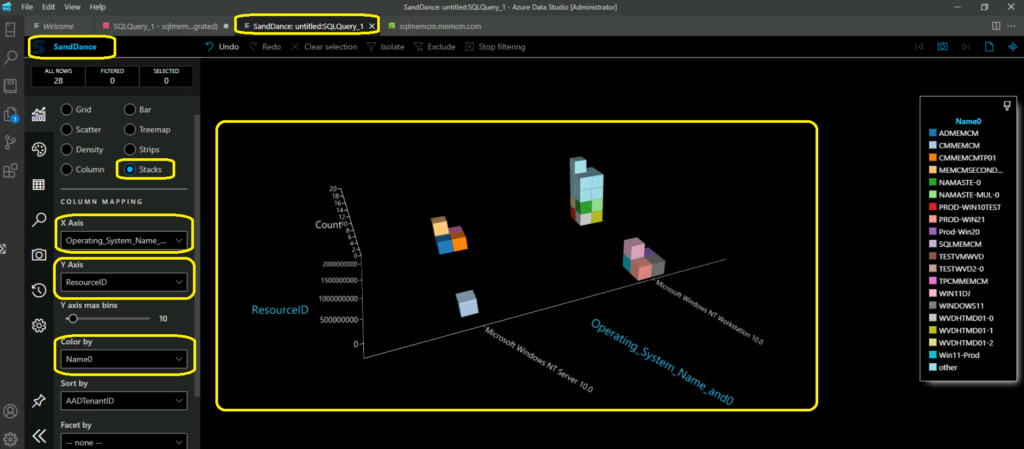
The following SCCM Query result graph (visualizer) is my takeaway from Azure Data Studio testing. So if you want to build the graphical representation of SCCM data, you must try this and thank me later! What about PowerBI, then? Let me know in the comments.
What is Azure Data Studio?
Azure Data Studio is an open-source, cross-platform desktop environment for editing SQL queries and many other modern features. This works well with on-premises and cloud data platforms on Windows, macOS, and Linux endpoint devices.
Azure Data Studio is previously released under the preview name SQL Operations Studio. The source code for Azure Data Studio and its data providers is available on GitHub under a source code EULA that provides rights to modify and use the software.
As per Microsoft, Azure Data Studio has been designed to make you more productive in the DevOps lifecycle of your databases of choice on the operating systems of your choice.
Benifits of using Azure Data Studio – SCCM SQL Data Visualization
Let’s check the benefits of using Azure Data Studio over SSMS. The following list gives you an idea about when to use Azure Data Studio. The main use case, for now, is SQL query editing and execution. Also, quickly building charts and visualizations (explained in the below sections of this post).
- Are mostly editing or executing queries.
- Need the ability to quickly chart and visualize result sets.
- Can execute most administrative tasks via the integrated terminal using sqlcmd or PowerShell.
- Have the minimal need for wizard experiences.
- Don’t need to do deep administrative or platform-related configuration.
- Need to run on macOS or Linux.
Install Azure Data Studio Standalone Package
Let’s install the Windows standalone package for Azure Data studio. You can download the Windows System install from the following Microsoft links.
You can install the user installer if you install it on your laptop or device. However, I recommend using the system installer of Azure Data Studio if you are installing on a server operating system.
| Platform | Download |
|---|---|
| Windows | User installer (Personal Device) System installer (Server OS) .zip file |
| macOS | .zip file |
| Linux | .deb file .rpm file .tar.gz file |
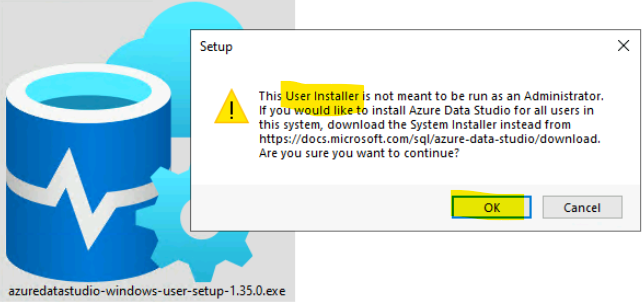
The following pop-up window will be presented when you download the user installer and install it with a privileged admin user. As I mentioned above, I used the System Installer because I want this app to be available for All users on that SCCM server.
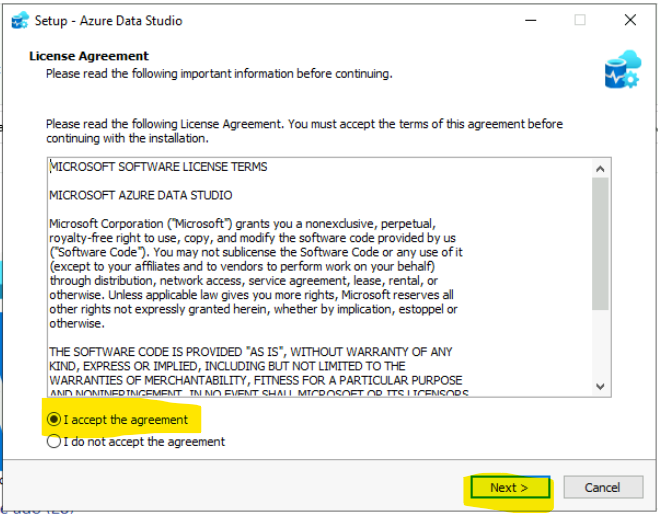
Double click on the system installer of Azure Data Studio (azuredatastudio-windows-setup.exe) to start the installation. Select I accept the agreement button and click on the Next button to continue.
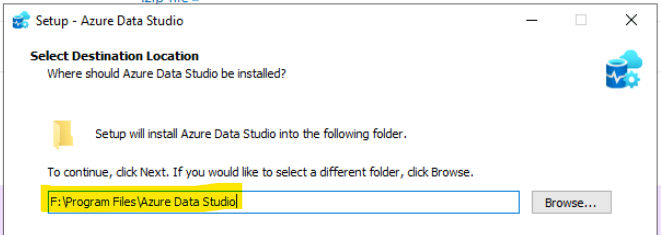
I have selected the drive letter where the SCCM is installed F:\Program Files\Azure Data Studio. Click on the Next button to continue.
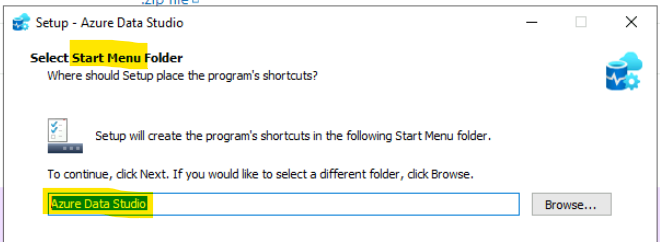
You can customize the Start Menu Folder from the installer itself! I kept the original name “Azure Data Studio.”
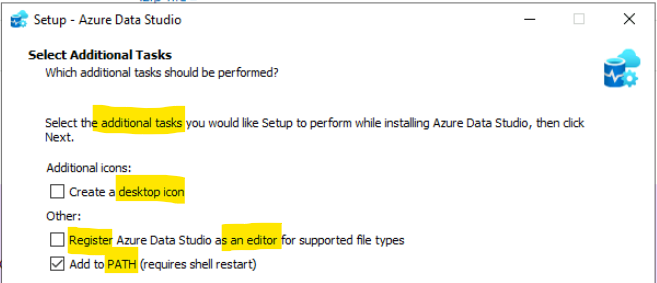
You can select the additional tasks you would like ADS setup to perform while installing Azure Data Studio.
You have an option to create a desktop icon and Register Azure Data Studio as an editor for supported file types + Add to PATH (requires shell restart).
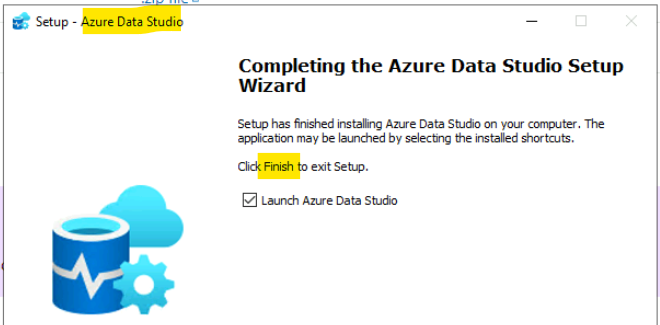
The installation didn’t take much time on the SCCM server. It took less than 4 minutes (I think). Click on the Finish button to launch Azure Data Studio for the first time.
Azure Data Studio Auto Update Feature
Azure Data Studio gets updates automatically; you don’t need to download the application package to get the latest version of Azure Data Studio. This feature is similar to Microsoft Teams auto-update feature.
This auto-update feature is available only when the Azure Data Studio app can communicate with the Microsoft cloud services and download the latest updates from there.
NOTE! Ensure the firewall and proxy communications are open from the servers to enable the auto-update feature for Azure Data Studio. I think it’s ok to enable auto-update for Azure Data Studio if you installed this on the endpoint devices such as macOS, Linux Client, or Windows 11/10.
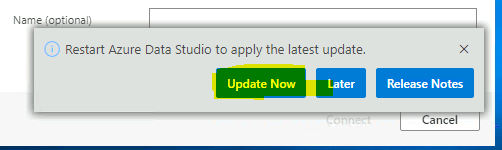
Whenever there is an update available, you will see an Update Now button on Azure Data Studio. It would help if you restarted Azure Data Studio to apply the latest update.
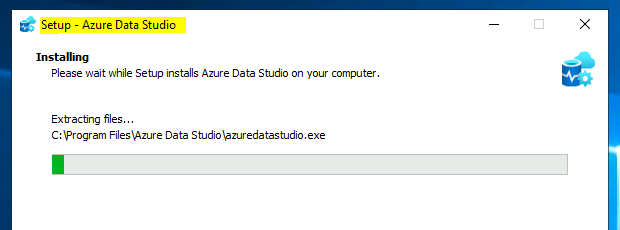
The Azuredatastudio.exe will extract the new files and update all the components of ADS that require updating.
NOTE! – Always enable or update Azure Data Studio on one of the test devices to check whether there are any known issues or not. Also worth checking the Release Notes before updating to the latest version.
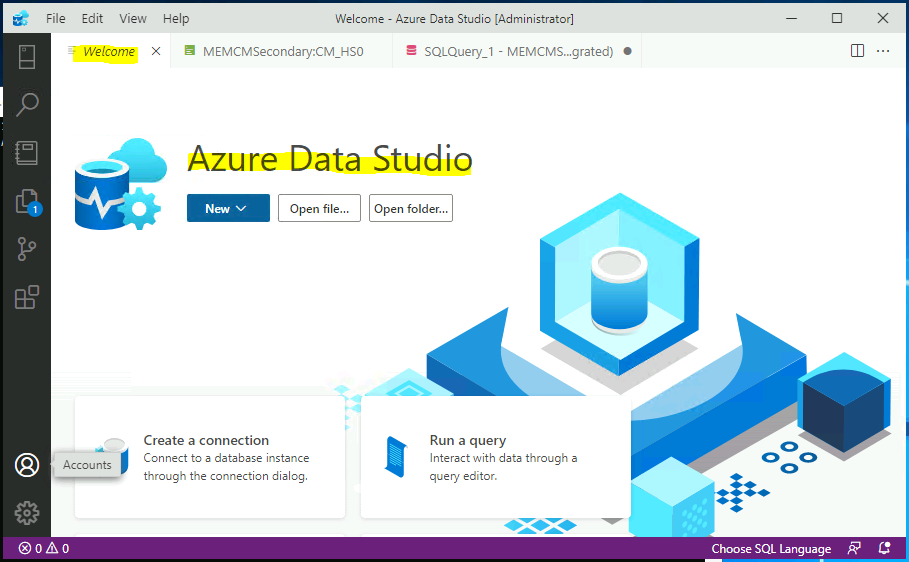
The welcome screen is the first screen presented to you. You can create a new connection from the welcome screen. More details about making new connections and connecting to SCCM SQL DB are explained in the below sections of the post.
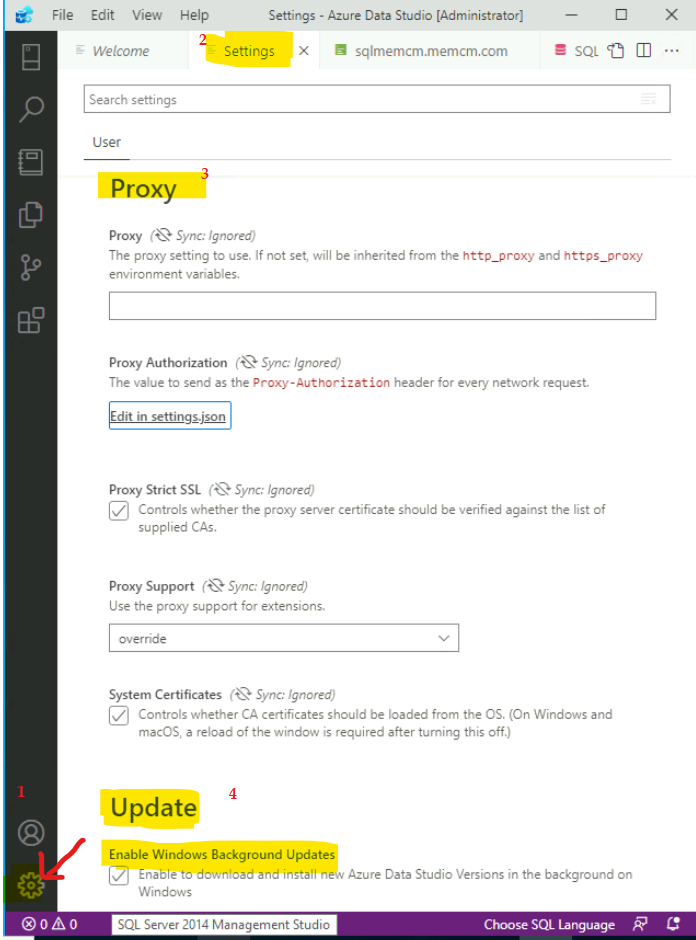
Proxy and Auto-Update Settings for Azure Data Studio
You have options to have specific proxy and auto-update settings for Azure Data Studio. The proxy setting to use. If not set, it will be inherited from the http_proxy and https_proxy environment variables. Many configurations are available from the manage – Settings option on Azure Data Studio.
- Proxy Configuration.
- Auto-Update – Enable or Disable options.
- Telemetry Configurations.
- Security Workspace Configurations.
- Data Connection Configurations.
- Query Editor Configurations – The default chart type to use when opening Chart Viewer from a Query Results.
- Dashboard Configurations – Enable or disable the properties widget.
Enable Windows Background Updates – Enable downloading and installing new Azure Data Studio Versions in the background on Windows. You have an option to disable the updates for ADS, unlike Microsoft Teams.
There are different modes available for background updates for ADS – Configure whether you receive automatic updates. Requires a restart after the change. The updates are fetched from a Microsoft online service.
NOTE! – I have not covered all the settings available for Azure Data Studio in this section.
How to Connect to SQL Server Database using Azure Data Studio?
Let’s learn how to connect to the SQL Server Database using Azure Data Studio (ADS). You have Azure AD with an MFA authentication option available with Azure Data Studio. This is useful in cloud DB management scenarios.
- From the Welcome page of ADS, Click on Drop-Down option under New.
- Click on New Connect to launch the connection window/screen.
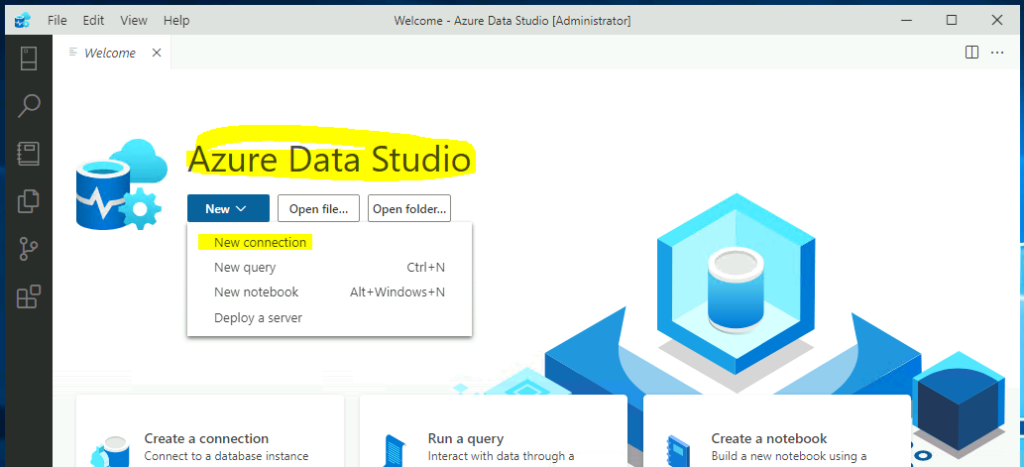
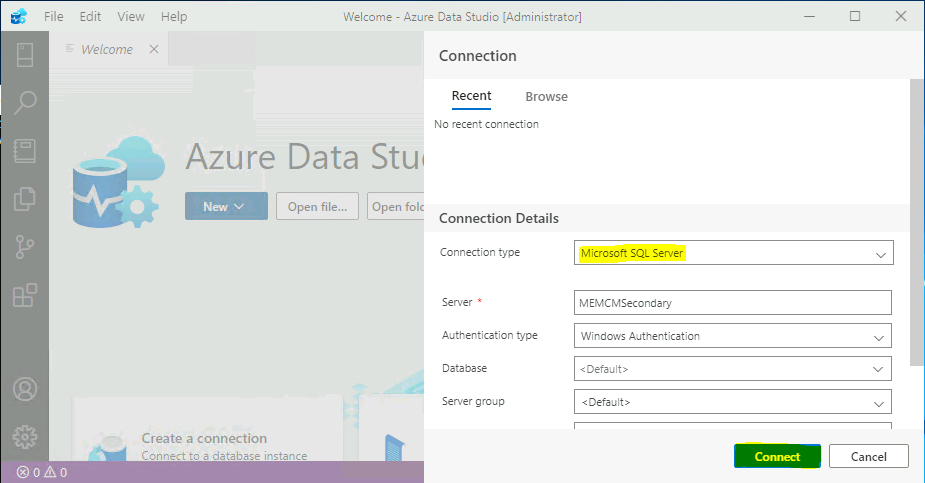
In the connection screen, you get two options Recent and Browse. You have Saved Connections and Azure connectivity options from the Browse section.
You can use Azure Data Studio to connect to SCCM primary and Secondary server DBs. As you can see below, connecting to SCCM secondary server DB using Windows Authentication.
NOTE! – There are other authentication options with Azure Data Studio, such as Azure Active Directory – Universal with MFA support.
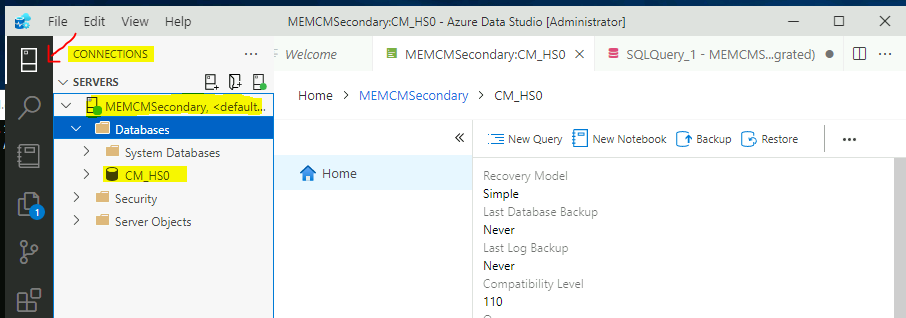
From the connections (CTL + Shift + D), you can check the different databases you are connected to. Also, it gives nice segregation between System Databases and application DB such as SCCM (ConfigMgr) DB, for example.
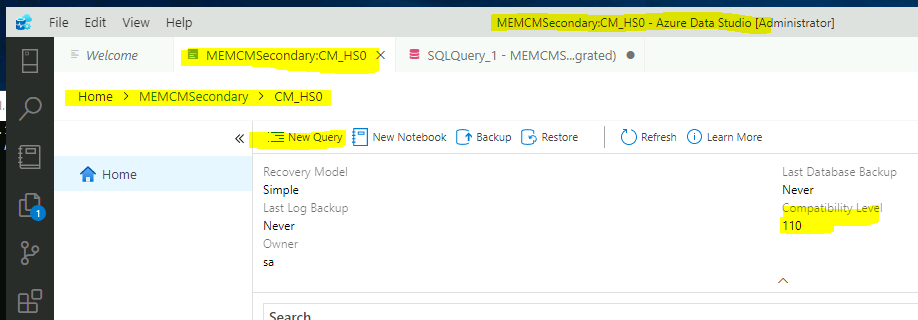
Once you are connected to a DB (for example – MEMCMSecondary: CM_HSO) from the HOME section, you can check the Compatibility Level (110 in the below example), Backup, Recover Model, etc. settings for SCCM DB.
SQL Query to Find SCCM SQL DB Size using Azure Data Studio
Once connected to the SCCM primary server database, you have an option to check the Database Size in MB with a graphical representation. You can click on three (3) horizontal dots to find the SQL query details for this data.
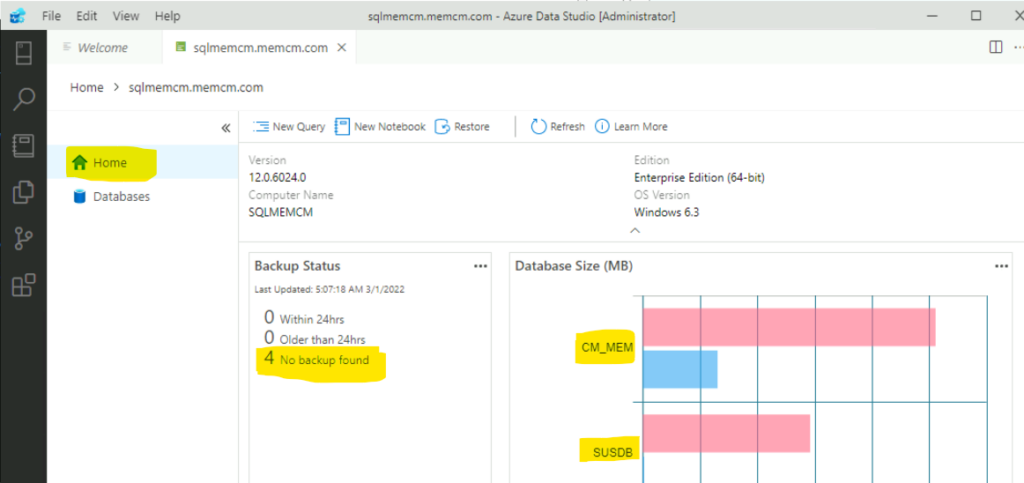
The following is the SQL query that you can use to find out the details of Database size in MB. You can check the details of all the DBs available with an SCCM primary server from here.
- CM_MEM
- SUSDB
- ReportServer
- ReportServerTempDB
with fs
as
(
    select database_id, type, size * 8.0 / 1024 size
    from sys.master_files
)
select top 10
    name,
    (select sum(size) from fs where type = 0 and fs.database_id = db.database_id) DataFileSizeMB,
    (select sum(size) from fs where type = 1 and fs.database_id = db.database_id) LogFileSizeMB
from sys.databases db
where database_id > 4
order by DataFileSizeMB desc
How to Run SQL Query using Azure Data Studio
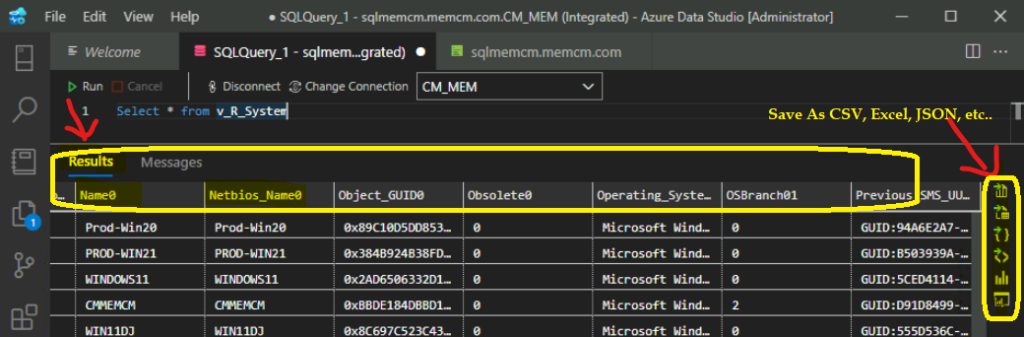
Once you have the SQL query results on Azure Data Studio, you have options to save the output of the query results into different formats as given below.
- Save as CSV.
- Save as Excel.
- Save as JSON.
- Save as XML.
Two interesting options are available as part of SQL query results, such as Chart and Visualizer. I like the visualizer options on Azure Data Studio. Let’s start using all these along with PowerBI.
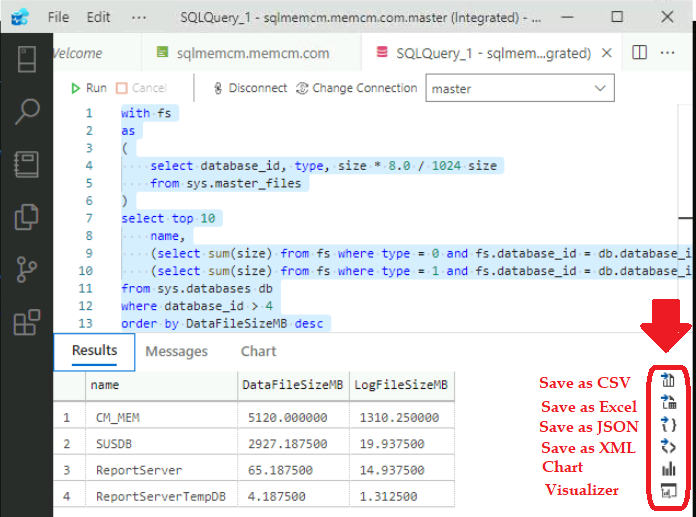
Enable Visualizer on Azure Data Studio SQL Query Results
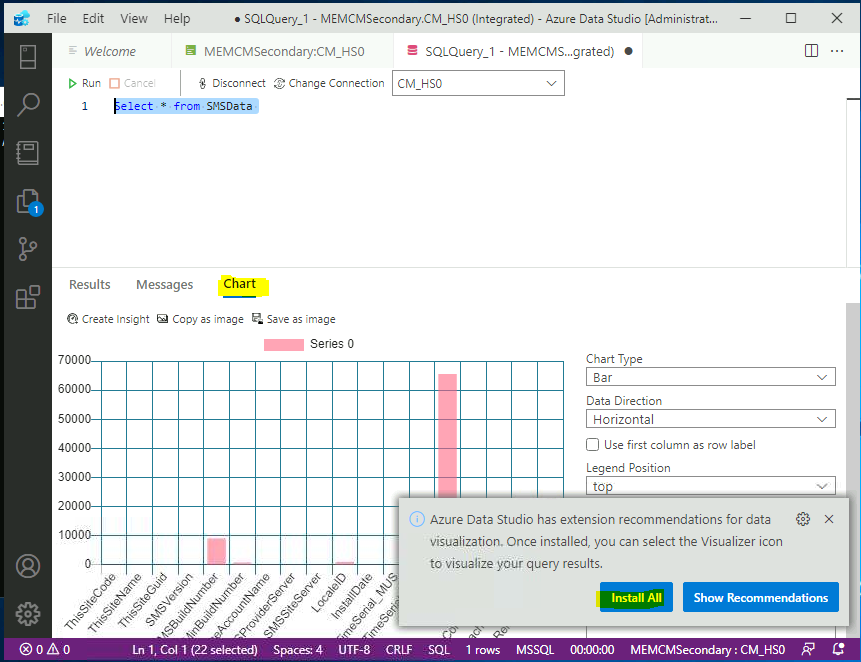
To enable the visualization (Visualizer) option from the Azure Data Studio SQL query result, you must install extensions. It’s a straightforward process when you have unrestricted connectivity from the server using cooperate proxy.
Click on Install All to use visualization from SQL query results. Once installed, you can select the visualizer icon to visualize your query results.
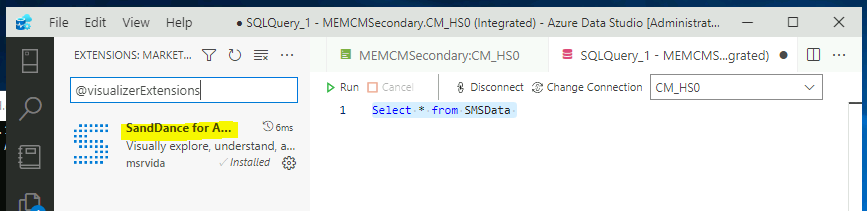
An Extensions market associated with Azure Data Store will help the community build their own extensions and make those available through this market option.
NOTE! – I think there is similar functionality available with Visual Studio Core extension options.
Build SQL Query Design with Azure Data Studio
Let’s check the core feature of Azure Data Studio in this section and that SQL query editing. As per the research conducted by Microsoft, the users spend an order of magnitude more time working on query editing than on any other task with SQL Server Management Studio.
Once connected to an SCCM or any application DB, you can run a query against the Database to get the specific details or reports or Doughnut charts for the query results. You can click on the Run A query option from the HOME page to start query editing.
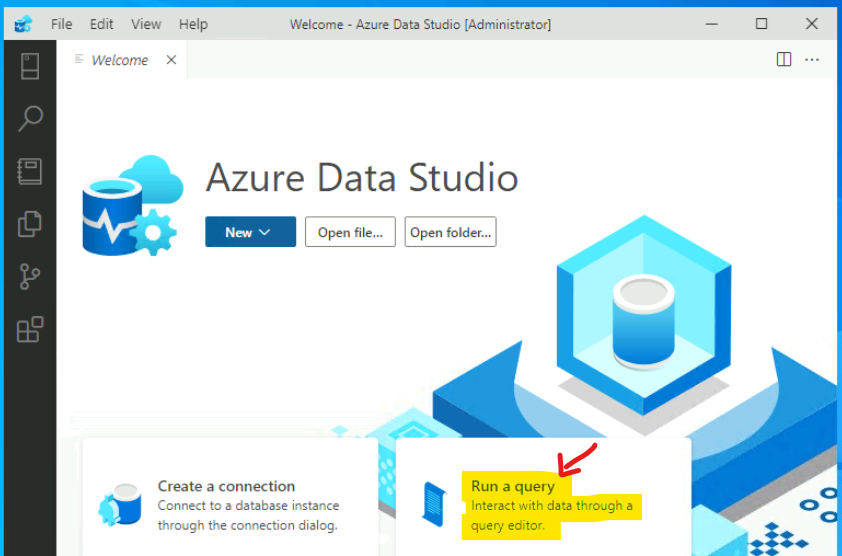
By default, the Run a Query option is not connected to any DB even though you are already connected to SCCM DB from Azure Data Studio.
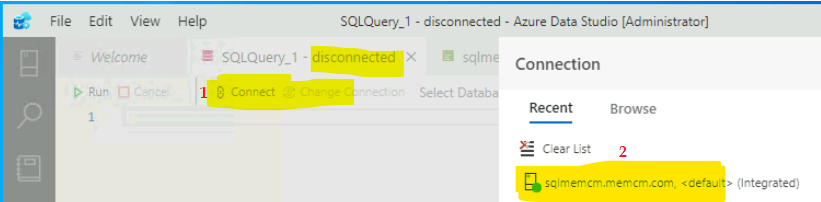
The Run a query option won’t work as expected until you click on connect button SQL Query Tab is shown below. Once SQLQuery_1 Status is changed to Connected from Disconnected, you can edit the SQL query.
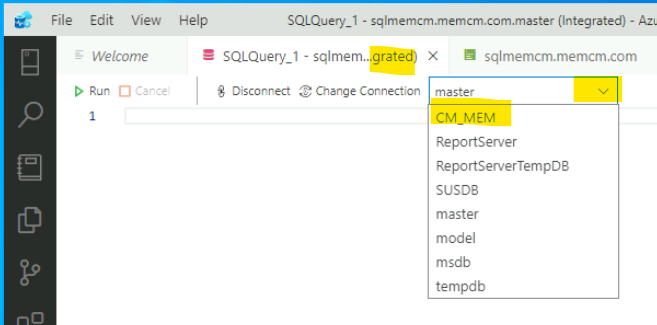
Once connected to the SQL server from Azure Data Studio, you can select the Database (aka DB) from the drop-down list. For example, I have connected to the SCCM Primary server DB called CM_MEM.
Edit SQL Query with Azure Data Studio
Let’s see how to Edit SQL Query with Azure Data Studio. SQL Query editing made easy with Azure Data Studio query editor. There is no change in terms of syntax of the SQL query (obviously). I don’t think KQL queries will work here with Azure Data Source.
You can edit or create a new SQL query from the following window. Also, you can use any of the existing SQL queries to check the updated results.
Read More on SQL Queries – SCCM Report For Windows 11 Version Count Dashboard HTMD Blog (anoopcnair.com).
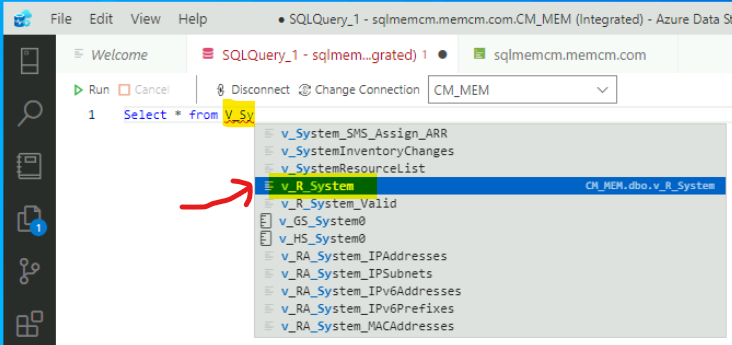
Click on the Run button below to execute the SQL query – I have used the following query below.
Select * from v_R_System
Different Type of SQL Query Results
There are different types of results options available on Azure Data Studio. The default result is available in table format. The most interesting one for me is Chart and Visualizer. We will discuss this in the below sections of this post.
NOTE! – You can change the color theme of Azure Data Studio to Dark if you like. This color theme option is available in the Manage button as explained in the above section (proxy configuration, etc.).
The results are shown in a Table format similar to SQL Server Management Studio (SSMS) results. However, there are additional Save as (such as Save as CSV, Excel, JSON, etc.) options as explained in the above section.
Create Doughnut Charts using SCCM SQL Query Results
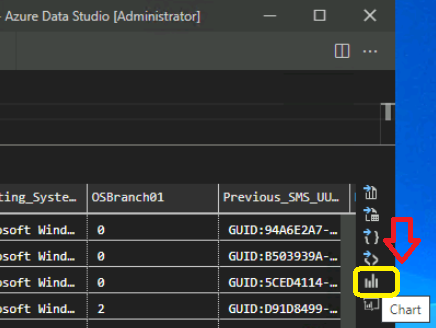
Let’s see how to build Doughnut charts using SCCM SQL Query Results from Azure Data Studio. You click the Chart option from the right side toolbar on the results pane to show the SQL query results in chart format.
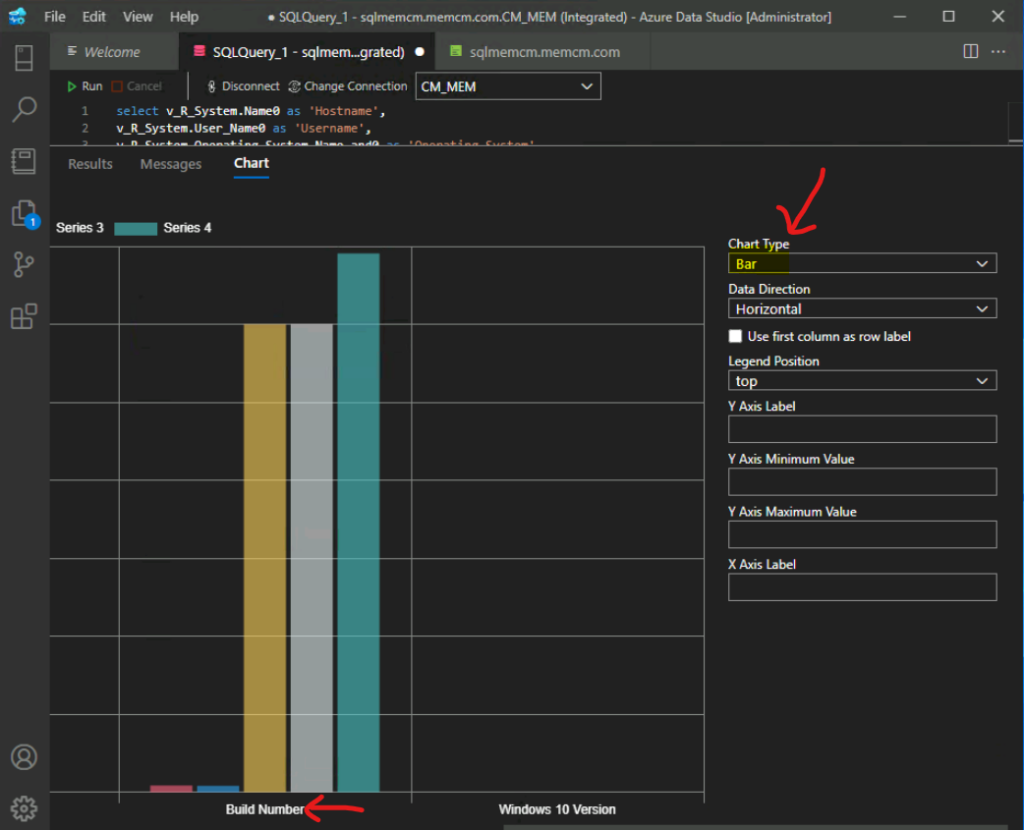
The default chart type for Azure Data Studio is the “Bar” type chart as shown below. The following is the default Bar Chart Type results. To build a Doughnut chart, you need to select the appropriate chart type from drop-down option.
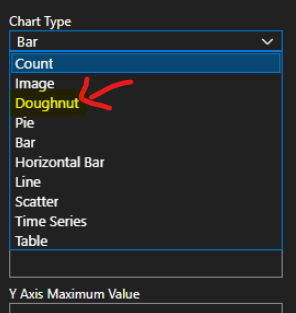
Select Doughnut from the chart type drop-down option to show the SQL query results in the Doughnut chart type.
The following is the Doughnut chart that got created as part of one of the SQL query results. The SQL query I have used to get this chart is given below.
Select * from SMSData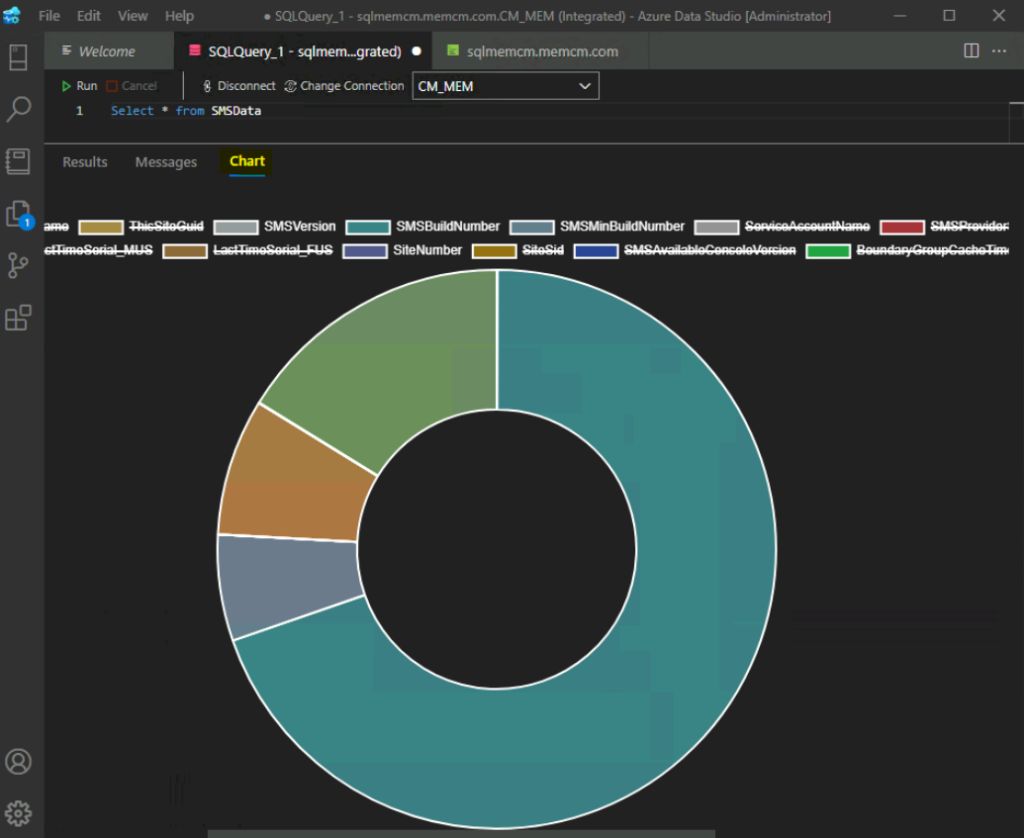
Azure Data Studio Visualizer
Let’s see what is Azure Data Studio Visualizer. As explained in the above section of this post, the Visualizer feature of Azure Data Studio comes from an installed extension. The Visualizer option is missing from SQL query results? It means, you have not installed the extension as mentioned above.
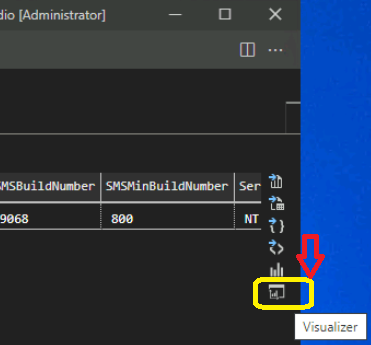
The Visualizer provides the results in graphical format with the help of the SandDance extension. Azure Data Studio helps to create quick visualizations for SCCM data with the help of SanDance.
The following is a sample graphical representation using the Stacks chart option. This graph is based on the following SQL query results. There is endless opportunities here to make a lot of beautiful/smart-looking dashboards with this Azure Data Studio visualizer option.
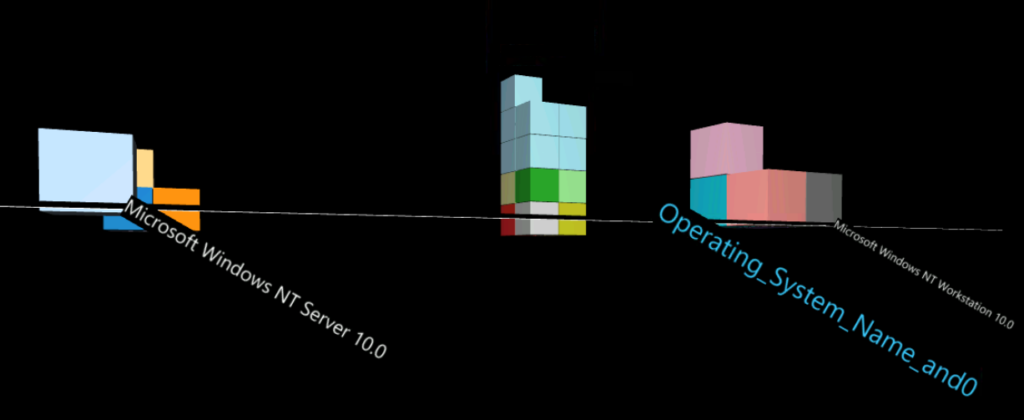
This extension is helpful when you look at the data and understand what’s going on. We use a technology called SandDance from Microsoft Research, which can generate in-place visualizations of the data.
You can select the type of the CHART, X Axis, Y Axis, Color by, Sort by, etc options with SanDance extension on Azure Data Studio.
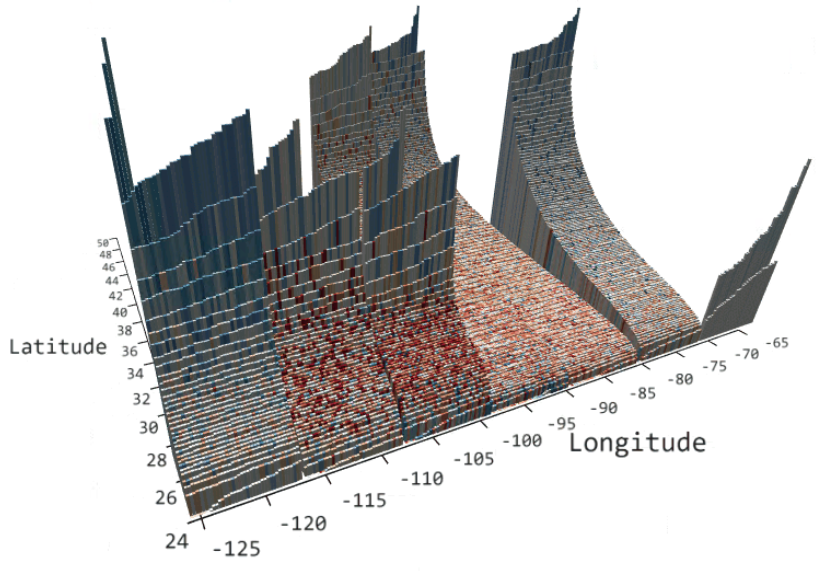
The following is the sample snapshot of the visualizer from Microsoft doc.




Discussion