






How to Use SCCM Update Registration Tool to Import Hotfix
Let’s learn how you can use SCCM Update Registration Tool to import hotfix. You must first download the hotfix to leverage the SCCM Update Registration Tool for importing hotfixes. Once downloaded, you need to run the command within the tool to establish a connection to the SCCM site server where the hotfix needs to be imported.
Some hotfixes are released with limited availability to address specific issues. Other hotfixes are applicable to all customers but can’t be installed using the in-console method. These fixes are delivered out-of-band and not discovered from the Microsoft cloud service.
In-console hotfixes have supersedence relationships. When Microsoft publishes a new SCCM hotfix, the console doesn’t display any hotfixes that are superseded by this new hotfix. This new behaviour helps you better determine which hotfixes to install.
You use the update registration tool when you must install an out-of-band release, and the update or hotfix file name ends with the extension update.exe. This tool imports the update to the Configuration Manager console. It enables you to extract and transfer the update package to the site server and register the update with the SCCM console.

- How To Trigger SCCM Client Agent Actions Using PowerShell Script
- SCCM 2303 KB25073607 Hotfix Client Update Fixes
SCCM Update Registration Tool Prerequisites
There are a few prerequisites to be considered well before using SCCM Update Registration tool to import hotfix so that we can save loads of time.
- This tool only installs out-of-band updates that end with the full .update.exe file extension.
- It is self-contained with the individual updates that you get directly from Microsoft.
- The service connection point can be in either online or offline mode.
- Run it on the server with the service connection point site system role.
- Starting in version 2107, the service connection point requires .NET version 4.6.2, and version 4.8 is recommended. In version 2103 and earlier, this role requires .NET 4.5.2 or later.
- When you run the tool on the service connection point, the account that you use needs the following configurations:
Recently Microsoft added a new hotfix KB25073607, that needs to be registered using the Update Registration Tool, You can check more details.
Import Hotfix using Update Registration Tool in SCCM
To import hotfix using the update registration tool in the SCCM console, follow the steps below.
Open a command prompt with administrative privileges on the computer that hosts the service connection point. Then change directories to the location that contains the update file. The update file name uses the following format: <Product>-<product version>-<KB article ID>-ConfigMgr.Update.exe
Run the following command to start the update registration tool: <Product>-<product version>-<KB article ID>-ConfigMgr.Update.exe. For Example, Here, I executed the file CM2303-KB25073607. ConfigMgr.Update.exe
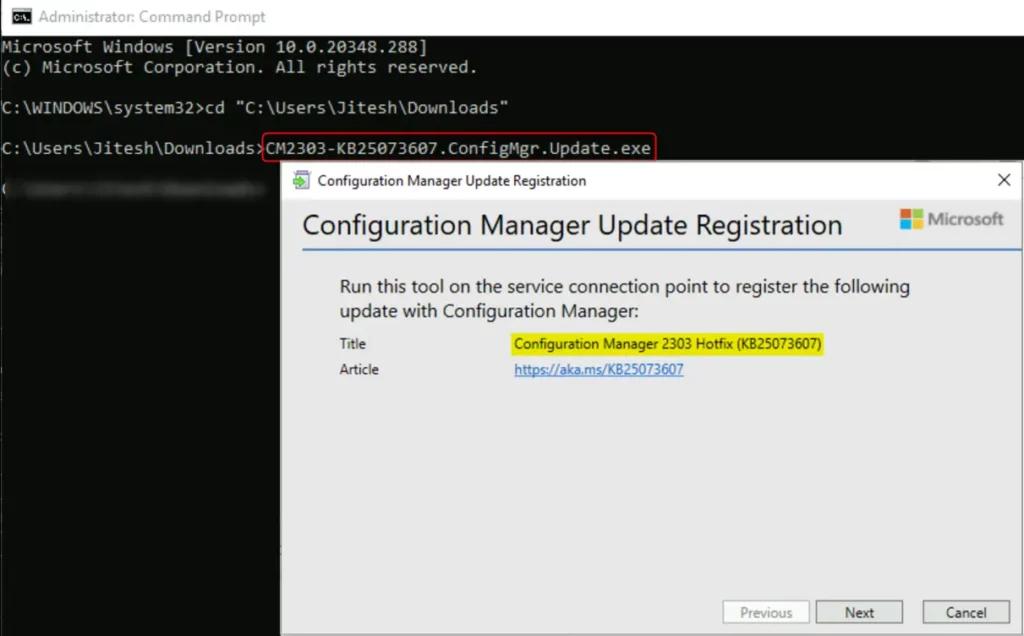
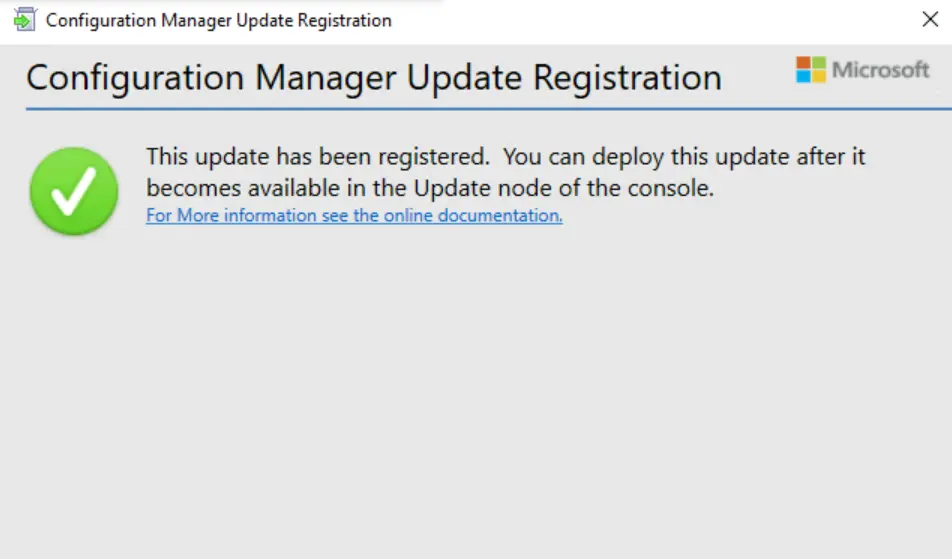
Once the hotfix is registered, You will be prompted with the “Configuration Manager Update Registration” message. This update has been registered. You can deploy this update after it becomes available in the Update node of the console.
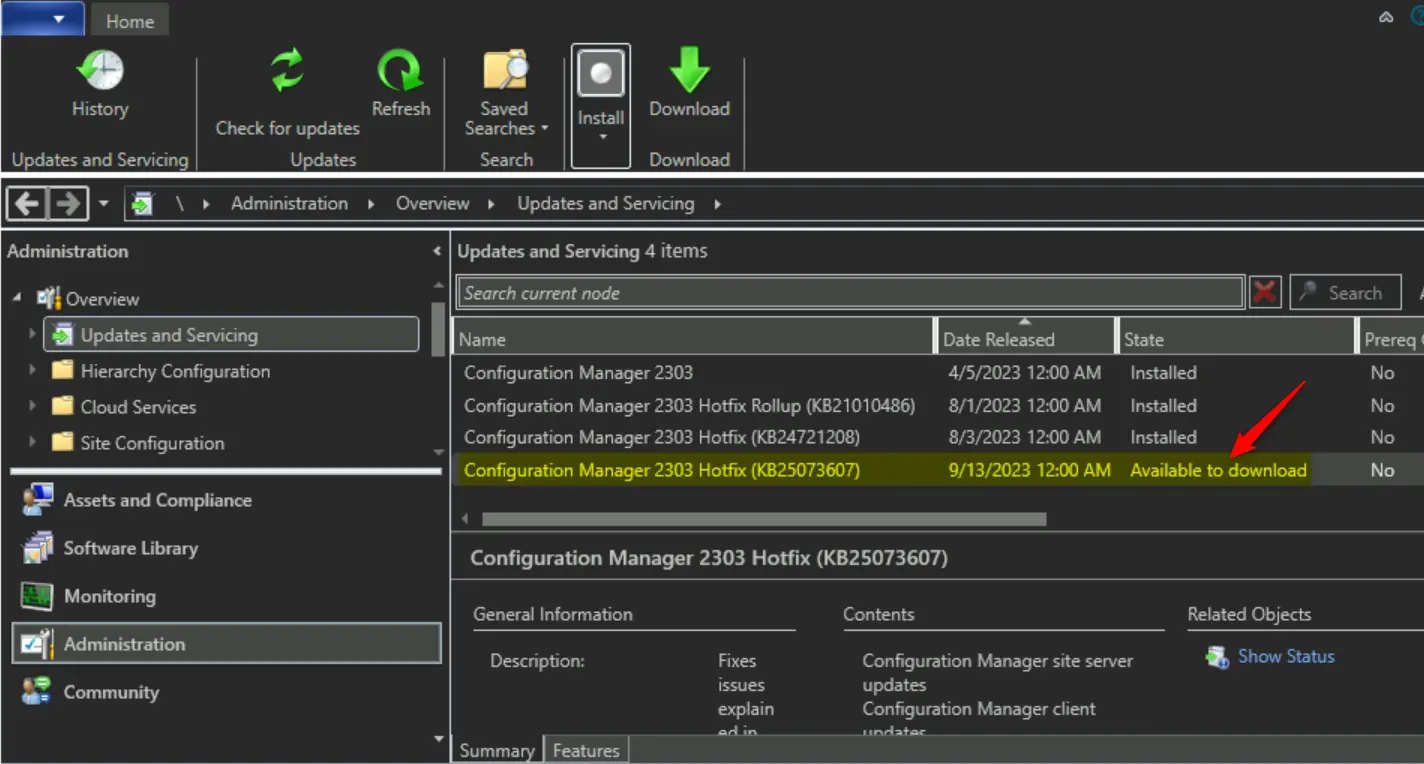
After the hotfix is registered, it appears as a new update in the console within 24 hours. To accelerate this process, go to the Administration workspace in the Configuration Manager console and select the Updates and Servicing node.
In the ribbon, select Check for Updates. The update registration tool logs its actions to a .log file on the local computer. The log file has the same name as the hotfix file and is in the %SystemRoot%/Temp folder. After the update is registered, you can close the update registration tool.
In the Configuration Manager console, go to the Administration workspace, and select the Updates and Servicing node. Hotfixes that you have imported are now available to install, You can now proceed to install.
Author
About Author – Jitesh, Microsoft MVP, has over six years of working experience in the IT Industry. He writes and shares his experiences related to Microsoft device management technologies and IT Infrastructure management. His primary focus is Windows 10/11 Deployment solution with Configuration Manager, Microsoft Deployment Toolkit (MDT), and Microsoft Intune.




Discussion