






Securing SMB Communication with Intune using Digitally Sign Communications Policy
Today we are discussing the Securing SMB Communication with Intune Using Digitally Sign Communications Policy. This policy makes sure that file sharing on Windows computers is always protected. It forces the system to use a security check called digital signing whenever data is sent or received using SMB (file and printer sharing).
This means the computer will not accept or send data unless the connection is secure. SMB is commonly used in offices to share files, folders, and printers. Because this data travels through the network, it can be targeted by attackers if it is not protected.
Without this setting, someone on the same network could try to read or change the data while it is being transferred. By enabling this SMB policy, the computer checks every message it sends or receives. If the message is changed or comes from an untrusted source, the connection is stopped. This helps keep company data safe and prevents misuse.
In Intune, this policy is applied by creating a configuration profile and selecting the setting Microsoft network server: Digitally sign communications (always) from the Security Options. Once enabled and assigned, Intune automatically applies this protection to all selected devices.

Securing SMB Communication with Intune Using Digitally Sign Communications Policy
After the policy is applied, Windows will only communicate with other computers that also support secure SMB signing. This blocks unsafe or outdated systems that do not follow modern security rules. The biggest benefit of this policy is protection from hacking attempts like session hijacking. It ensures that no one can secretly change data or pretend to be a trusted computer on the network.
- New GhostLock Technique Exploits Windows API To Block File Access
- Enable Audit Logs For SMB Servers Without Signing Support Using Intune
- Configure Windows 11 SMB compression improvements to Compress File Aggressively
- Enforce Windows Credential UI for Edge and Negotiate Challenges using Intune
- Allow Basic Authentication for HTTP Using Setting Catalog in Intune
Create Profile
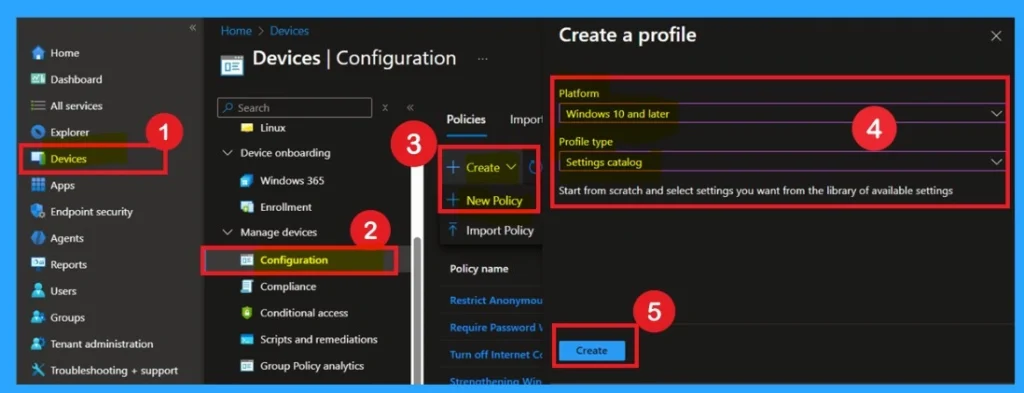
To begin, open Microsoft Intune and sign in with your administrator credentials. Once logged in, navigate to the Devices section and select Configuration Profiles. In this section, click on the + Create Policy option to create a new configuration profile.
- A new window titled Create a Profile will appear.
- Here, you need to provide some basic details: for the Platform, select Windows 10 and later, and for the Profile Type, choose Settings Catalog.
- After selecting these options, proceed to create the profile.
Importance of Basics
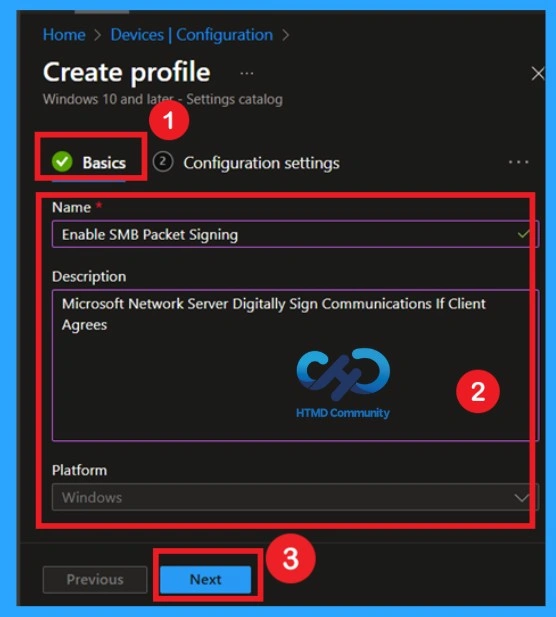
Now, we all know what the Basic tab means for us. If you don’t, it simply refers to the first step in the policy creation process, where you provide the basic details of your policy. In this section, you need to enter important information such as the Name and Description of the policy. You can give the policy any name that helps you easily identify it later in the future.
| Basic Details | Info |
|---|---|
| Name | Enable SMB Packet Signing |
| Description | Microsoft Network Server Digitally Sign Communications If Client Agrees |
| Platform | Windows |
Configuration Settings
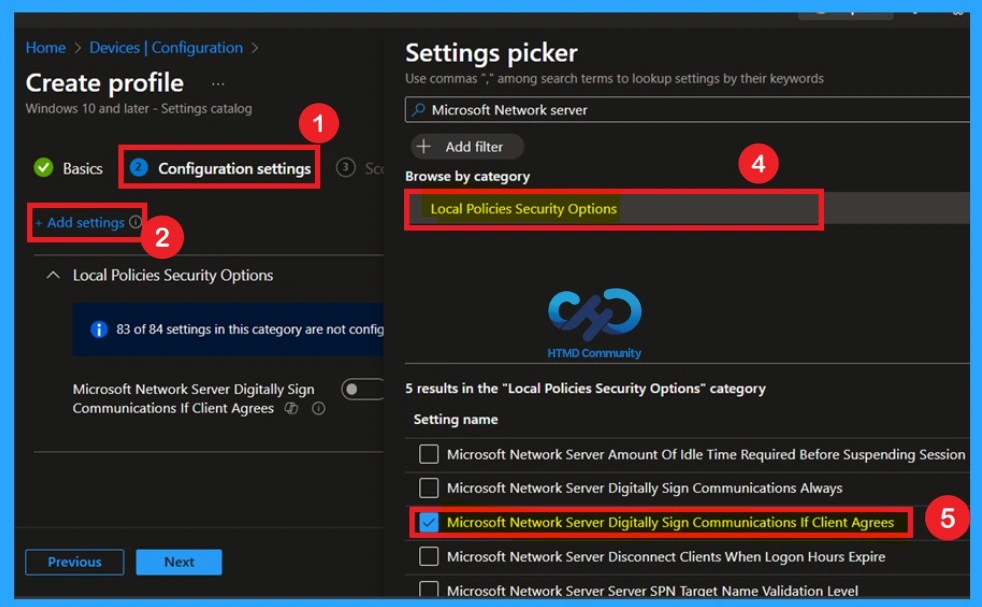
Now you are on the Configuration settings page of the profile; here, click on + Add settings to open the Settings picker window, then browse by category and select Local Policies Security Options, find the setting Microsoft Network Server Digitally Sign Communications If Client Agrees, select the checkbox next to it, and close the Settings picker to add the policy to your configuration.
Disabled Policy Mode
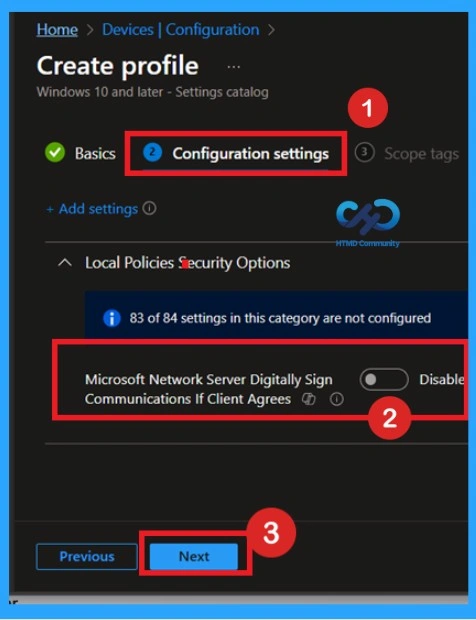
After selecting the policy, you can now close the Settings Picker window. You will return to the Configuration Settings page, where you can see that the policy is currently set to Disabled by default. If you want to proceed without making any changes, simply click Next to continue.
Enable Policy
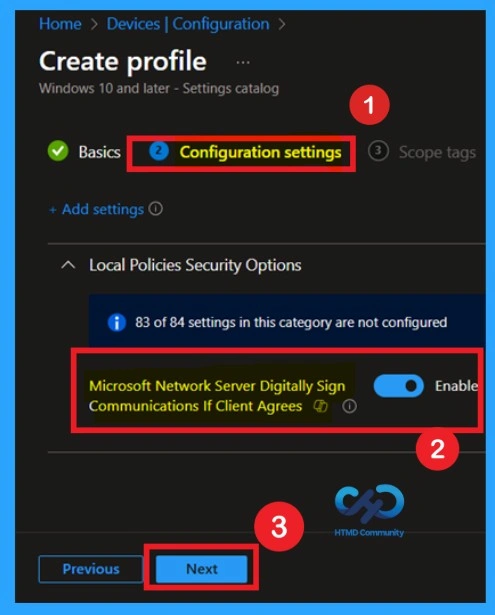
On the Configuration settings page, locate the policy Microsoft Network Server: Digitally Sign Communications If Client Agrees under Local Policies Security Options, turn the toggle to Enabled, and then click Next to continue with the profile setup.
Scope Tags
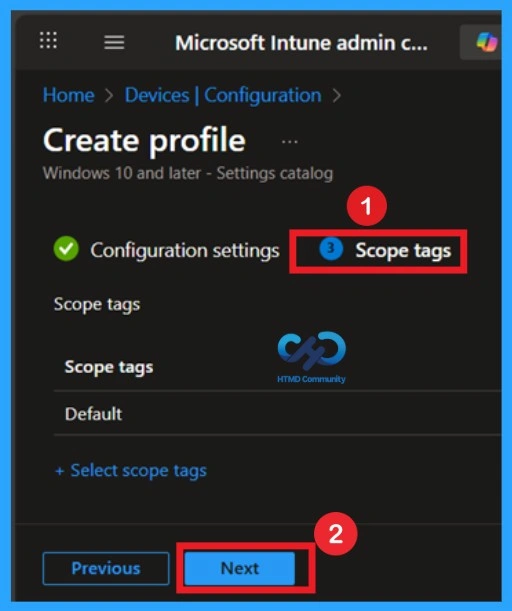
The scope tag is not mandatory, so you can skip this section. It functions as a tool for organisation and access management, but assigning it is optional. Click Next if they’re not required for your setup.
Assignment Section
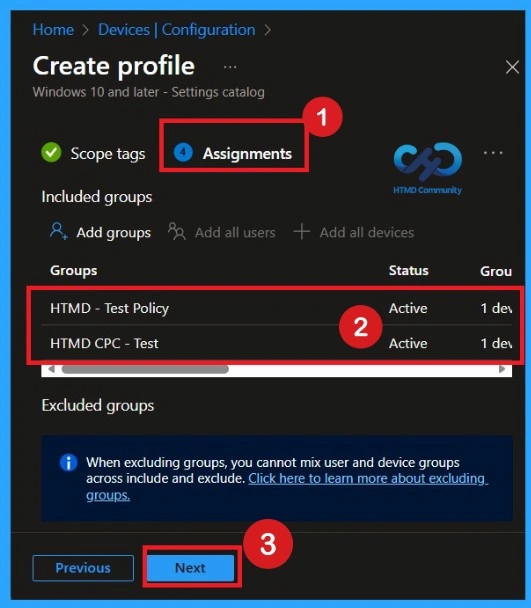
The Assignment section is very important for policy deployment. In this section, you decide who will receive the policy within the organization. If you want to target specific groups, users, or devices, you can add them here to ensure the policy is applied only to the intended audience.
Review + Create
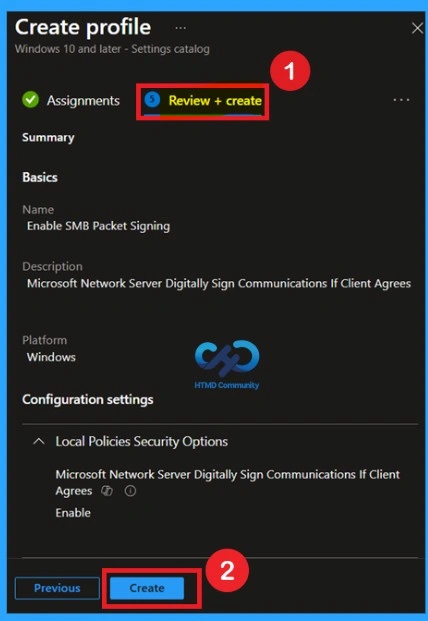
Review + Create is the last stage of policy creation. In this step, you will see a summary of all the details, including Basics, Configuration Settings, Assignments, and more. You can review all the information, and if anything needs to be changed, you can go back to the previous steps and edit them easily.
Monitoring Details
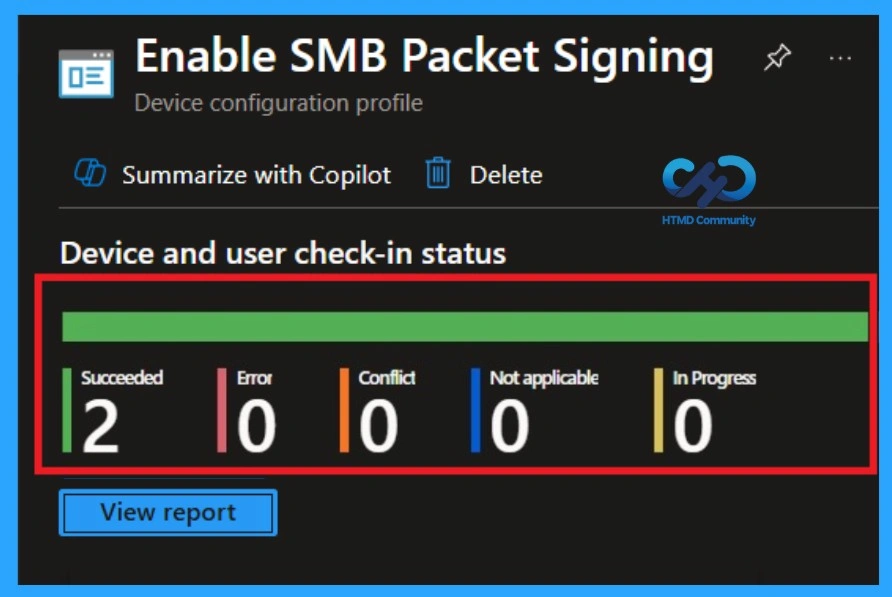
After creating the policy, you might in a thought that whether it was successfully applied or not. It is very important to verify this. To check, you normally need to wait up to 8 hours for the policy to sync automatically. However, if you want faster results, you can manually sync the policy through the Company portal
- Navigate to Devices > Configuration Policies.
- In the Configuration Policies list, look for the policy you created.
- Click on the policy to view its deployment status and details.
How to Remove Policy
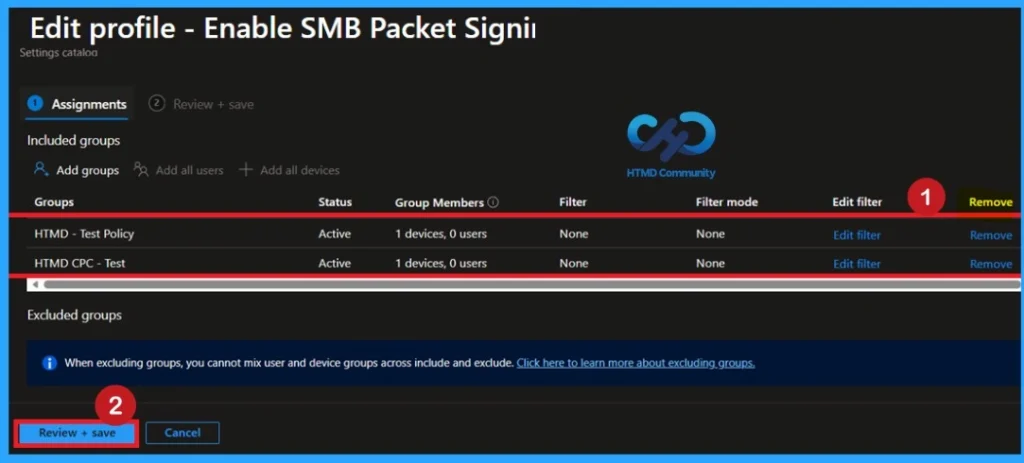
After creating the policy, if you want to remove the group that you previously selected, you can easily do that. First, go to Devices > Configuration policies. In the Configuration policy section, search for the policy, In the policy section When you Scroll down the page, and you will see sections like Basic Details and Assignment Details.
- In the Assignment section, you will find an Edit option and click on it.
- When you click Edit, you will enter the Assignment page.
- Click on Remove, then proceed by clicking Review + Save.
How to Delete the Policy that you created
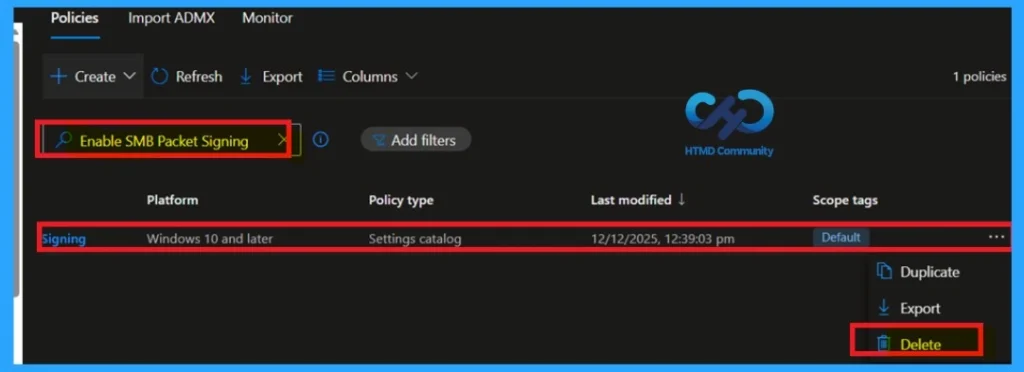
To delete a policy in MS Intune, first sign in to the Microsoft Intune Admin Center. Navigate to Devices and then select Configuration. Locate and select the specific policy you want to remove. Once you’re on the policy details page, click the three -dot menu in the top right corner and choose Delete from the available options.
End User Results
After this configuration is applied, end users will not see any noticeable change in their day-to-day work. They can continue to sign in, access files, and use network resources as usual without interruption. The policy works silently in the background and does not affect normal, authenticated user activity.
Need Further Assistance or Have Technical Questions?
Join the LinkedIn Page and Telegram group to get the latest step-by-step guides and news updates. Join our Meetup Page to participate in User group meetings. Also, join the WhatsApp Community to get the latest news on Microsoft Technologies. We are there on Reddit as well.
Author
Anoop C Nair has been Microsoft MVP for 10 consecutive years from 2015 onwards. He is a Workplace Solution Architect with more than 22+ years of experience in Workplace technologies. He is a Blogger, Speaker, and Local User Group Community leader. His primary focus is on Device Management technologies like SCCM and Intune. He writes about technologies like Intune, SCCM, Windows, Cloud PC, Windows, Entra, Microsoft Security, Career, etc.


Discussion