






Enable Interactive Logon CTRL ALT DEL Using Intune
In this post, You will learn the steps to enable Interactive Login CTRL ALT DEL using Intune. Interactive login is authentication to a computer through the usage of an account by pressing the CTRL+ALT+DEL keys on a Windows device.
This security policy setting determines whether pressing CTRL+ALT+DEL is required before a user can log on. Microsoft developed the Interactive Logon CTRLALTDEL feature to make it easier for users with certain types of physical impairments to log on to Windows computers.
If users are not required to press CTRL+ALT+DEL, they are susceptible to attacks that attempt to intercept their passwords. If CTRL+ALT+DEL is required before login, user passwords are communicated through a trusted path.
An attacker could install a Trojan horse program like the standard Windows logon dialog box and capture the user’s password. The attacker would then be able to log on to the compromised account with whatever level of privilege that user has.

- Configure Interactive logon Message for Users Using Intune
- Collect Intune Logs from MEM Portal Diagnostic Data
- Intune Logs Event IDs IME Logs Details For Windows Client Side Troubleshooting
Enable Interactive Logon CTRLALTDEL using Intune
Let’s follow the below steps to enable Interactive Logon CTRLALTDEL using Intune –
- Sign in to the Microsoft Endpoint Manager admin center
- Select Devices > Windows > Configuration profiles > Create profile
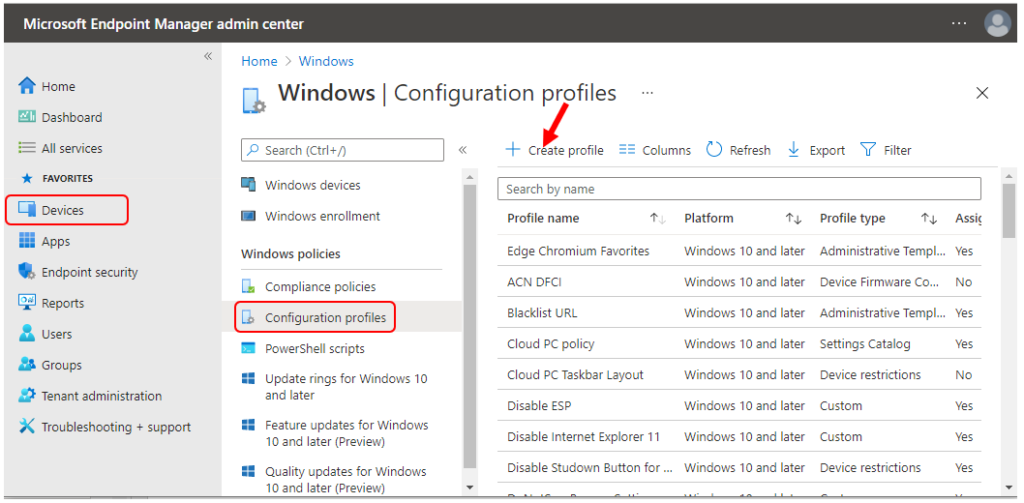
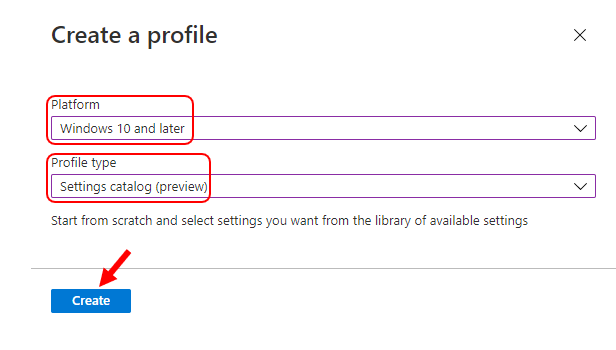
In Create Profile, Select Platform, Windows 10, and later and Profile, Select Profile type as Settings catalog. Click on Create button.
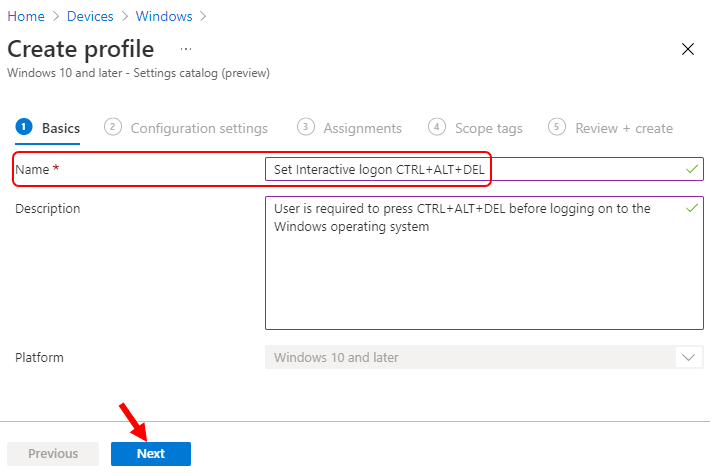
On the Basics tab, enter a descriptive name, such as Set Interactive Logon CTRLALTDEL. Optionally, enter a Description for the policy, then select Next.
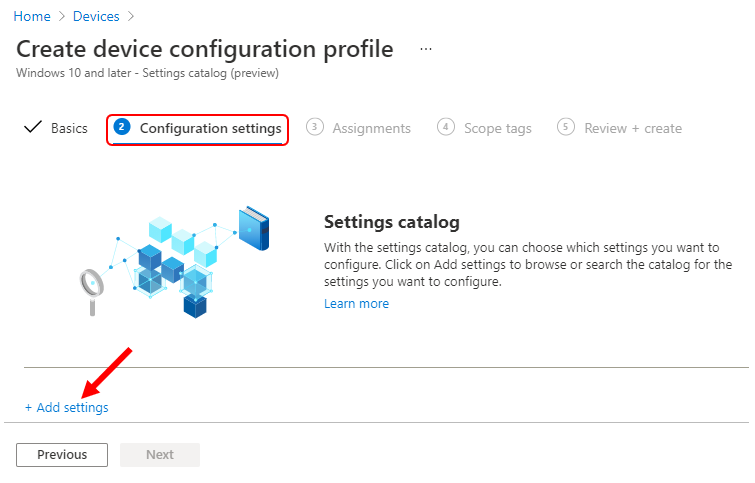
In Configuration settings, click Add settings.
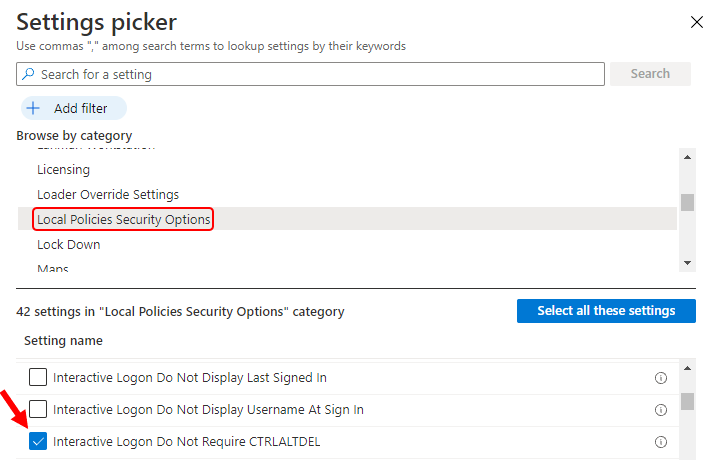
On the Settings Picker windows, Select Local Policies Security Options to see all the settings in this category. Select Interactive Logon Do Not Require CTRLALTDEL below. After adding your settings, click the cross mark at the right-hand corner to close the settings picker –
Note – In policy, use the search box to find specific settings. You can search by category or a keyword, such as Interactive logon. It will display all the available related settings.
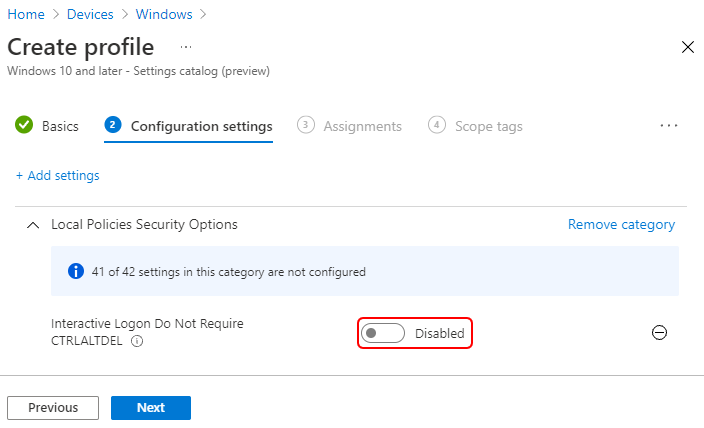
The setting is shown and configured with a default value. Set Interactive Logon Do Not Require CTRLALTDEL to Disabled. Click Next.
Interactive logon Do Not Require CTRLALTDEL – If this policy is disabled, any user is required to press CTRL+ALT+DEL before logging on to Windows. Requiring CTRL+ALT+DEL before users log on ensures that users are communicating by means of a trusted path when entering their passwords.
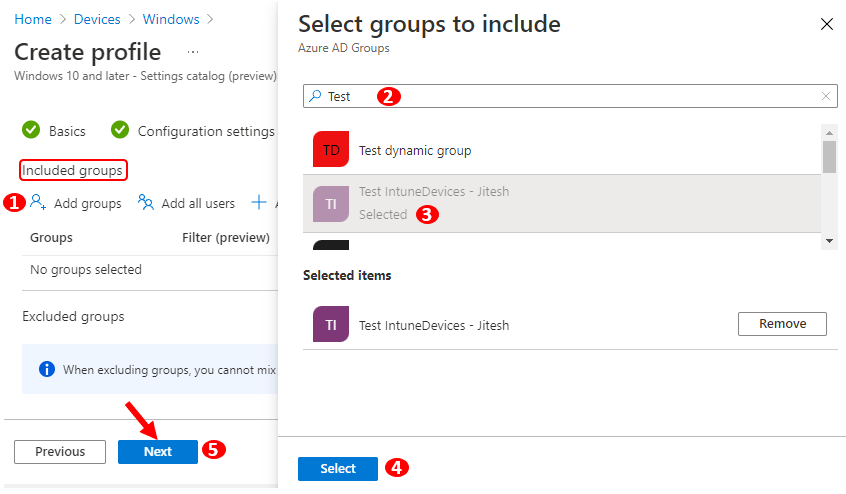
Under Assignments, In Included groups, click Add groups and then choose Select groups to include one or more groups. Click Next to continue.
In Scope tags, you can assign a tag to filter the profile to specific IT groups. Add scope tags (if required) and click Next.
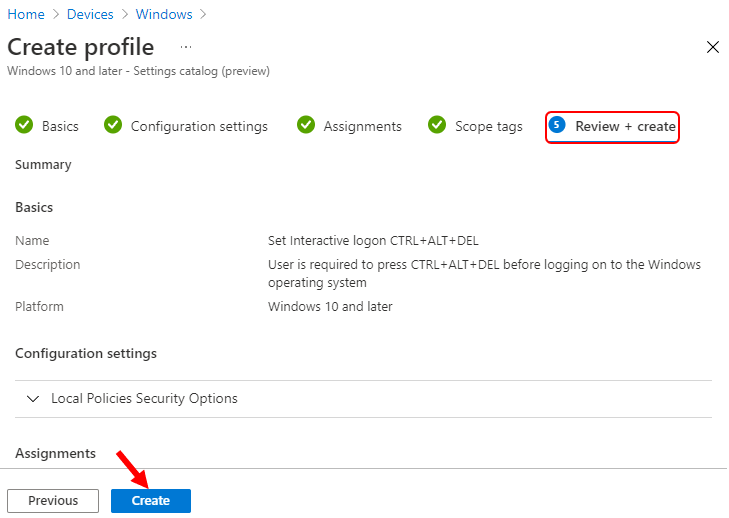
In Review + create, review your settings. When you select Create, your changes are saved, and the profile is assigned.
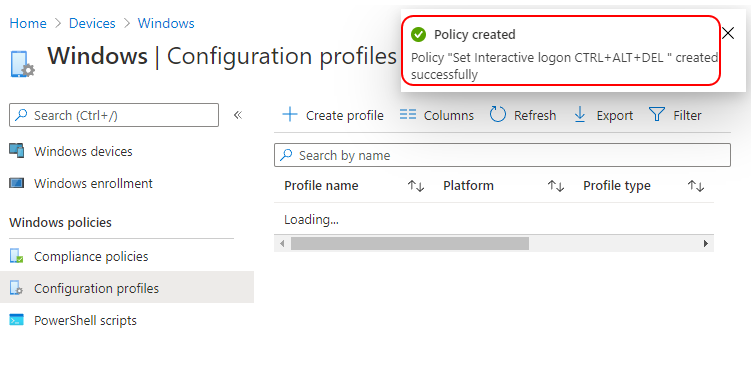
A notification will appear automatically in the top right-hand corner with a message. Here you can see, Policy “Set Interactive logon CTRL+ALT+DEL ” created successfully. The policy is also shown in the Configuration profiles list.
Your groups will receive your profile settings when the devices check-in with the Intune service.
Once the policy applies to the devices, Users must press CTRL+ALT+DEL before logging on to Windows unless they use a smart card for Windows logon. A smart card is a tamper-proof device that stores security information.
You can check Intune settings catalog profile report from Intune Portal, which provides an overall view of device configuration policies deployment status.
Author
About Author -> Jitesh has over 5 years of working experience in the IT Industry. He writes and shares his experiences related to Microsoft device management technologies and IT Infrastructure management. His primary focus area is Windows 10 Deployment solution with Configuration Manager, Microsoft Deployment Toolkit (MDT), and Microsoft Intune.


Discussion