






SCCM HTTPS Setup Guide for MP DP SUP Site Systems
SCCM HTTPS Setup Guide for MP DP SUP Site Systems in co-management and ConfigMgr HTTP-only Client Communication Is Going Out Of Support context.
Learn how to set up HTTPS communication for SCCM DP, MP, and SUPs once you have completed the PKI certificate pre-requisite and are ready to configure SCCM MP and SUP site systems components to use SSL/HTTPS.
This post explains HTTPS MP and HTTPS SUP configurations via video tutorial and step-by-step instructions. It describes all these configurations using SCCM 1802 production version infrastructure.
Let’s understand HTTPS and whether or not HTTPS communications between the SCCM server and client are secured.

Video Tutorial to Setup HTTPS/SSL MP and SUP Site System Server
A quick video tutorial on setting up HTTPS/SSL MP and SUP Site System Server.
Basics of HTTPS
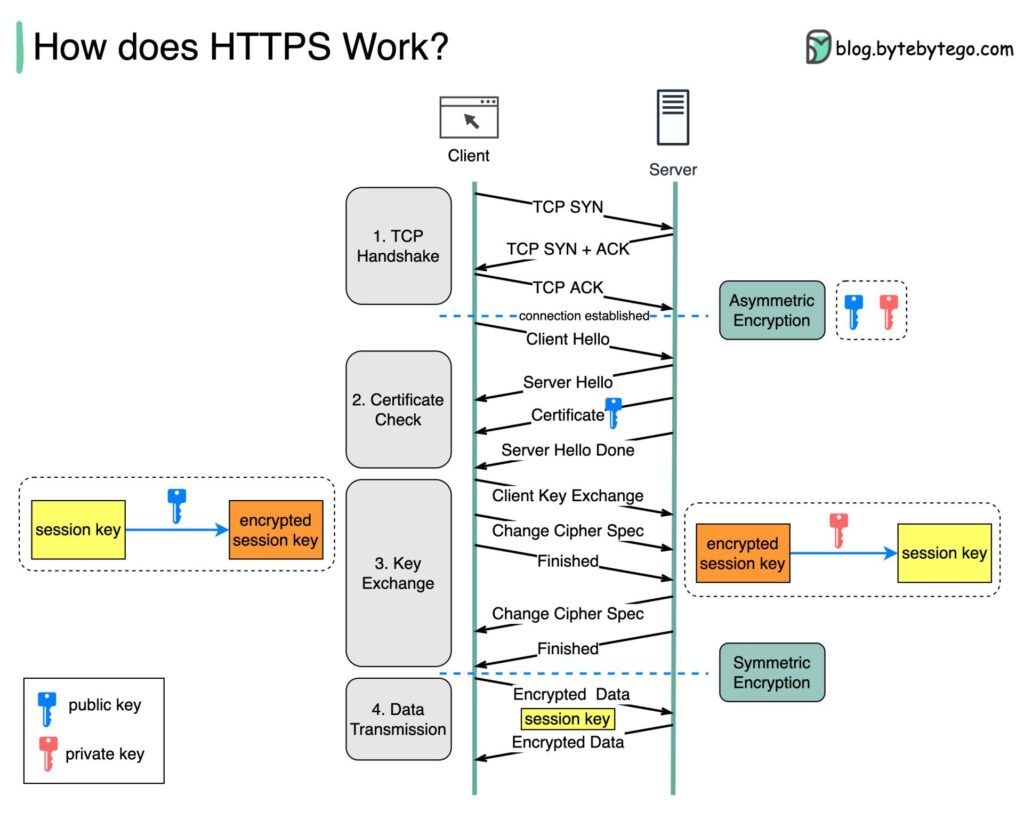
SCCM HTTPS Setup Guide for MP DP SUP Site Systems starts with an excellent HTTPS communication diagram produced by Alex Xu. He has explained HTTPS communication simplistically.
How is the Data Encrypted and Decrypted?
Step 1 – The client (browser) and the server establish a TCP connection.
Step 2 – The client sends a “client hello” to the server. The message contains a set of necessary encryption algorithms (cipher suites) and the latest TLS version it can support. The server responds with a “server hello” so the browser knows whether it can help the algorithms and TLS version.
The server then sends the SSL certificate to the client. The certificate contains the public key, hostname, expiry dates, etc. The client validates the certificate.
Step 3 – After validating the SSL certificate, the client generates a session key and encrypts it using the public key. The server receives the encrypted session key and decrypts it with the private key.
Step 4 -Now that the client and the server hold the same session key (symmetric encryption), the encrypted data is transmitted in a secure bidirectional channel.
Why does HTTPS switch to symmetric encryption during data transmission? There are two main reasons:
- Security: Asymmetric encryption has only one way. If the server tries to send the encrypted data back to the client, anyone can decrypt it using the public key.
- Server resources: Asymmetric encryption adds a lot of mathematical overhead. It is not suitable for data transmissions in long sessions.
Over to you: how much performance overhead does HTTPS add compared to HTTP?
How to Setup HTTPS MP DP – How to make MP communication via SSL channel?
The configuration of the management point (MP) and DP has two parts. The first part should be done from the SCCM CB console.
The second part of the configuration should be done from the Management Point server IIS console. I have shown these two options in this video tutorial.
HTTPS MP is one of the requirements for co-management with the SCCM 1802 version.
SCCM MP/DP HTTPS Configuration
A management point provides policy and content location information to clients and receives configuration data from them. This section is an HTTPS MP configuration from the SCCM Cb 1802 console.
- Open SCCM console –> Administration Workspace –> Site Configuration –> Servers and Site System Roles
- Select the Management Point (MP) server Right. Click on MP Role, and Click Properties
- Select HTTPS from the client connections section under the GENERAL tab of the MP site system properties windows. This will reinstall the MP component.
- CHOOSE “Allow Configuration Manager Cloud Management Gateway traffic.“
Microsoft is constantly improving the designs of Client—CMG—MP communication. Hence, I recommend reading the latest Microsoft documentation if you are unsure whether this is a suitable option for you. - CHOOSE to allow mobile devices and Mac computers to use the management point (when required). Click OK to close the window.
IIS Configurations – SCCM MP HTTPS Configuration
Let’s see IIS Configurations—SCCM MP/DP/SUP HTTPS Configuration. Log in to the Management Point (MP) server for IIS configurations. This section explains the HTTPS MP configuration from the IIS console side.
- Make sure you have successfully enrolled the web certificate to that MP server.
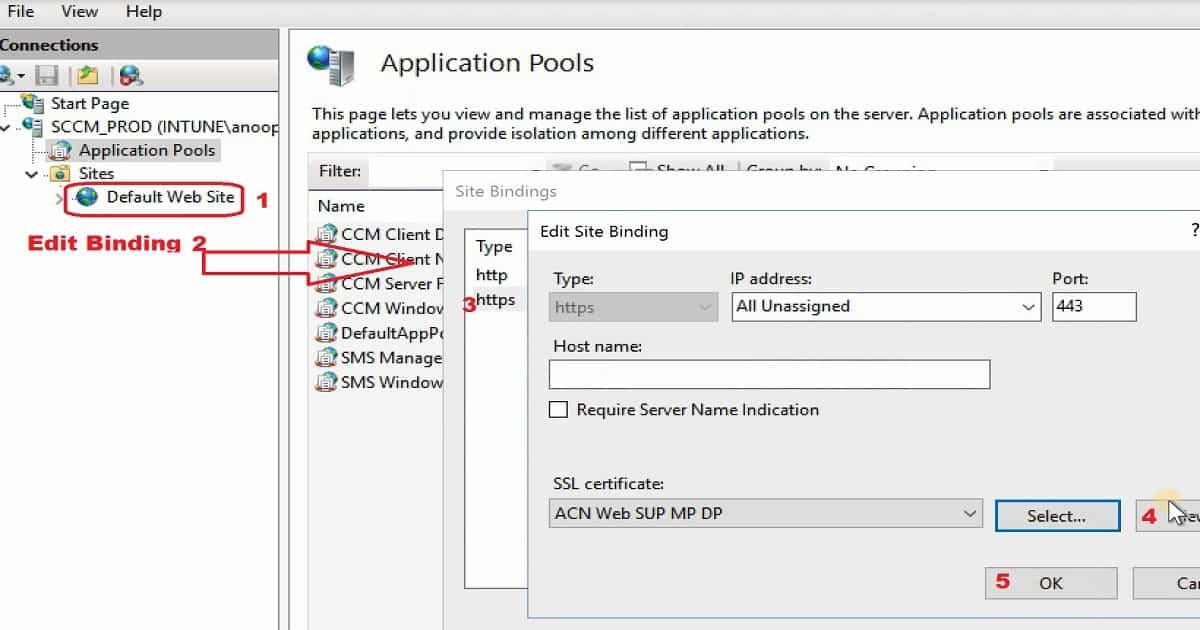
- Open Internet Information Services (IIS) Manager. Expand Sites – select your MP website (usually ‘Default Web Site‘) and select Bindings3. Select the HTTPS entry and Edit
- Select the new Web cert, click OK, and Close
- Test the HTTPS/SSL connectivity by browsing your MP website using the FQDN and HTTPS with no certificate errors.
How to Configure Setup Software Update Point (SUP) to use SSL/HTTPS
There are two parts to Software Update Point (SUP) configuration. The first part of the configuration should be done from the SCCM CB console. The second part of the configuration should be done from the SUP server IIS console.
SCCM CB Console Actions
A software update point(SUP) integrates with WSUS to provide software updates to SCCM clients. For SCCM to use a software update point that is not installed on the site server, you must first install the WSUS admin console on the site server. I prefer to use Windows Update for Business for software updates or patching.
- Open SCCM console –> Administration Workspace –> Site Configuration –> Servers and Site System Roles
- Select the Software Update Point (SUP) server Right. Click on MP Role, and Click Properties
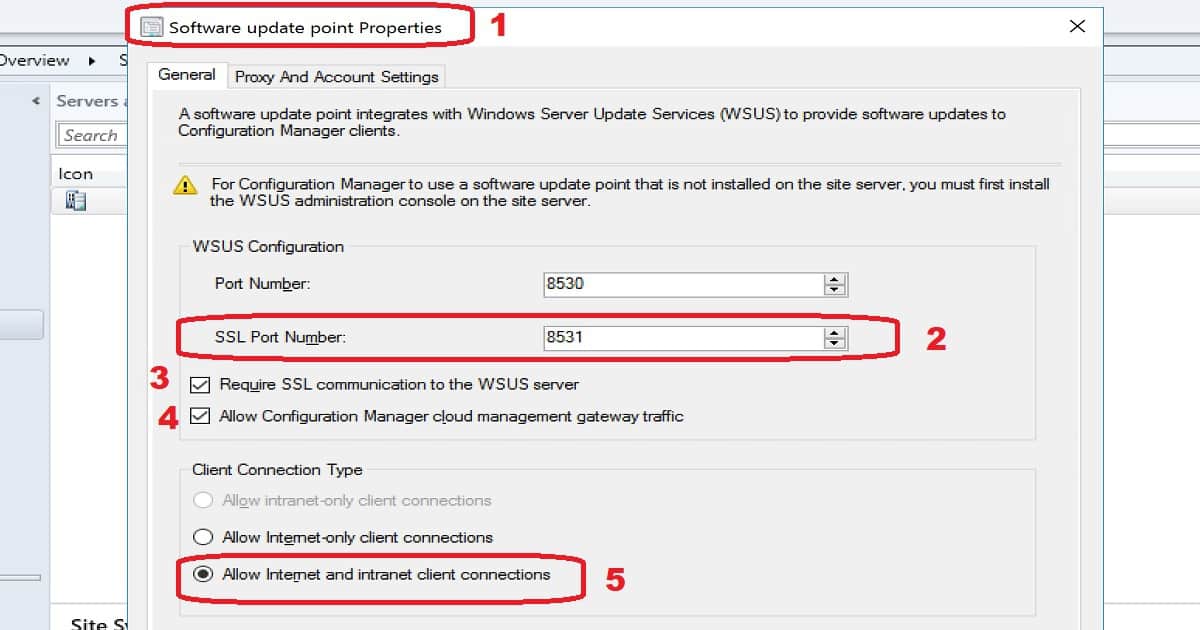
- The ports should already be listed
WSUS Configuration details are given below:-
Port Number: 8530
SSL port Number: 8531 - Click Require SSL communication to the WSUS server
- Click Allow Configuration Manager cloud management gateway traffic
- Choose “Allow Internet and intranet client connections” from the Client Connection Type section. This option will automatically get selected when selecting “Allow Configuration Manager cloud management gateway traffic.” Click OK to close the window.
SUP Server IIS Console
Log in to the Software Update Point (SUP) server for IIS configurations. This section explains the HTTPS SUP configuration from the IIS console side. To configure SSL on the WSUS server by using IIS 7.0
- On the WSUS server, open the Internet Information Services (IIS) Manager.
Expand Sites, and then expand the Web site for the WSUS server WSUS Administration. - Perform the following steps on the virtual directories under the WSUS Website WSUS Administration.
- APIRemoting30
- ClientWebService
- DSSAuthWebService
- ServerSyncWebService
- SimpleAuthWebService
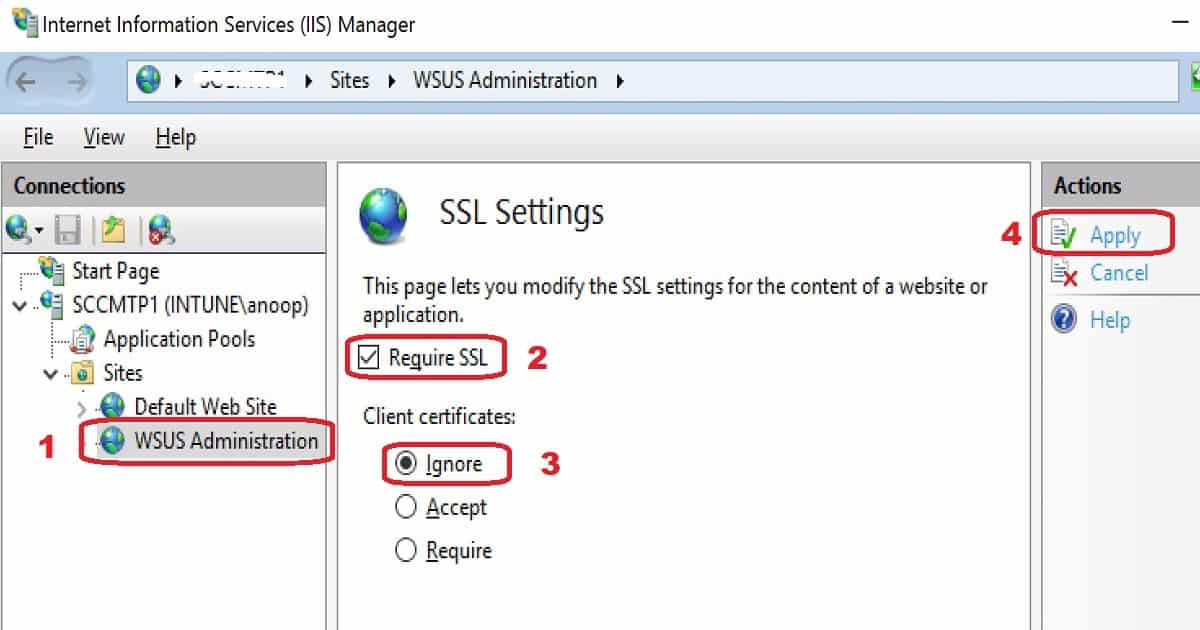
- In Features View, double-click SSL Settings.
On the SSL Settings page, select the Require SSL checkbox. Ensure that Client certificates are set to Ignore.
In the Actions pane, click Apply.
Close Internet Information Services (IIS) Manager. - Run the following command from <WSUS Installation Folder>\Tools: WSUSUtil.exe configuressl <Intranet FQDN of the SUP site system server>
Restart the IIS services or Click the ok Recycle button from the IIS console
Bonus Video – How to Setup PKI for SCCM CB Lab
Co-Management Related Posts
Overview Windows 10 Co-Management with Intune and SCCM
Custom Report to Identify Machines Connected via SCCM CMG
How to Setup Co-Management - Introduction - Prerequisites Part 1
How to Setup Co-Management - Firewall Ports Proxy Requirements Part 2
Setup Co-Management - AAD Connect UPN Suffix Part 3
Setup Co-Management - CA PKI & Certificates Part 4
Setup Co-Management Cloud DP Azure Blob Storage Part 5
Setup Co-Management Azure Cloud Services CMG Part 6 (This Post)
Resources
- For more information, see Enable Management Point for HTTPS.
- https://docs.microsoft.com/en-us/sccm/core/plan-design/network/example-deployment-of-pki-certificates#BKMK_webserver42008
We are on WhatsApp. To get the latest step-by-step guides and news updates, Join our Channel. Click here –HTMD WhatsApp.
Author
Anoop C Nair is Microsoft MVP! He is a Device Management Admin with more than 20 years of experience (calculation done in 2021) in IT. He is a Blogger, Speaker, and Local User Group HTMD Community leader. His primary focus is Device Management technologies like SCCM 2012, Current Branch, and Intune. He writes about ConfigMgr, Windows 11, Windows 10, Azure AD, Microsoft Intune, Windows 365, AVD, etc.




Just for clarification. The check box “Require SSL communication to the WSUS server” has nothing to do with the client communication to the SUP…right? This check box merely causes the traffic/communication between the SUP and WSUS to be SSL.
Do we need to follow same SUP configuration process on Central Site as well to make Https communication?
StaffI have never did this myself. But the process might be similar or you can try use windows update for business instead of SUP for internet clients
I checked the HTTPS box like you show in the video and it instantly broke all my imaging. Nothing could communicate. If there are prerequisites you could at least mention them if not go a step further and place a link on how to set them up.
yes, do not simply check HTTPS, there are multiple pre-req required before you do that, Like certificate creation, push them on clients, install them, and so on.
StaffI think this is explained here -> https://www.anoopcnair.com/enable-configmgr-enhanced-http-configuration/
is it possible to apply HTTPS when we have multiple AD Domains in different forests? multiple adquisitions with an AD each of it.