






How to Setup Change Windows 10 Picture Password
How do you set up and change Windows 10 Picture Password? This morning, I noticed a new section under Sign-in options on the settings page for the Windows 10 machine.
I know the picture password was previously on a Windows 8 machine. You can set one up for the Windows 10 touch-screen machines.
Picture passwords can be set up on touchscreen machines and non-touchscreen machines. You can draw a picture password directly on a touchscreen with your finger or use a mouse to draw your shapes.
In this post, you will find all the details on how to Set up and Change your Windows 10 Picture Password.

Table of Contents
- Turn On or Off Password Protected Sharing in Windows 11
- Windows LAPS Integration with Local Device MaximumPasswordAge Policy
- Windows LAPs Smart-Card-only Policy Integration
- Windows LAPs Automatic Account Management
- Enable Windows LAPS Managed Account in WinRE or Safemode
- Windows LAPS Configurations from Azure AD and Intune
Learn How to ADD or Setup and Change Windows 10 Picture Password
This video tutorial provides a detailed walkthrough on how to add, set up, and change a picture password on Windows 10. It covers the step-by-step process to configure this unique login method,
How to Add/Set Windows 10 Picture Password
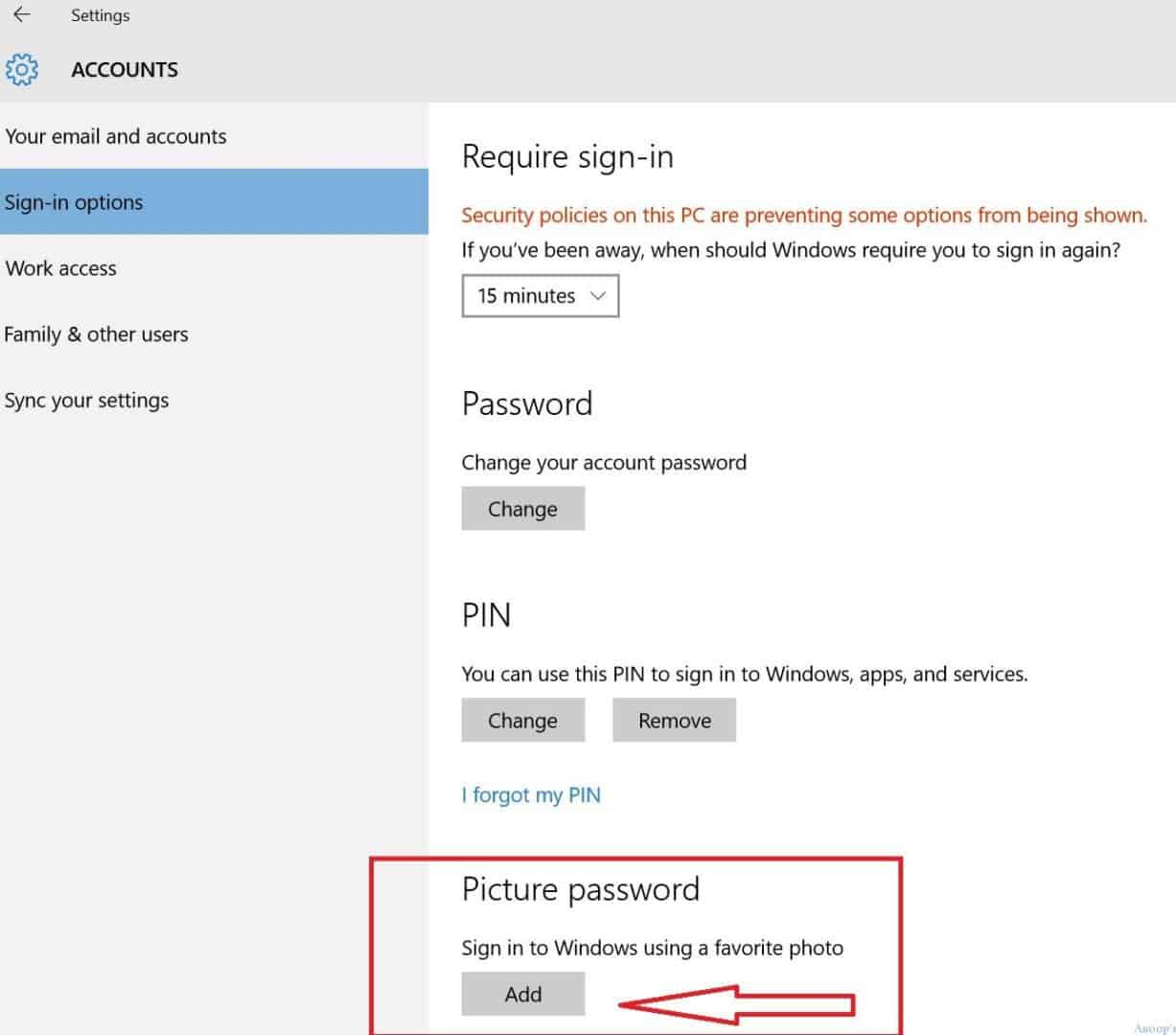
To set up a Windows 10 picture password on your Windows 10 machine, Navigate through “Setting–> Accounts –> Sign-in Options.” Alternatively, you can run the following command from the RUN menu and then click on the ADD button. Before adding a picture password, you have to authenticate yourself with your Windows 10 password.
ms-settings:signinoptions
| Accounts |
|---|
| Sign in Options |
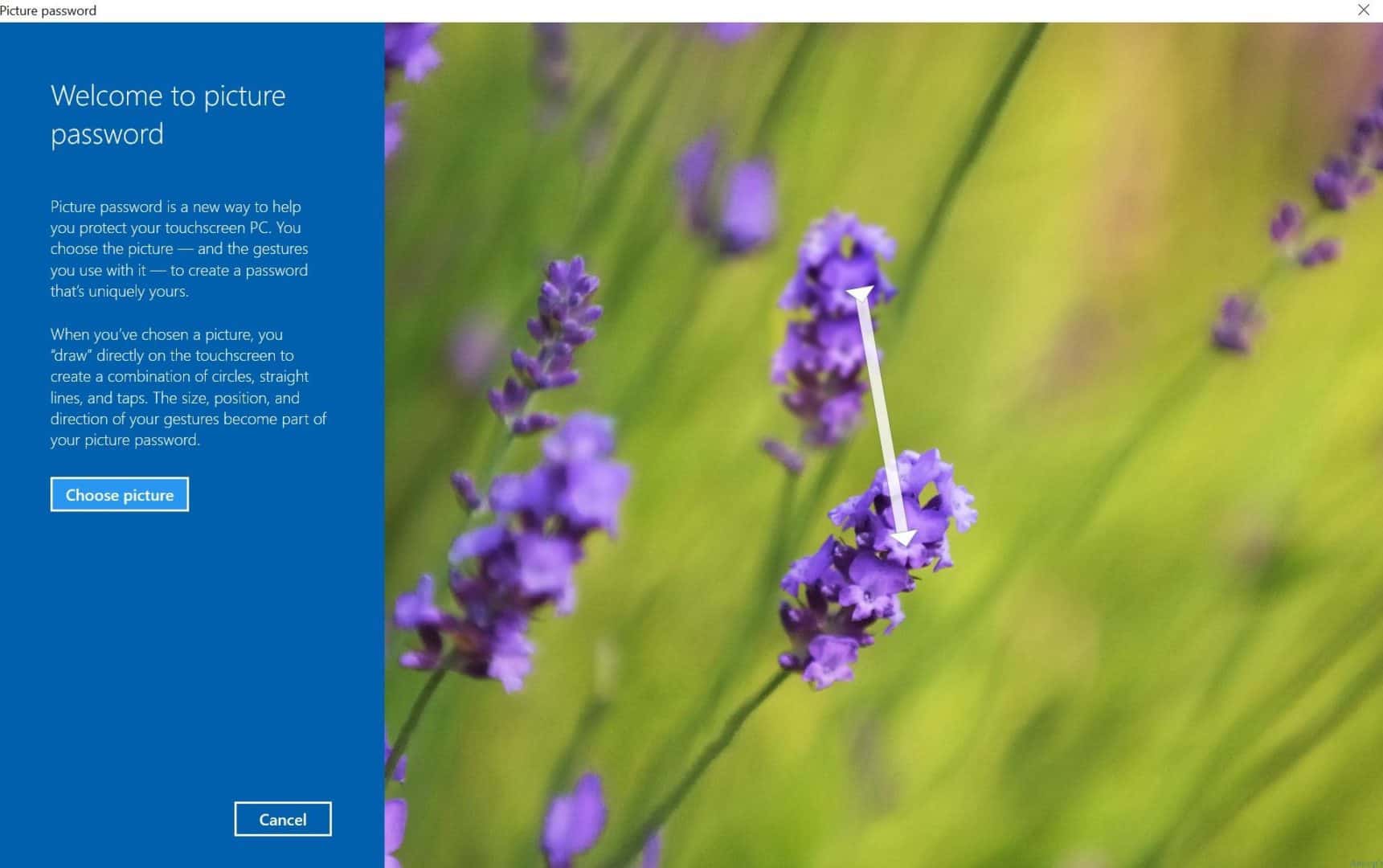
Windows 10’s picture password comes with the following welcome page, which demonstrates how to set up a picture password for a touch-screen machine.
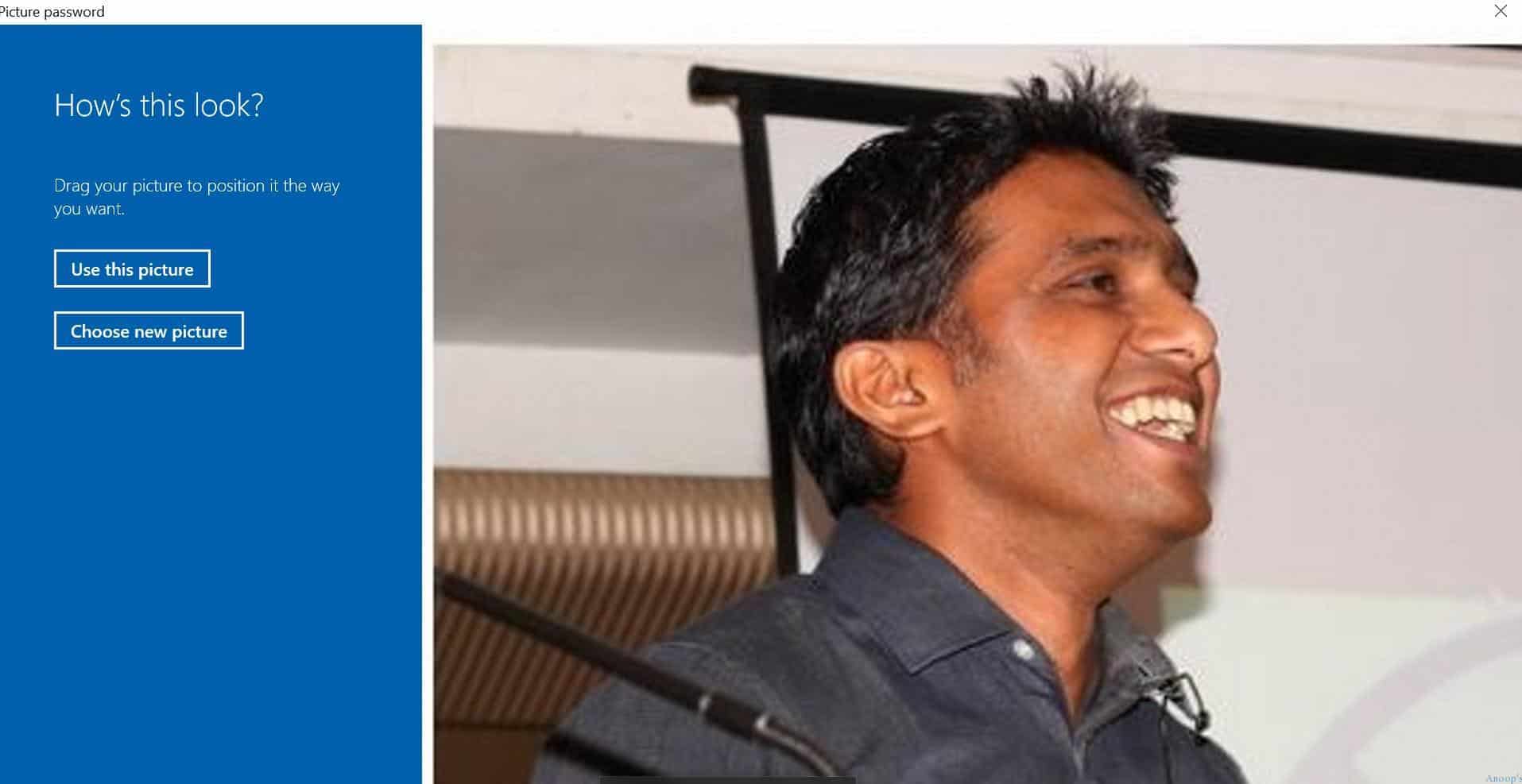
You must select the picture you want to use for the Windows 10 picture password. You can select any picture from the gallery. As you can see in the following screen capture, there are two options 1. Use this picture, and 2. choose a new picture. In this case, I selected to use this picture as a Windows 10 picture password 🙂
Next, you need to select three gestures as your Windows 10 picture password. Remember that a picture password is limited to three gestures. Three gestures must combine circles, straight lines, and taps. I would prefer to have taps. I can tap on the Mic, Surface, and Stand as three gestures. 🙂 While setting up picture password gestures, you need to repeat those twice to confirm your gestures.
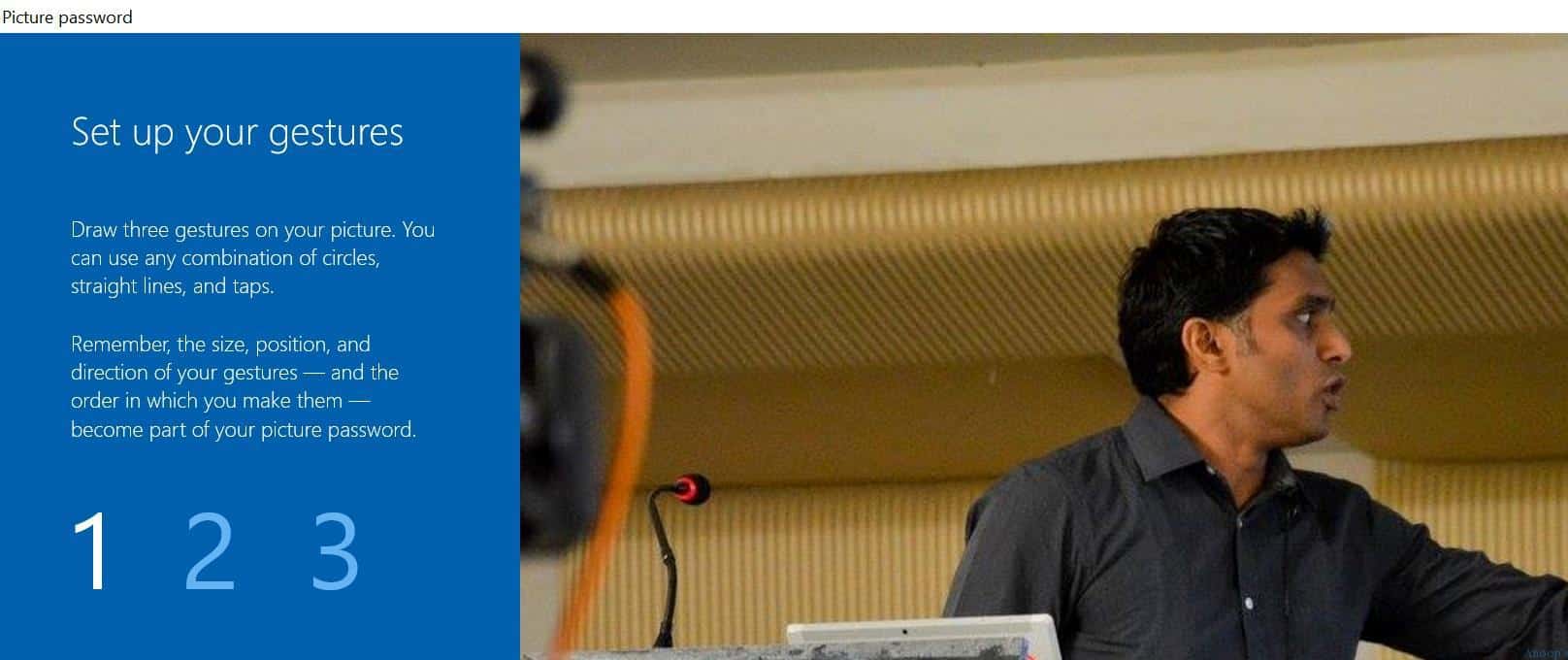
It is recommended to make 3 gestures of your Windows 10 picture password, not very complex like your signature 🙂 Also, it would be best if you remembered the sequence of your gestures.
How to Change or Remove Windows 10 Picture Password:-
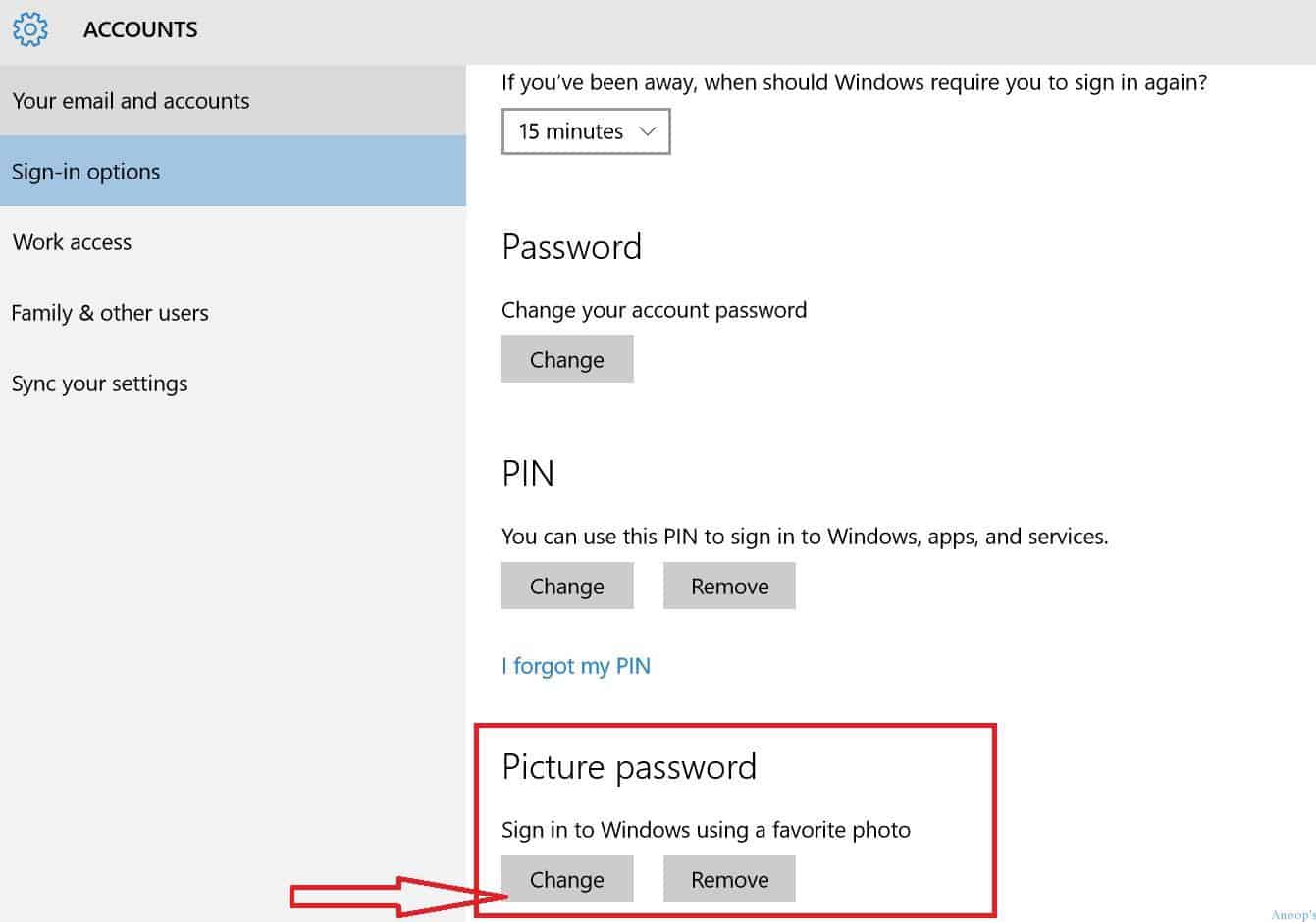
To change the Windows 10 picture password, go to settings –> accounts –> Sign-in Options. Then, as you can see in the following screen capture, click/Tap on the Change button. To remove the Windows 10 picture password, click the REMOVE button.
How to Setup Change Windows 10 Picture Password
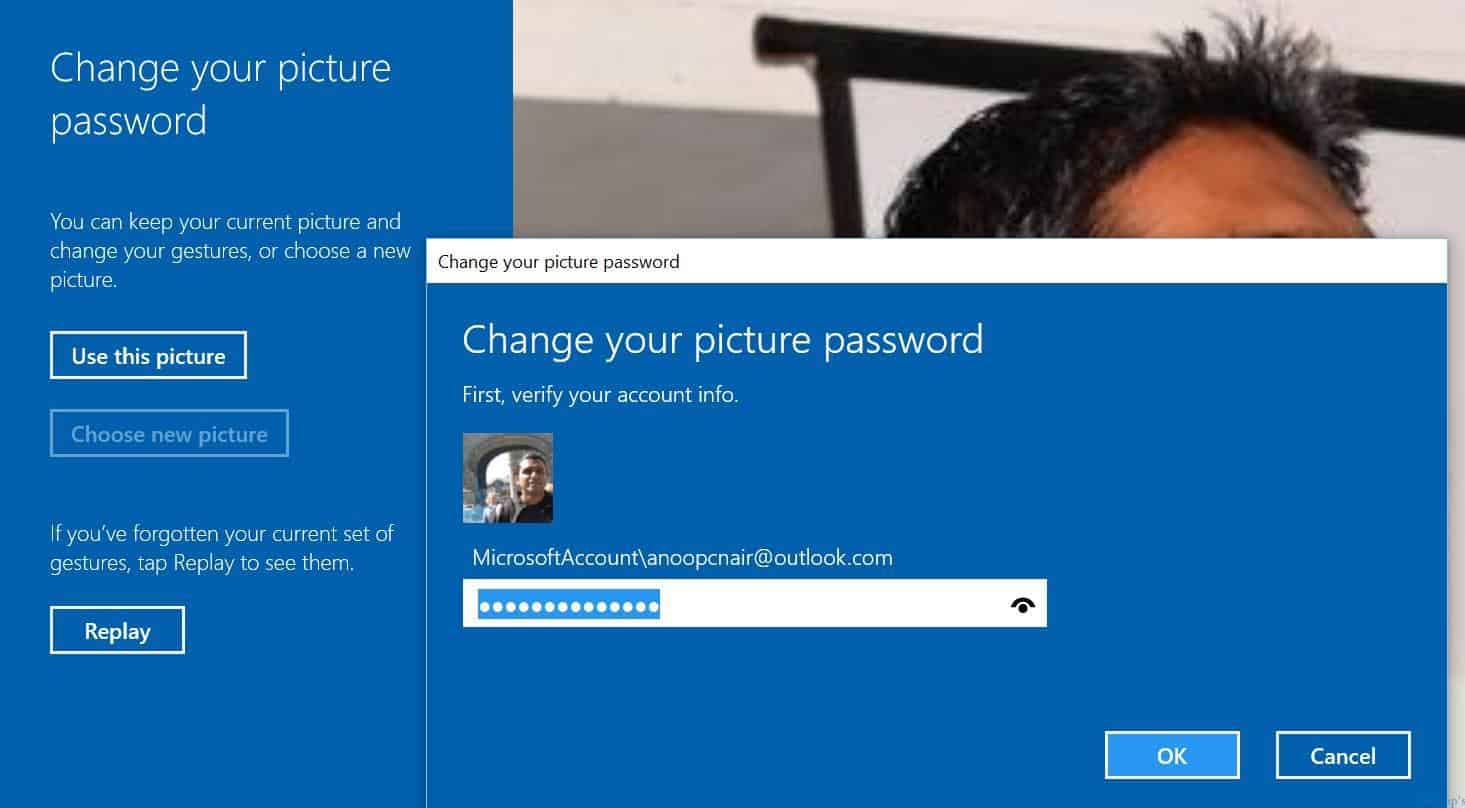
While changing the picture password, Windows 10 will ask for the Microsoft account password. You can keep your current picture and change your gestures or choose a new picture. Also, from this page, you can replay your 3 gestures if you have forgotten the Windows 10 picture password gestures !!
Resources
SCCM Related Posts Real World Experiences Of SCCM Admins (anoopcnair.com)
SCCM Video Tutorials For IT Pros – HTMD Blog #2 (howtomanagedevices.com)
We are on WhatsApp now. To get the latest step-by-step guides, news, and updates, Join our Channel. Click here. HTMD WhatsApp.
Author
Anoop C Nair is Microsoft MVP! He is a Device Management Admin with more than 20 years of experience (calculation done in 2021) in IT. He is a Blogger, Speaker, and Local User Group HTMD Community leader. His main focus is on Device Management technologies like SCCM 2012, Current Branch, and Intune. He writes about ConfigMgr, Windows 11, Windows 10, Azure AD, Microsoft Intune, Windows 365, AVD, etc.



really informative